
New Library
To start using WonderPen, you first need to open or create a Library.
Create New Library
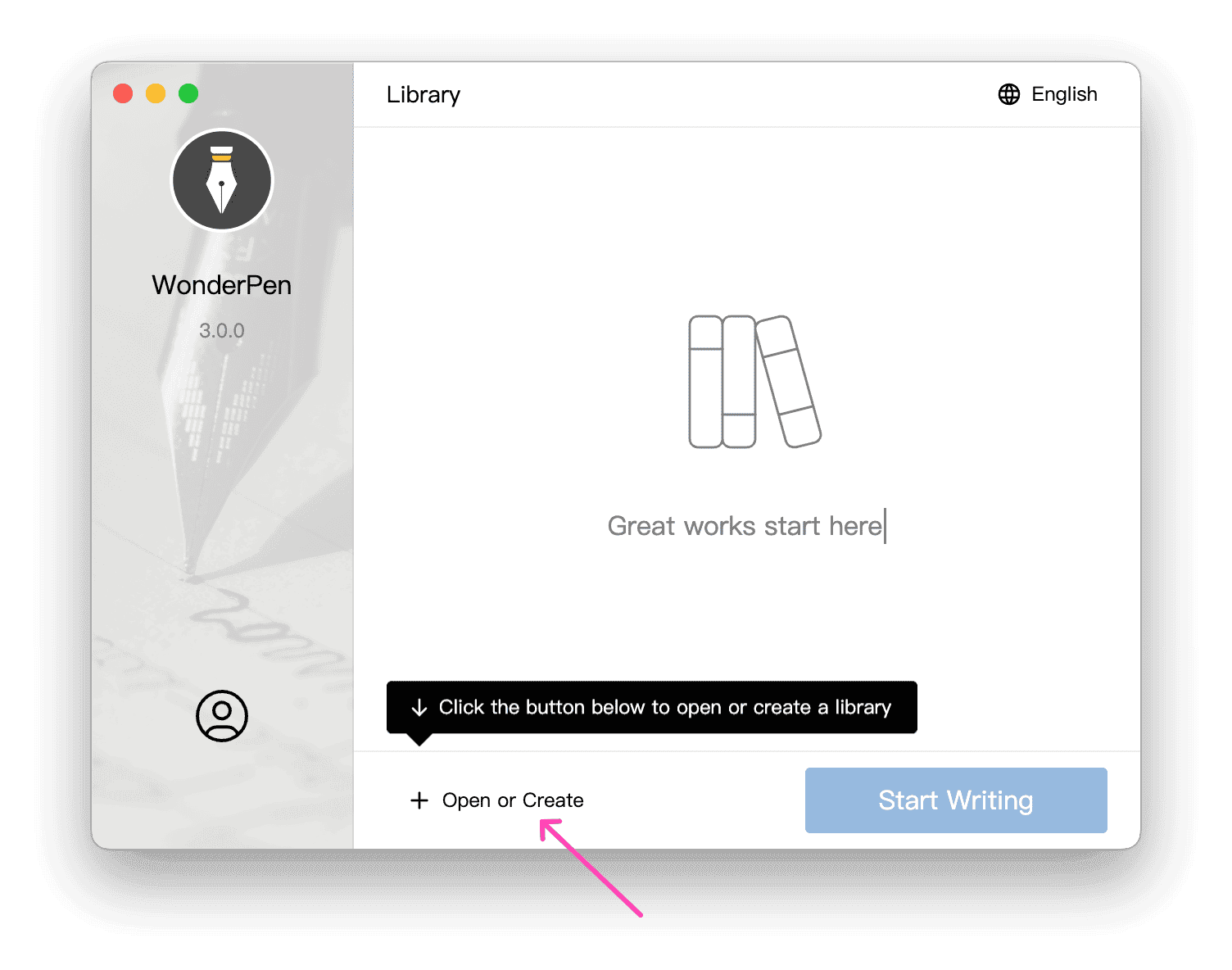
If you have just installed WonderPen, click the +Open or Create below the startup window:
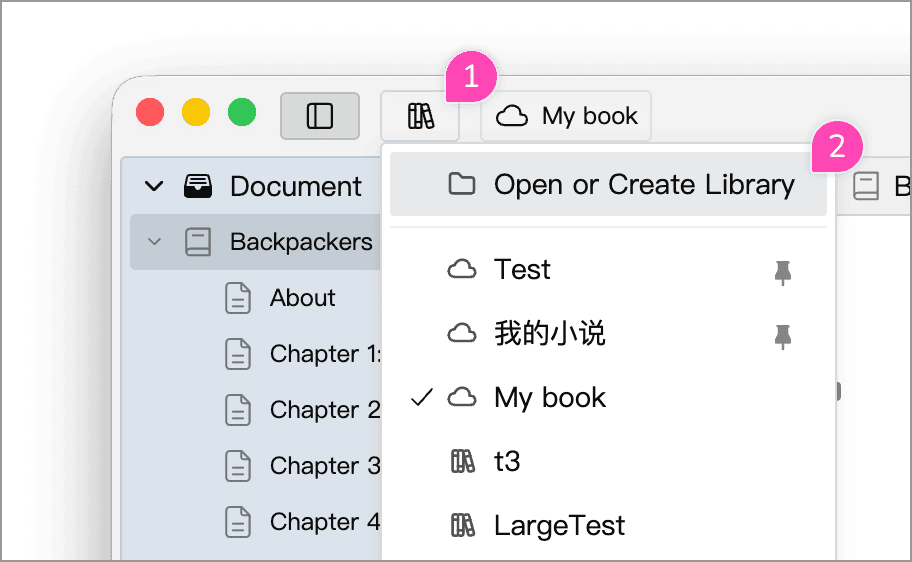
If you already have a Library open, click the Library button in the upper-left corner, then select Open or Create a Library from the pop-up menu:
This opens a dialog:
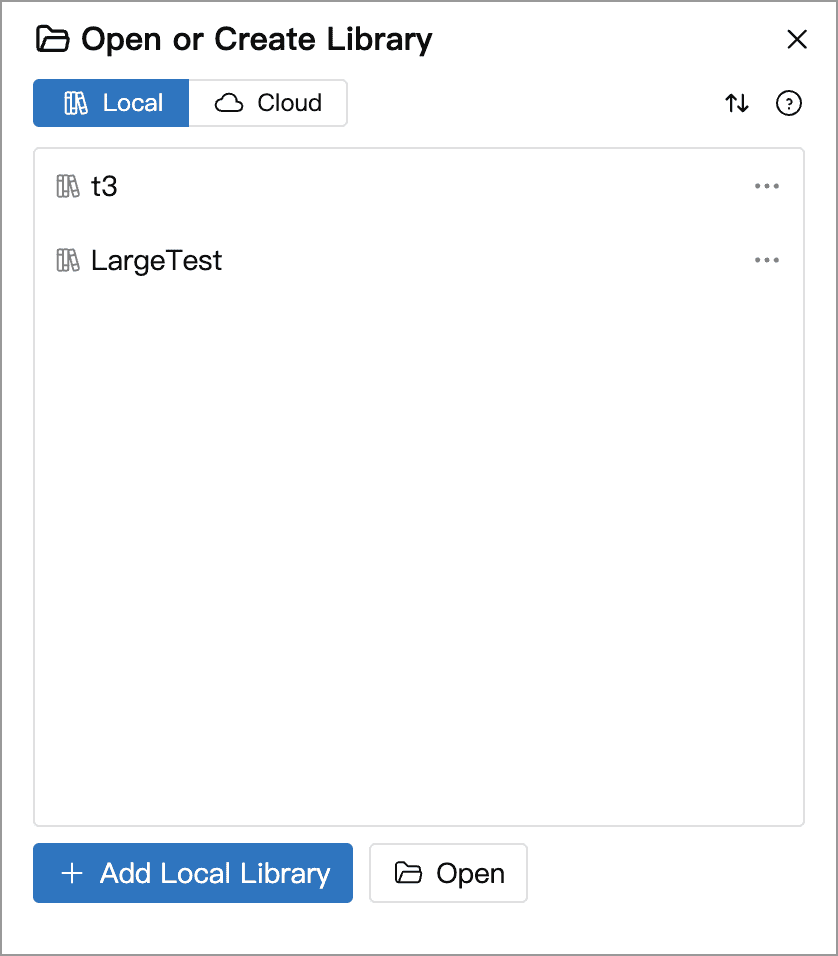
You can choose to create a Cloud Library or Local Library.
The File menu in the top toolbar also includes Open or Create a Library, which has the same function as the menu item above.
Cloud Library
The contents of a Cloud Library are synchronized to WonderPen's servers, so that you can keep your writing in sync across multiple devices.
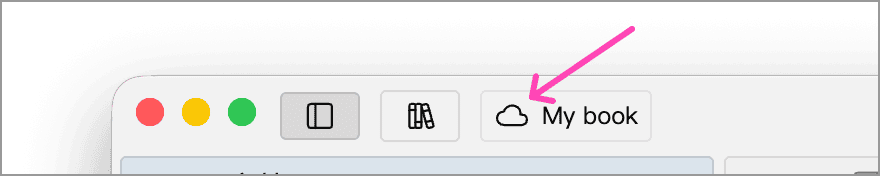
After opening a Cloud Library, a cloud icon appears before the Library name in the top bar:
Cloud Libraries and Local Libraries work almost identically day to day. Most of the time, you will not notice a difference because synchronization runs silently in the background. When document content changes, it syncs to the cloud automatically. Cloud Libraries also periodically check for cloud updates and download them locally when available.
If synchronization fails, the cloud icon is crossed by a red slash:
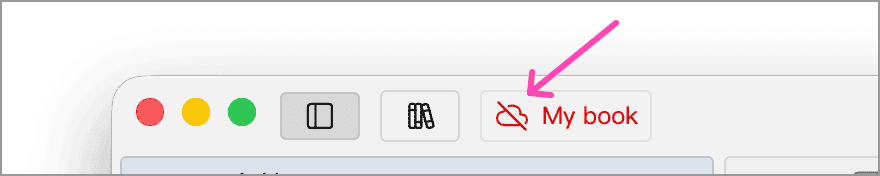
To reduce distractions, WonderPen does not include a dedicated sync-status indicator. Synchronization is assumed to succeed by default, and a status is shown only when it fails. With a working network, changes sync to the cloud within a few seconds.
WonderPen also follows a local first design principle. The Cloud Library you are editing has a complete local copy, and all operations are performed on that copy before synchronizing asynchronously in the background. If your device temporarily loses network access, you can still view and edit documents. All changes sync to the cloud automatically when the network is available again.
Try to avoid editing the same Library on multiple devices at the same time, as this can cause synchronization conflicts. If a conflict occurs, you can usually find lost data that has been overwritten by the cloud in backups, document snapshots, or the Recycle Bin.
Local Library
Local Library data is stored entirely on your device. When creating one, choose a local folder in which to save it. Choose a Local Library if you do not want to sync your writing data to the cloud.
There is no limit on the number or capacity of Local Libraries. You can create as many Local Libraries as you want, and each can contain any number of documents; the only practical limit is the size of your local disk.
If you use a Local Library, remember to back up your data to prevent loss caused by disk failures, system crashes, or reinstalling your system. See Backup and Restore for details.
More
You can keep all your writing in one Library and use different folders (nodes) for different works. Or, you can create multiple Libraries and keep different works in each one. Either organization works; it depends on your preferences.
TIP
Library folder names usually end in .wplibrary.
When creating a Local Library, do not place it in WonderPen's installation directory. WonderPen clears the installation directory during uninstalling, reinstalling, or upgrading, which would also delete the Library.
In general, do not store data files together with application files.
WARNING
Do not place a Local Library in WonderPen's installation directory.