
Highlight Cards
Use Card List to keep character profiles and notes about places and props. Highlight Cards displays matching card titles as colored, underlined text in the editor. Click a highlighted name to view its card while writing.
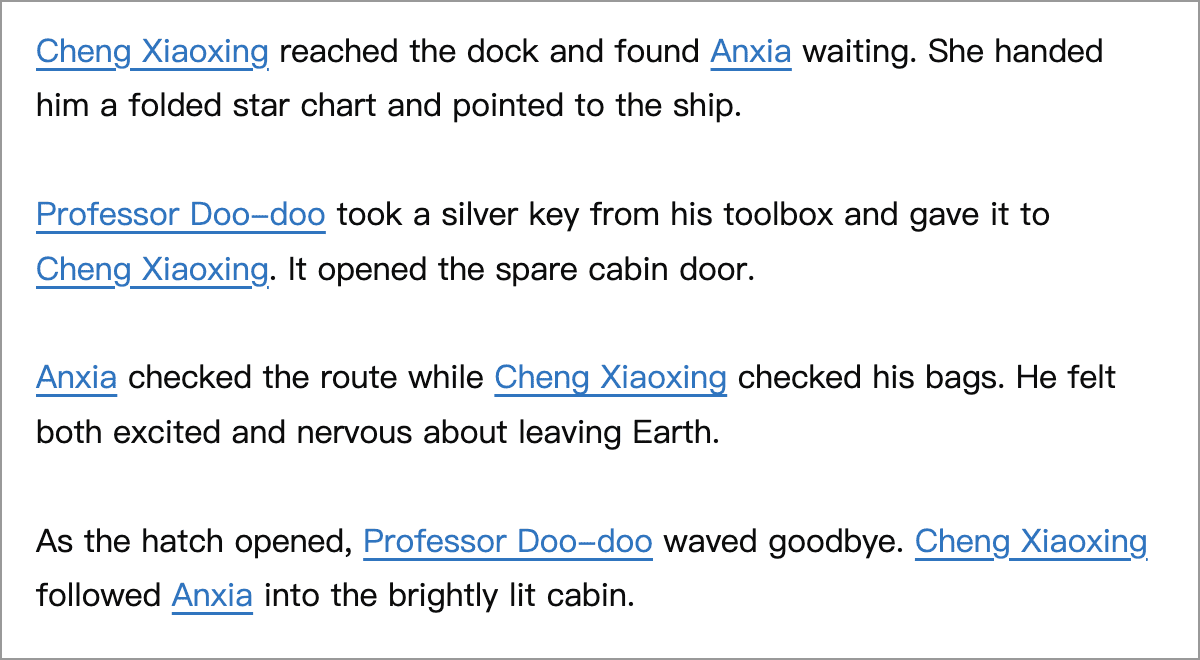
In this example, Cheng Xiaoxing, Anxia, and Professor Doo-doo appear throughout the text. Each matching name is highlighted; click any occurrence to view that character’s card.
Prepare Cards
Create a list such as “Characters”, use each character’s name as a card title, and put their background and personality in the card’s body:
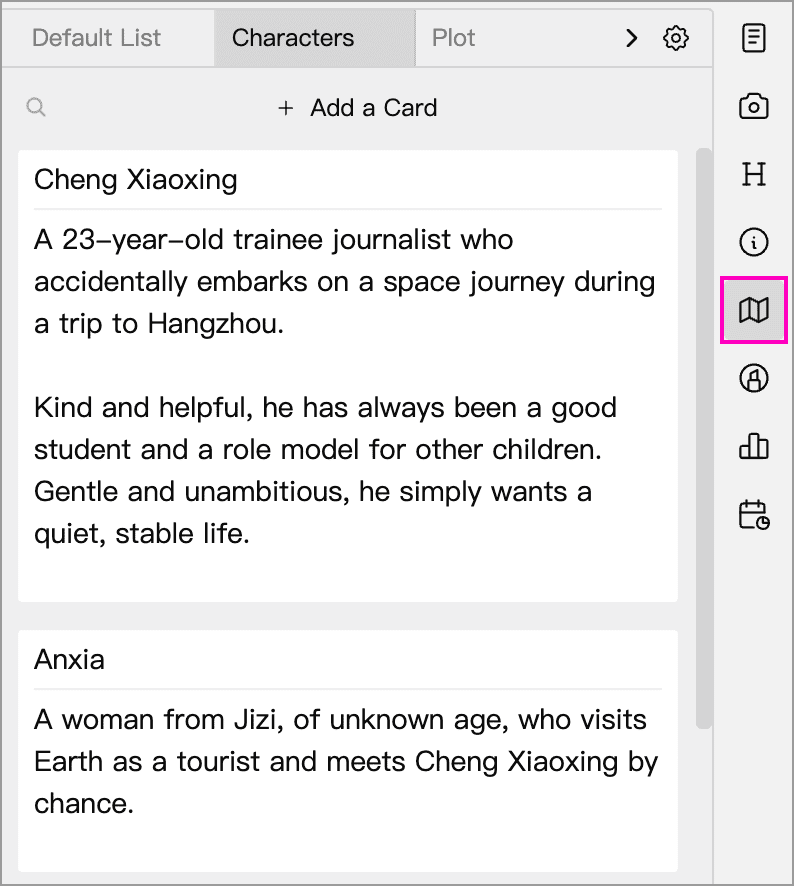
The card title is the text to match. Choose recognizable names or places rather than common words such as “he” or “she”. The spelling in your text must match the title, including capitalization. Words that appear only in a card’s body are not used as highlighted keywords.
Enable Highlighting
- Click the Cards panel’s gear button, then Settings beside Highlight Cards.
- Enable Highlight card titles in the editor.
- Select the lists to highlight, such as “Characters”.
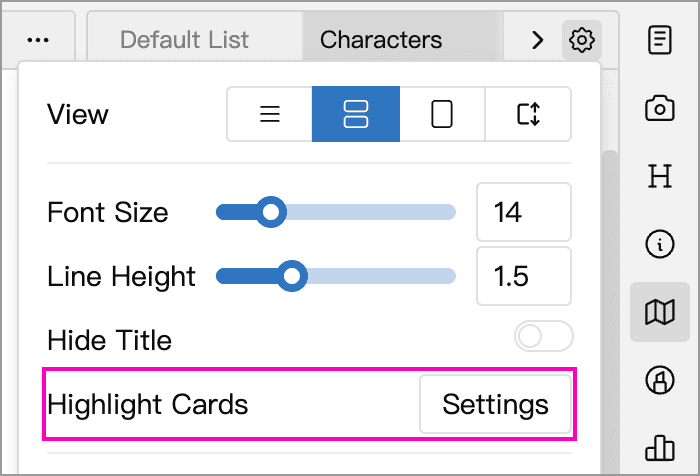
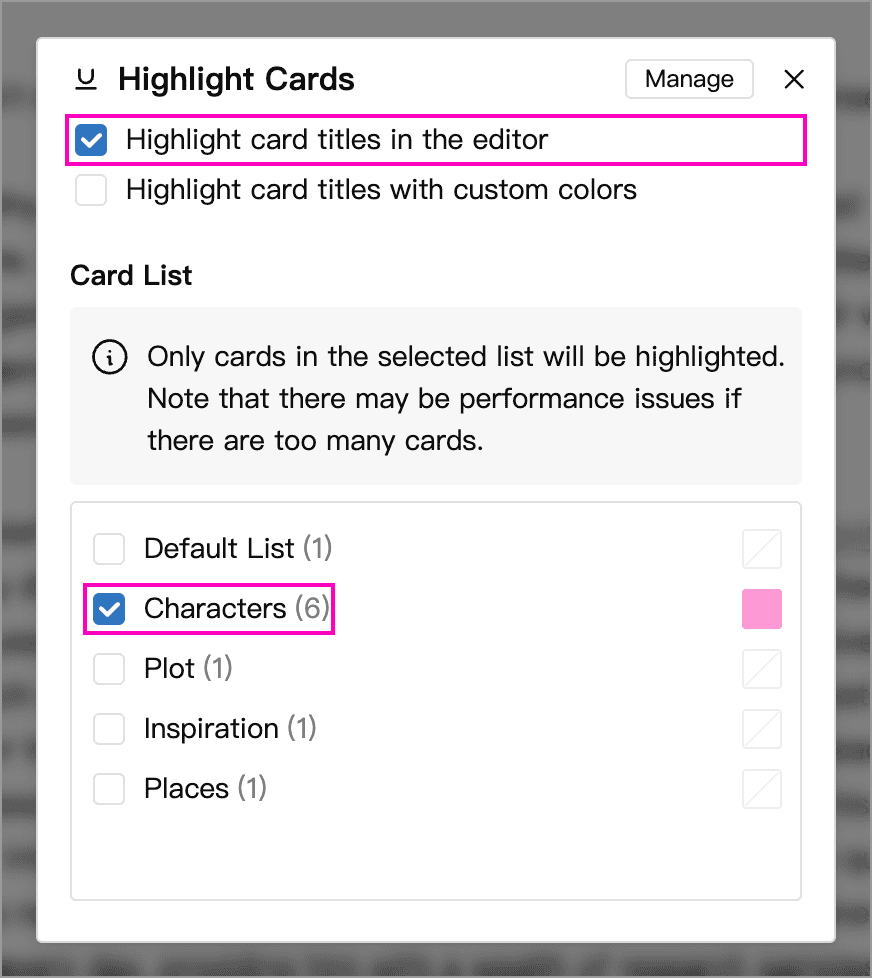
The settings window shows lists from the current group, and the highlighting scope changes with that group. If a list is missing, or you want to highlight cards across groups, choose All Lists from the Cards panel’s gear menu, then reopen the highlighting settings and select the lists you need.
Only cards in the selected lists are used for highlighting. Select only the lists you need to reduce visual clutter and avoid slowing down the editor when you have many cards. Lists selected for highlighting always show card titles, even when Hide Title is enabled in the Cards panel.
View and Edit Cards
Click a highlighted name in your text to open its character card nearby:
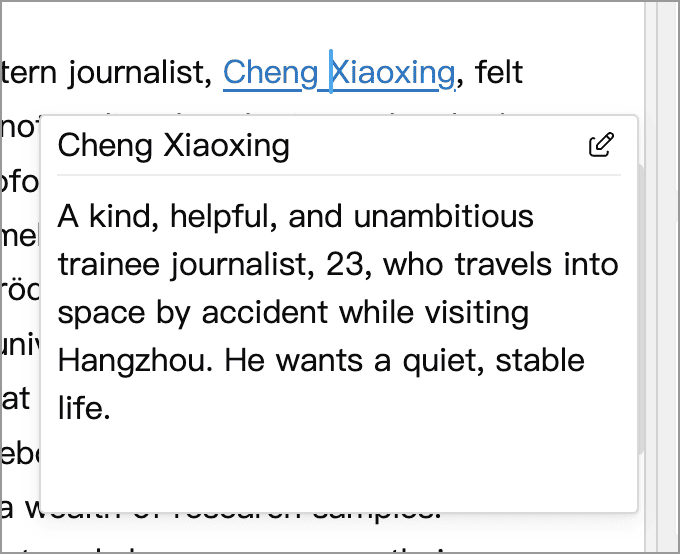
- Scroll within the popup to read longer content.
- Click the edit button in the upper-right corner to edit the card.
- If multiple cards in the selected lists share the same title, the popup shows a count and arrow buttons to switch between them.
- Click outside the popup to close it and continue writing.
If nothing is highlighted, check the main switch, current group, selected lists, and whether the text matches a card title exactly.
Custom Colors
Enable Highlight card titles with custom colors in the highlighting settings, then click the swatch beside a list to choose a color. The color applies to every card in that list. For example, give the “Characters” list a pink highlight to distinguish it from other lists.
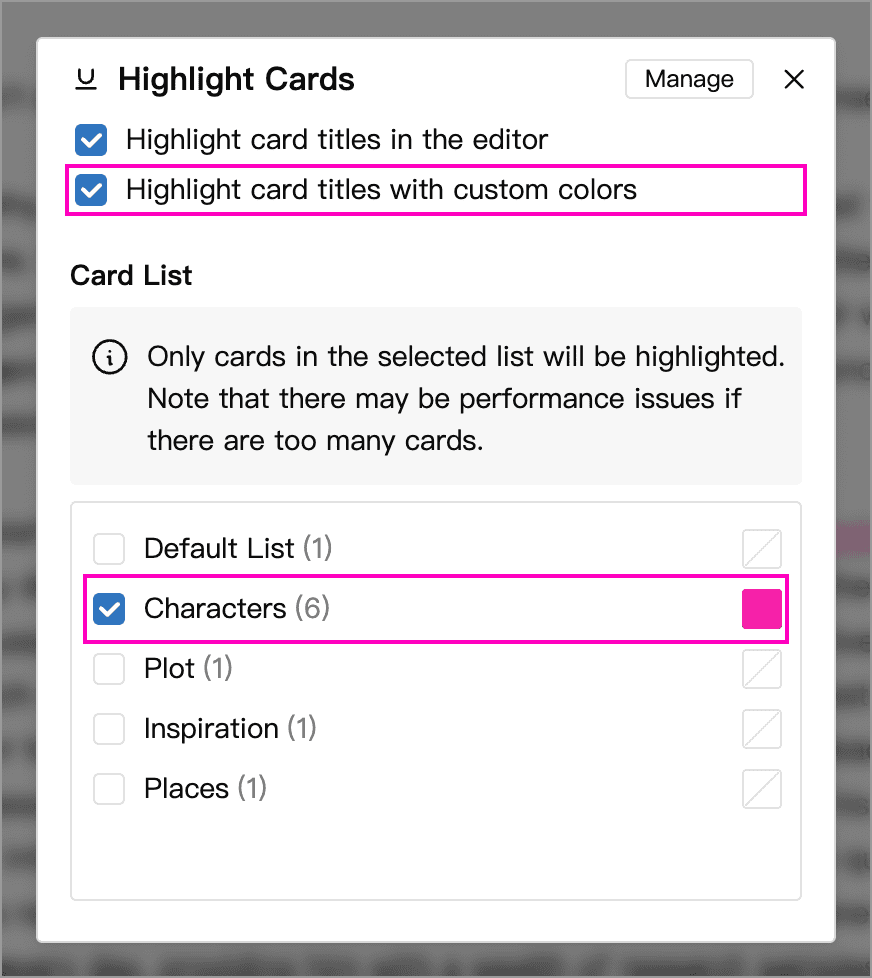
Right-click a swatch and choose Reset to Default to clear that list’s custom color. Turn off Highlight card titles with custom colors to use the default highlighting style for all lists while keeping card highlighting enabled.
Create Cards While Writing
Select a short, single line of text in the editor, right-click, and choose Add a Card (as title). In the dialog, choose the destination list, complete the card’s body, and confirm. Add the card to a list selected for highlighting to access it through its title in your text.
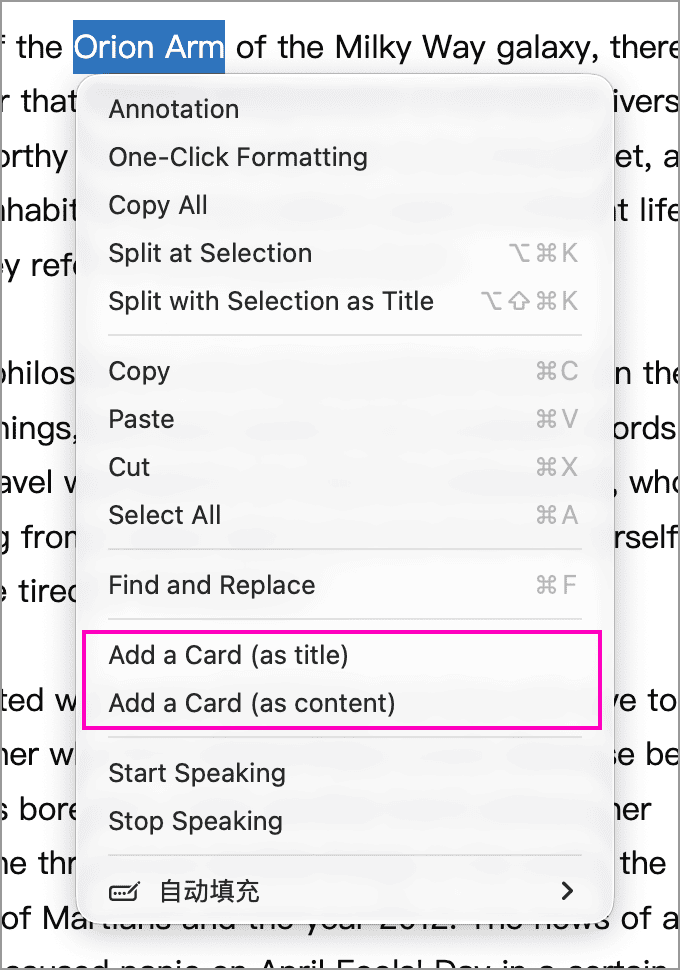
If you have selected a passage of reference material, choose Add a Card (as content) instead, then give the card a title to match. See Add and Edit Cards for more details.
See Card List for list management, groups, and export.