
Library
A Library is where WonderPen stores documents, whiteboards, cards, and other content. To start writing, create a Library or open an existing one.
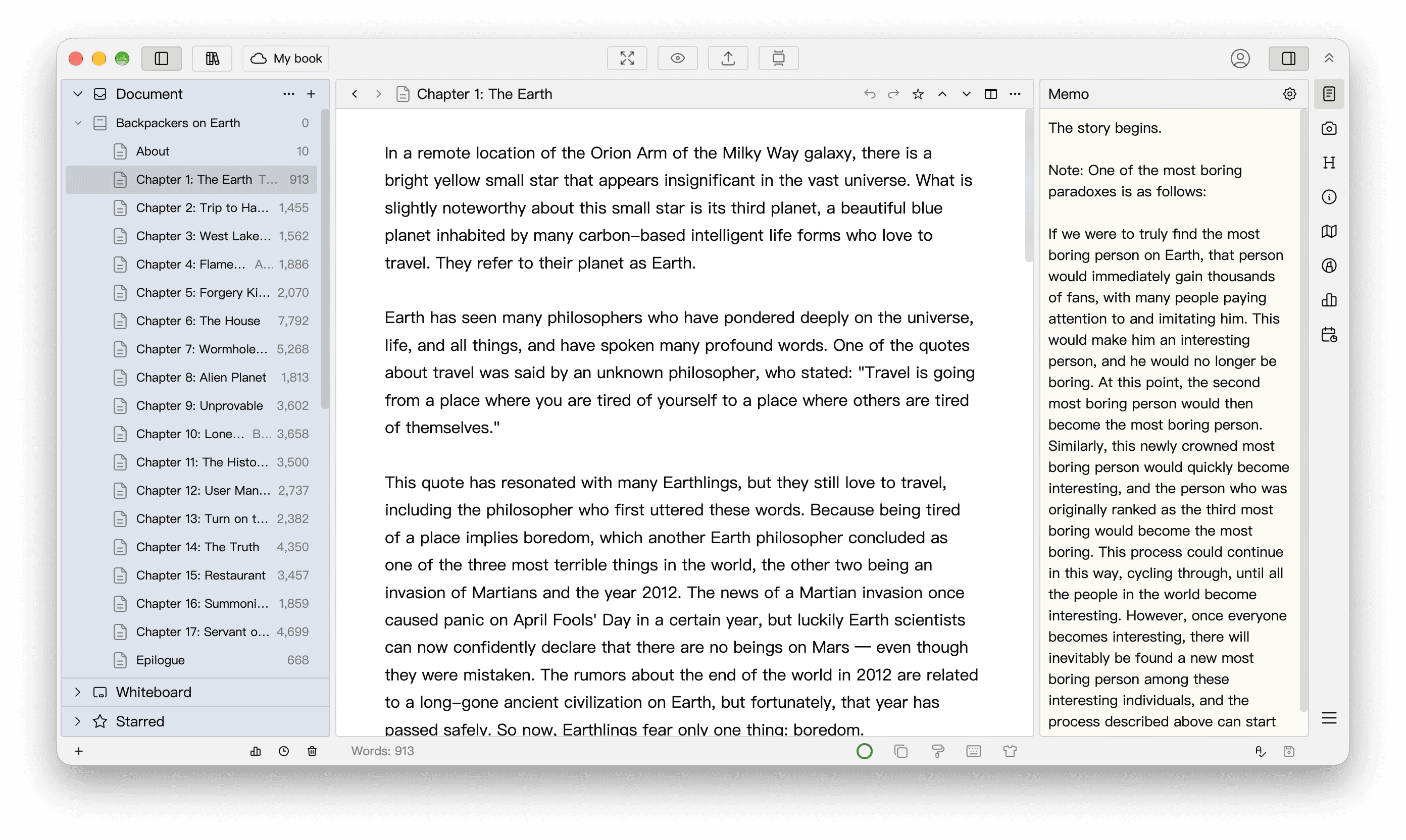
One Library or several?
Keep all your work in one Library and organize it with the directory tree, or create separate Libraries for different works to manage their documents, whiteboards, and reference material independently. Choose whichever suits your writing habits.
Cloud Libraries and Local Libraries
There are two types of Library, Cloud and Local, and you can use both.
| Cloud Library | Local Library | |
|---|---|---|
| Where data is stored | A local copy synchronized with WonderPen's servers | The local folder you choose |
| Sync across devices | WonderPen cloud synchronization | No automatic synchronization |
| Sign-in required | Yes | No; also available in Offline Mode |
| Storage and allowances | See the plan comparison and the app | Uses local disk space, not cloud allowances |
Choose a Local Library to write on your computer, or a Cloud Library to synchronize automatically across devices. You can also convert between Local and Cloud Libraries later.
Cloud Library
A cloud icon appears before the current Library name in the top bar:
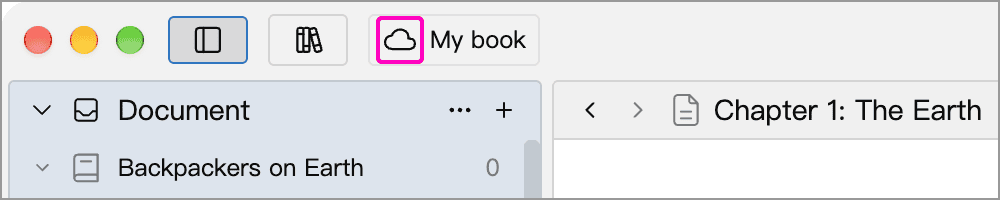
Once downloaded, a Cloud Library can be edited offline and will resume syncing when you reconnect. Opening a Library that has not yet been downloaded requires a network connection. See Cloud Synchronization for status messages, manual synchronization, and precautions, or Sync Conflicts if a conflict occurs.
Local Library
A Local Library is a regular folder on your computer, usually ending in .wplibrary. Its data stays in that folder and is not uploaded to WonderPen's servers.
Choose a Safe Location
Do not put a Local Library in WonderPen's installation directory, which may be cleared during uninstalling, reinstalling, or upgrading. Do not place it directly in a third-party cloud drive's sync folder, where file conflicts can cause corruption. To keep a copy in a cloud drive, store extra backups there.
Create a Library
Open the "Open or Create Library" window
In the start window, click Open or Create:
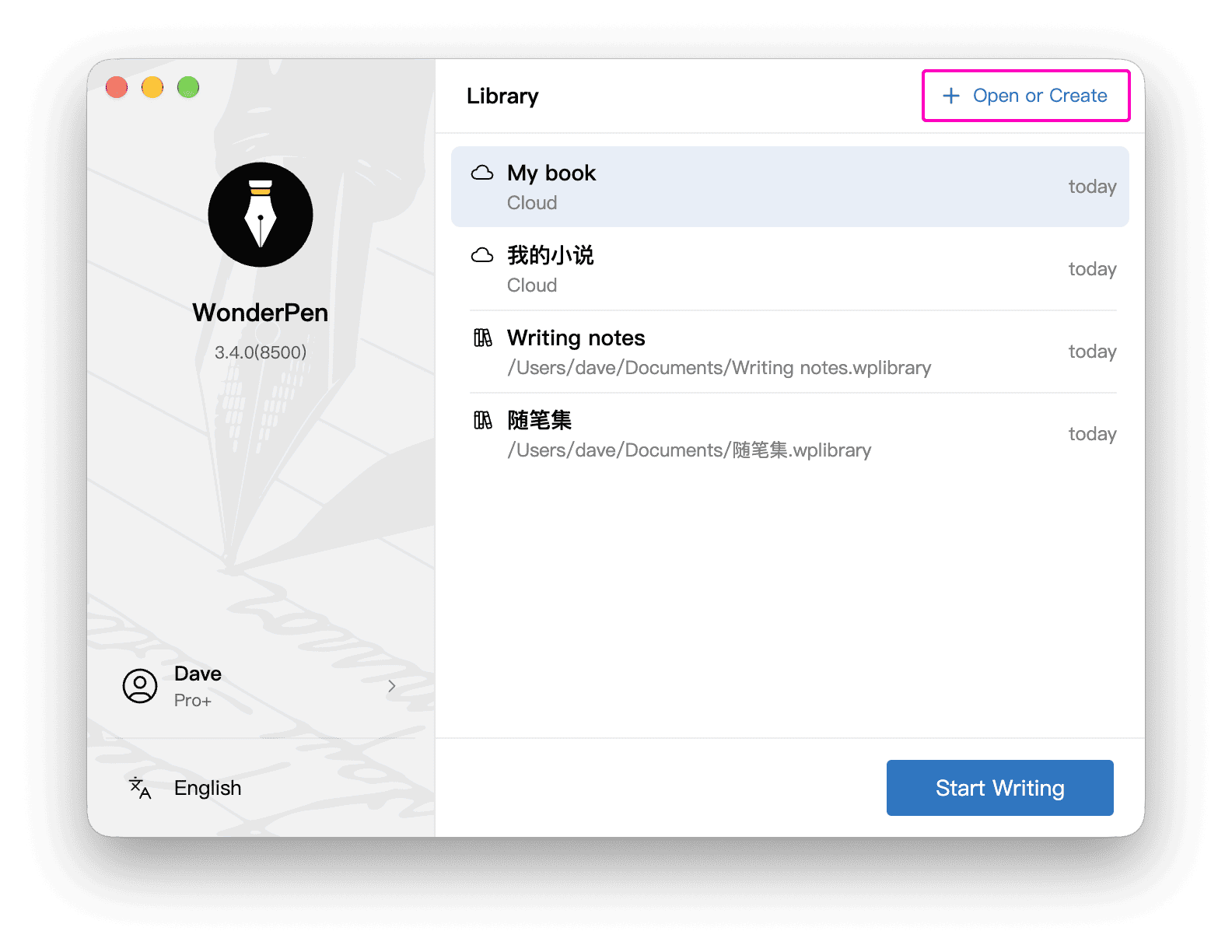
The start window lists recently opened Libraries, including both Local and Cloud Libraries. Select one and click Start Writing, or double-click it to open it.
If a Library is already open, click the Library button at the upper left of the main window and choose Open or Create Library:
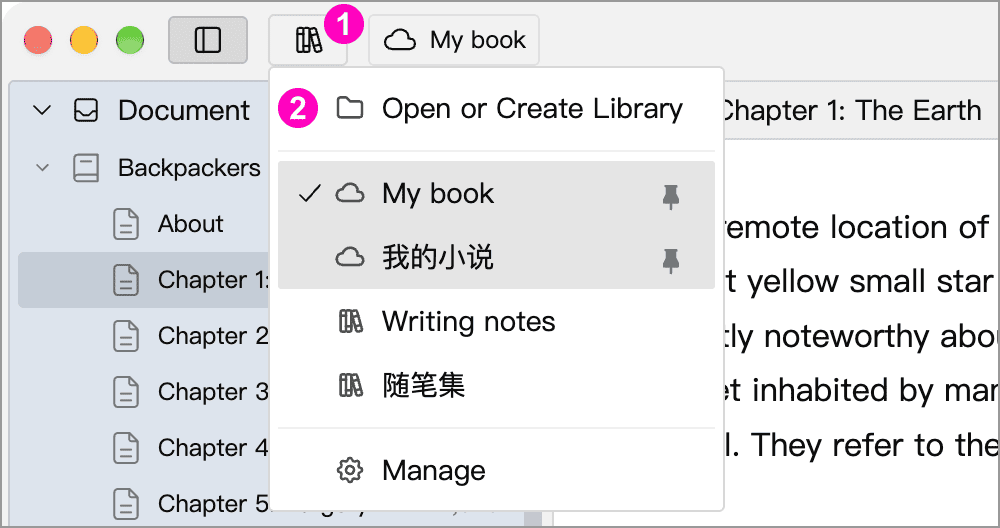
You can also choose File → Open or Create Library, or press Ctrl + Shift + O (⌘ + Shift + O on macOS).
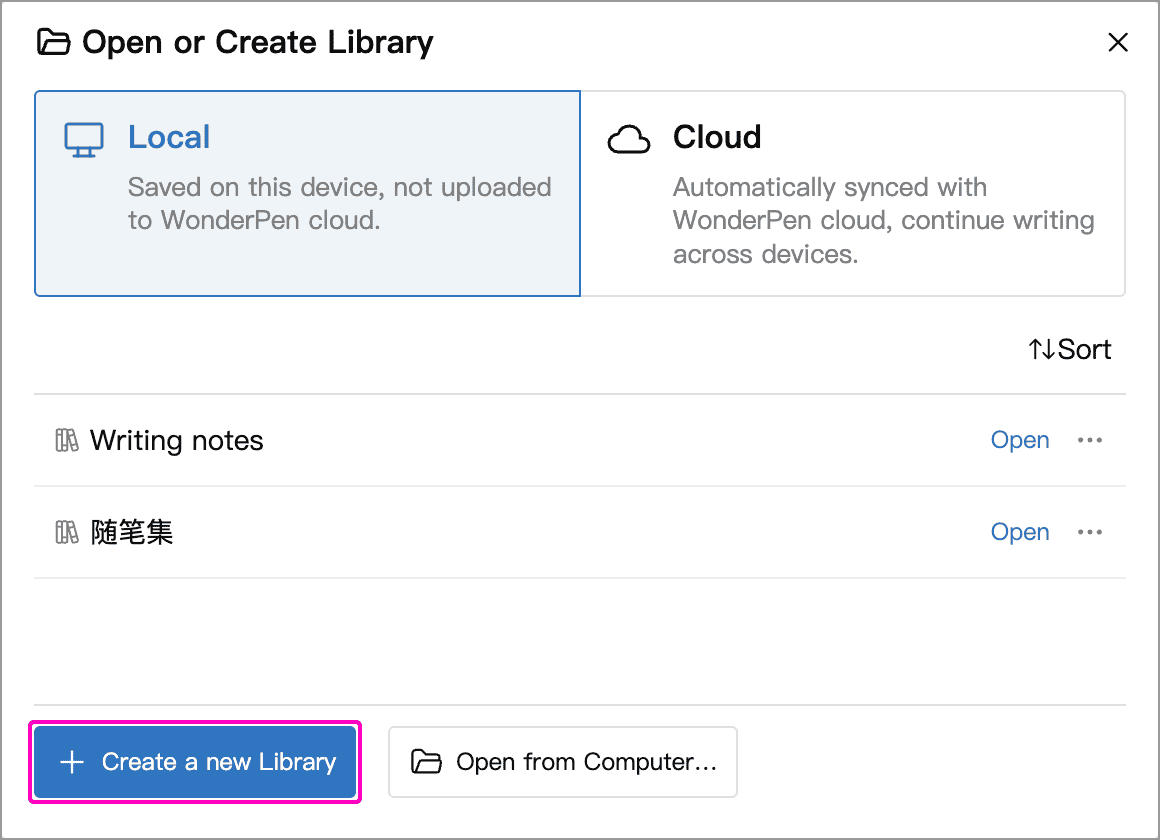
Choose Local or Cloud at the top to list Libraries of that type.
Create a Local Library
- Select Local at the top of the window.
- Click Create a new Library.
- Enter a Library name and choose a save location. The window shows the folder in which it will be created.
- Check the location, then click Create.
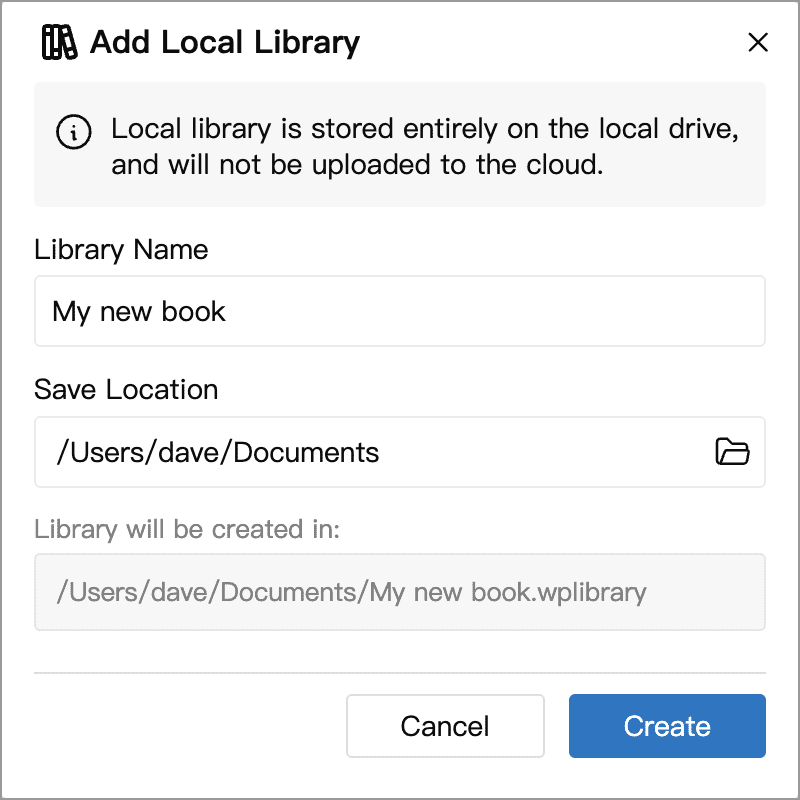
If you choose a location inside the installation directory, the window warns you. Choose another location.
Create a Cloud Library
Sign in to your WonderPen account, then:
- Select Cloud at the top of the window.
- Click Create a new Library.
- Enter a name and click Create.
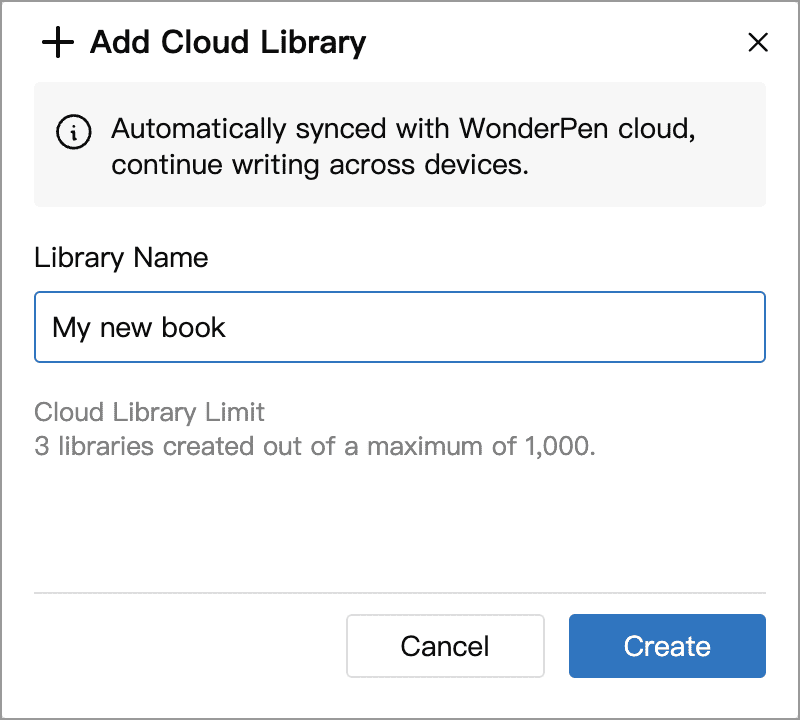
The new Library appears in the cloud list, ready to open. The window shows how many Libraries you have created and your allowance. See the plan comparison for current membership benefits.
Open an existing Library
In the Open or Create Library window:
- Local Library: the list shows recently opened Local Libraries. Double-click one or click Open on its right. If it is not listed, click Open from Computer… and select its
.wplibraryfolder. - Cloud Library: sign in, select Cloud, and open the Library you need. A Library marked (Not downloaded) is downloaded on first opening and requires a network connection.
Switch Libraries
The Library button at the upper left of the main window lists recently opened Libraries. Click one to switch, or choose Open or Create Library to find a Library that is not in the menu.
Open in a new window
In the Library menu at the upper left of the main window, right-click a Library and choose Open in New Window to keep the current window open while opening that Library separately. The list menu in Open or Create Library offers the same command.
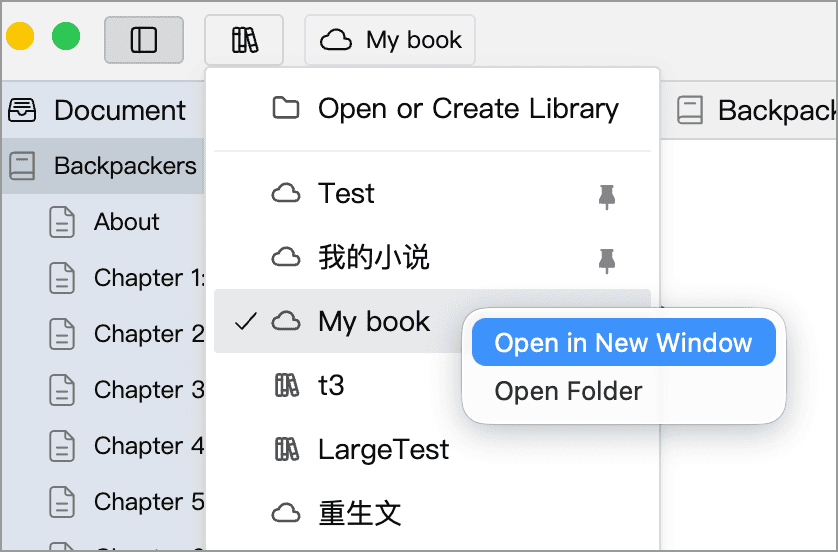
You can open the same Library in multiple windows or use a different Library in each. When windows on the same computer share a Library, changes appear in the other windows, making it convenient to consult reference material while writing.
Manage the Library list
There are two kinds of Library list: the start window and the menu at the upper left give quick access to recently used Libraries; Open or Create Library separates Local and Cloud Libraries and provides commands to open, rename, and delete them.
Pin frequently used Libraries
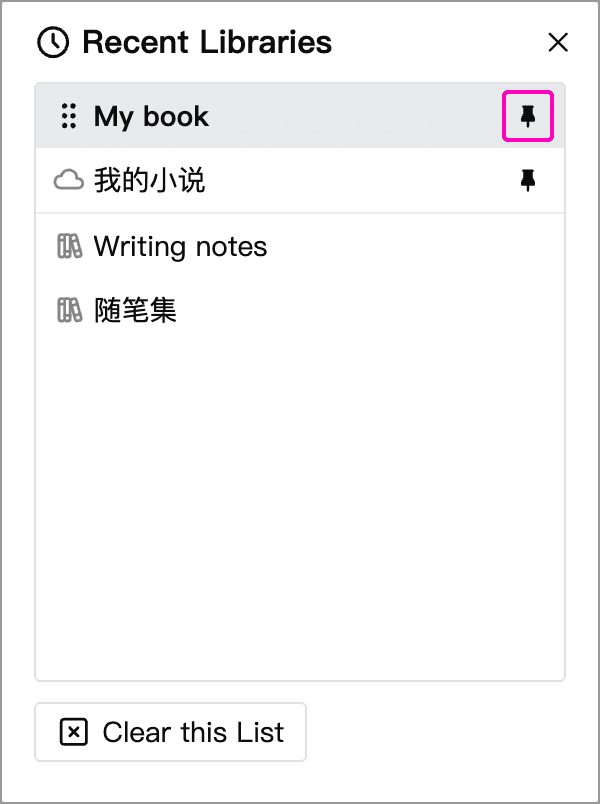
Click the Library button at the upper left, then choose Manage at the bottom to open Recent Libraries:
- Hover over a Library row and click the pin on the right to keep it at the top of the Library menu. Click again to unpin it.
- When several Libraries are pinned, drag the handle on the left of each row to reorder them.
- An unpinned Library that is not currently open can be removed from the list with its
×button. Clear this List clears recent entries and pins without deleting Library data.
Manage and sort by Library type
In Open or Create Library, right-click a Library or click its … button for its commands. Rename applies to Cloud Libraries, and Open Folder applies to Local Libraries.
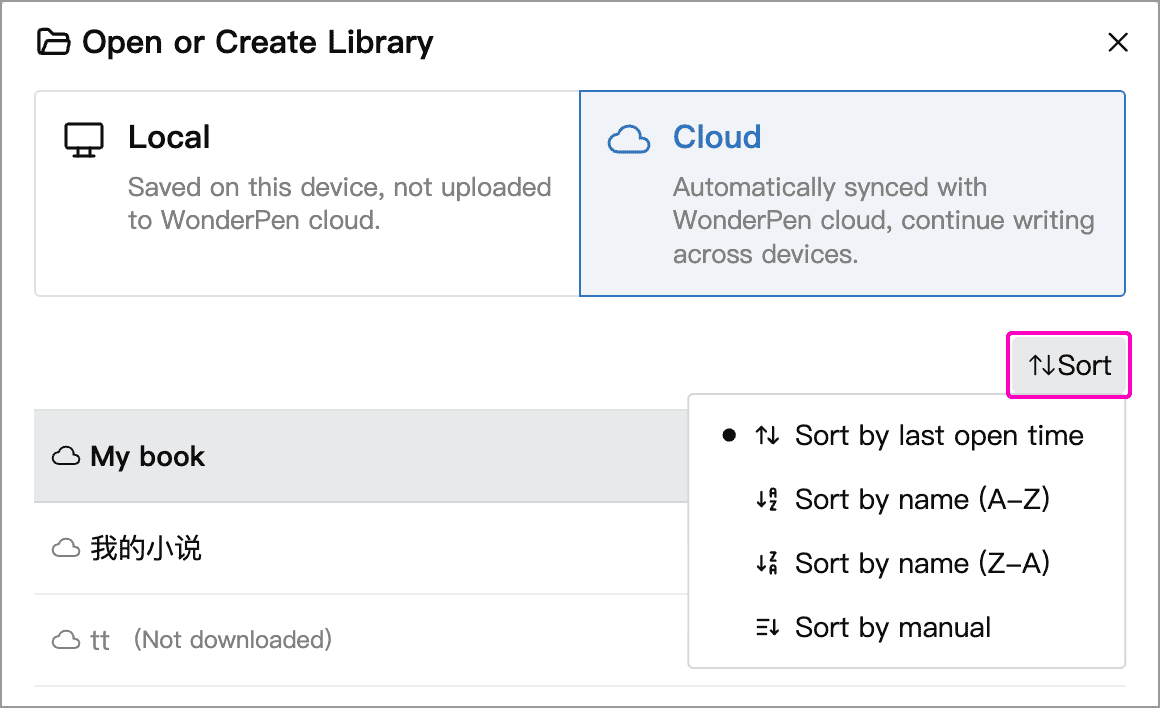
Click Sort at the upper right to sort by last open time or by name in ascending or descending order. Choose Sort by manual, then drag the handles before Library names to reorder them. Local and Cloud lists have separate sort settings.
Library Info
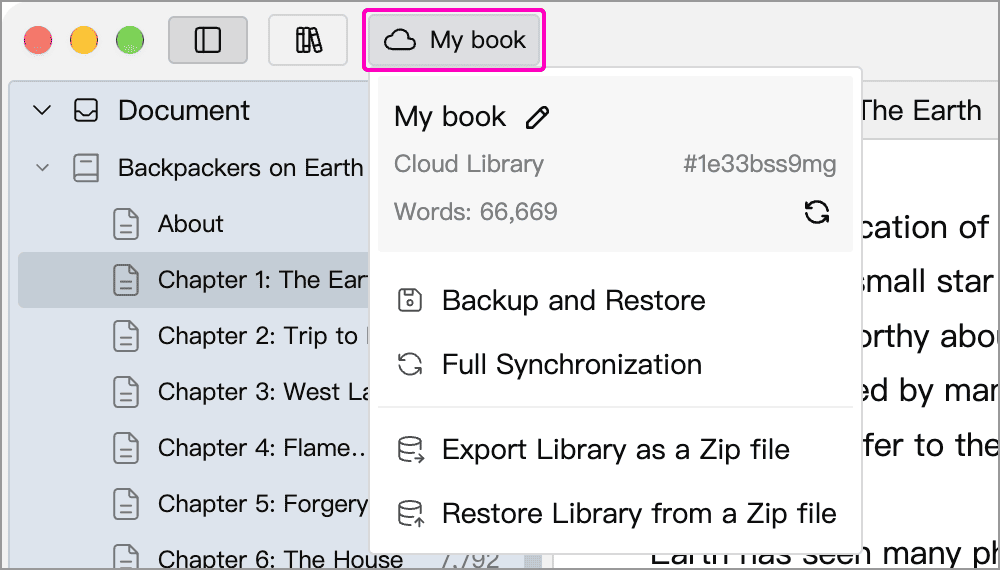
Click the current Library's name in the main window to see its name, type, Library ID (Cloud Libraries only), and total word count. Use the refresh button beside the count to recalculate it. This menu also provides backup, import, and export actions. Cloud Libraries additionally offer Full Synchronization; see Cloud Synchronization for when to use it.
How to move or rename a Library?
Choose Rename from a Cloud Library's list menu, or hover over the name in its information panel and click the pencil icon. Renaming or moving a Local Library involves its folder; follow How to rename a library?.
Remove a List Entry or Delete Data
The removal commands have different effects:
| Command | What it affects |
|---|---|
| Remove from list | Removes an open-history entry without deleting local or cloud data. Both types can be removed from the recent list; reopen a Local Library from your computer or find a Cloud Library in the cloud list |
| Remove library from local | Deletes Library data on this device; a Cloud Library's cloud data remains |
| Remove library from both local and cloud | Deletes data on this device and in the cloud; available for Cloud Libraries only |
You cannot delete the Library currently open in that window from its list; switch to another Library first. A Cloud Library that has not been downloaded has no local copy to remove.
Deleting Library data requires typing its name to confirm. This deletes the entire Library's data, which cannot be recovered from the app's document Trash. First back up anything you need to keep. For Cloud Libraries, synchronize or back up any local changes that have not yet been uploaded.
Backups and Migration
For both Local and Cloud Libraries, keep automatic backups enabled and set up an extra backup location outside the Library folder. See Backup and Restore.
Export the Library as a Zip file
Click the current Library name and choose Export Library as a Zip file to migrate or share it. Use Restore Library from a Zip file in the destination Library to import it. See Export as Zip File for full versus partial exports and what importing overwrites.
To create a readable PDF, Word, or text file, use Export.
The Default Library Deprecated
For older Libraries created in versions 1.x and 2.x
Versions 1.x and 2.x automatically created a Default Library on first launch. See Where are my documents saved? for its location. The old Default Library cannot be moved directly, but you can copy it elsewhere, or export it as a Zip file and import it into a new Library.
Since version 3.0, WonderPen no longer creates a Default Library automatically. Create or open a Library using the steps above. Once you have migrated and retained the content you need, you can delete an unwanted Default Library from the Library list.