
Export as a Zip File
A Zip export packages Library data for backup, migration or sharing with other WonderPen users. Import the file into WonderPen to continue editing.
To read or edit the document content in other applications, export to PDF, Word, text or another supported format.
Open Zip Export
Click the Library name at the top of the main window and choose Export Library as a Zip file.
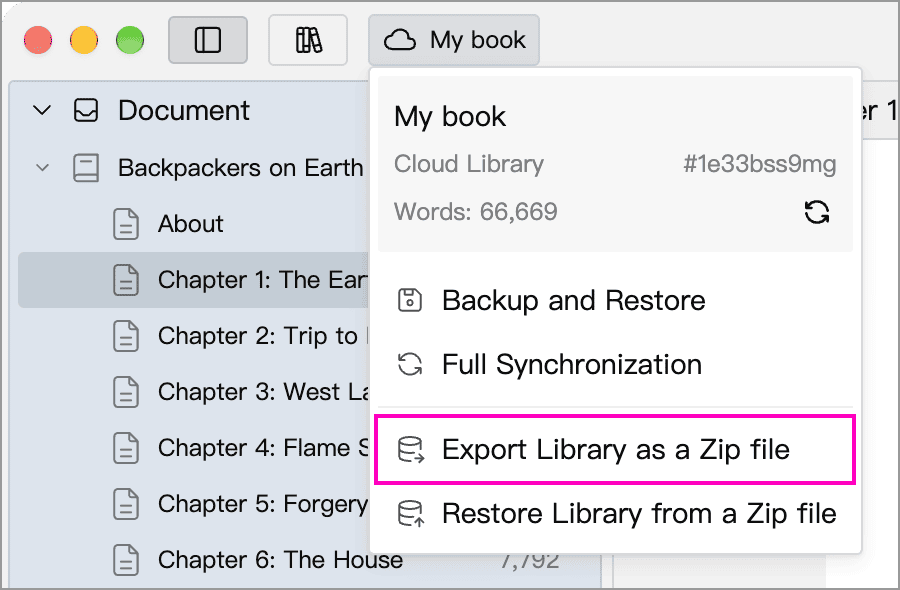
To move between a cloud Library and a local Library, export a Zip file, create a Library of the required type, and import the file there.
Full Export
Choose Full Export, click Export, and choose where to save the file.
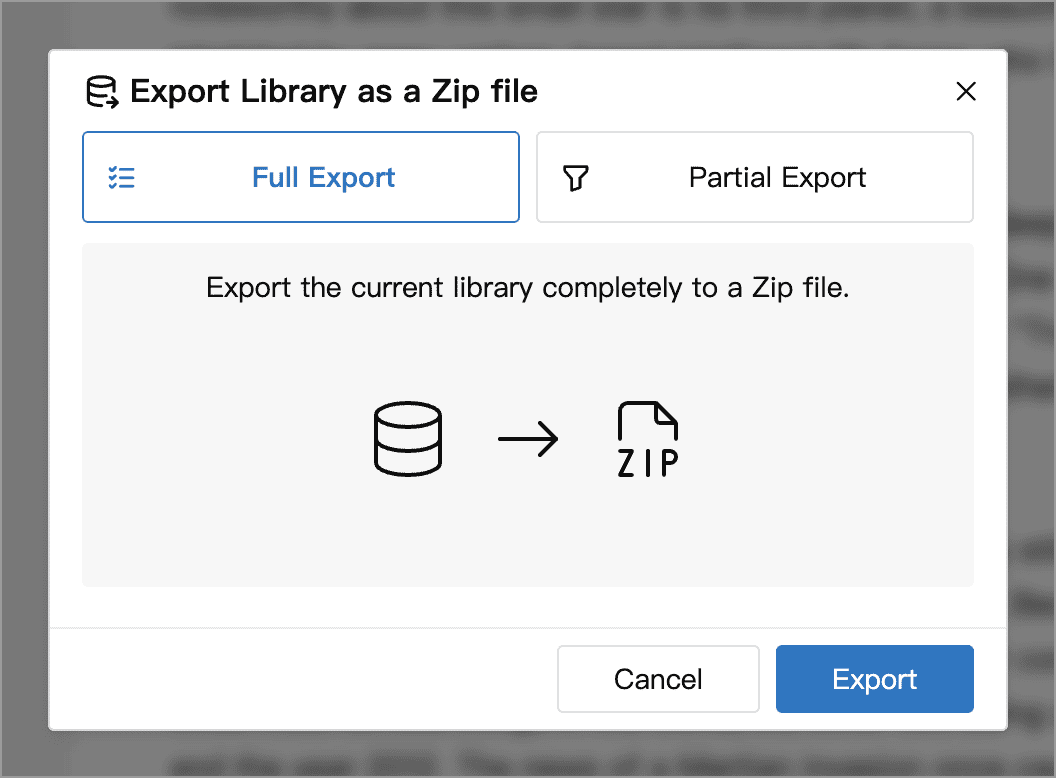
A full export includes document content and memos, the document tree, whiteboards, cards, the Recycle Bin and other Library data, along with Assets available on this device, local snapshots and locally stored writing process recordings. Use it to move an entire Library or save a copy before an important operation.
Full exports do not follow the settings for including local snapshots and writing process recordings in backups. For automatic and manual backup rules, see Backup and Restore.
Partial Export
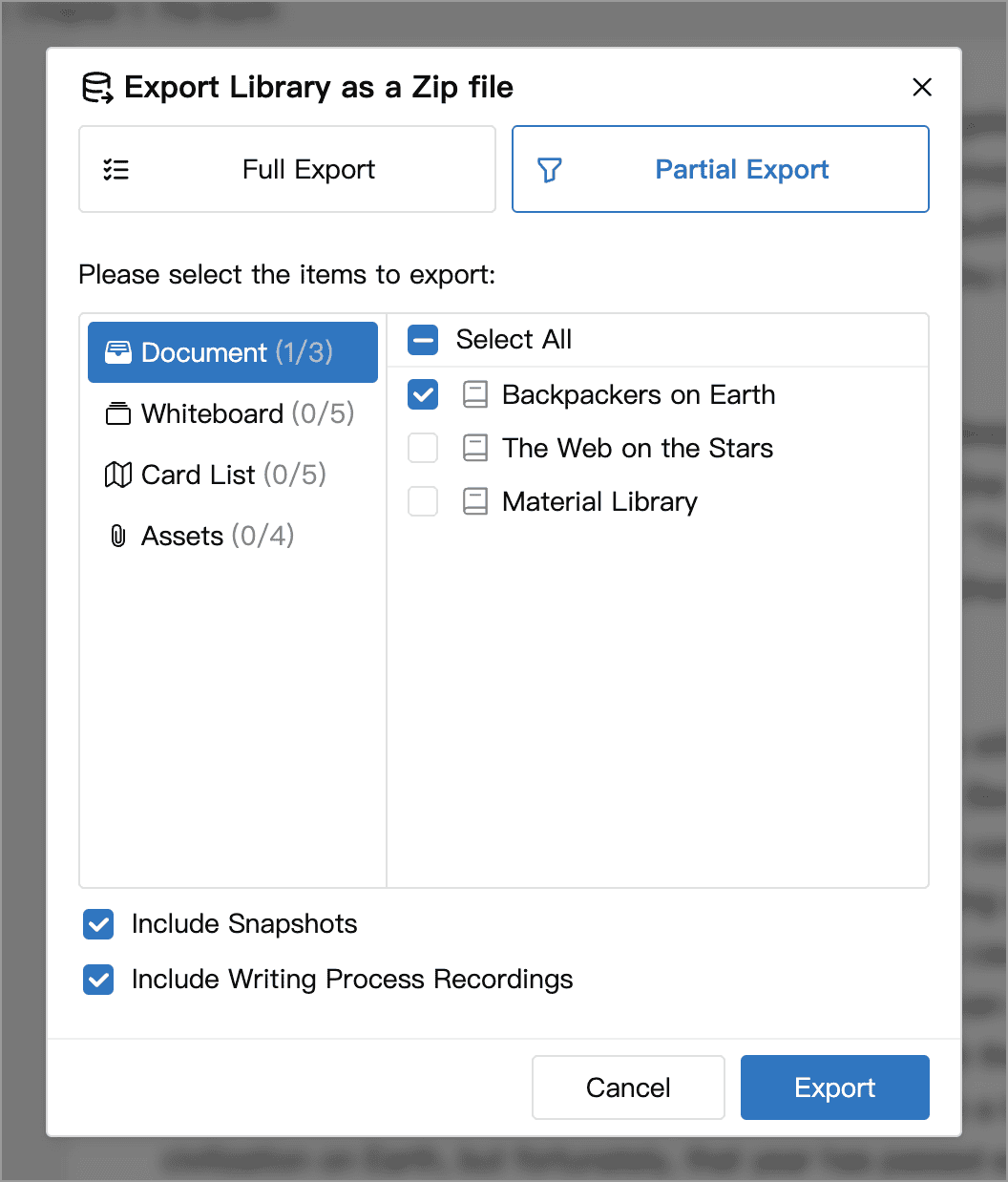
Choose Partial Export, select the content in each category, click Export, and choose where to save the file.
| Category | What is selected |
|---|---|
| Documents | Selected top-level entries in the document tree, including their child documents |
| Whiteboards | Selected top-level entries in the whiteboard tree, their child whiteboards, and the cards on those whiteboards |
| Card Lists | Entire lists, including their cards |
| Assets | Individually selected images and other Assets |
Select All applies only to the current category. Your selections are kept when you switch categories. The numbers beside each category show the selected and total counts.
Partial exports do not automatically include Assets referenced in the content. If the selected documents, whiteboards or cards use images or other Assets, select those files in the Assets category too.
After selecting documents or whiteboards, you can adjust these options:
- Include Snapshots: includes snapshots associated with the selected content.
- Include Writing Process Recordings: includes recordings already on this device for the selected documents.
Check both options before sharing: history may contain text that was later deleted.
Partial export is useful for moving a writing project, a group of whiteboards or selected card lists. Documents and whiteboards can only be selected at the top level; child entries cannot be selected individually. If you only need files containing the text of certain chapters, use the regular Export window to select individual documents.
Check the Export Result
When export finishes, WonderPen displays the result and reveals the Zip file in your file manager. If it reports partial success, check the message and retry as needed; a generated file does not necessarily contain all the requested data.
For both full and partial exports, writing process recordings exceeding the backup size limit shown in the application are omitted. Other Library data can still be exported.
Import into Another Library
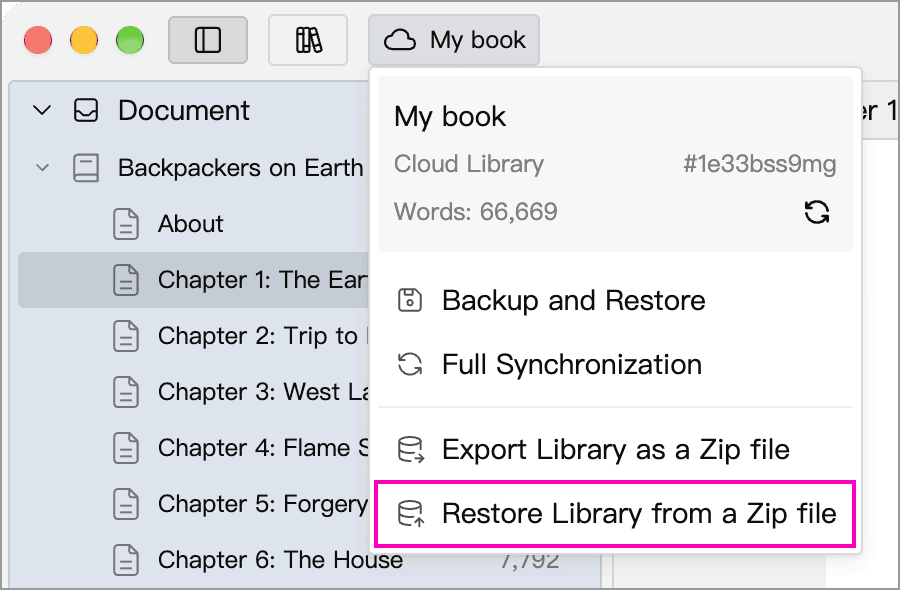
Open the destination Library, click its name at the top, choose Restore Library from a Zip file, and select the exported Zip file directly, without extracting it. Use a file created by WonderPen’s export or backup feature.
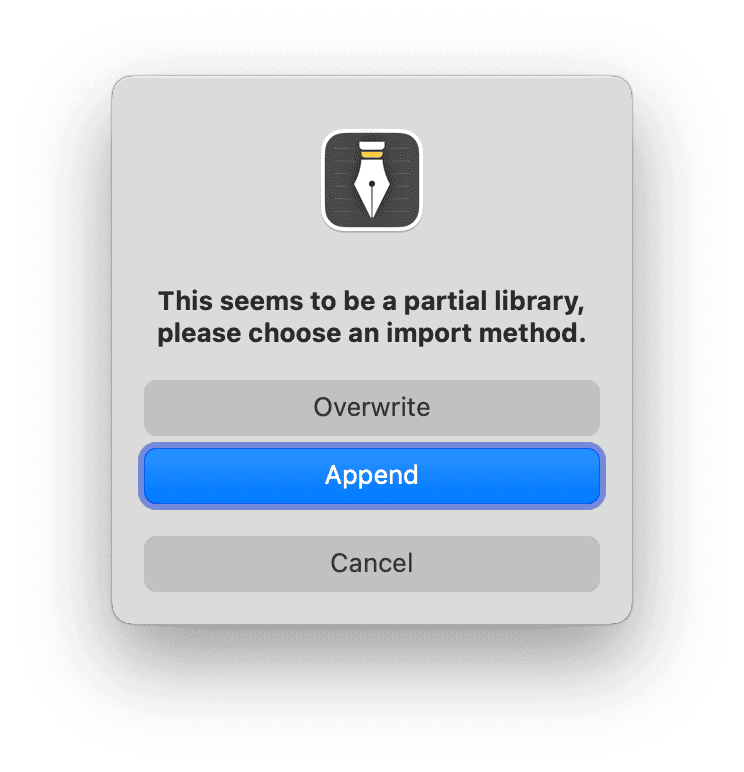
A partial export offers these import options:
- Append: keeps the destination Library's existing content and adds the imported content. Use this to combine Libraries or move part of a work. Appending the same file again adds its content again, creating duplicate entries.
- Overwrite: replaces the destination Library's data with the data in the Zip file; it does not merely replace documents with matching names.
- Cancel: leaves the Library unchanged.
WARNING
Only partial exports offer Append. A full export is imported by overwriting the destination Library, after confirmation. To keep existing content, import into a newly created Library. Back up an existing Library before overwriting it.
To extract selected content from a full export or backup, first import it into a new temporary Library. Make a partial export there, then append that file to the destination Library.