
Use Pandoc
Pandoc is a free document conversion tool. It is not bundled with WonderPen and must be installed separately. WonderPen's Pandoc integration currently exports Word (.docx) files.
For most documents, try the default method in the Export window first. It also supports tables, code blocks and code syntax highlighting. For content such as mathematical formulas, try Pandoc and compare the results.
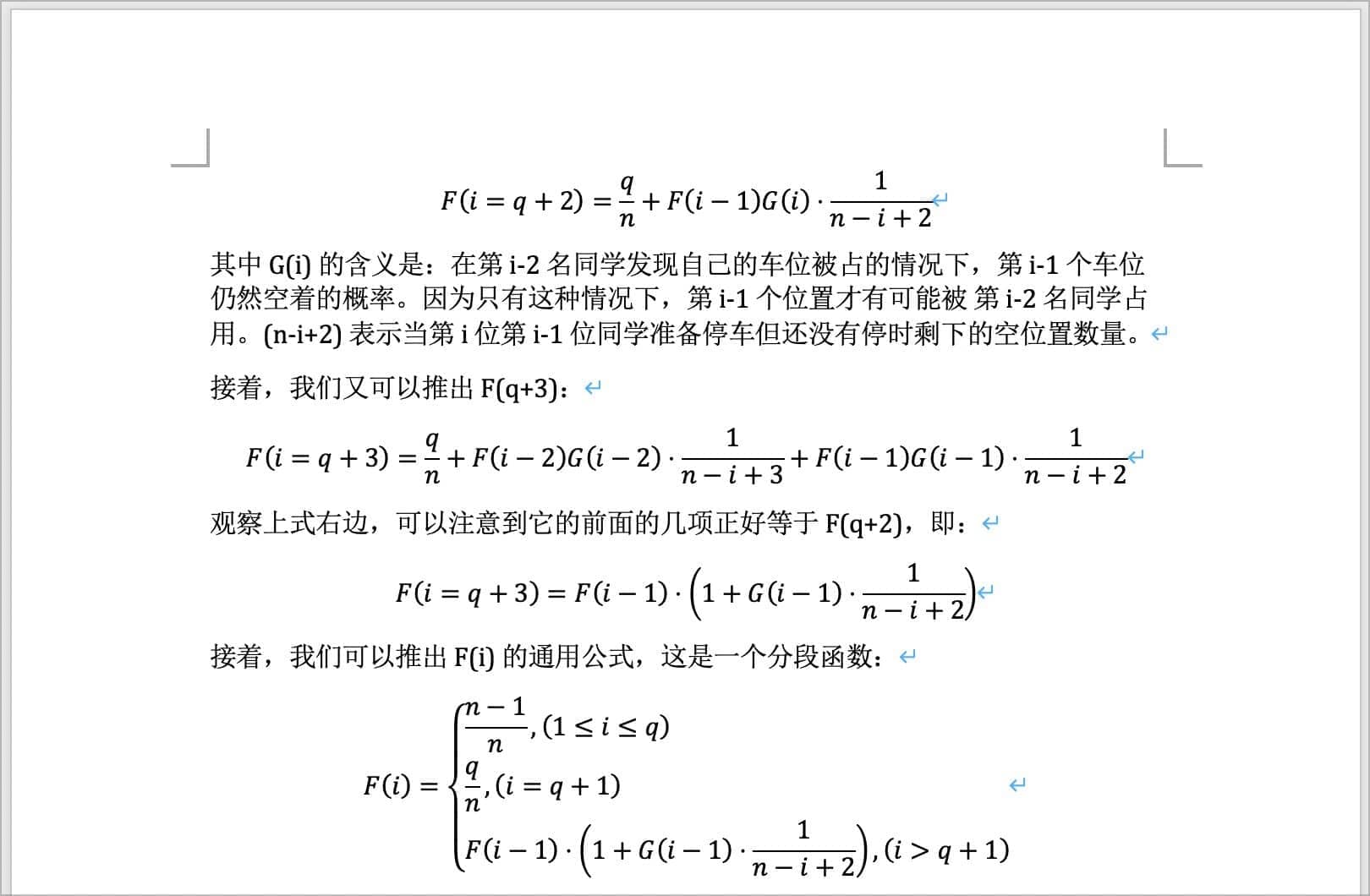
The following Word document was exported with Pandoc, preserving the formulas:
Install Pandoc
Follow the official installation instructions and choose a package for your operating system and processor.
| System | Installation options |
|---|---|
| Windows | Run the .msi installer, or extract the .zip package and use its pandoc.exe |
| macOS | Use the official .pkg installer, or run brew install pandoc with Homebrew |
| Linux | Follow the official instructions for your distribution's package manager or a suitable binary download |
After installation, run pandoc --version in a terminal or Command Prompt to check it. A command-not-found message may simply mean the executable is not in your PATH. You can select it manually in WonderPen in the next step.
Choose Pandoc and Set Its Path
Click Export at the top of the main window, choose Word in the export window, and change Export Method from Default to Pandoc.
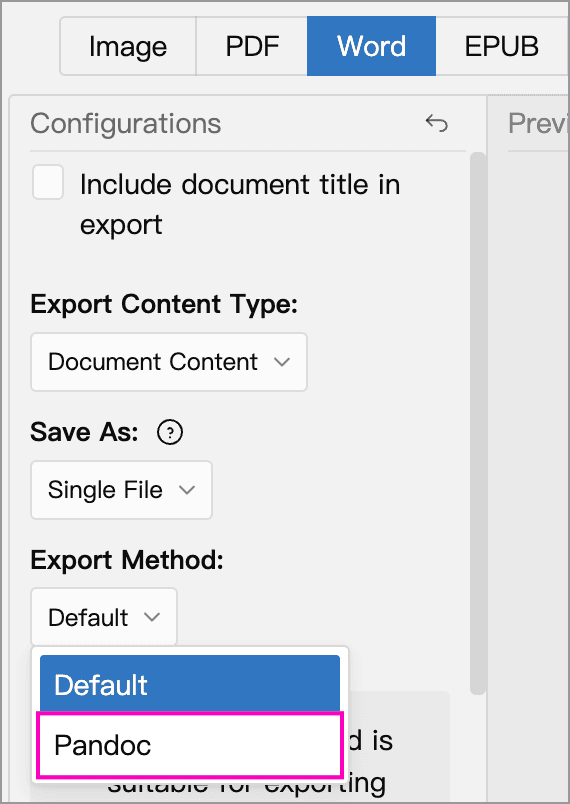
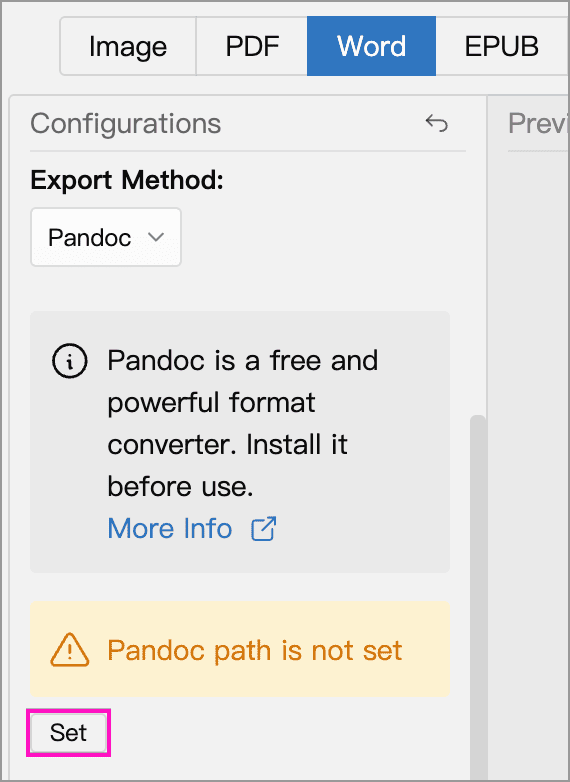
The Pandoc path settings then appear. If the path has not been set, click Set. WonderPen first tries to find Pandoc automatically; if it cannot, a file picker opens.
Select the Pandoc executable, not its installer or containing folder: usually pandoc.exe on Windows, or pandoc on macOS and Linux. The full path appears once configured. Use Reset to change it later.
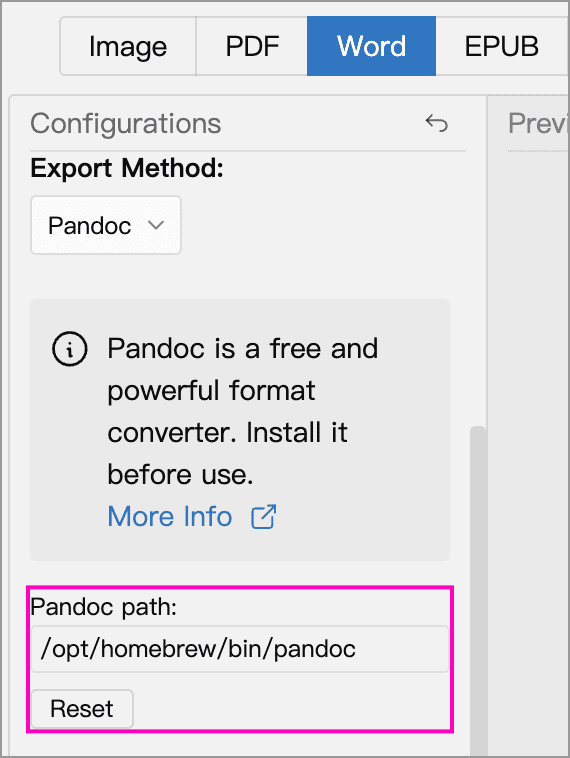
The path shown is an example; its actual location depends on how you installed Pandoc.
Export and Confirm the Command
Select the documents to export, choose Single File or Folder, then click Export and choose where to save the result. Single File combines the selected documents; Folder creates separate Word files. WonderPen prepares temporary files for conversion and displays the Pandoc command to run:
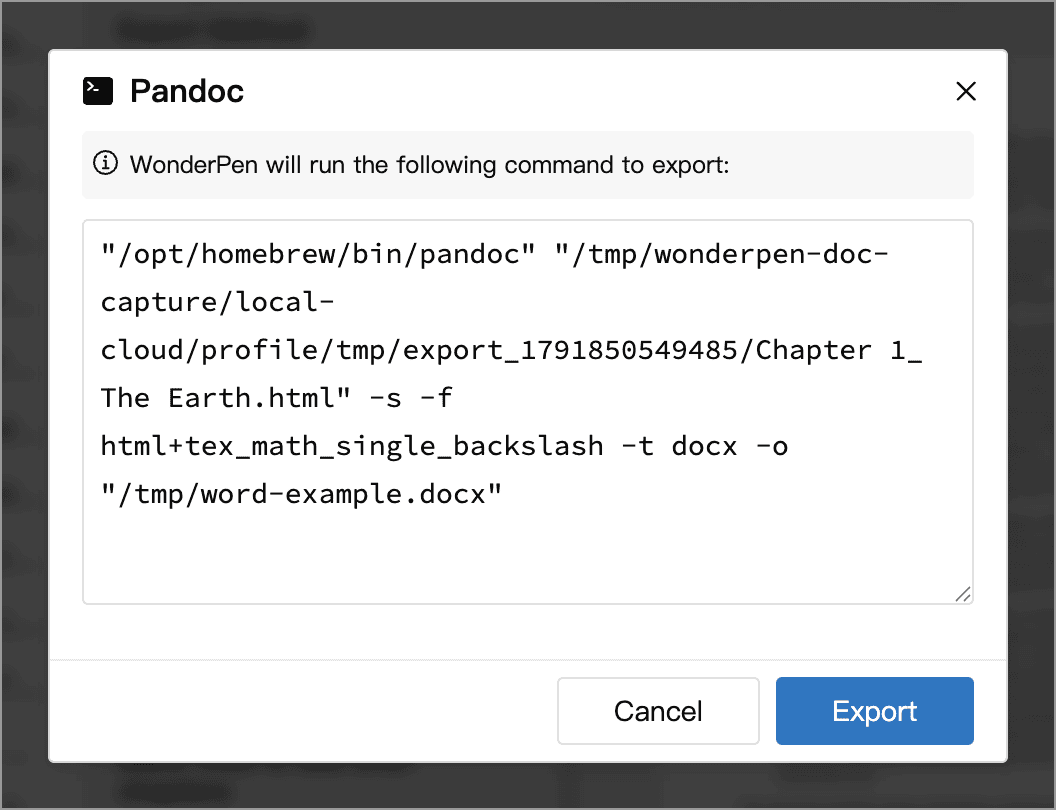
- Non–Mac App Store versions: check the executable and output paths, then click Export in the dialog and wait for conversion to finish.
- Mac App Store version: because of sandbox restrictions, the dialog shows Copy Command instead. Click it, paste the complete command into a terminal, and run it there. Copying the command alone does not create the Word file.
Exporting multiple files may produce several commands. Non–Mac App Store versions run them automatically when you click Export. If running them manually, copy and run all commands in full.
The commands refer to temporary files prepared for this export. If running them manually, do so before closing WonderPen, and do not save them as reusable commands for future exports.
The Word preview in the export window uses the built-in converter, not Pandoc. Open the resulting .docx in Word or a compatible application to check formulas, tables, images and pagination.
Troubleshooting
- Pandoc cannot be found, or its path is invalid: select the executable again. Also check the path after moving or reinstalling Pandoc.
- The command fails: check that the output folder is writable and that the selected Pandoc executable runs in a terminal. If the temporary files are no longer available, start a new export in WonderPen and use the new command.
- Formatting differs from the editor: Pandoc applies its own conversion rules and does not reproduce every aspect of the editor's appearance. Compare the default export, or adjust the final layout in Word.
Pandoc itself also supports advanced features such as templates and citations, but WonderPen's export panel does not provide controls for those parameters. For independent command-line use, see the Pandoc User's Guide.