
Highlight Dialogue
When writing a novel or screenplay, enable Highlight Dialogue to display quoted dialogue in a different color from narration. WonderPen recognizes dialogue by the punctuation you select; it does not determine whether the text is actually spoken by a character.
Basic Usage
Under Settings → Advanced → Document Editing, enable Highlight dialogues in the editor.
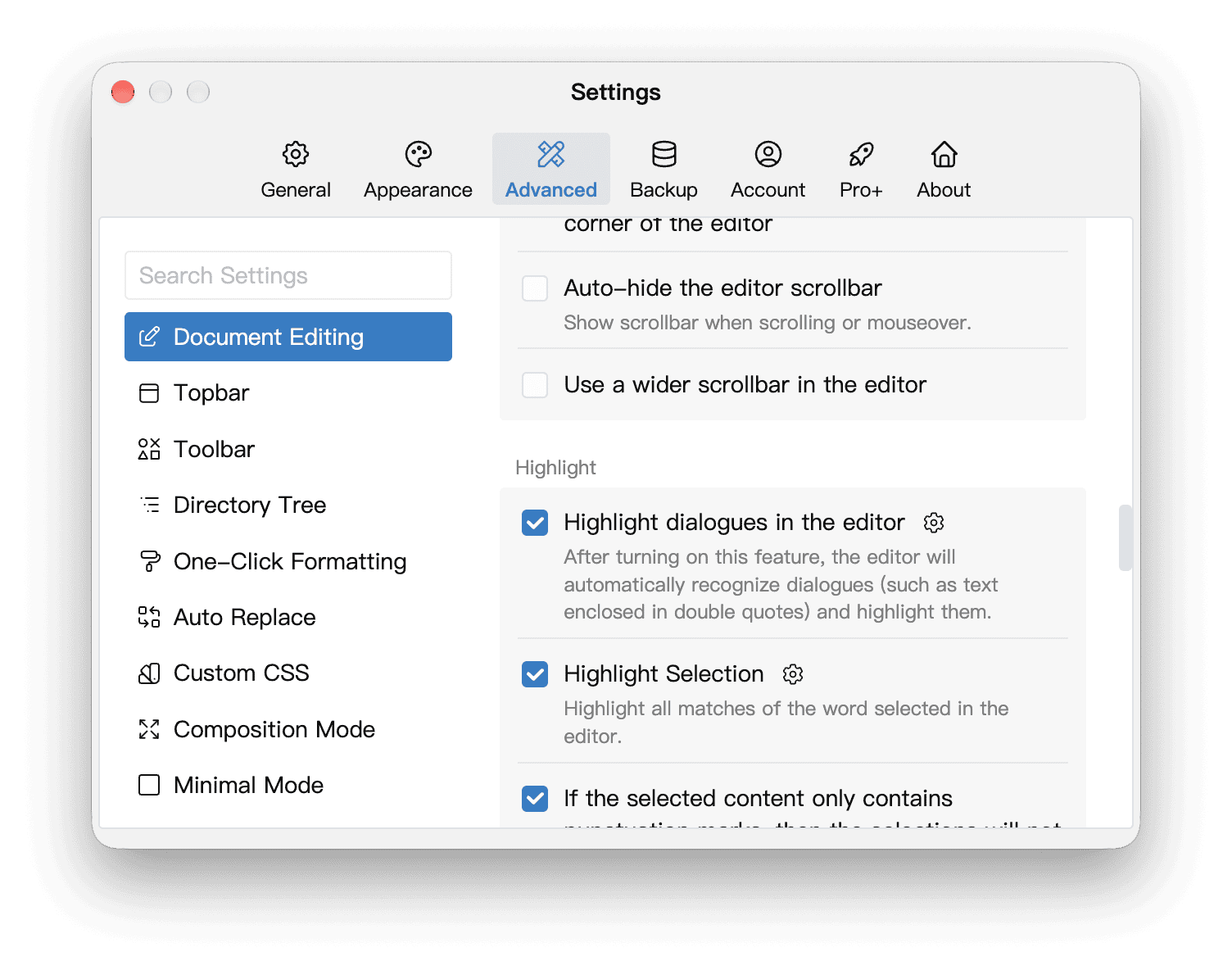
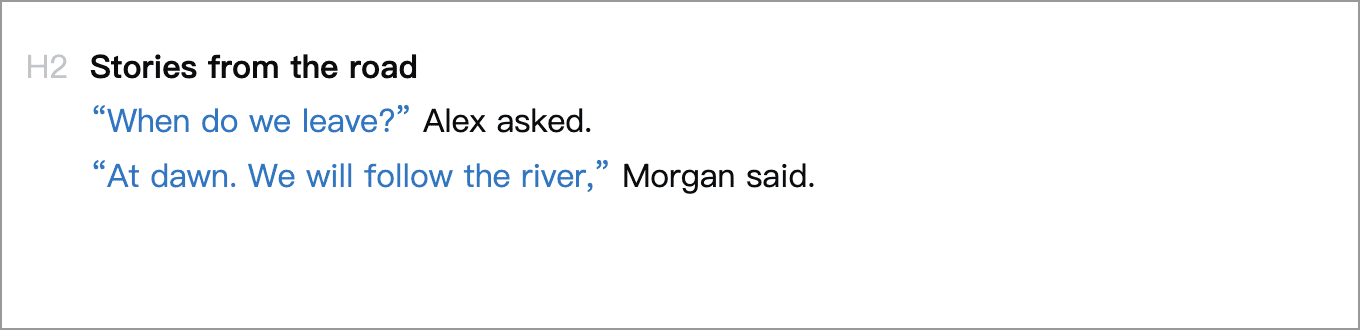
Matching dialogue is displayed in a different color. This affects only the editor display; it does not add text-color formatting to the document. Clear the checkbox to turn highlighting off.
Custom Settings
Click the gear icon next to Highlight dialogues in the editor to open its settings.
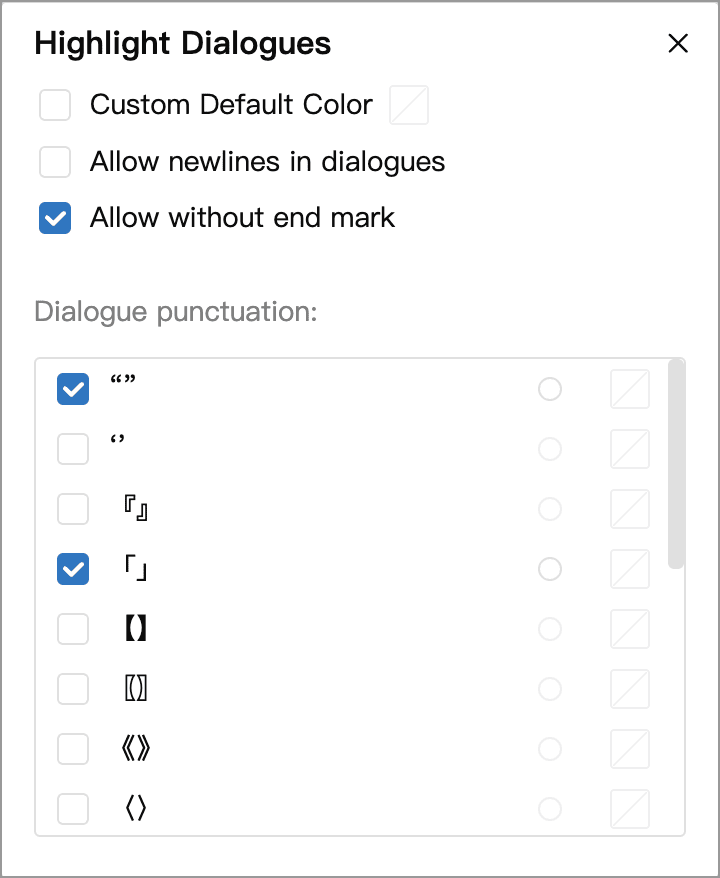
In the Dialogue punctuation list, select the pairs you use, such as “” or 「」. Only selected pairs are used for highlighting.
Allow newlines in dialogues and Allow without end mark control how highlighting handles paragraph breaks and missing closing marks, as explained below. See Custom Colors to set a default color or a separate color for a punctuation pair.
Segmented Dialogue
The two options control different aspects of recognition:
- Allow newlines in dialogues: Allows highlighting within one pair of quotation marks to continue across paragraph breaks or manually inserted line breaks. Automatic line wrapping caused by the window width is unaffected, so it does not require this option.
- Allow without end mark: Highlights dialogue even when its closing quotation mark is missing. When disabled, a matching closing mark is required for highlighting.
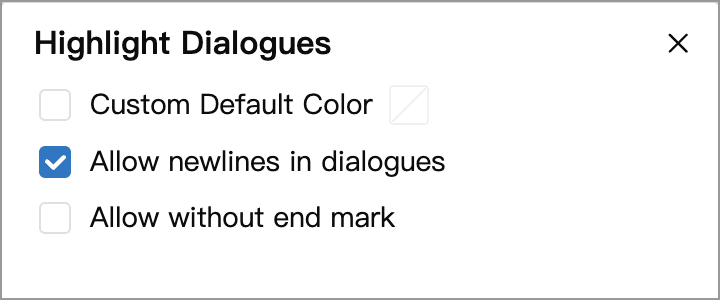
The three examples below use these settings, as shown in their settings screenshots:
| Style | Allow newlines in dialogues | Allow without end mark |
|---|---|---|
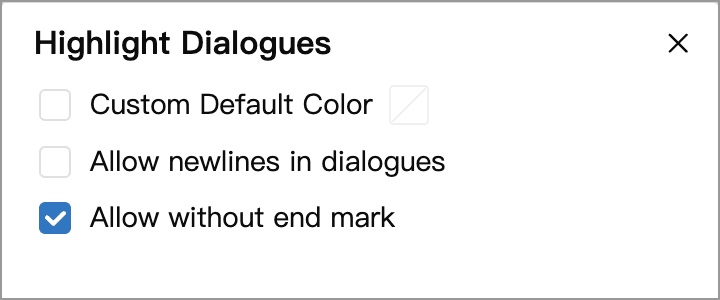
| Every paragraph starts with an opening mark, but only the last has a closing mark (the Chinese standard’s example) | Off | On |
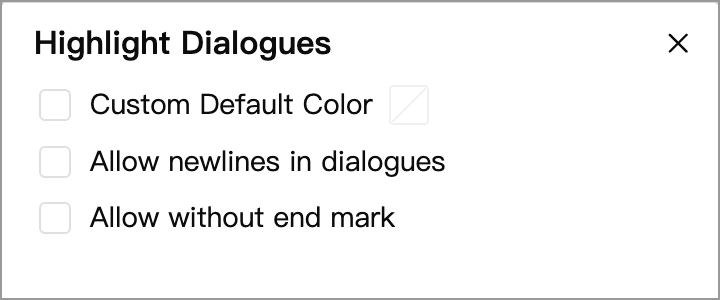
| Each paragraph has a complete pair of quotation marks | Off | Off |
| One pair of quotation marks surrounds several paragraphs, with no repeated opening marks | On | Off |
The last two examples have complete pairs of quotation marks, so they do not need Allow without end mark. These options change only the range of text highlighted; they do not insert or change quotation marks in your document.
Opening Marks in Every Paragraph, a Closing Mark Only in the Last
A long speech may span several paragraphs. Section 4.8.3.5 of the Chinese national standard General rules for punctuation (GB/T 15834-2011) specifies that a standalone, single-paragraph quotation has both opening and closing quotation marks. For a quotation spanning multiple paragraphs, each paragraph starts with an opening mark, but only the final paragraph ends with a closing mark.
The following is an English translation of the standard's Chinese example:
I once saw someone talking about happiness in a newspaper:
“Happiness is knowing what you like and what you don't like. …
“Happiness is knowing what you are good at and what you are not good at. …
“Happiness is making the right choice at the right time. …”
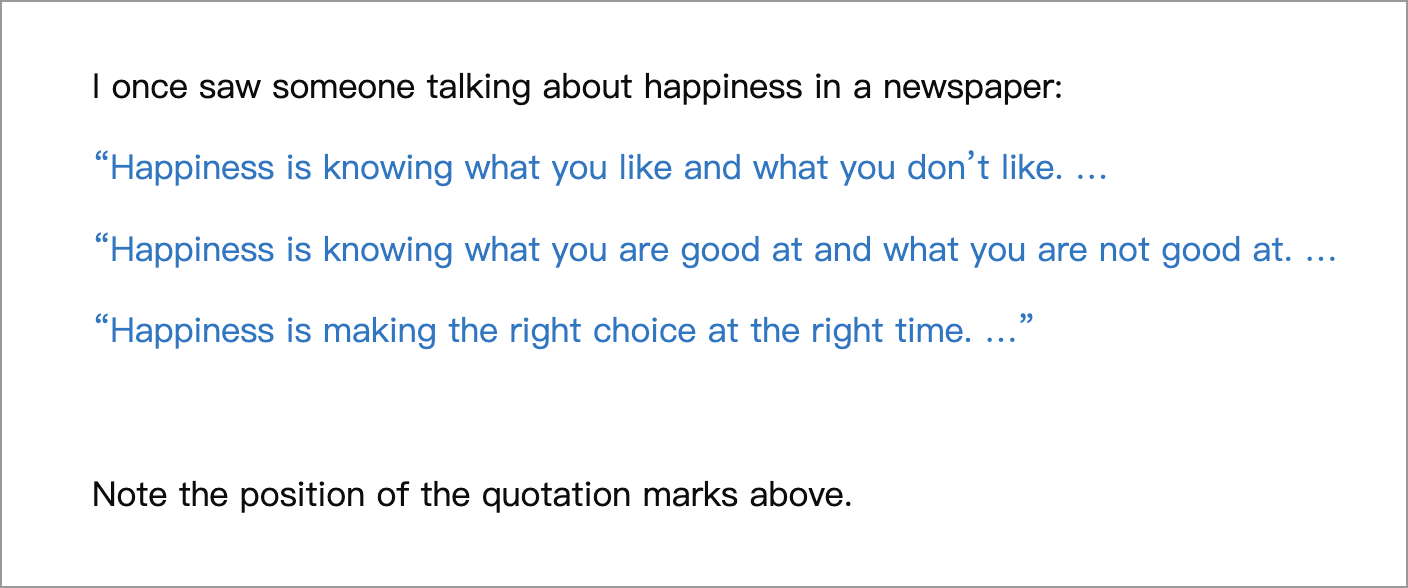
Notice that each of the three quoted paragraphs has an opening mark, but only the last has a closing mark. To highlight this style, enable Allow without end mark and disable Allow newlines in dialogues, so each paragraph is recognized separately:
Complete Quotation Marks in Each Paragraph
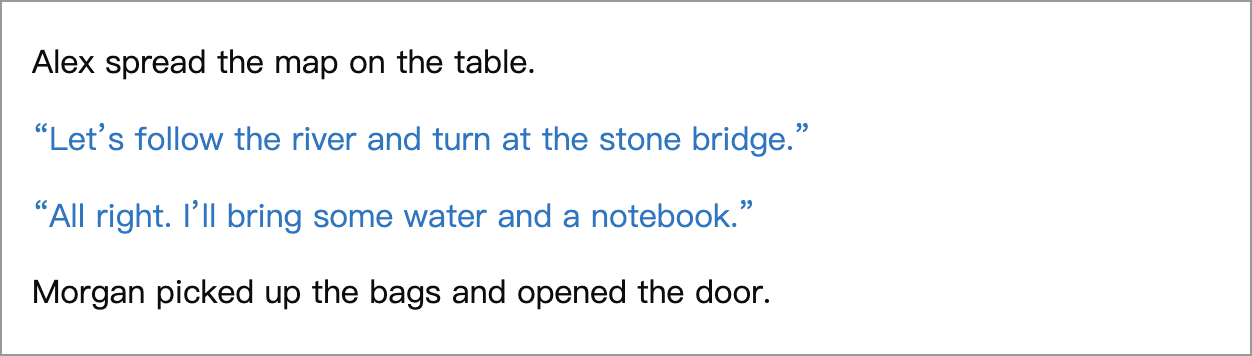
Here, each of the two dialogue paragraphs has its own opening and closing marks. The surrounding narration is outside the quotation marks:
Alex spread the map on the table.
“Let’s follow the river and turn at the stone bridge.”
“All right. I’ll bring some water and a notebook.”
Morgan picked up the bags and opened the door.
Disable Allow newlines in dialogues. This example also disables Allow without end mark, so only complete quotations are highlighted.
One Pair of Quotation Marks Across Paragraphs
Some existing text uses an opening mark only at the start of the first paragraph and a closing mark at the end of the last, without repeating opening marks in between. For example:
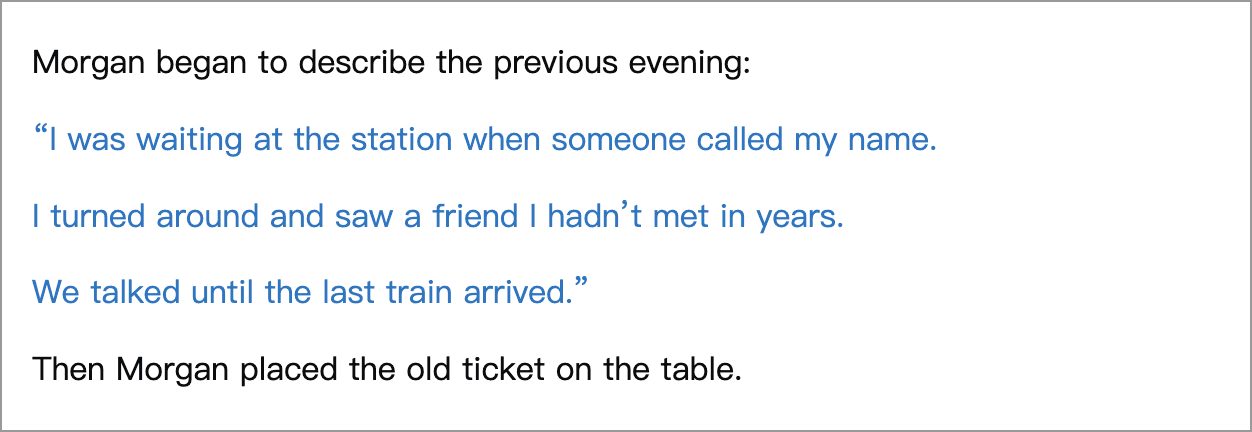
Morgan began to describe the previous evening:
“I was waiting at the station when someone called my name.
I turned around and saw a friend I hadn’t met in years.
We talked until the last train arrived.”
Then Morgan placed the old ticket on the table.
Enable Allow newlines in dialogues to extend highlighting from the first paragraph’s opening mark to the last paragraph’s closing mark. This example has a complete pair of marks, so Allow without end mark can remain disabled.
This describes how to highlight existing text. When following the Chinese standard discussed above, each paragraph of a multi-paragraph quotation should still begin with an opening mark.
Custom Colors
Dialogue can share one highlight color or use different colors for different punctuation pairs. Open Settings → Advanced → Document Editing, then click the gear icon next to Highlight dialogues in the editor.
Set the Default Color and Individual Colors
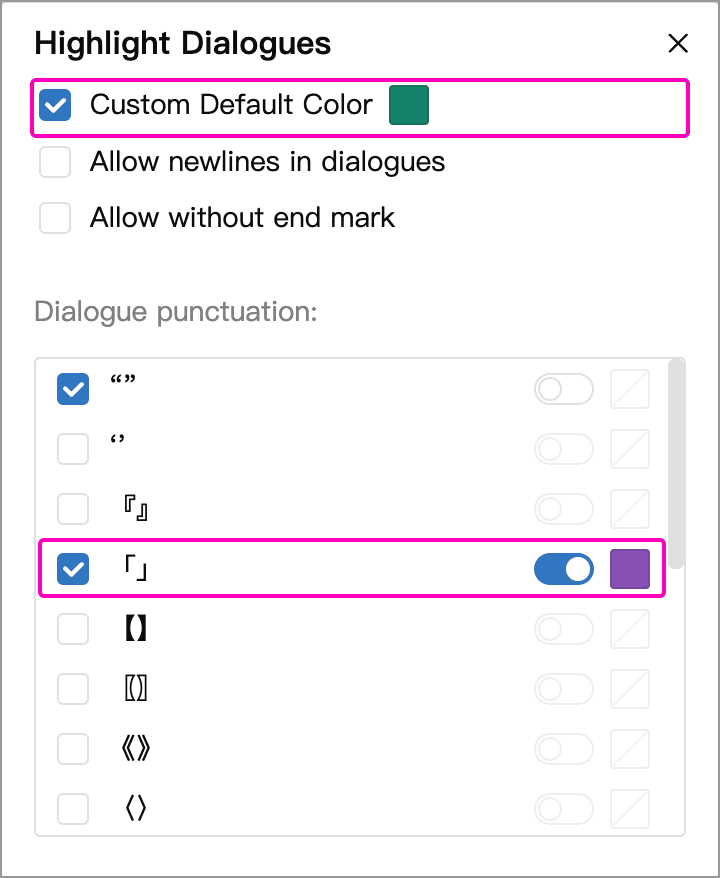
- Enable Custom Default Color and click the adjacent swatch to choose a color. Dialogue without an individual color uses this default.
- To give a punctuation pair a different color, first select it in the Dialogue punctuation list, then enable the custom-color switch on the right of its row.
- Click the swatch at the far right of that row to choose its color. For example, set the default color to green for
“”, then assign a separate purple color to「」.
Example: Distinguish Dialogue from Quoted Text
This example uses “” for spoken dialogue and 「」 for a quotation from a letter, with a different color for each. Green and purple are custom choices for this example; you can choose any colors you prefer:
| Punctuation | Color setting | Use in this example |
|---|---|---|
“” | No individual color; uses the custom default (green) | Spoken dialogue |
「」 | Custom color enabled for this row and set to purple | A quotation from a letter |
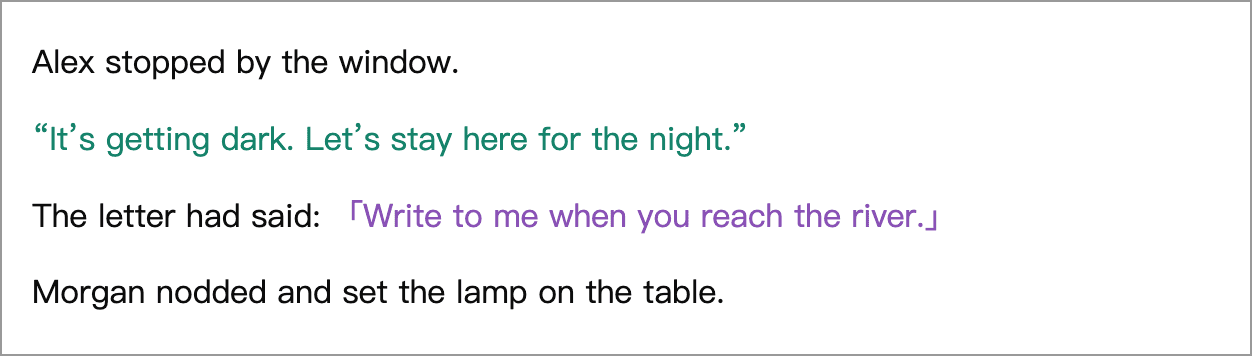
Colors are assigned by punctuation pair, not by speaker or by whether the text is dialogue or a quotation. All text marked with the same punctuation pair uses the same color settings.
Restore Default Colors
- Remove a punctuation pair’s individual color: Turn off the custom-color switch on its row to return to the default color. Leave the punctuation checkbox selected so the pair is still highlighted.
- Restore the app’s default color: Clear Custom Default Color. Pairs with individual colors are unaffected; to reset all colors, also turn off each row’s custom-color switch.
These colors affect only highlighting in the editor. They do not add text-color formatting to the document.
Troubleshooting Highlighting
- Dialogue is not highlighted: Check that highlighting is enabled and that the punctuation used in your text is selected in the list. Curly quotation marks
“”and straight quotation marks""are different punctuation pairs. - Following narration is also highlighted: Check for a missing closing mark and whether Allow newlines in dialogues was enabled unintentionally. With Allow without end mark enabled, an unfinished quotation is highlighted up to the end of its paragraph or a manually inserted line break. If newlines are also allowed, highlighting may extend into subsequent paragraphs.