
Darkroom Mode
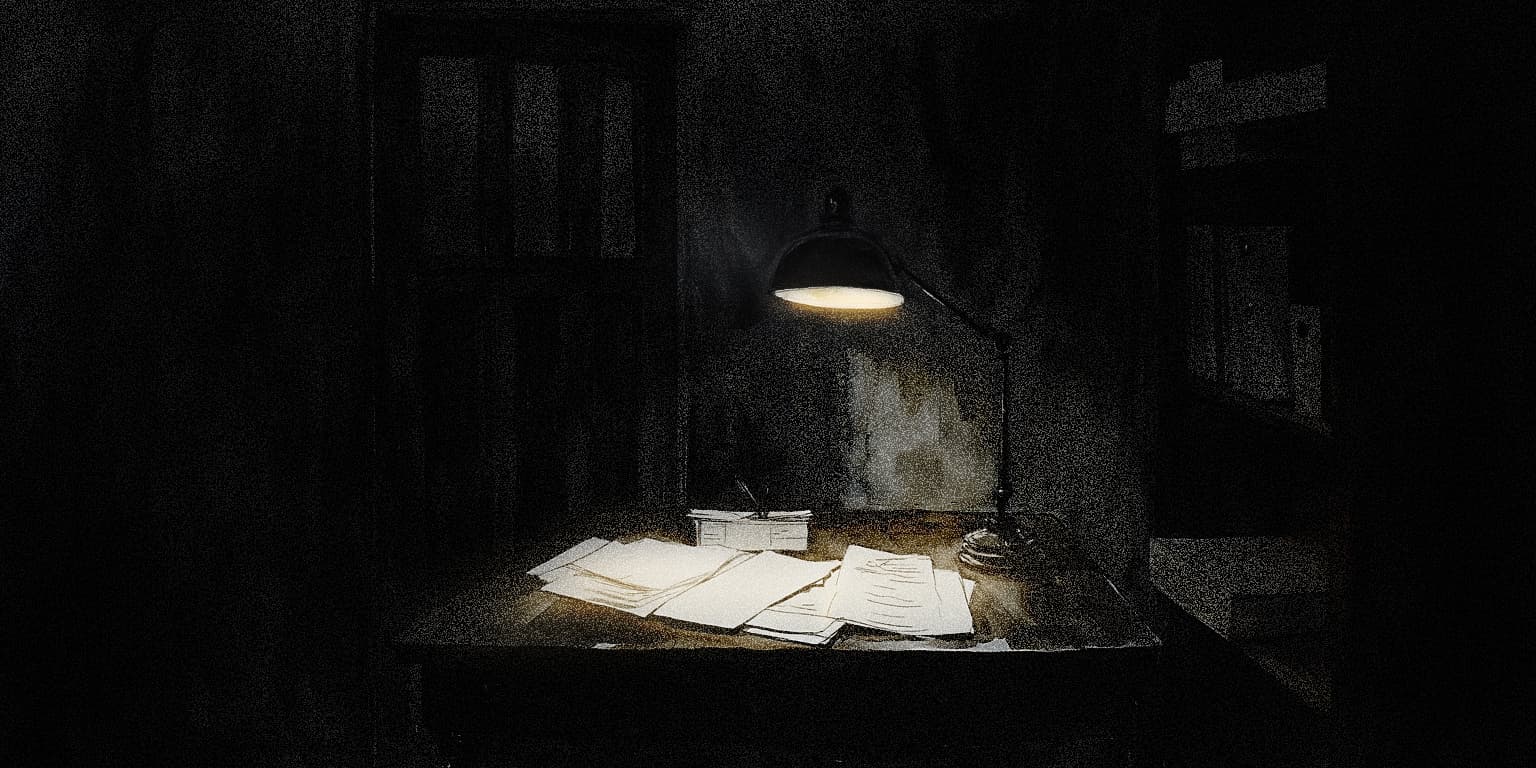
Darkroom Mode puts WonderPen into full screen and restricts exiting the mode to help you concentrate on writing. Before starting, set a word count or duration target. You can exit after reaching a target; leaving early depends on your settings and available early exits.
If you want a quieter interface while remaining free to switch tasks, use Composition Mode or Minimal Mode. Check the app and the plan comparison for feature availability.
How to turn it on
Show the button and adjust settings
Open Settings → Advanced → Darkroom Mode, and enable Show Darkroom Mode toggle button in topbar. This only displays the button; it does not start a session. You can also enable Darkroom Mode under Advanced → Topbar.
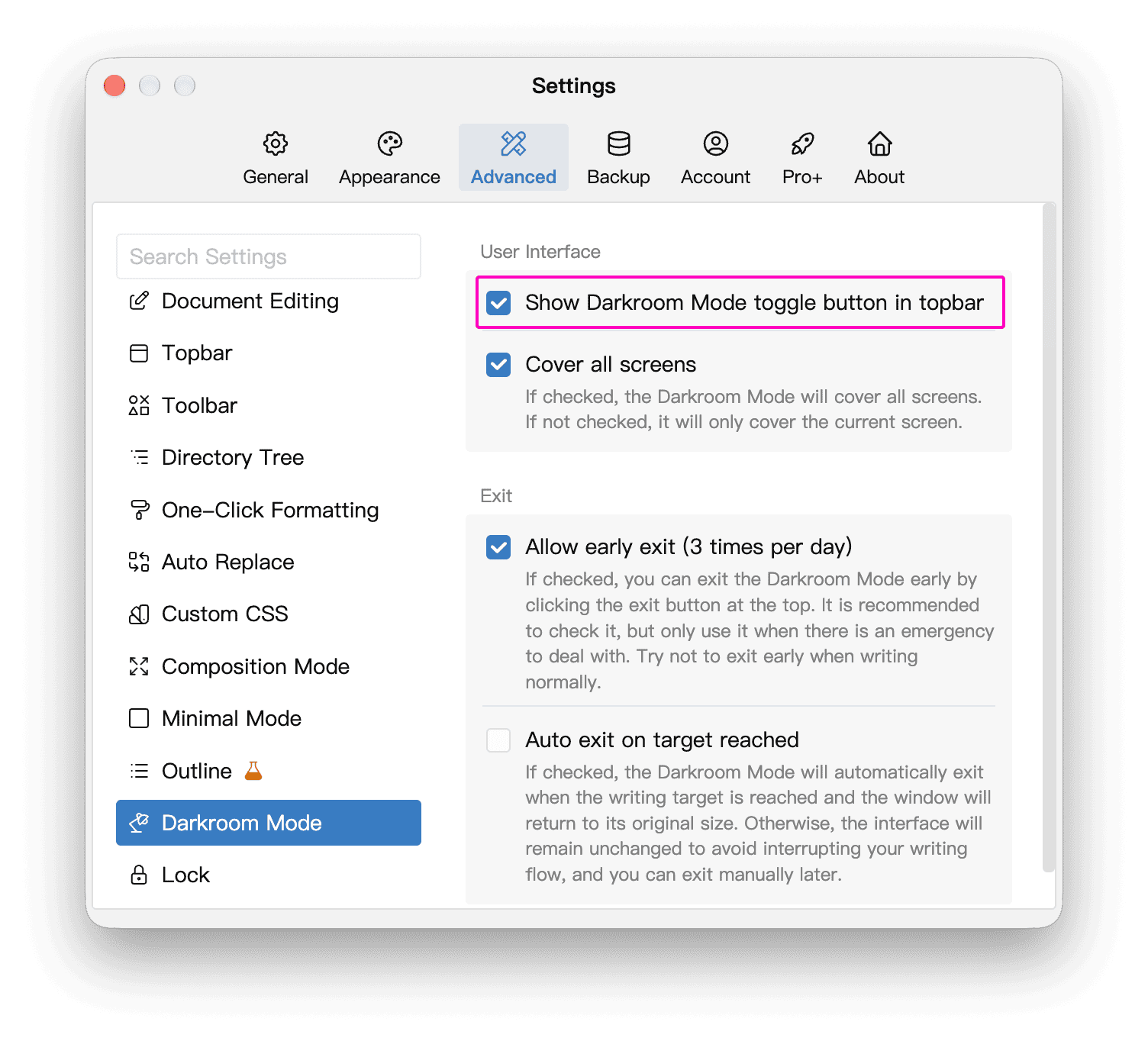
The same settings page provides these options:
| Setting | Effect |
|---|---|
| Cover all screens | Covers the other displays when you use multiple monitors. When disabled, only the current display is covered. |
| Allow early exit | Lets you leave before reaching a target while early exits remain available. See the app for the current daily limit. |
| Auto exit on target reached | Exits automatically and restores the window size when you reach a target. When disabled, the writing interface stays open until you exit manually. |
Set targets for this session
Click the Darkroom Mode button in the main window's top bar:

In the target dialog, enable at least one target and enter its value:
- Target word count: Uses the increase in your typing statistics since the session started, rather than the current document's total word count. Writing in documents marked as reference material is excluded, and large pasted blocks may also be ignored.
- Target duration: Measures elapsed time since the session started, even when you stop typing. The dialog shows the estimated end time.
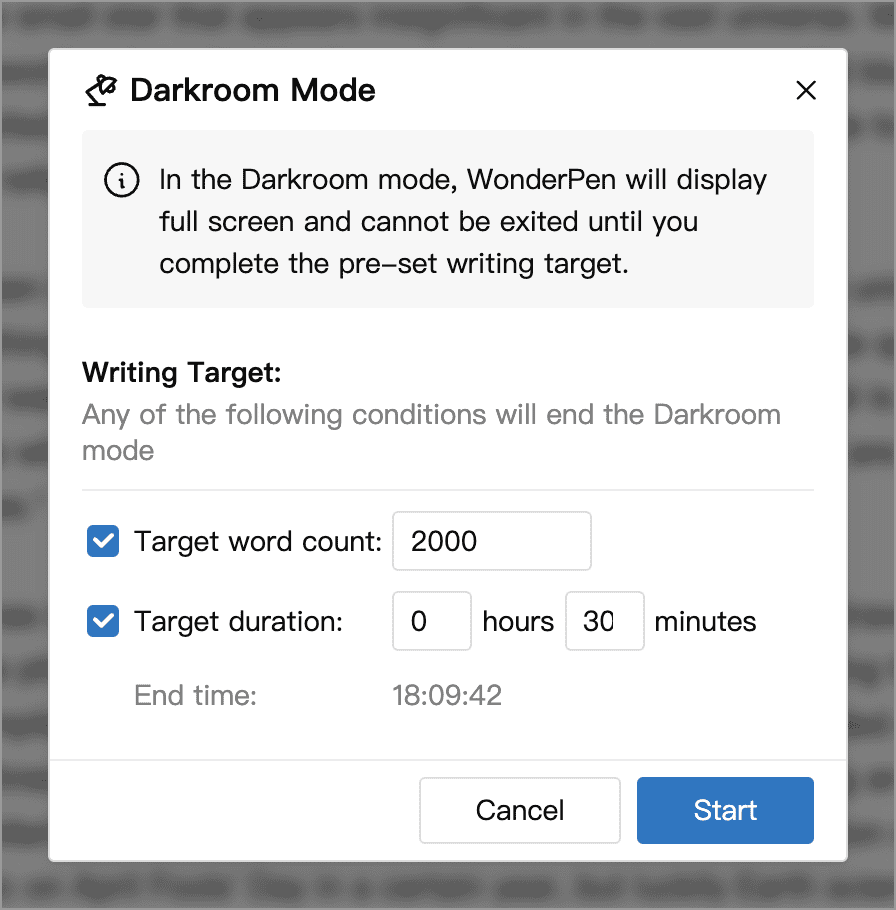
The example enables both 2000 words and 30 minutes. Reaching either target allows you to exit; you do not need to complete both. Click Start to enter Darkroom Mode in full screen.
TIP
Check your targets, early exit setting, and available time before starting. Use Darkroom Mode's exit button to leave; you cannot exit simply by pressing Esc or closing the window.
How to exit
Cancel just after starting
For the first 10 seconds, the Exit button in the top progress bar shows a countdown. Click it before the countdown ends to cancel the session without using an early exit.

Exit early
After the countdown ends, if you have not reached a target, you can click Exit early only when Allow early exit is enabled and you still have early exits available for the day. Confirming the dialog ends the session and uses one early exit.

WARNING
The button and confirmation dialog show how many early exits you have used that day and the daily limit. If early exit is disabled or the daily allowance is exhausted, you must reach a target before leaving.
Exit after reaching a target
Once you reach any enabled target, you can exit without using an early exit. What happens next depends on your settings:
- With Auto exit on target reached enabled, Darkroom Mode ends automatically and the window returns to its original size.
- With the option disabled, completion feedback appears and the writing interface stays open until you click Exit in the top progress bar.
Check progress and show the top bar
The top progress bar shows your word count and target, the current and end times, or both, depending on which targets you enabled. It also provides the exit button. Clicking in the document hides this bar. Move the pointer to the very top edge of the window, or click the Darkroom Mode button in the top bar again, to reveal it.
The editor's bottom status bar also shows your Darkroom target. Before reaching a target, click that area to cycle through full progress, remaining words or time, and collapsed details. Once a target is reached, it shows a completion indicator.
Some usage suggestions
1. Set reasonable goals
Start with a short session or a modest word count, then adjust based on your writing pace. If your available time is limited, enabling both targets lets you finish when either is reached.
2. Enable early exit
If you may need to handle an unexpected task, enable early exit and check the remaining allowance before starting. If you need to switch tasks frequently, Composition Mode offers more flexibility.
3. Focus on writing
Prepare reference material in advance. When something needs research, leave a reminder and continue drafting, then look it up and revise after the session.