
Annotations
Annotations mark passages that need attention and let you attach notes, such as revision comments, reminders about foreshadowing, or questions to resolve. Unlike a memo, which holds notes for an entire document, each annotation is tied to a passage so you can return to it easily.
Add an Annotation
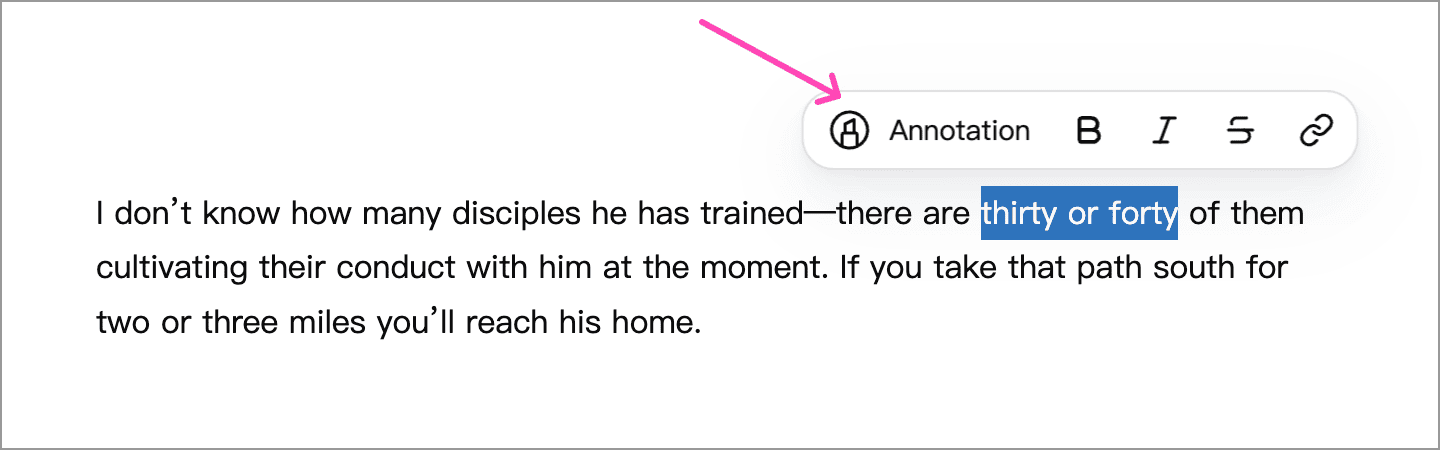
Select text in the editor, then click Annotation in the floating toolbar or choose Annotation from the right-click menu. Select annotated text and use the same command again to remove its annotation.
Edit Notes and Completion Status
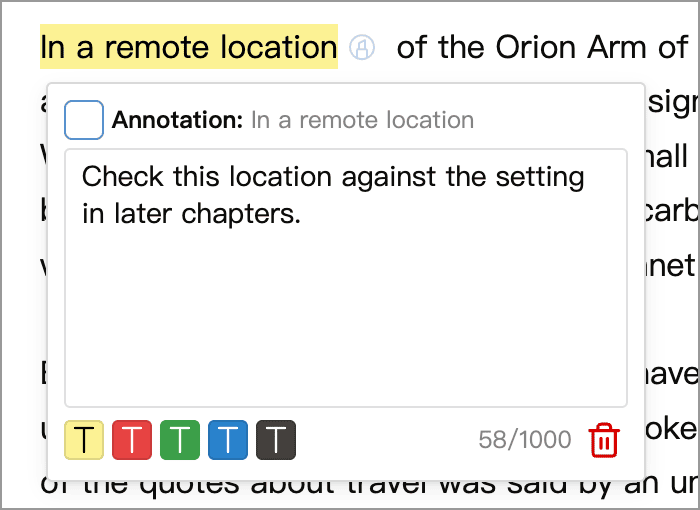
Click the small icon at the end of an annotated passage in the editor to open its popover. From here, you can:
- Write a note: enter revision comments or reference information, then click outside the popover to close it and save your changes.
- Choose a color: use the color buttons at the bottom to distinguish annotations with different purposes.
- Mark it complete: check the box at the top left when you have addressed the annotation. Uncheck it to mark it incomplete again.
- Delete the annotation: click the delete button at the bottom right to remove the annotation and its note, while keeping the text itself.
Marking an annotation complete does not delete it or the text. You can keep a record of what you have addressed and use the panel’s filters to focus on unfinished work.
Use the Annotation Panel
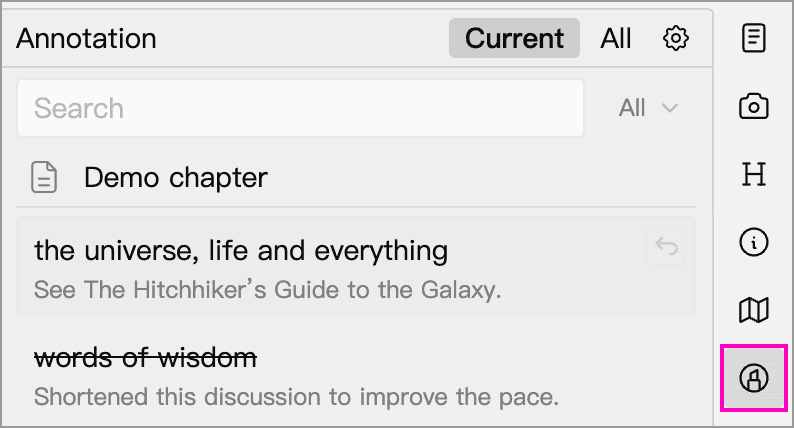
Click Annotation in the right toolbar to open the panel. The list groups annotations by document and shows each passage and its note. Double-click an entry, or hover over it and click its jump button, to go to the corresponding passage in the editor.
Switch Scope and Filter
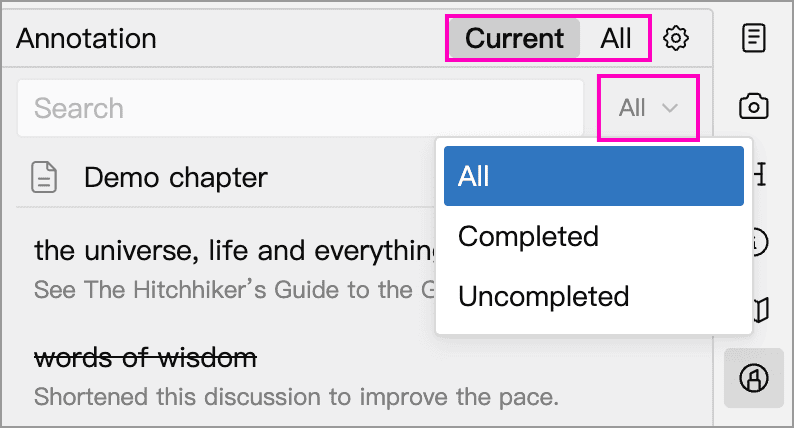
The panel offers two scopes at the top:
- Current: shows annotations from the selected document. If you select multiple documents in the directory tree, their annotations are shown together.
- All: shows annotations from the current Library.
Use the search box to filter by keywords in the annotated text or notes. The status menu on the right offers All, Completed, and Uncompleted, and can be combined with a keyword. For example, choose Uncompleted to focus on passages that still need attention within the selected scope.
Choose a Completion Style
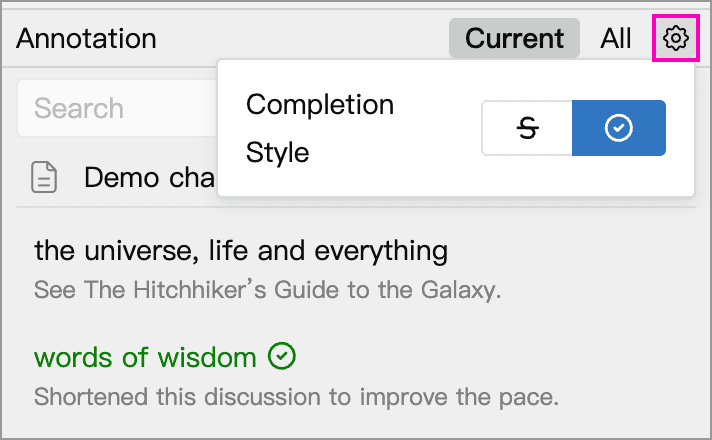
Click the gear button at the top of the panel to choose a Completion Style: the left button selects Strikethrough, and the right button selects Checkmark. This changes how completed annotations appear in the editor and the list; it does not change the text or an annotation’s completion status.
View Annotations in Sub-Documents
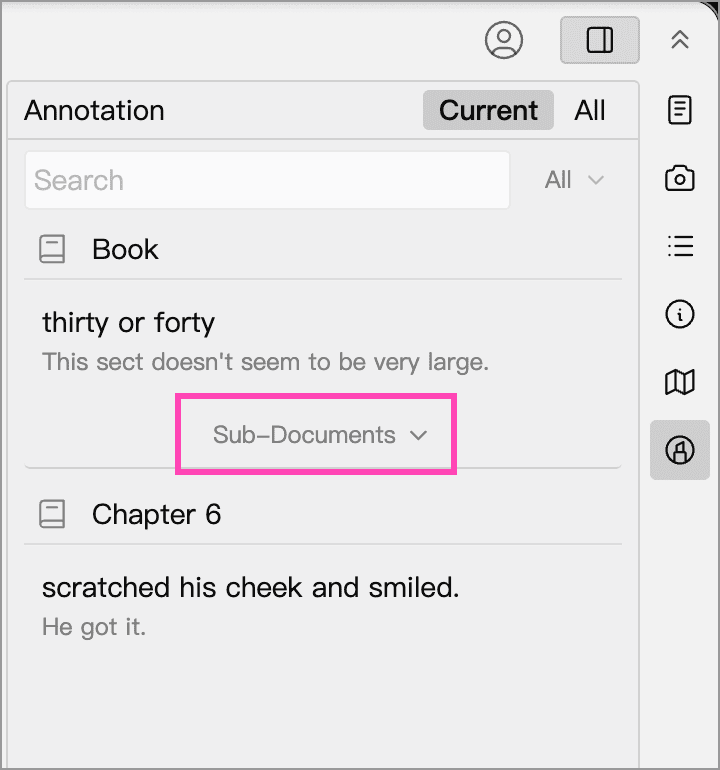
In Current mode, if a selected document has sub-documents, a Sub-Documents entry appears after its annotations. Click it to expand or collapse annotations from the sub-documents, including those nested further down.
In the screenshot below, the selected parent document’s own annotations appear above Sub-Documents. Annotations from its sub-documents appear below, grouped by document.
For example, select a parent document such as “Volume One”, expand its sub-document annotations, and choose Uncompleted to review unresolved revision comments throughout that volume. Keyword and status filters also apply to sub-documents. If an expected annotation is missing, try clearing the keyword and switching the status filter back to All.