
Modes
WonderPen offers several writing modes for different tasks:
| What you want to do | Mode |
|---|---|
| Write full screen with fewer distractions | Composition Mode |
| Hide toolbars and sidebars without changing the window size | Minimal Mode |
| Read and edit several chapters continuously | Continuous View |
| Write toward a word-count or time target with restrictions on leaving | Darkroom Mode |
| Keep the caret at a comfortable height while typing | Typewriter Mode |
Some modes can be used together. For example, both Continuous View and Typewriter Mode work with Composition Mode or Minimal Mode.
Composition Mode
Click Composition Mode in the top bar, or press Ctrl + Alt + F (⌘ + ⌥ + F on macOS). The main window switches to full screen and hides sidebars and other interface elements to help you concentrate on writing.

By default, press Esc to exit. You can also press the same shortcut again or click the exit button in the upper-left corner. If a menu or dialog is open, you may need to close it with Esc first.
Composition Mode Settings
Open Settings → Advanced → Composition Mode to adjust these four options:
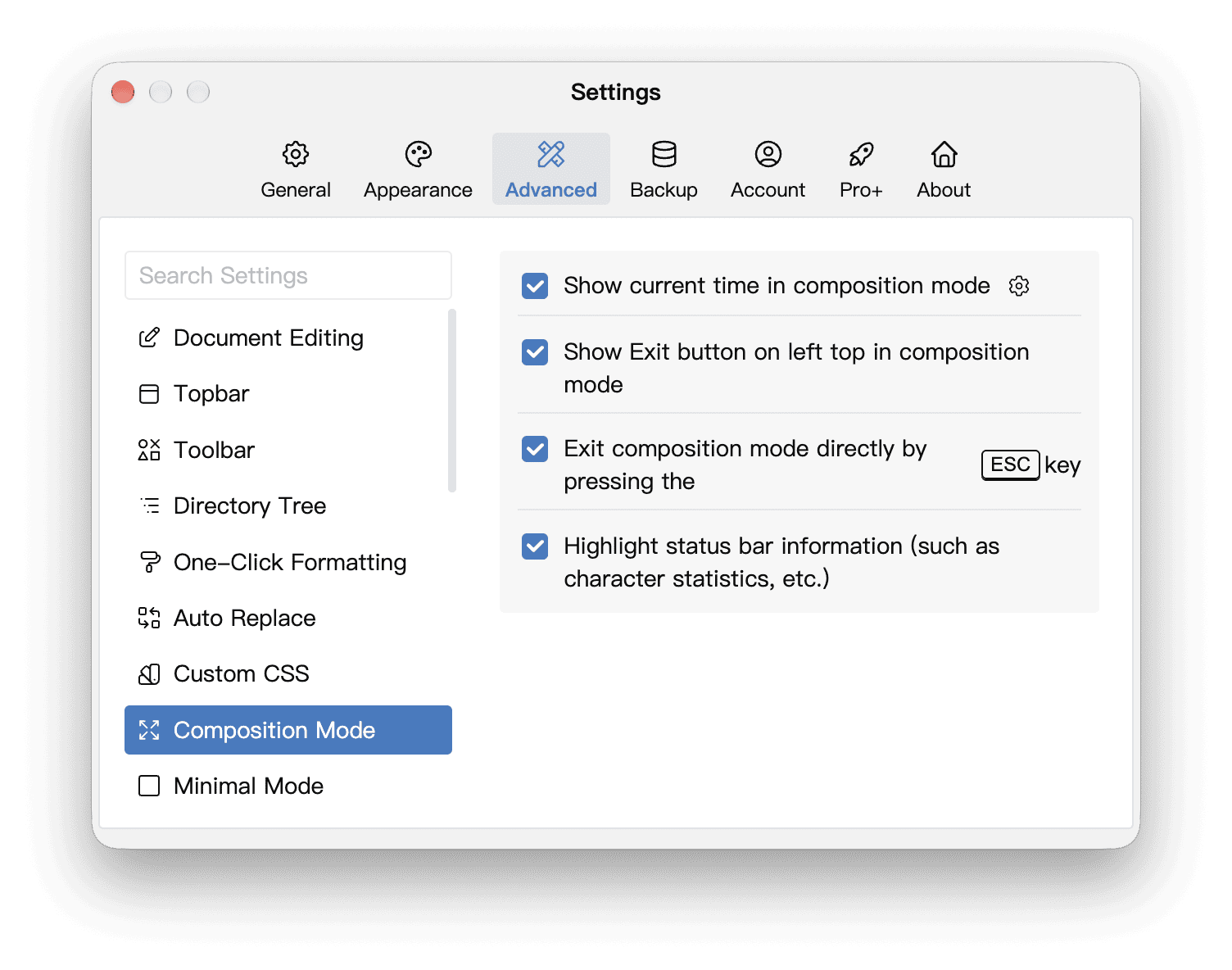
- Show current time in composition mode: displays the time in the lower-right status bar. Click the gear beside it to choose a time format, including 12-hour or 24-hour time and whether to show seconds.
- Show Exit button on left top in composition mode: keeps an exit button in the upper-left corner for leaving with the mouse. Turn it off to hide the button.
- Exit composition mode directly by pressing the ESC key: lets you press Esc to exit directly. Turn it off to prevent a single accidental press from leaving the mode. Open menus and dialogs still handle Esc first.
- Highlight status bar information (such as character statistics, etc.): makes counts and other information in the bottom status bar more prominent. It changes their appearance, not the calculated values, and is separate from the editor’s Highlight Active Line option.
Even if you hide the exit button and disable direct exit with Esc, you can still leave Composition Mode with Ctrl + Alt + F (⌘ + ⌥ + F on macOS).
Minimal Mode
Minimal Mode hides the top bar, editor toolbar, and sidebars to give your writing more space. It does not switch the window to full screen.
Click the arrow button at the far right of the top bar, or press Ctrl + Alt + M (⌘ + ⌥ + M on macOS).
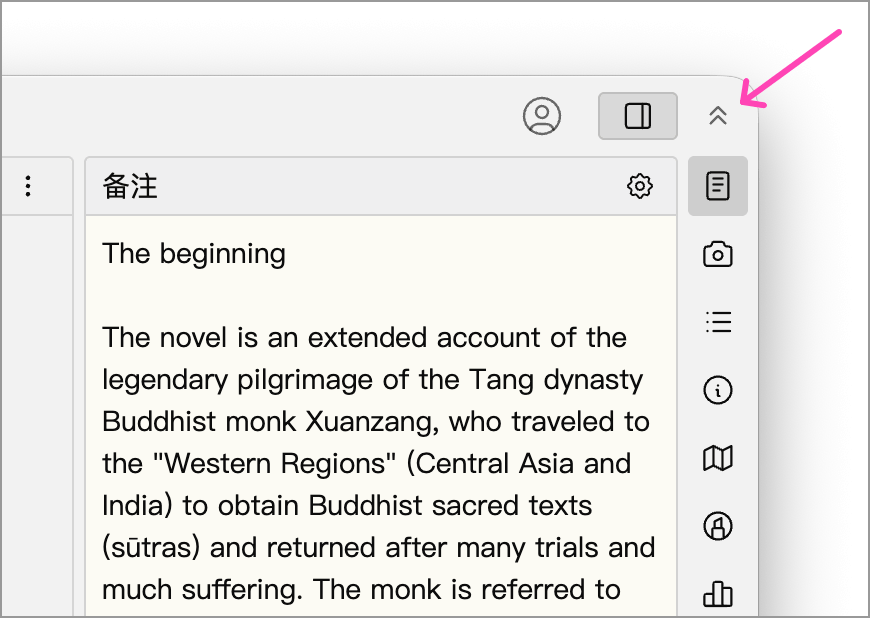
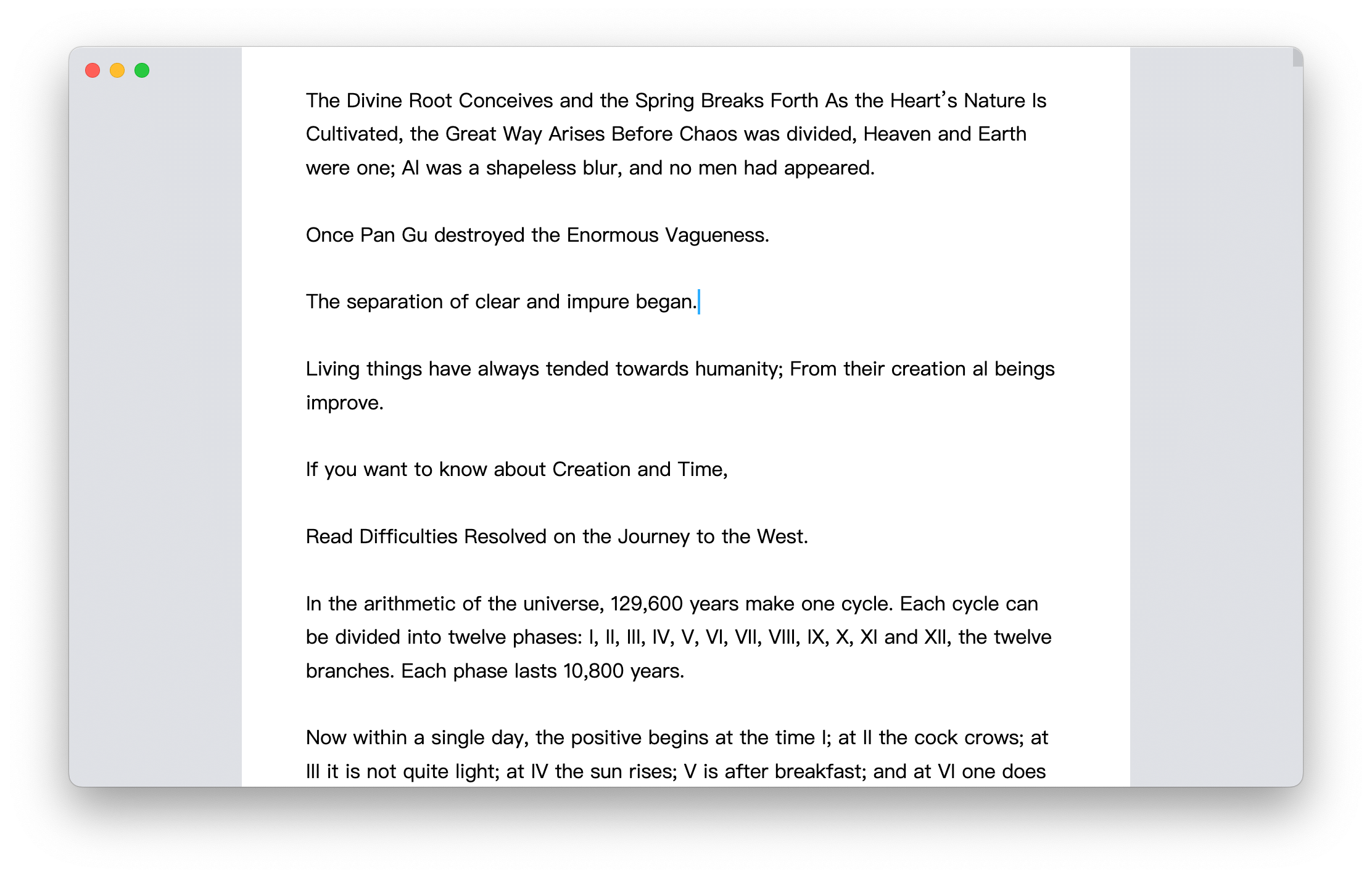
Move the pointer to the upper-right corner of the window to reveal the exit button, then click it. You can also press the same shortcut again. Move the pointer to the bottom of the editor to reveal the status bar; click its pin button to keep it visible.
Minimal Mode Settings
Open Settings → Advanced → Minimal Mode. This page currently has one option, Enter minimal mode at startup, which is off by default.
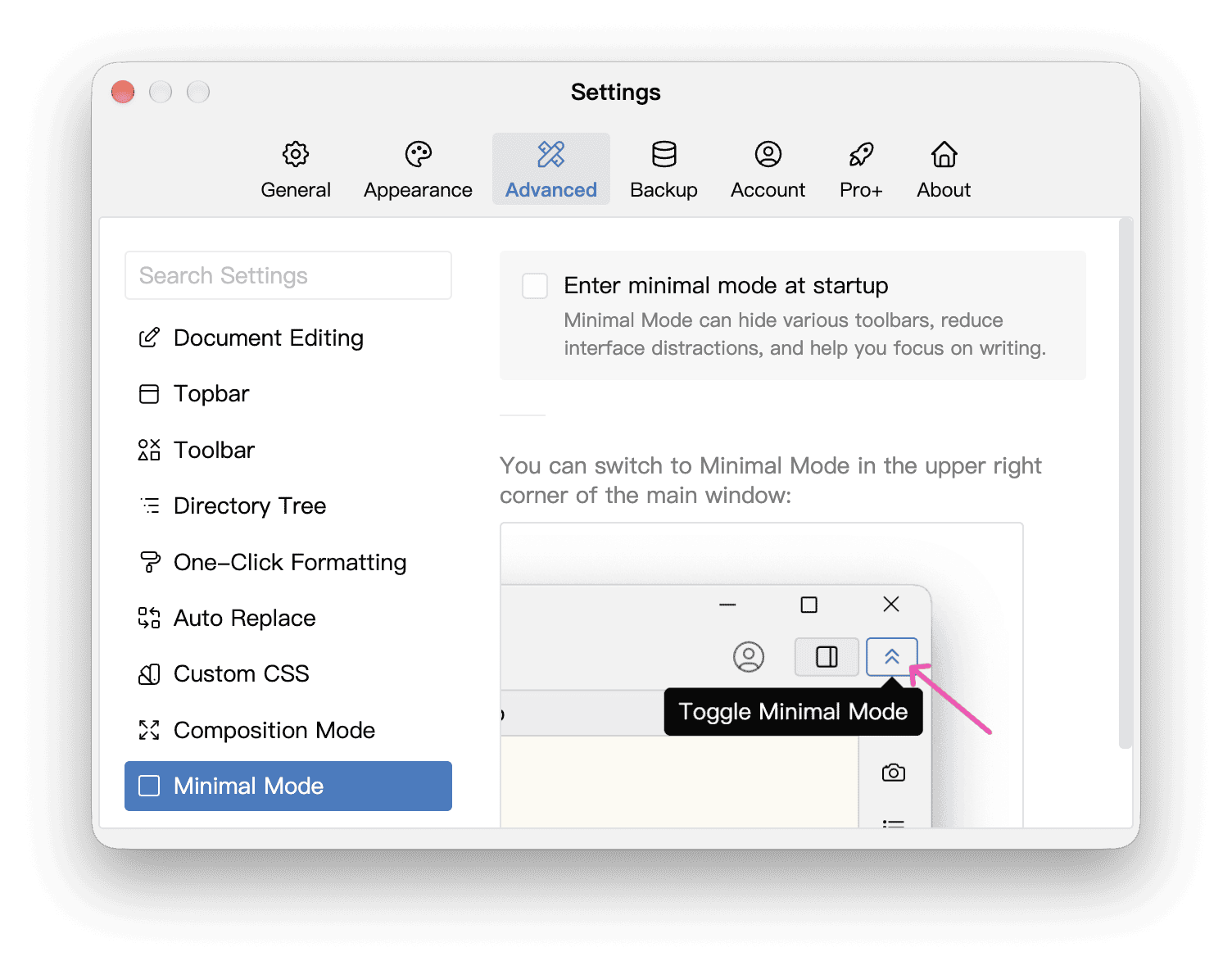
Enable it to enter Minimal Mode automatically when the Library’s main window opens at startup, so you can start writing straight away. With it off, you can still switch modes manually using the button in the upper-right corner of the main window or the shortcut above.
This option controls startup behavior: checking it does not immediately switch the current window, and unchecking it does not exit Minimal Mode. The image below the option illustrates the manual toggle button; it is not another setting.
Continuous View
Continuous View displays multiple documents one after another in directory-tree order. Use it to read through, proofread, or revise adjacent chapters. Each document remains separate; this view does not merge them.
In Settings → Advanced → Topbar, enable Continuous View. Then click the Continuous View button in the main window’s top bar to enter or exit.
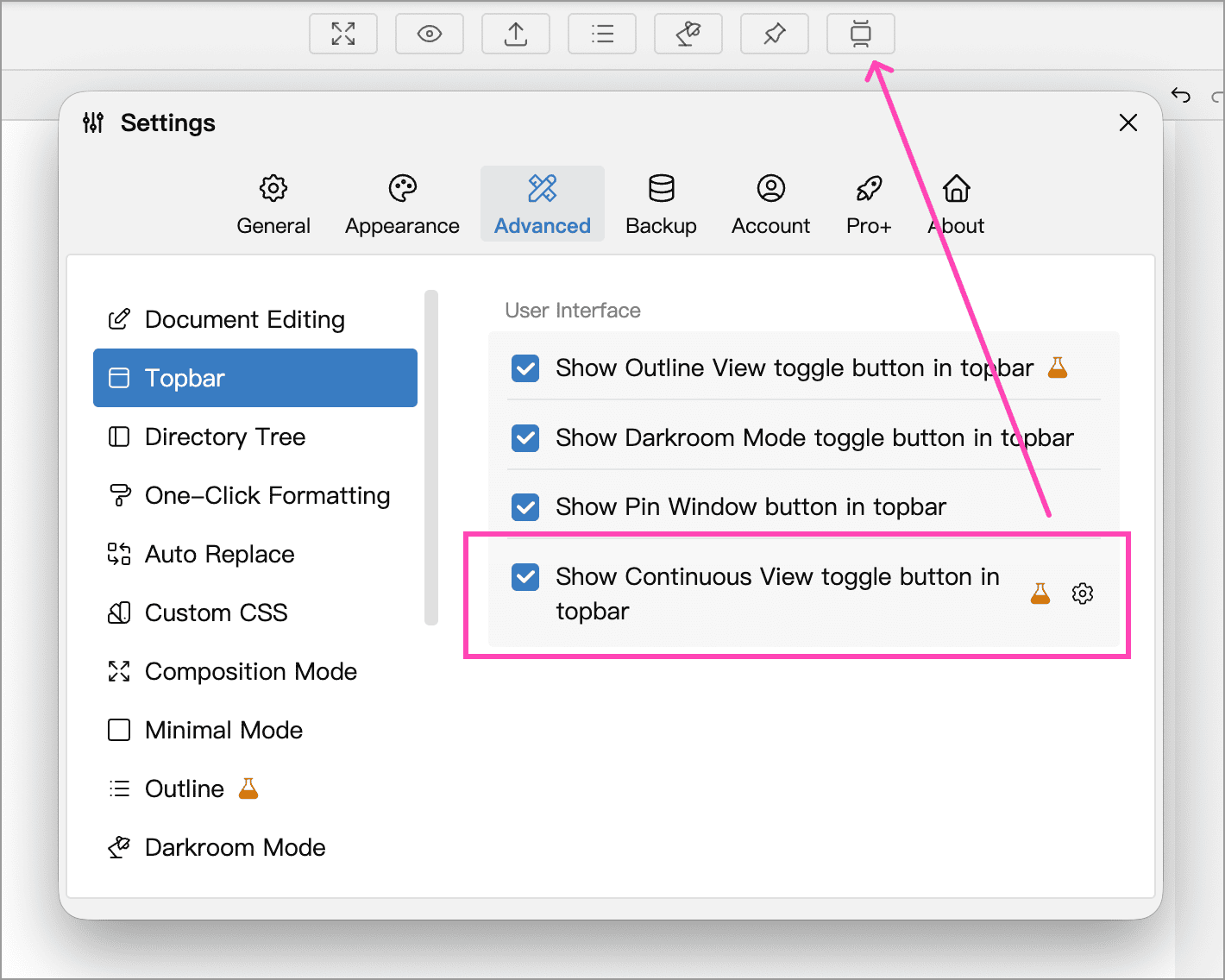
Document Range and Navigation
By default, Continuous View uses the current Library’s document tree. To work with only part of it, focus on that section in the tree first. Continuous View will use that restricted range.
Click a document in the tree to scroll to it. As you scroll to another document in Continuous View, the tree’s selection follows.
Editing and Search
Continuous View supports editing, find and replace, undo, and redo. The bottom status bar shows information for the current document.
Docked search uses one shared bar at the bottom, but its match count, previous/next match buttons, and replacement actions apply to the current document named in the search bar, rather than every document in Continuous View. Check the search scope after scrolling to another document. To search or replace across multiple documents, use Pop-Out Search. Double-click a result in that window to jump to the document and matching text.
You can also use Continuous View with split editors. Each pane keeps its own scroll position, so you can read through one section while referring to another.
Continuous View Settings
In Settings → Advanced → Topbar, click the gear beside Continuous View to adjust these options:
- Use simple title style in editor: shows compact inline titles above each document’s content, reducing the space taken up by per-document toolbars. Composition Mode and Minimal Mode use inline titles automatically.
- Automatically enable continuous view on startup: useful if you regularly read or edit several chapters continuously.
Darkroom Mode
Darkroom Mode uses full screen and restricts leaving before you reach a writing target. It imposes stricter limits than Composition Mode: you set a word-count or duration target before starting.
First, enable its top-bar button in Settings → Advanced → Darkroom Mode. You can also check Darkroom Mode under Advanced → Topbar.
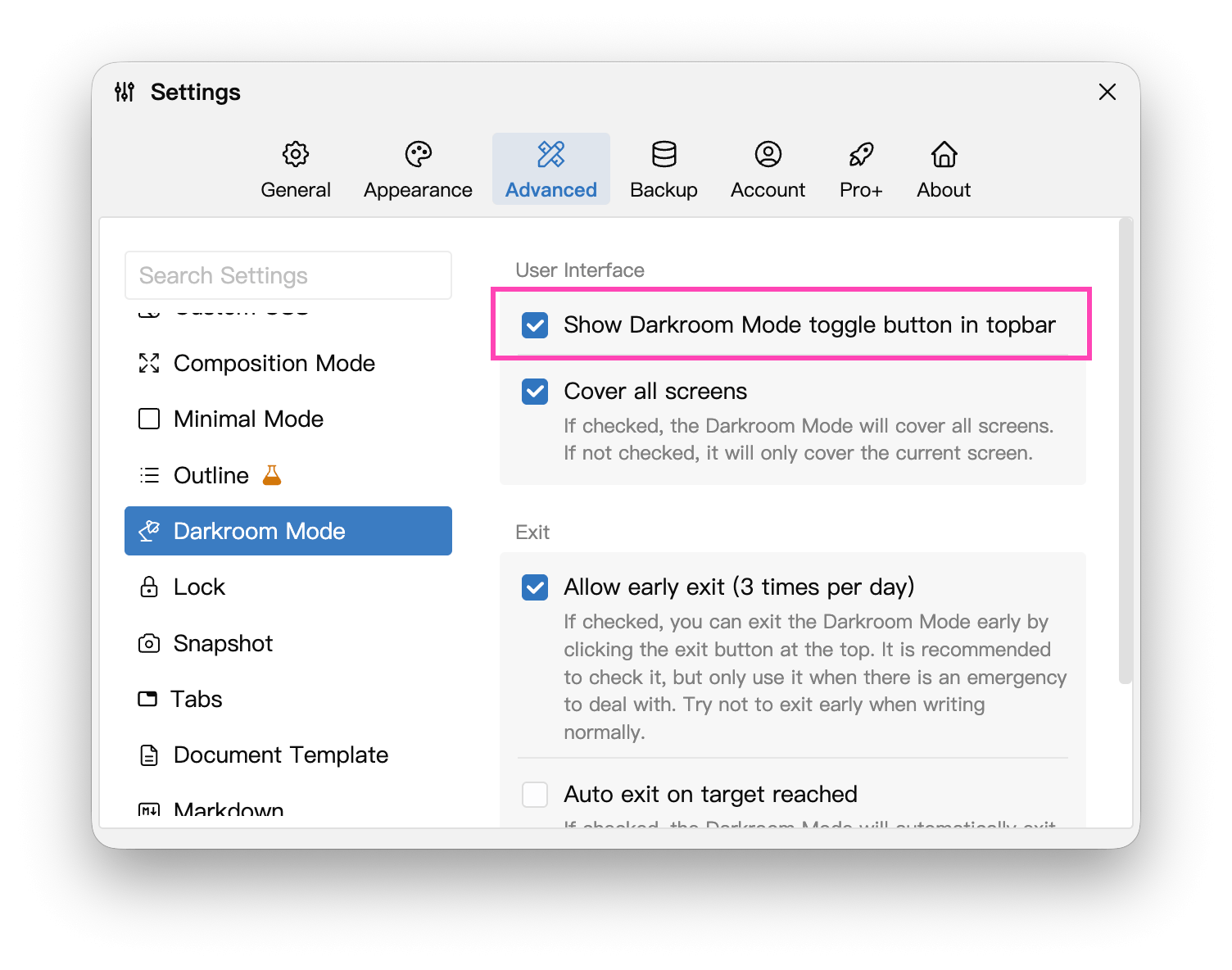
Click the button in the main window’s top bar to open the target settings. Set your target and click Start to enter Darkroom Mode.
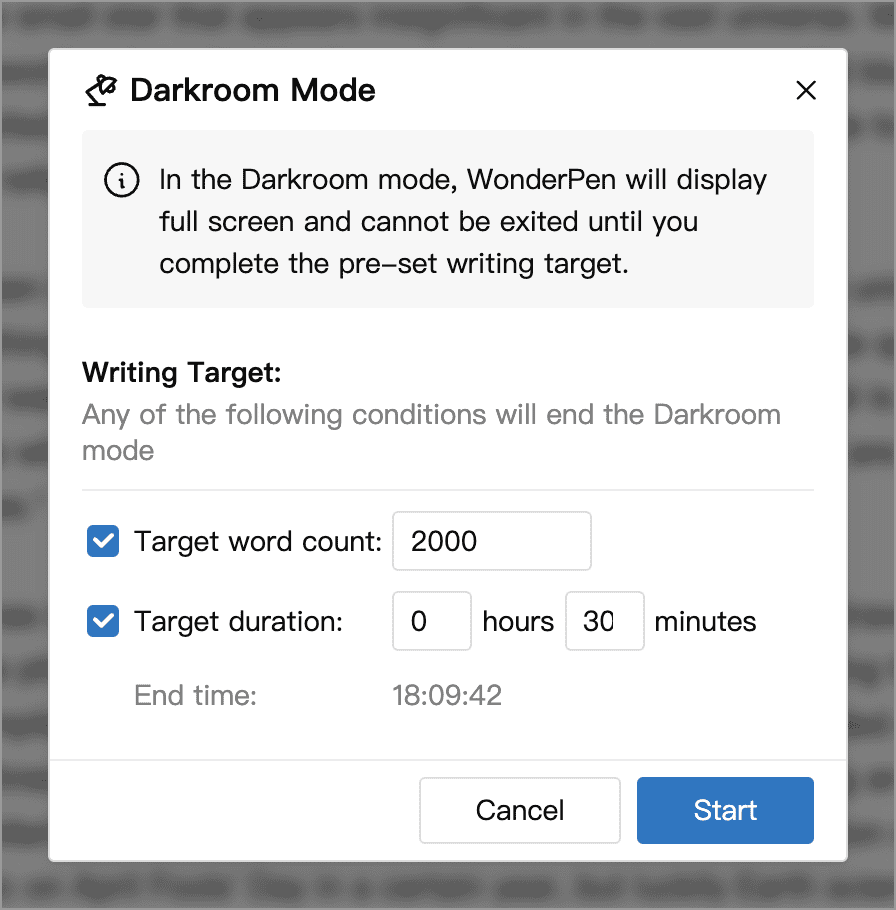
In this example, both 2000 words and 30 minutes are enabled. Reaching either one meets the target; you do not need to complete both. You can also enable just one of the two conditions.
You can exit once you reach the target. Early exit depends on your settings, eligibility, and usage limits, so you cannot simply press Esc whenever you want to leave. See Darkroom Mode for details.
Darkroom Mode Settings
Open Settings → Advanced → Darkroom Mode to adjust its interface and exit behavior.
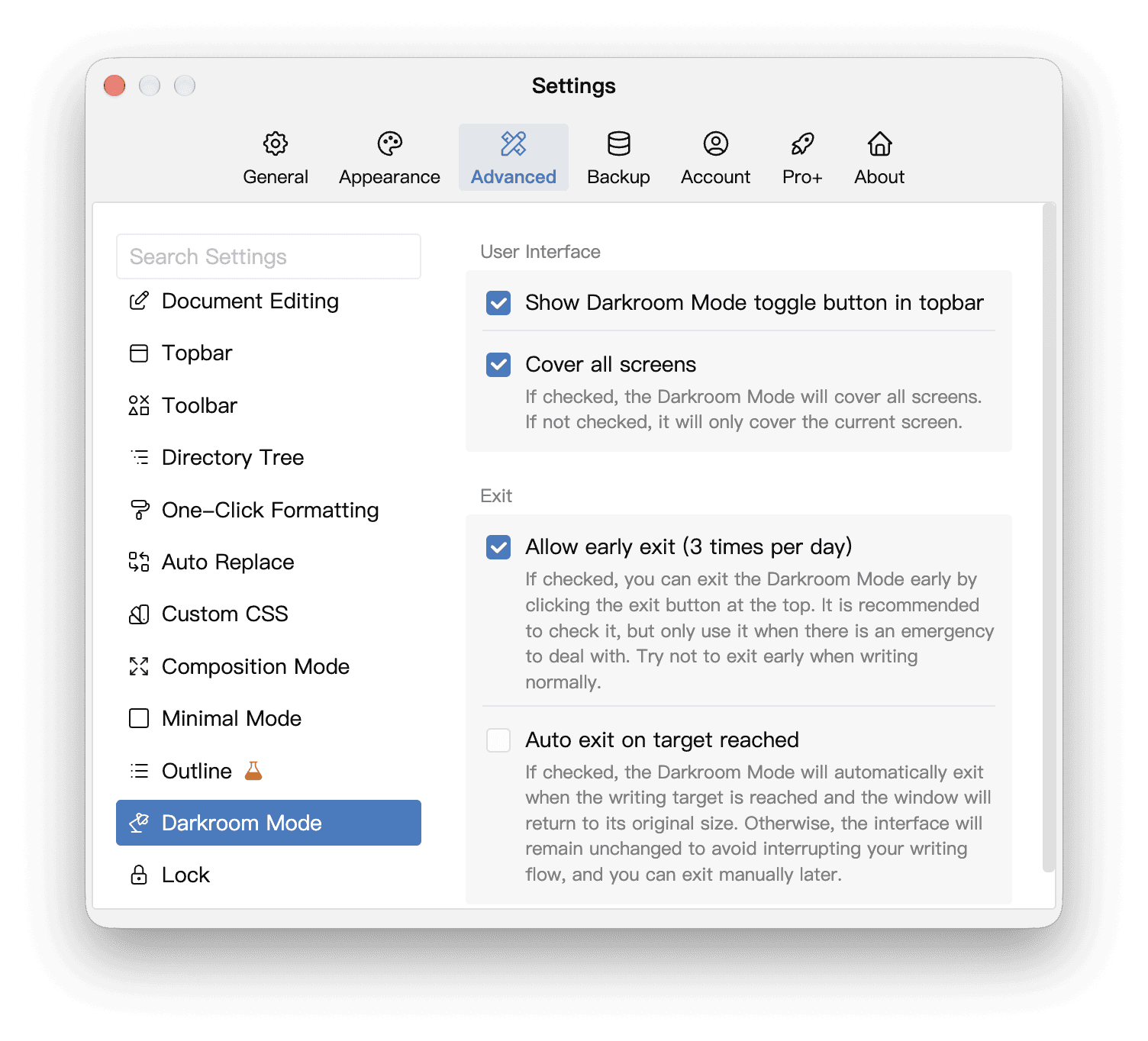
Show Darkroom Mode toggle button in topbar: adds the button to the main window. You still need to click it, set a target, and click Start to enter Darkroom Mode.
Cover all screens: covers every screen when multiple monitors are connected. Turn it off to cover only the current screen.
Allow early exit: lets you use the exit button at the top to request an early exit when something urgent comes up. Check the app’s messages for current eligibility and usage limits.
Auto exit on target reached: automatically leaves Darkroom Mode and restores the window’s original size when you reach the target. With it off, the interface stays unchanged so you can keep writing and exit manually later.
Typewriter Mode
Typewriter Mode scrolls the text as you type to keep the caret near a chosen vertical position, reducing how far your eyes need to follow it down the page.
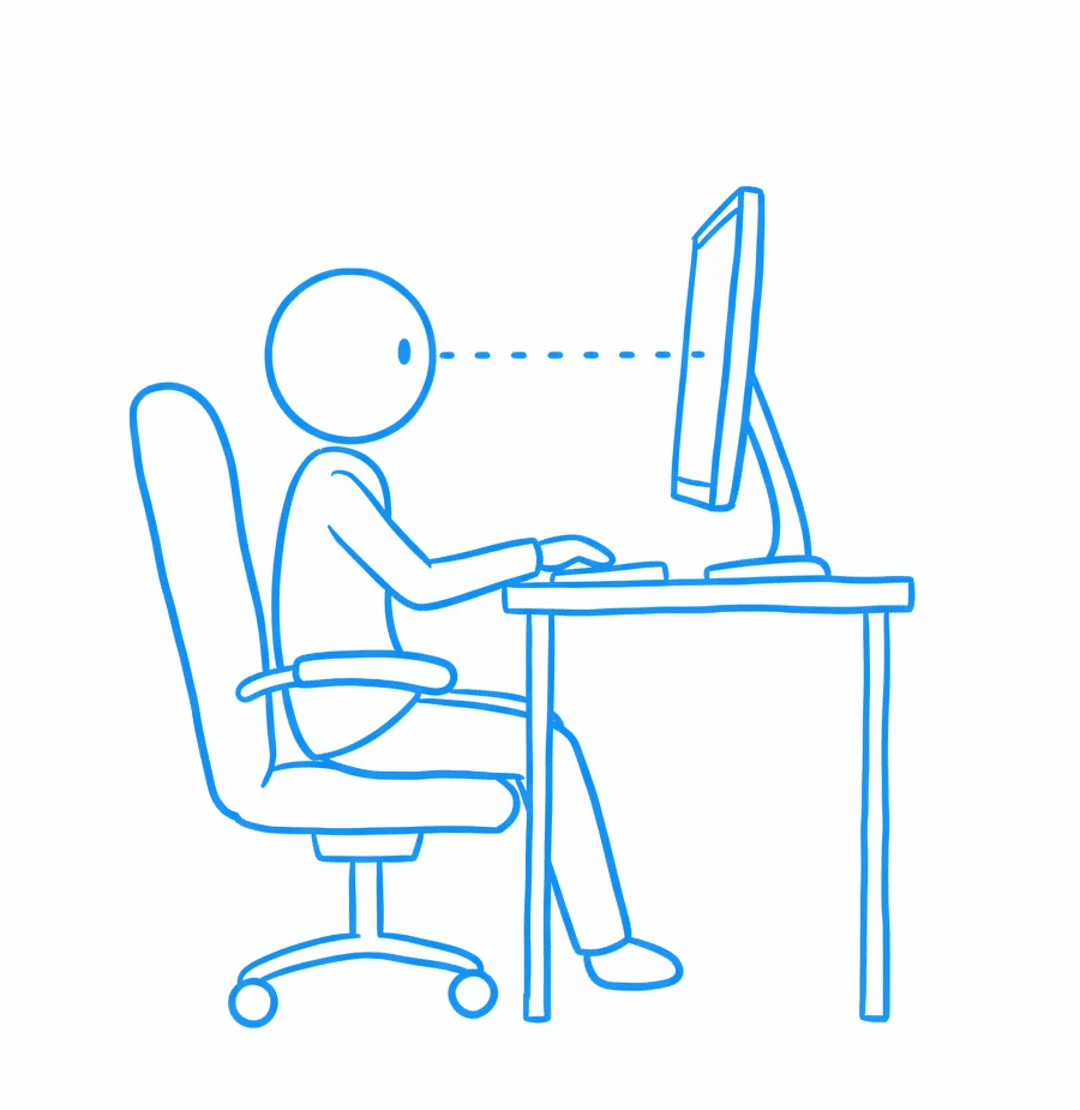
The blue dashed line represents the writer’s line of sight. You can choose the caret position; it does not have to be in the middle of the screen.
Click the keyboard icon in the editor’s bottom status bar and turn on Typewriter Mode in the panel. Turn the same switch off to exit. You can also enable or disable it in Settings → Advanced → Document Editing.
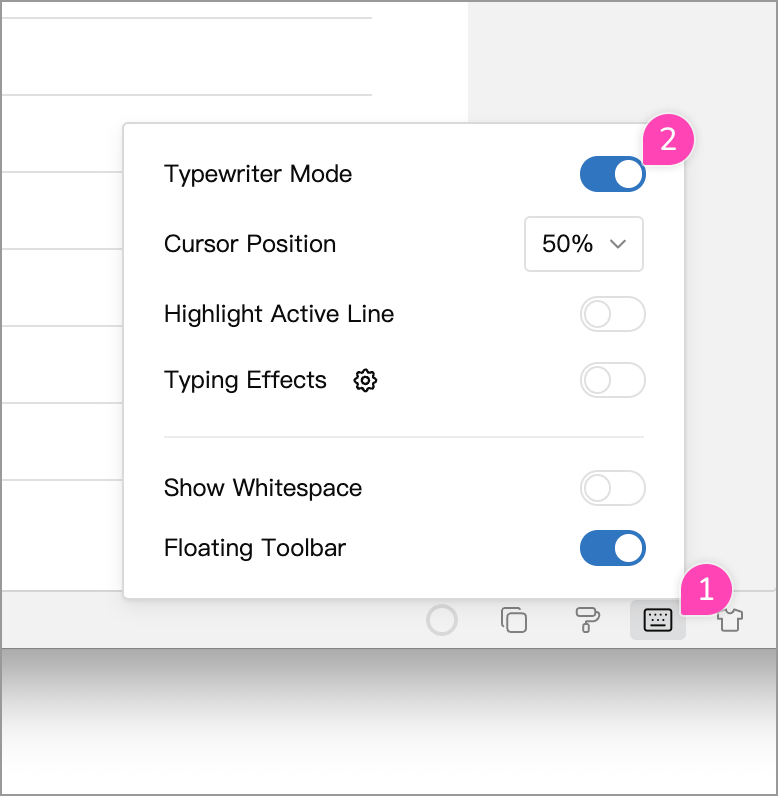
Caret Position and Scrolling
Choose a Cursor Position from 10% to 90% in 10% steps. At 50%, the target is halfway down the editor. Once the content is long enough, typing scrolls the caret back toward that height according to your scrolling setting; it is not fixed in place during every action.
Under Typewriter Mode in Settings → Advanced → Document Editing, choose when to scroll:
- Scroll on return: the default; adjusts the position when you press Enter to start a paragraph.
- Scroll on typing or line break: adjusts the position as you type or start a new line, keeping the caret near the chosen height more consistently.
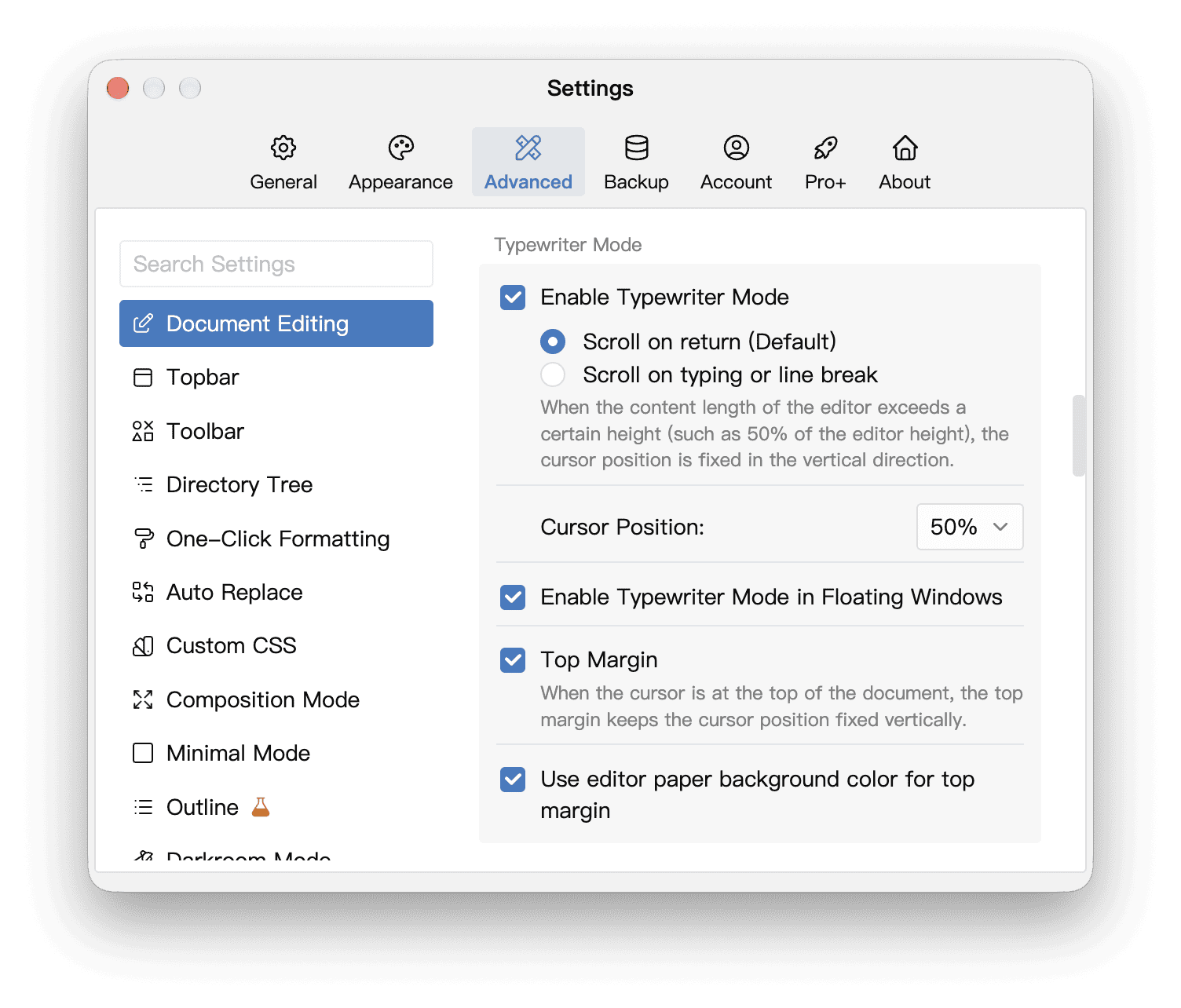
The same settings section also offers:
- Top Margin: adds space so the caret can stay at the chosen height even at the start of a document. You can choose whether this space uses the editor’s paper background color.
- Enable Typewriter Mode in Floating Windows: applies the mode to floating document windows as well. The main Typewriter Mode switch must be enabled first.
Highlight Active Line
The keyboard-icon panel also has a Highlight Active Line switch. It emphasizes the paragraph containing the caret and dims other content. If you select text across paragraphs, it emphasizes the paragraphs included in the selection. This is an independent option and works even when Typewriter Mode is off.