
Background Image
The editor’s container background sits behind the paper. Editor Background Transparency controls how much of that background shows through. You can keep a distinct paper area or let the image appear behind the text.
Choose a Background
Open Settings → Appearance and scroll to Editor Container Background. Choose Auto for the theme’s default background, Color for a solid color, or Image for a background image.
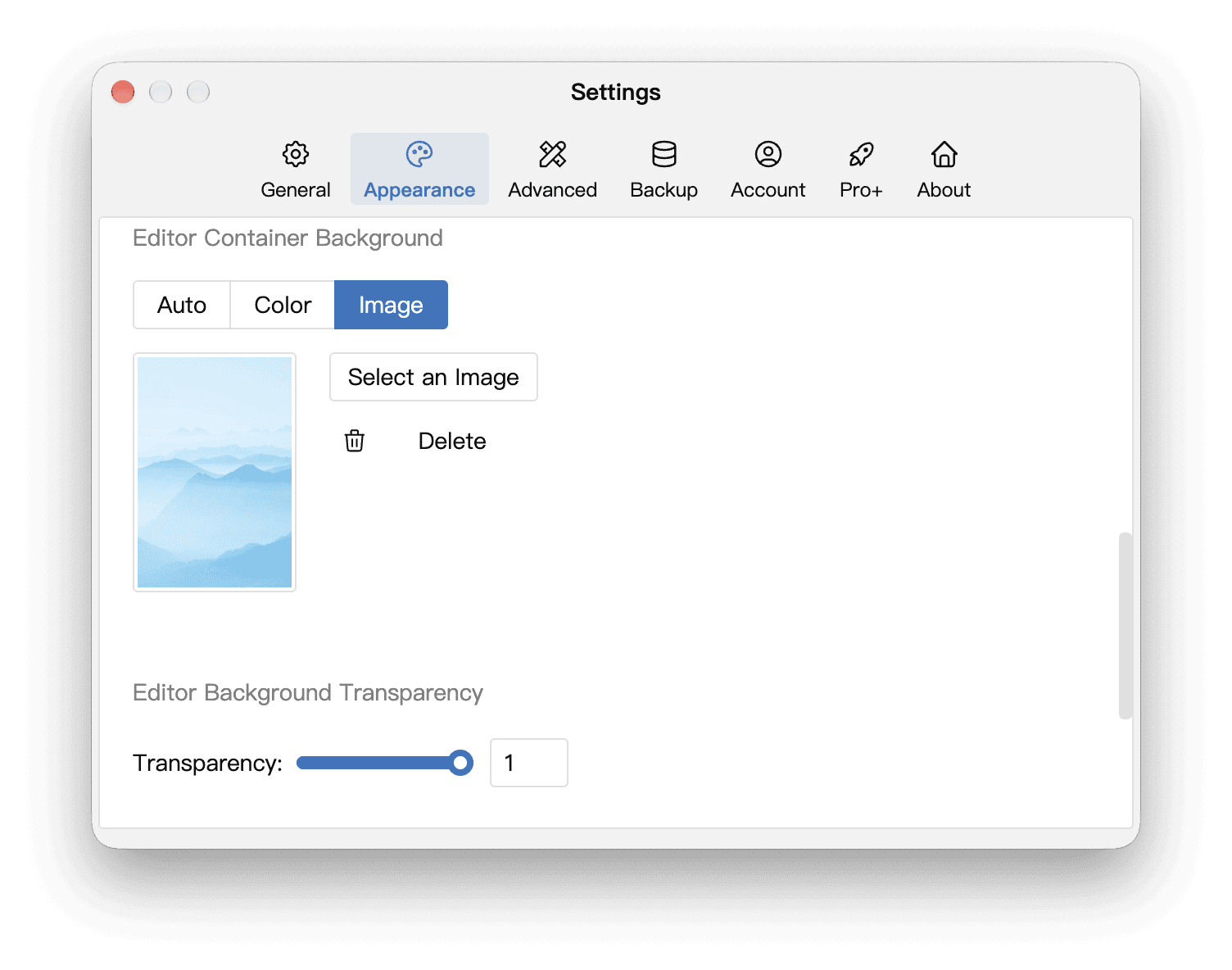
Choose Image, then click Select an Image. On first use, this opens a file picker; if local backgrounds already exist, it opens the manager described below. The blue mountain image in this example is a separately supplied file, not a built-in background.
If Image has a lock indicator, check the in-app information and plan comparison for availability.
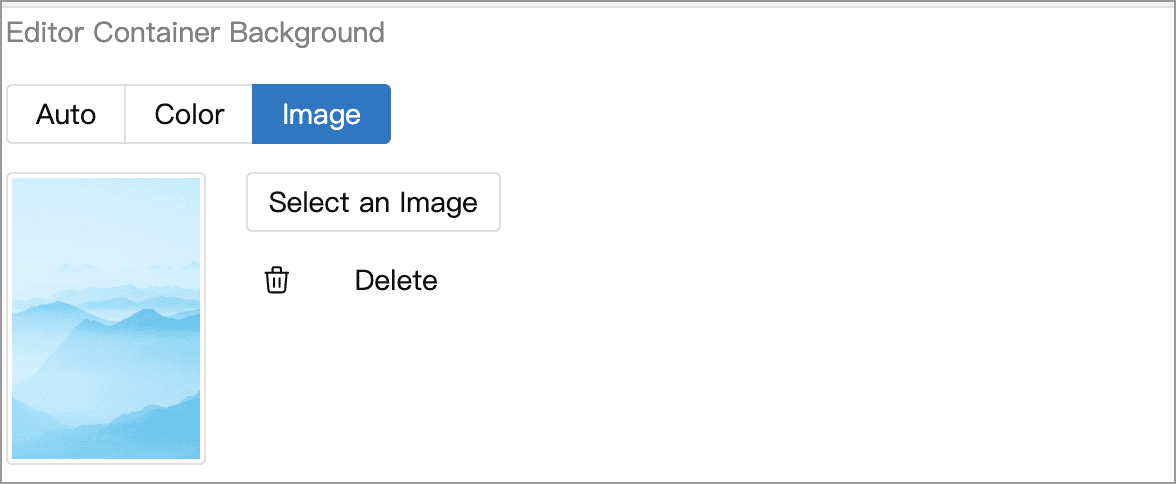
Manage Local Backgrounds
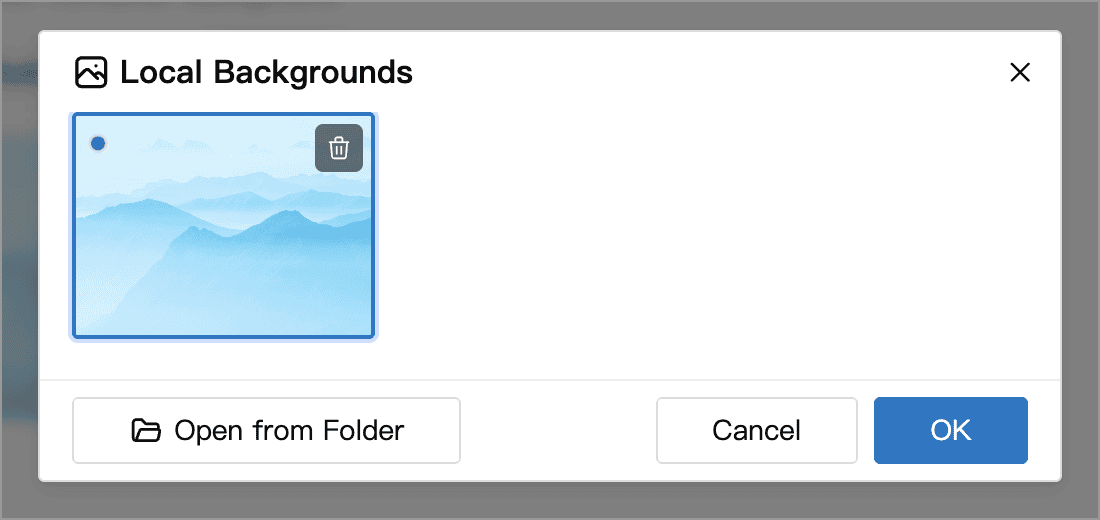
Selected images are stored on the current device. Click Select an Image again to open Local Backgrounds, select a thumbnail and click OK to reuse it, or click Open from Folder to add another image.
Hover over a thumbnail to reveal its delete button. If the current theme, another theme or Keep Consistent settings still use the image, the app prevents deletion. Replace or remove the background in each theme that uses it, and check the background image setting under Keep Consistent if enabled. Switching to Auto or Color alone does not clear the saved image selection.
Stop Using or Remove a Background
To temporarily stop displaying the image, switch Editor Container Background to Auto or Color. There is no need to delete the image.
To remove the image you selected for the current theme, click Delete beside Select an Image in Appearance and confirm. The app restores the theme’s bundled background image, if any, or returns to the automatic background. Image files still used by other themes are kept.
The Delete button here cannot remove a background bundled with a theme. Instead, switch the background type or change the background in the custom theme editor.
INFO
Local backgrounds stay on the current device and are not synced to the cloud. Select the image again when moving to another computer. Backgrounds and editor styles are saved per theme; see Themes and Editor Styles.
Adjust Opacity and Text Color
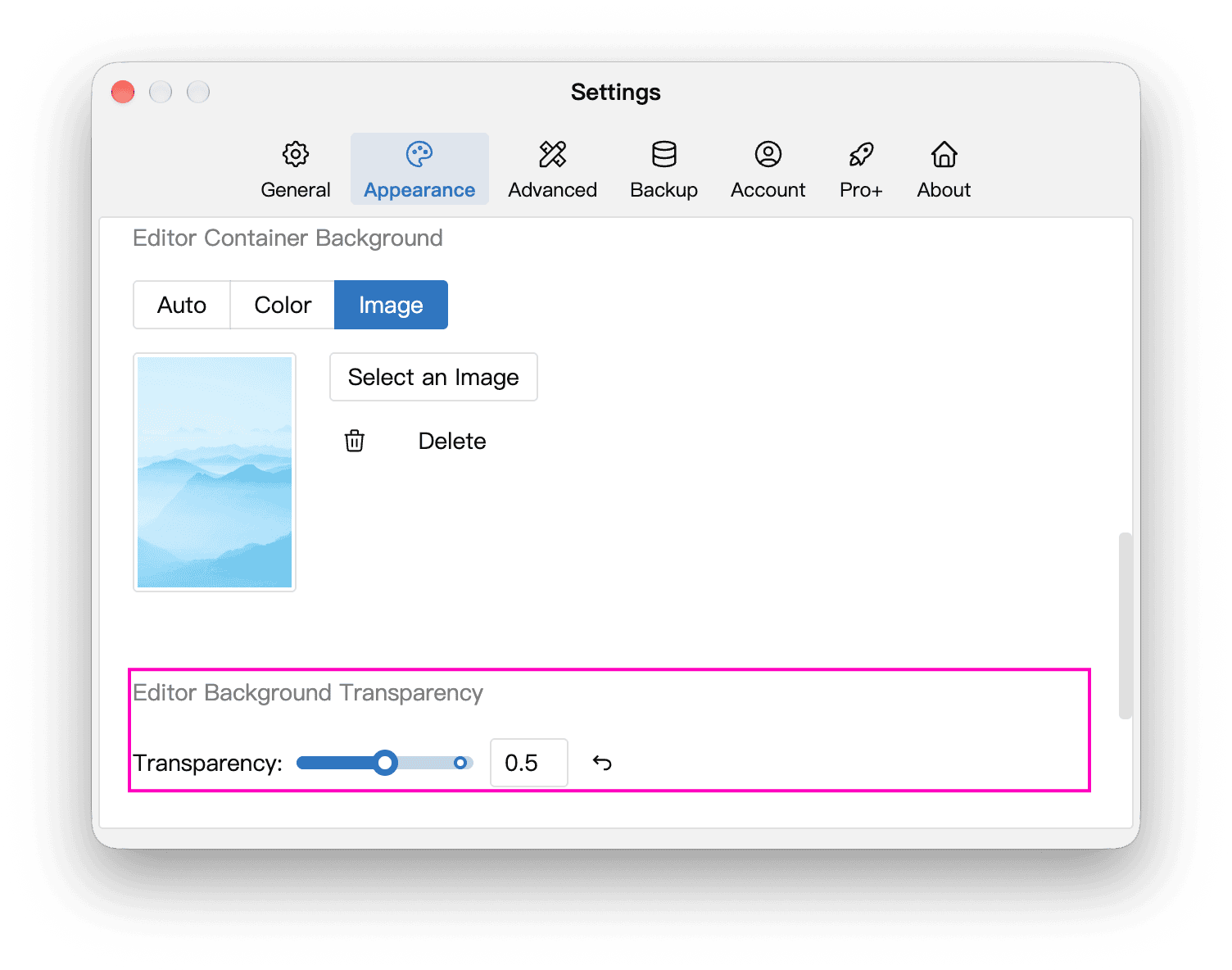
There are two places to adjust opacity. Both change the same setting; the screenshots of these two controls use 0.5 (50%).
Adjust in Settings
Open Settings → Appearance and scroll to Editor Background Transparency. Drag the slider or enter a value from 0 to 1 in the field on its right to adjust the paper’s opacity.
Adjust in the Editor
Click the T-shirt icon in the editor’s lower-right corner, select Layout, and find Background Opacity. Drag the slider or enter a value to see how the text and background look together.
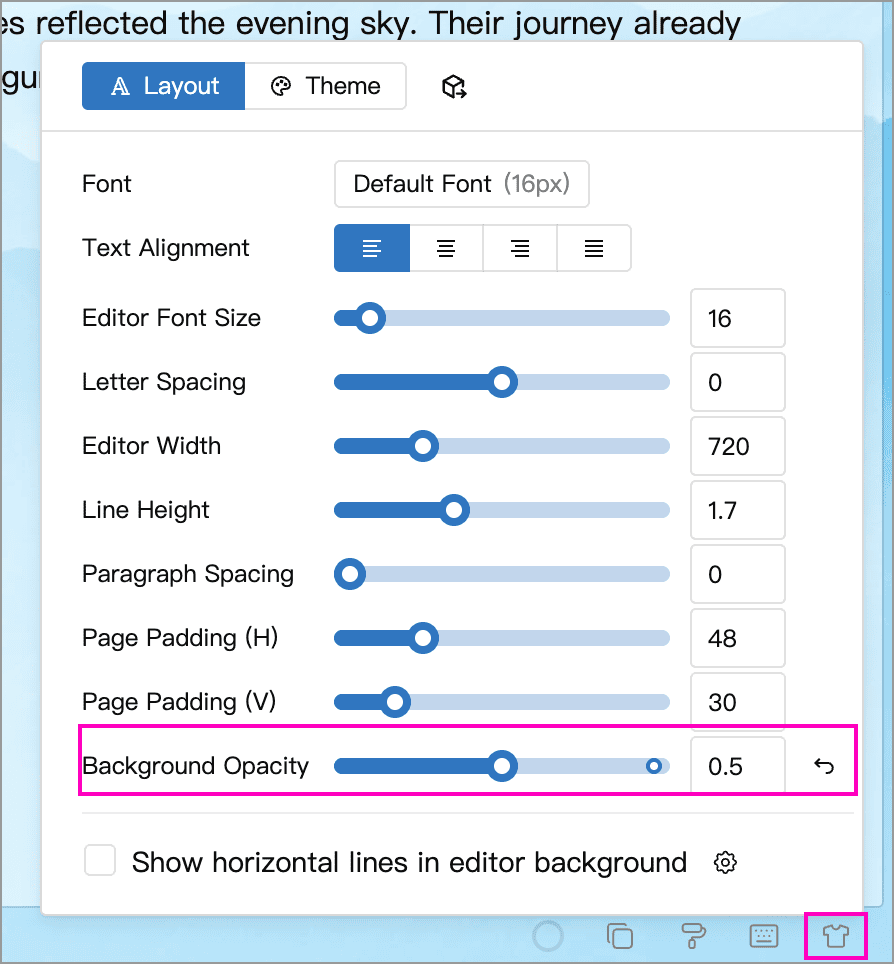
Values and Appearance
Although the Appearance setting uses the word “transparency,” a higher value makes the paper more opaque:
| Input value | Percentage | Appearance |
|---|---|---|
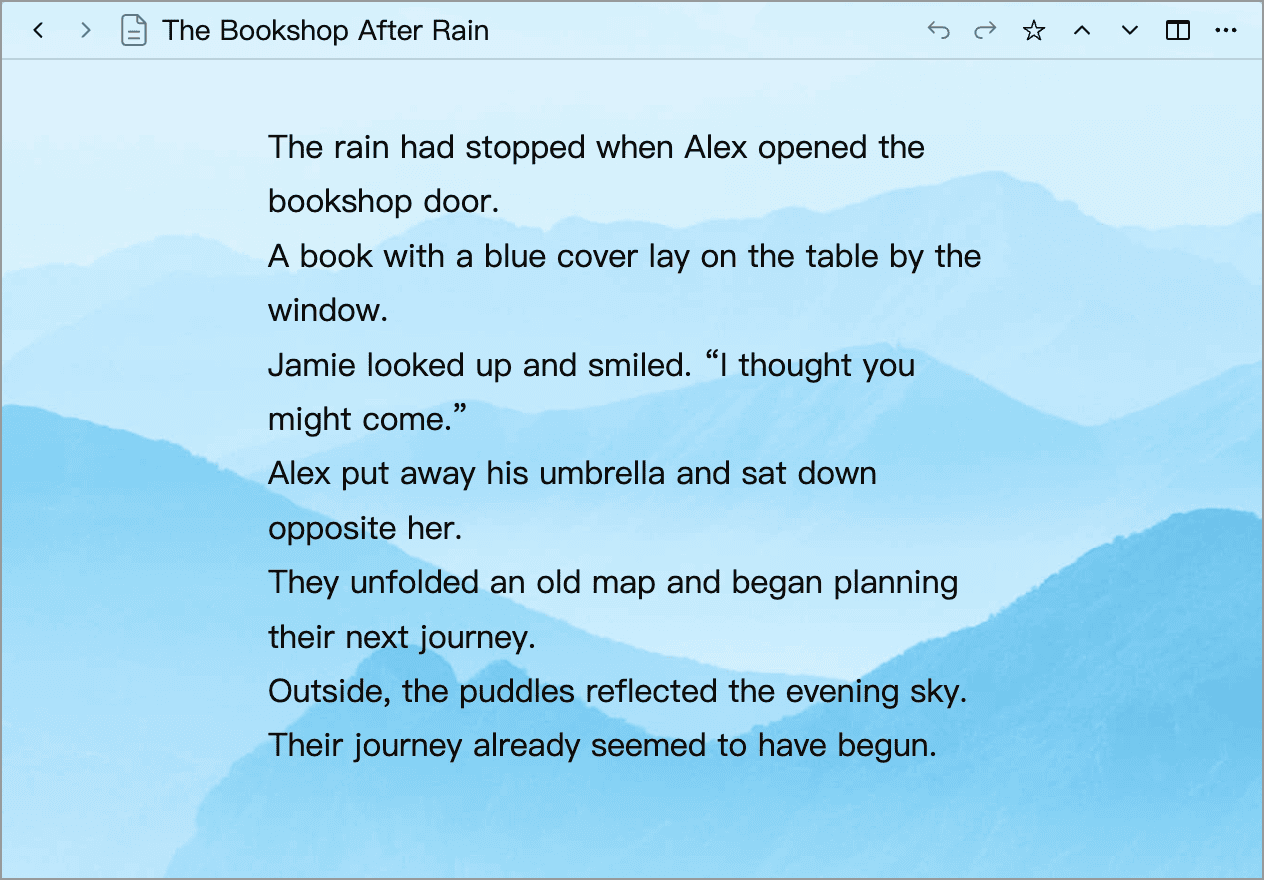
| 0 | 0% | Fully transparent paper; the background image appears directly behind the text |
| 0.5 | 50% | Translucent paper; the background shows through |
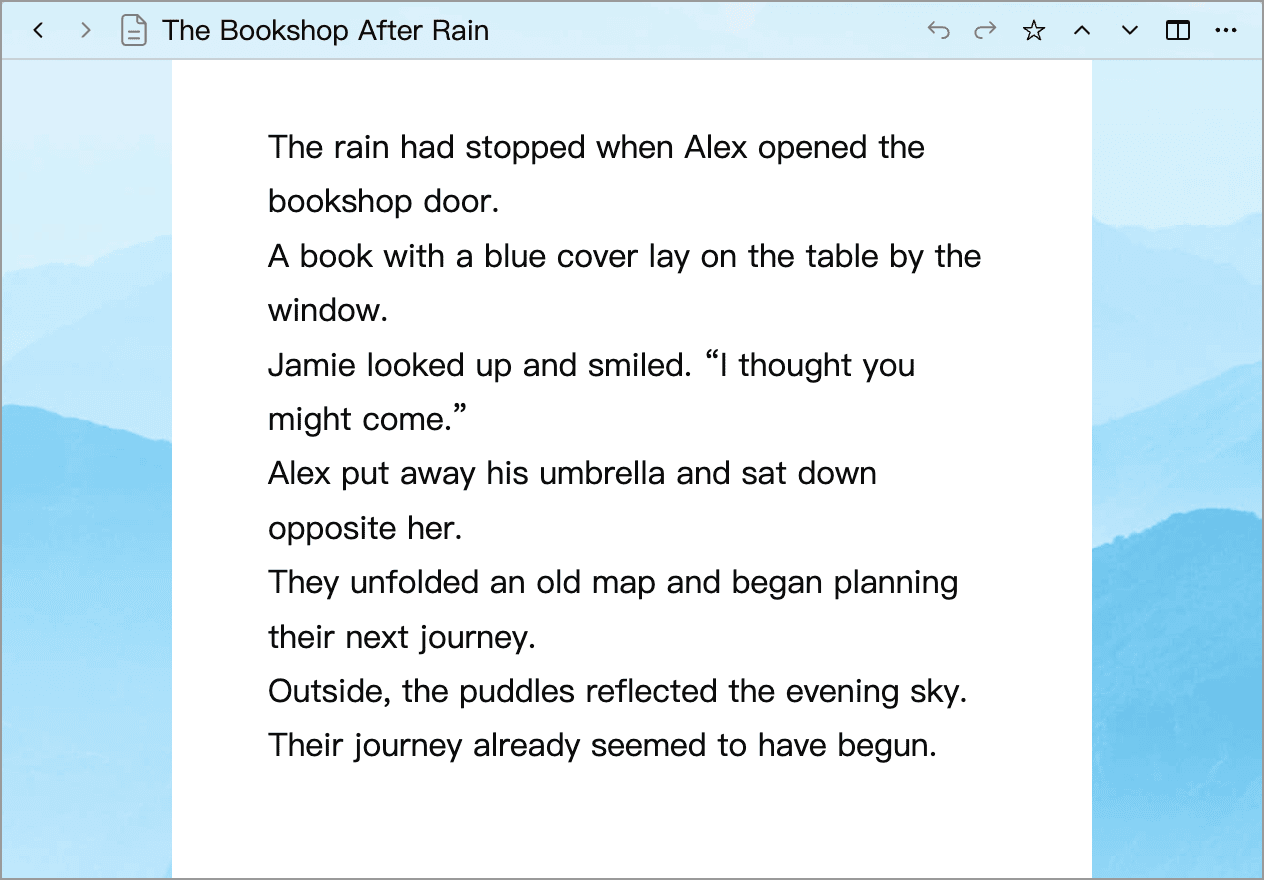
| 1 | 100% | Fully opaque paper; it hides the background behind the text area |
At 1 (100%), the image mainly appears around the paper, while text retains its own background:
At 0 (0%), the paper is fully transparent and the image appears directly behind the text:
Adjust Text Color
Avoid busy, high-contrast images that interfere with reading. If text is difficult to see on a dark image, click the T-shirt icon in the editor status bar, select Layout, and click the button showing the font name beside Font. Set Font Color to Custom and choose a color, or increase paper opacity. See Adjust the Style.
You can also use Minimal Mode to reduce interface distractions. The writing background is separate from the exported page background; check the preview for your chosen export format.