
Table of Contents
While you edit a document, the Contents panel in the sidebar lists its headings as a table of contents, making long articles, notes and reference material easier to navigate. The document tree organizes separate documents; this table of contents shows the structure inside one document.
The same Contents panel also works with whiteboards: when a whiteboard is open, it lists that whiteboard’s cards for quick navigation.
Create Headings
The document’s table of contents is generated automatically from its headings; you do not need to add entries manually. Create headings using either method:
- At the start of a paragraph, type
#,##or###(including the space) to create a level-one, level-two or level-three heading. - With the default settings, type
/, choose a heading level from the Quick Input Menu, then enter the heading text.
WonderPen supports six heading levels, shown as H1 through H6 in the panel. Use level-one headings for main sections and level-two or level-three headings for subsections to make the structure easier to follow. Entries follow the order of headings in the document and are indented by level.
Making a regular paragraph bold or renaming the document does not create a contents entry.
View and Navigate
Open the Contents panel in the sidebar. It is on the right in the default layout. If you have moved it, use its new sidebar location; see Interface for layout settings.
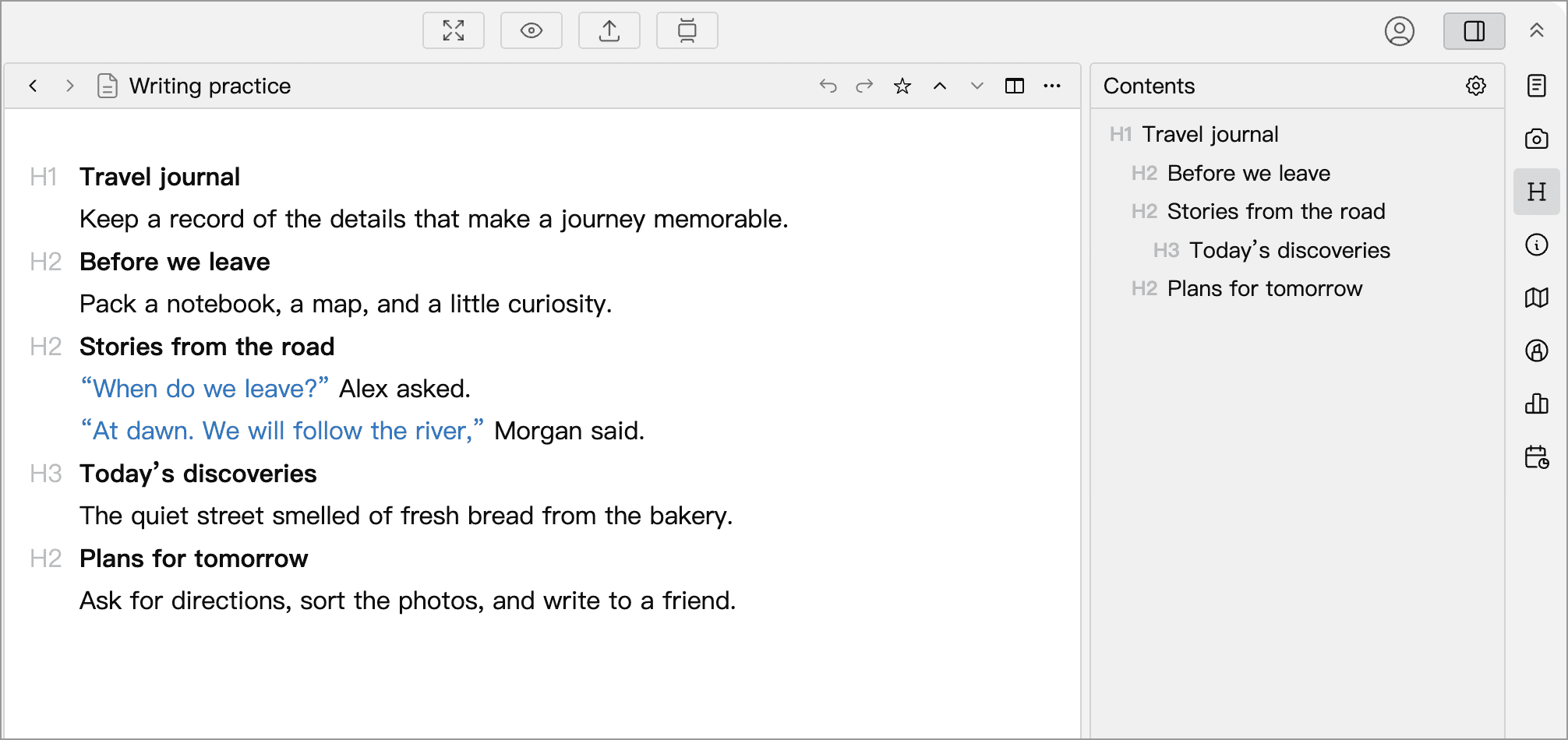
- Click an entry to scroll to its heading.
- Entries update automatically when you add, edit, remove, move or change the level of headings.
- The panel follows the active document when you switch tabs or click in another editor pane.
- Click the gear button at the top right of the Contents panel to adjust its font size. This does not change the font size in the document.
The panel does not insert a table of contents into the document body. To include one in an exported file, check the export settings for that format.
Empty Panel or Missing Entries
If headings are missing from the panel while you are editing a document, check the following:
- Check the active document: After switching tabs or splits, make sure you are editing the intended document.
- Check that the paragraph is a heading: Bold text or a larger font size does not make a regular paragraph a heading. If literal text such as
## Headingremains visible, it has not been converted to a heading. - Check input settings: If typing hash marks followed by a space does not convert the paragraph, enable Heading in Settings → Advanced → Markdown, then type the markers again. If the Quick Input Menu does not appear or heading options are missing, check the triggers and menu items in Settings → Advanced → Quick Input Menu.
Locate Cards on a Whiteboard
When you open a whiteboard, the Contents panel lists the cards on that whiteboard. Click a card in the list to center the whiteboard view on it and select it. This is useful when the whiteboard has many cards, cards are spread out, or the one you need is outside the visible area.
You can sort the card list by name in ascending or descending order, or arrange it manually. See Whiteboard: Find Cards in the Contents Panel for details.
Demonstration Video
The video uses a Chinese interface and may show an older layout. Follow the instructions above for current entry points.