
Backup and Restore
WonderPen saves automatic and manual Library backups as Zip files. Start by setting up automatic backups and an extra backup location, then create a backup, check that it appears in the list, and preview its contents.
Set Up Backups
Enable Automatic Backup
Open Settings → Backup, select Enable auto backup, and set the interval. Automatic backup is enabled by default with a 15-minute interval.
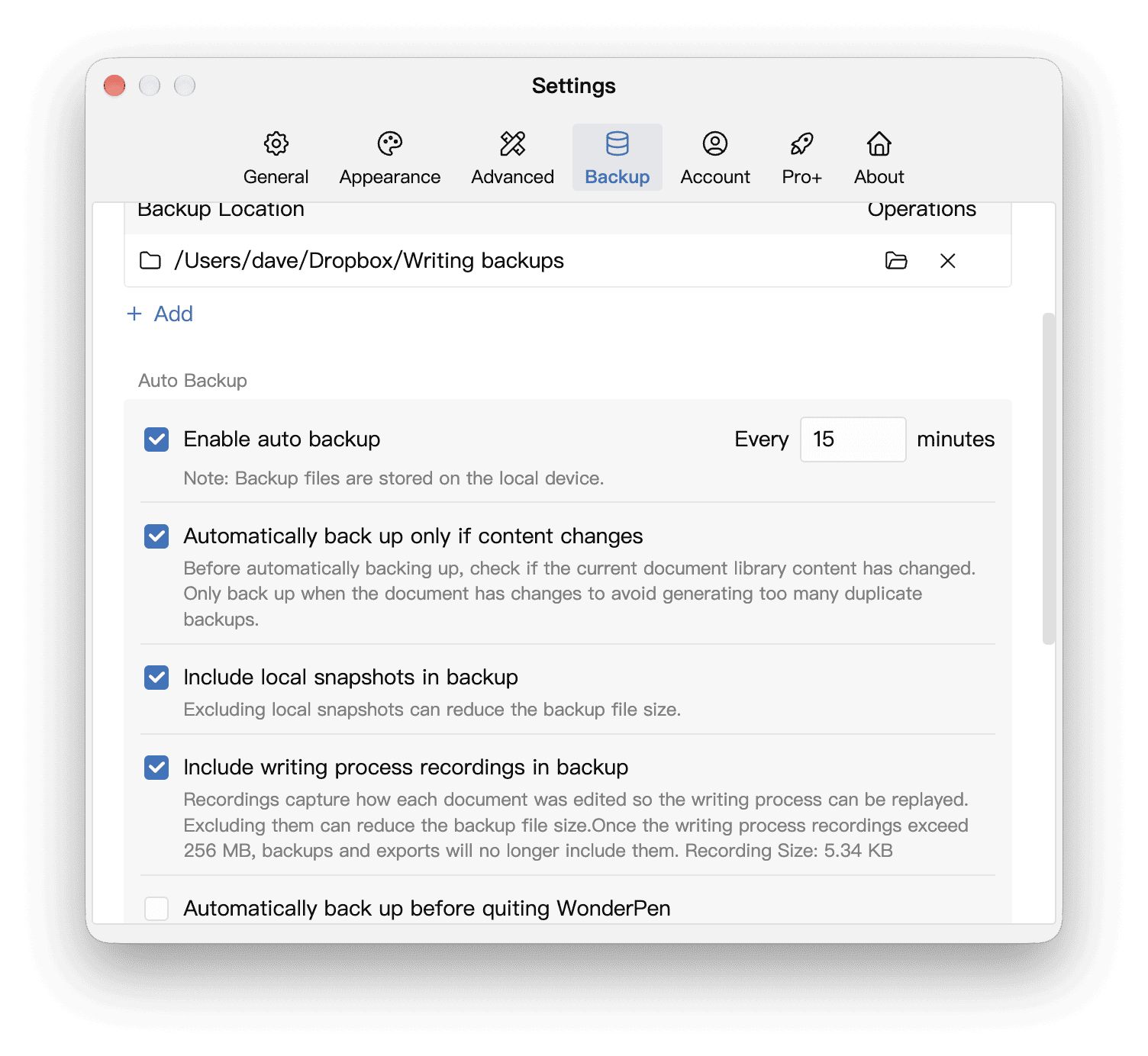
Keep Automatically back up only if content changes selected to avoid duplicate backups. You can also enable automatic backup before quitting WonderPen to check for changes and back up on exit.
The same panel lets you choose whether to include local snapshots and writing recordings. See What a Backup Contains below for details.
Set Backup Locations
Backup in library folder is selected by default. Backups are stored in the backup directory inside each Library folder (.wplibrary). You can add multiple Extra Backup Directories. We recommend adding at least one location outside the Library folder.
- Find Extra Backup Directories in Settings → Backup.
- Click Add and choose a folder. Repeat to add more locations.
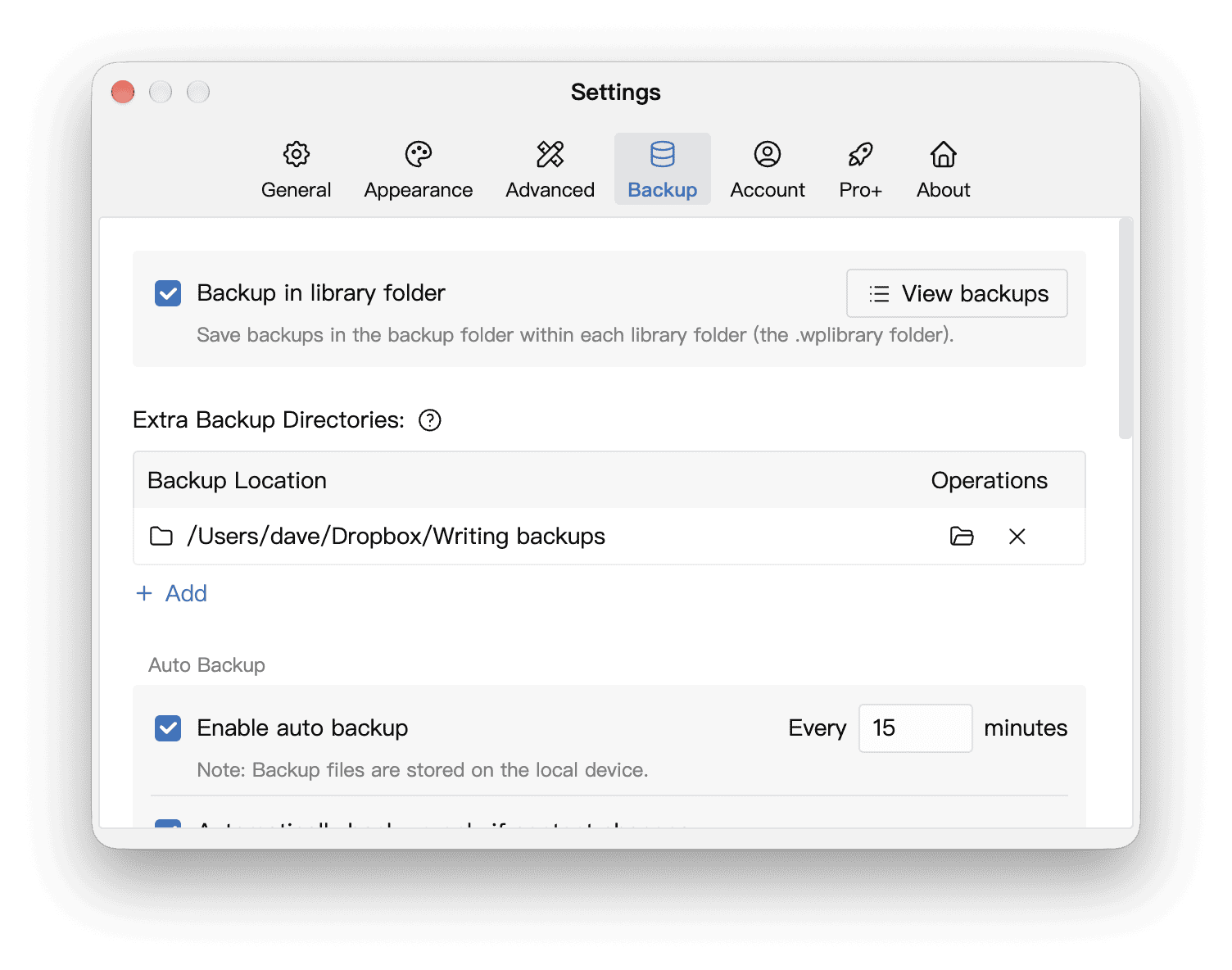
Each new backup is saved to the configured locations, organized by Library name. Ensure at least one location is writable.
Choose Backup Locations
On Windows, if you have a D: drive or another drive in addition to C:, keep at least one extra backup location outside C:. As long as that drive and its backup files are preserved when you reinstall Windows, you can still restore your data from those backups.
A folder outside the Library also helps protect against accidentally deleting the entire Library. However, separate partitions on the same physical disk do not protect against failure of that disk. For additional protection, consider another physical disk or a cloud drive backup.
Add Locations Again After Reinstalling the System
Extra backup locations are stored only on the current device and do not sync with your account. After you reinstall the operating system, WonderPen will not automatically discover your previous extra backup locations. Go to Settings → Backup → Extra Backup Directories, click Add, and select each original backup folder again. You can also restore directly from a Zip file when you need to recover data.
Resolve Access Permission Issues
If a warning icon appears beside a location, hover over it to see the access permission warning.
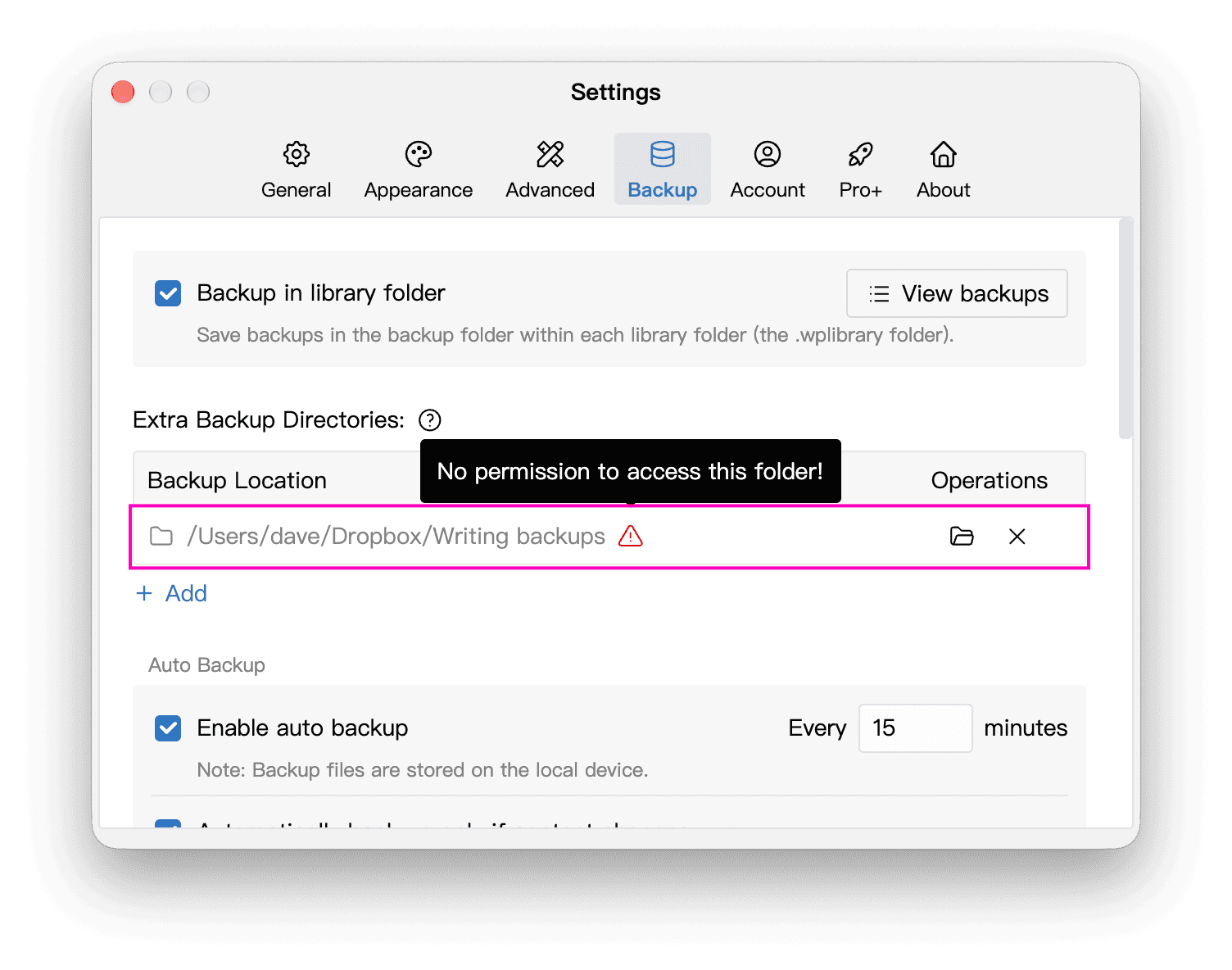
This is a common sandbox permission issue in the Mac App Store version. To grant access again:
- Click the delete button beside the location to remove it from the list.
- Click Add and select the same folder in the system file picker. Adding it again grants WonderPen permission to access it.
Removing a location from this list stops future backups there; it does not delete the folder or existing backup files. If it remains inaccessible after you add it again, check whether the folder was moved, an external disk is disconnected, or system folder permissions prevent access.
Set Backup Capacity
In Settings → Backup, adjust Library maximum backup size and choose whether to Smart delete old backups. WonderPen cleans up older backups according to capacity and time-based rules. See Backup Space for details.
Archive important versions in a separate folder outside automatic cleanup.
View and Manage Backups
Open the Backup List
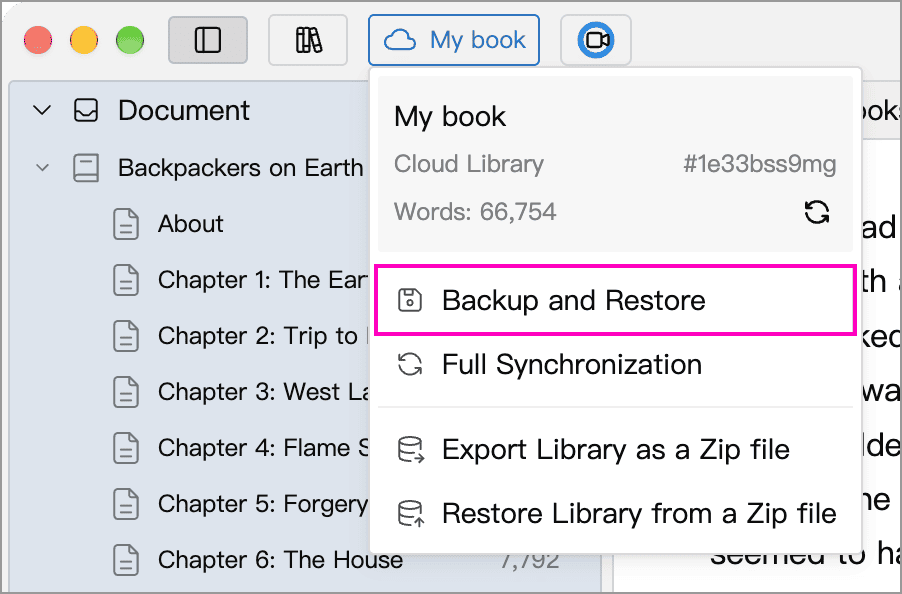
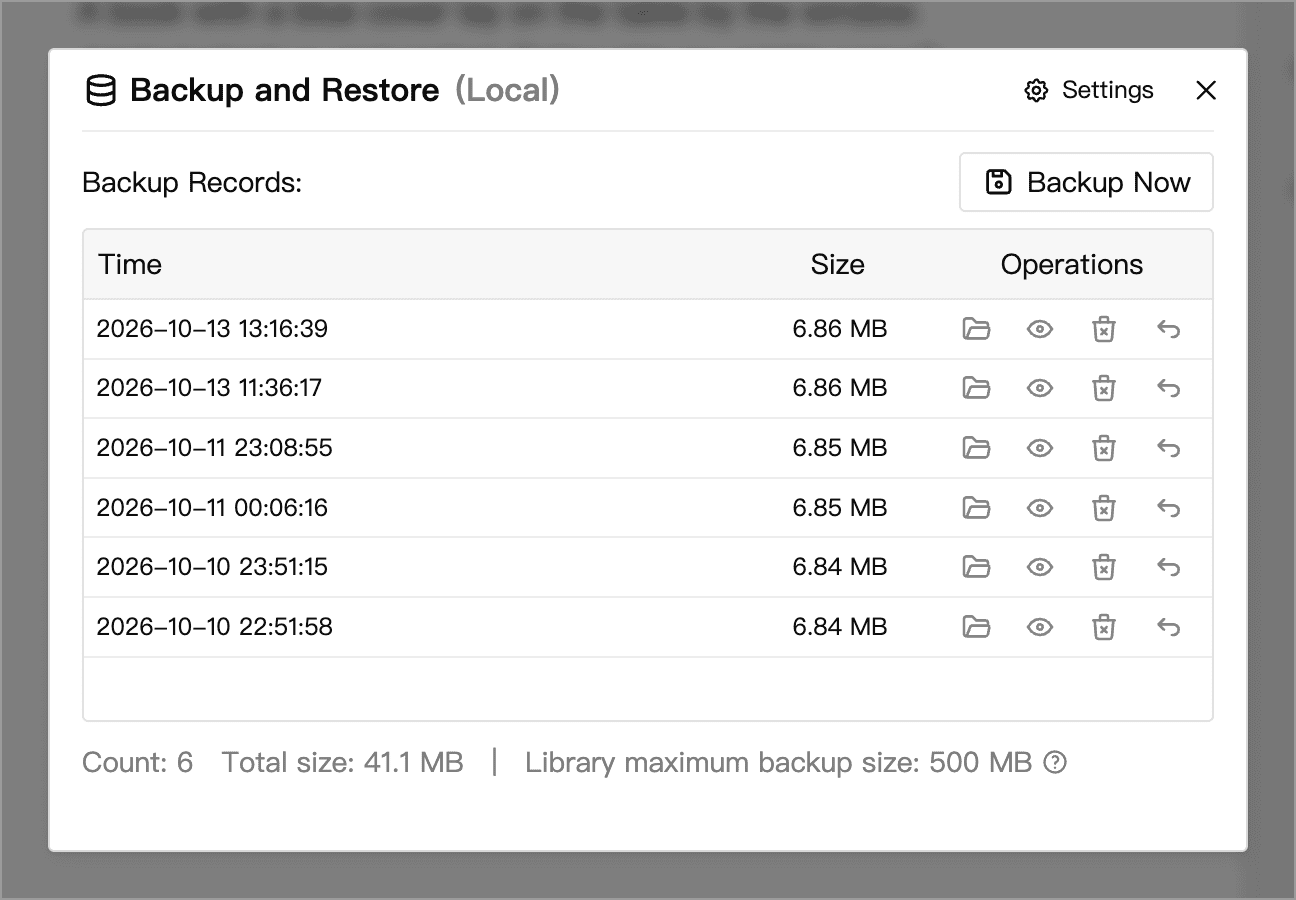
Open the Library, click its name at the top left of the main window, and choose Backup and Restore. Alternatively, click View backups in Settings → Backup.
The list combines backups from the currently configured locations and shows their times and sizes. Backups with the same filename at different locations appear as one record.
Create a Backup Now
After the initial setup, or before a major rewrite or restoring an old version, back up the current Library manually:
- Click Backup Now in Backup and Restore.
- Choose File → Backup Now from the application menu.
- Press Ctrl + Shift + S (⌘ + Shift + S on macOS).
Manual backups use the same locations and inclusion settings. Wait for the success message and check that a new record appears. If you see Backup partially succeeded, check the cause and retry.
Manage Individual Backups
Use the buttons on the right of each backup record to locate the file, preview its contents, delete it, or restore from it.

| Button (left to right) | Purpose |
|---|---|
| Show in folder | Open the containing folder and select the backup file so you can copy or archive it |
| Preview | Check the backup’s contents before deciding whether to restore it |
| Delete | Delete this backup |
| Restore from this backup | Restore the current Library using this backup; see Restore a Backup |
Deleting a backup removes files with the same name from all currently configured backup locations. These files do not go to WonderPen’s Trashcan. If you want to keep the backup, copy it to another folder first.
If You Cannot Find a Backup
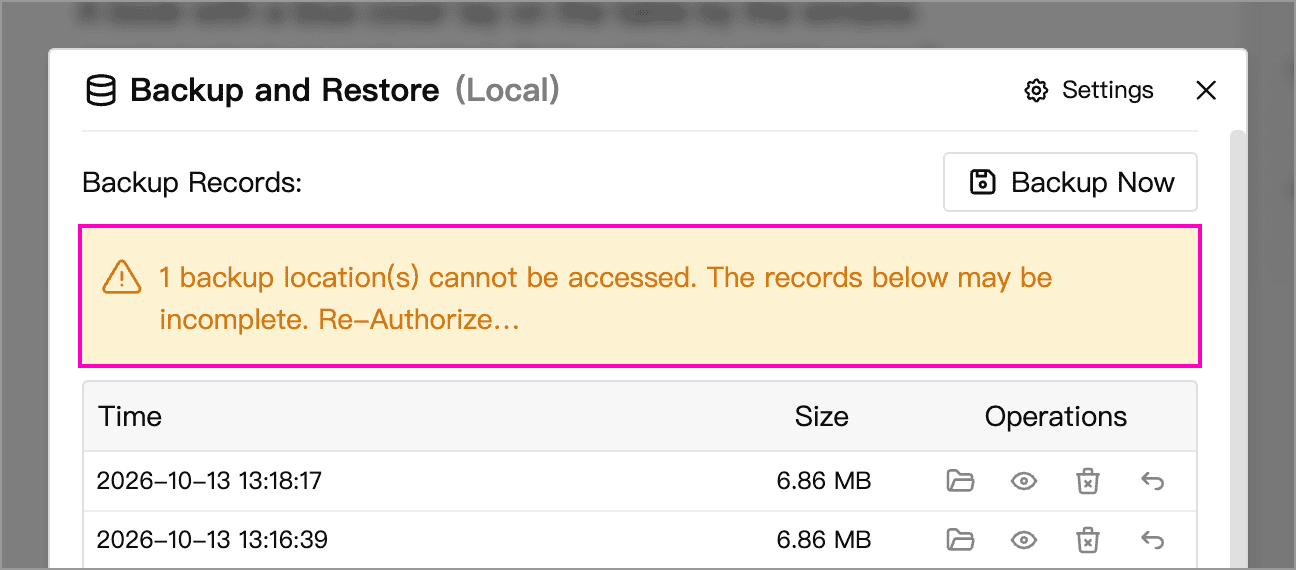
If a location is inaccessible, the list may be incomplete; this does not necessarily mean the backups are lost. Check whether the folder was moved, an external disk is disconnected, or access permissions have changed.
For an extra backup location, click Re-Authorize… in the warning to select the folder again. If it remains inaccessible, follow the permission recovery steps above to remove and add the location again.
Extra backups are organized by Library name. If you renamed a Library or created one with a different name after reinstalling the system, older backups may not appear in the current list. Open the WonderPen.backup folder at the extra backup location, find the folder with the original Library name, and restore from a Zip file inside it.
If you already have a backup Zip file, you can import it directly without adding it to the backup list first.
Restore a Backup
Restoring Overwrites the Target Library
Restoring a full Library backup overwrites the target Library’s contents. Back up any current changes you want to keep first. If the target is a Cloud Library, the restored content also synchronizes to the cloud and other devices. Avoid editing that Library on other devices during restoration.
If you only need to find earlier text, or the original Library will not open, create a new Local Library and import the backup there first. Do not delete the original files.
Restore from the Backup List
- Find the required record in Backup and Restore and preview its contents.
- Click Restore from this backup, the rightmost button on that record.
- Read the confirmation and proceed to restore into the current Library.
Restore from a Zip File
- Open or create the Library that will receive the data.
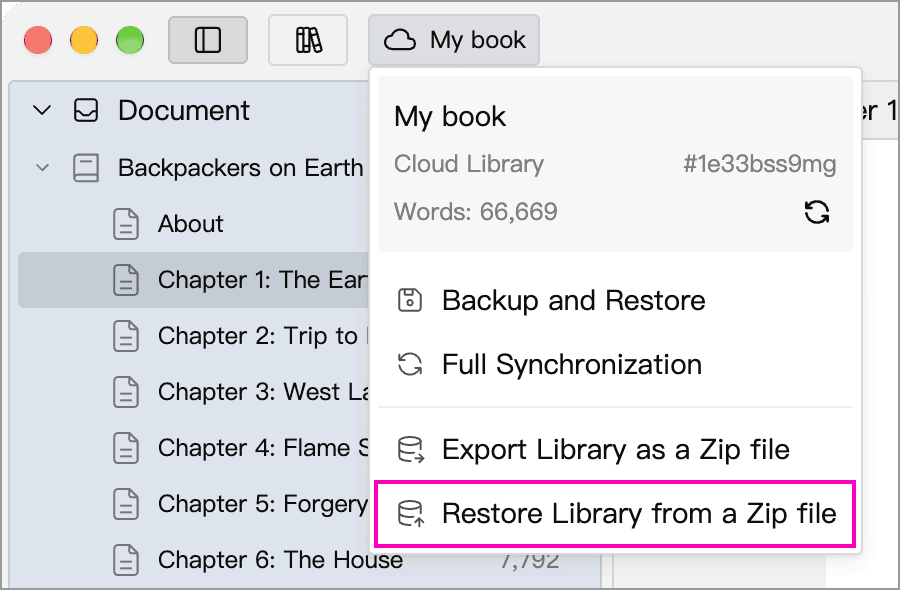
- Click its name at the top left and choose Restore Library from a Zip file.
- Select the backup
.zipfile created by WonderPen without extracting it, review the prompt, and import it.
Full backups and full Zip exports overwrite the current Library. Only Zip files created with partial export offer an append option during import.
Check the Restored Content
Check chapters, text, memos, whiteboards, and Assets before continuing to use the Library. If you restored into a new Library first, inspect it before deciding whether to migrate.
If the app reports an incomplete backup or missing restored Assets, retain the original backup file, inspect the actual content, and try another backup if needed.
What a Backup Contains
Backups primarily contain document text and memos, directory structure, whiteboards, cards, Trashcan contents, and Assets readable on this device. Backups are stored locally; even Cloud Library backups use data available on the current device.
Snapshots and Writing Recordings
These types of history can be controlled separately:
| Content | Setting and behavior |
|---|---|
| Local snapshots | Settings → Backup → Include local snapshots in backup, enabled by default; also available in Snapshot settings |
| Writing recordings | Settings → Backup → Include writing process recordings in backup, enabled by default; used for Writing Replay |
Turning either option off reduces size but excludes that history. Recordings are also omitted if they exceed the recording backup size limit shown in the app; other Library data can still be backed up. Creating a backup does not automatically download the entire Library’s cloud writing history.
These switches control automatic and manual backups. Files created through Export Library as a Zip file use separate inclusion rules; see Zip Export.
Partial Backup Success
Backup partially succeeded means some data or backup locations could not be saved completely, for example unreadable Assets or an inaccessible additional location. Check the warning and retry. The existence of a Zip file alone does not prove that a backup is complete.
Backup File Format
Archive contents depend on the Library and selected options:
| File or directory | Contents |
|---|---|
data.json | Library data and local snapshots, if included |
assets/ | Packaged images and other Assets; may be absent if there are none |
doc_ops/ | Per-document writing recordings and management information; may be absent when recordings are not included |
meta.json | Backup version, content scope, and other metadata |
说明.txt, README.txt | Restoration instructions |
Import the entire Zip file to restore it. Do not extract or modify only data.json. For readable output files, use Export. To choose where to save a Zip file or include only selected content, use Zip Export.