
Backup Space
Automatic and manual backups gradually use disk space. In Settings → Backup, set the Library maximum backup size and enable or disable Smart delete old backups.
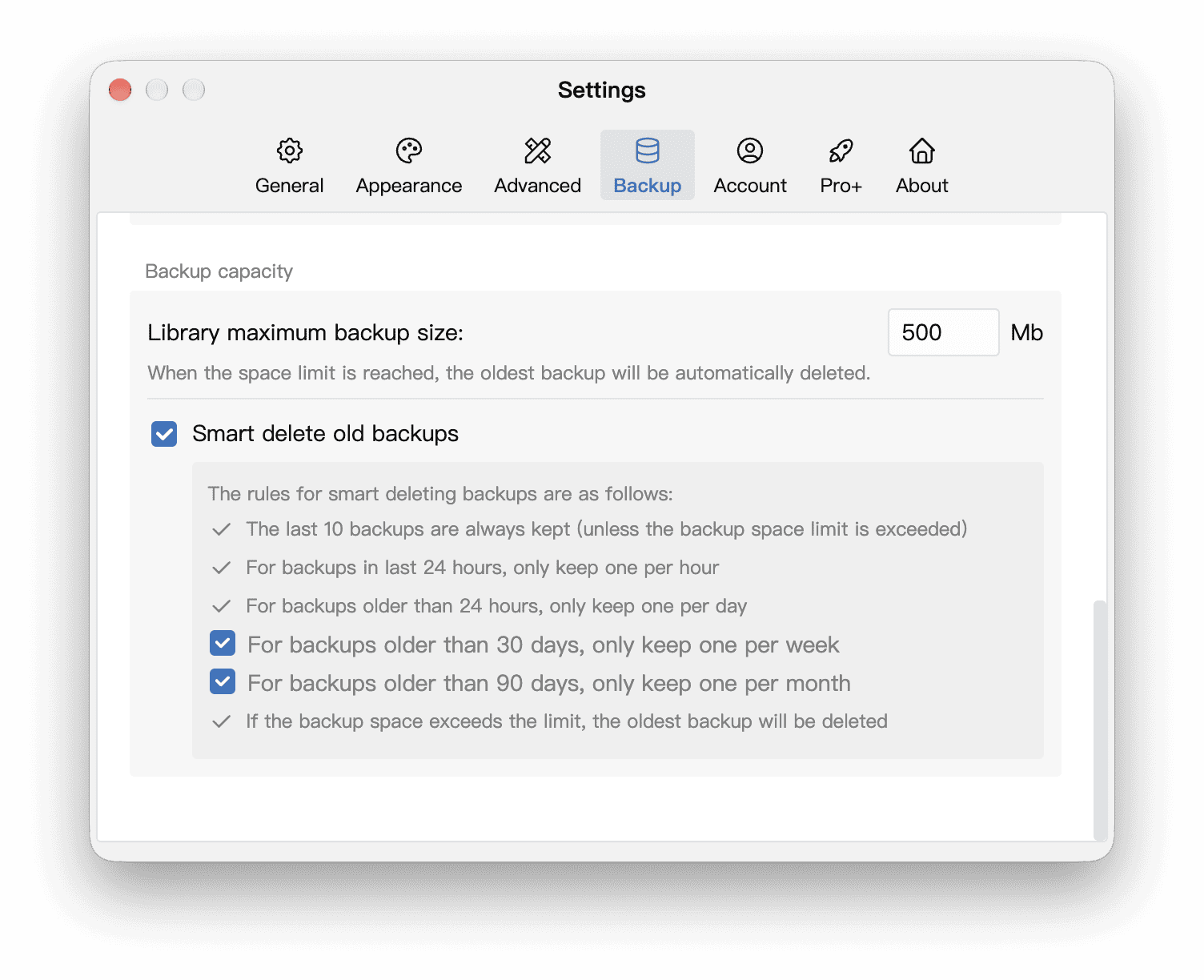
How Capacity Is Calculated
Library maximum backup size is the backup limit for each individual Library, not a total shared by all Libraries or a cloud storage quota.
For example, if you have three Libraries, set the limit to 500 MB, and use one backup location per Library, each Library’s backups can occupy up to 500 MB. The combined backup limit is 500 MB × 3 = 1500 MB (about 1.5 GB). Actual usage depends on the number and size of existing backups.
For the same Library, the limit also applies separately at each backup location. If you keep internal backups and backups at one additional location, each location is cleaned up against its own 500 MB limit. For three Libraries backed up to both locations, the combined limit is about 1.5 GB × 2 = 3 GB.
WonderPen applies these cleanup settings during the backup process. Allow enough space for several complete backups; a limit that is too small may cause even recent backups to be deleted. The limit controls cleanup but does not reserve disk space. Creating and saving a new backup still requires enough free space.
These settings affect which backup files are retained; they do not delete text or Assets from the current Library. See Backup and Restore for adding locations.
Smart Cleanup
Smart delete old backups is enabled by default. It keeps recent versions at shorter intervals and older versions at longer intervals. Time-based cleanup can remove backups even before the capacity limit is reached.
The latest 10 backups are retained first. Other backups are selected using the rules below, favoring the newest backup within each time period:
| Backup age | Retention rule |
|---|---|
| Within 24 hours | One per hour |
| Older than 24 hours | One per day |
| Older than 30 days (optional, enabled by default) | One per week |
| Older than 90 days (optional, enabled by default) | One per month |
With the monthly rule enabled, backups older than 90 days are selected at one per month. If you turn it off but leave the weekly rule enabled, those backups are selected at one per week. With both options off, backups older than 24 hours are selected at one per day.
These are retention rules for existing backups. They do not change the automatic backup interval or create missing backups for past periods. See Set Up Backups for enabling automatic backups and setting the interval.
If the selected backups still exceed the capacity limit, the oldest are removed until the limit is met. Even the latest 10 backups are subject to this limit. With smart cleanup off, WonderPen removes the oldest backups only when required by the capacity limit.
Archive Important Versions
At milestones such as submission or completion, copy a complete Zip backup to a separate folder outside automatic backup cleanup, and verify it by importing it into a new Library. Do not rely on a rotating backup folder as a permanent archive.
If a cloud drive synchronizes the backup folder, deleting an old backup may also delete its cloud copy. See Save Backups to a Cloud Drive.