Skip to content

Interface ​

Start window ​

When you start WonderPen for the first time, before signing in or opening a library, you see the following window:
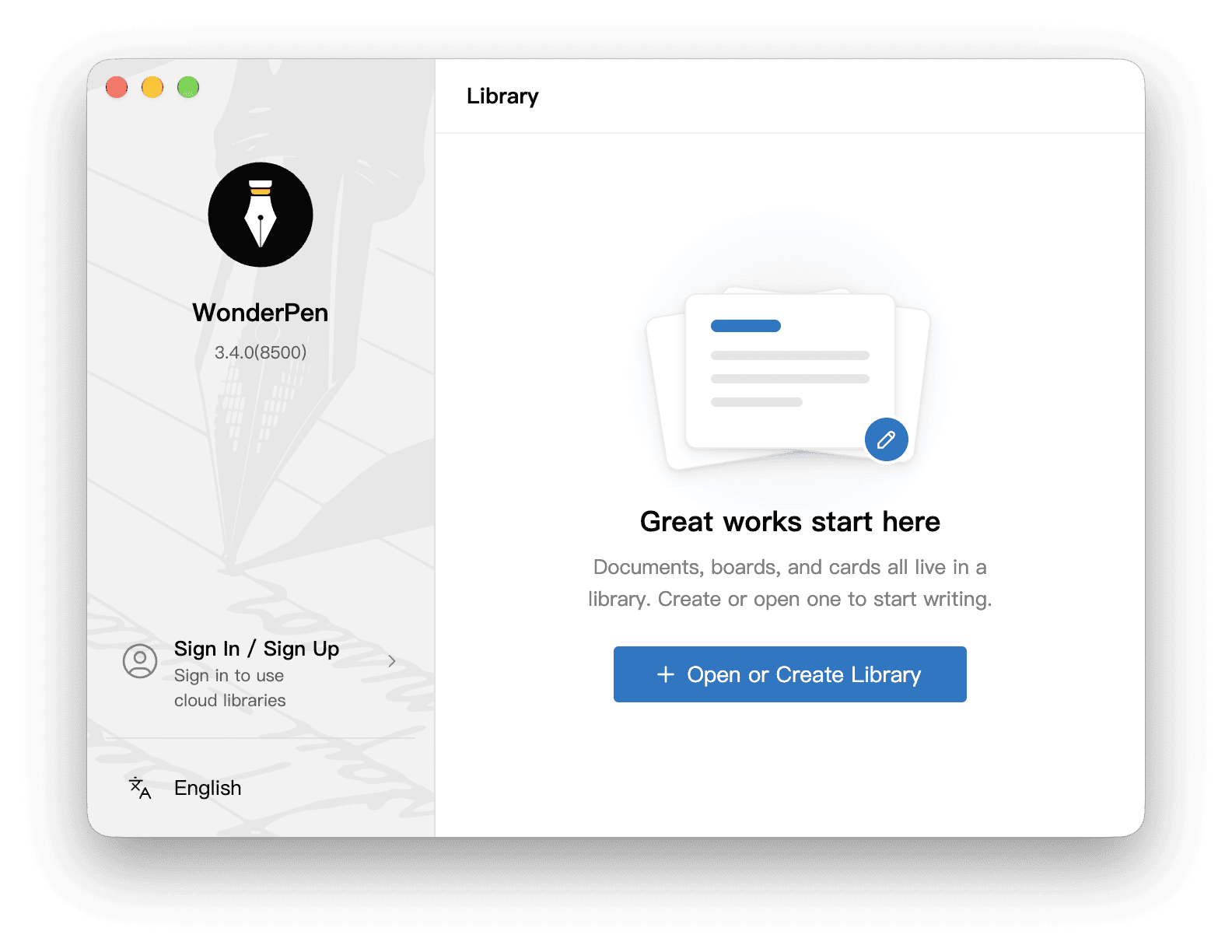
Start Window

To get started, click Open or Create Library to create a new library or open an existing one on your disk. See Create a Library for details.

After you open a library, it appears in this window’s recent libraries list. Select a library and click Start Writing (or simply double-click it) to open the main window.

TIP

You can use a local library without signing in. Cloud libraries require an account sign-in. See Library for the differences.

You can also sign in to your account or change the interface language from the start window.

Main window ​

This diagram labels the main areas and feature controls in the default macOS layout. Click the diagram or Enlarge to view the full-size map.

Main window feature map
Left sidebar:Organize your work. In the default layout shown, Document, Whiteboard, and Starred occupy separate groups and can be expanded independently.Left sidebarEditor:Write here. Document navigation and editing tools sit above the text; word counts, writing goals, and formatting tools sit below.EditorRight sidebar:Shows the selected panel, Memo in this example. The vertical toolbar on the far right switches between panels.Right sidebarToggle left sidebar:Show or hide the left sidebar to make room for your text.Toggle leftsidebarLibraries:Switch libraries, or choose Open or Create Library.LibrariesCurrent library:Click the library name for its information and actions such as backup, import, and export.Current libraryComposition mode:Reduce the surrounding interface and focus on your writing.Composition modePreview:Toggle the current document’s preview to see how it reads.PreviewExport:Choose what to export and a file format for your work.ExportContinuous view:View multiple documents continuously to read and edit adjoining chapters.Continuous viewAccount:View the signed-in account and related settings.AccountToggle right sidebar:Show or hide the right sidebar.Toggle rightsidebarMinimal mode:Further simplify the window’s toolbars and other interface elements.Minimal modeMemo:Keep ideas, tasks, and notes for the current document.MemoSnapshot:Save and browse earlier drafts, and access Writing Replay.SnapshotContents:Navigate headings within the current document. This differs from the directory tree for the whole work.ContentsInformation:Inspect information and properties of the current document.InformationCards:View and manage cards used in your writing.CardsAnnotation:Browse annotations in the current document and return to the marked text.AnnotationStats:Review today’s writing count, time spent writing, and past activity to understand your writing habits.StatsWriting Plan:Review the current library’s writing plan and progress.Writing PlanAdd a document:Create a document in the view shown, or a whiteboard after switching to the whiteboard tree. The plus button in the Document panel header also creates a document.Add a documentWriting statistics:Open the Writing Statistics window to review daily writing counts, time spent writing, and historical charts.WritingstatisticsRecent documents:Quickly return to recently opened documents.RecentdocumentsTrash:Review deleted documents and restore them when needed.TrashSplit editor:Split the editing area to view different documents side by side.Split editorWord count:See the current document’s word count; click to switch between word counts, character counts, and other measures.Word countWriting goal:Set or review a writing goal for the current document.Writing goalCopy format:Choose the formats used when copying and pasting text.Copy formatOne-click formatting:Apply preset formatting rules to the document.One-clickformattingTypewriter mode:Keep the current typing position at a steadier height.TypewritermodeEditor style:Adjust the editor’s font, line spacing, and other display styles.Editor styleMain menu & settings:Open the main menu for Settings and other actions. With a horizontal right sidebar, this button moves to the top bar.Main menu & settingsSpellcheck:Turn the editor’s spellcheck on or off.SpellcheckBackup:Open Backup and Restore to review and manage library backups.Backup

macOS · WonderPen 3.4.0 · Default buttons and sidebar layout.

Main window feature map
Left sidebar:Organize your work. In the default layout shown, Document, Whiteboard, and Starred occupy separate groups and can be expanded independently.Left sidebarEditor:Write here. Document navigation and editing tools sit above the text; word counts, writing goals, and formatting tools sit below.EditorRight sidebar:Shows the selected panel, Memo in this example. The vertical toolbar on the far right switches between panels.Right sidebarToggle left sidebar:Show or hide the left sidebar to make room for your text.Toggle leftsidebarLibraries:Switch libraries, or choose Open or Create Library.LibrariesCurrent library:Click the library name for its information and actions such as backup, import, and export.Current libraryComposition mode:Reduce the surrounding interface and focus on your writing.Composition modePreview:Toggle the current document’s preview to see how it reads.PreviewExport:Choose what to export and a file format for your work.ExportContinuous view:View multiple documents continuously to read and edit adjoining chapters.Continuous viewAccount:View the signed-in account and related settings.AccountToggle right sidebar:Show or hide the right sidebar.Toggle rightsidebarMinimal mode:Further simplify the window’s toolbars and other interface elements.Minimal modeMemo:Keep ideas, tasks, and notes for the current document.MemoSnapshot:Save and browse earlier drafts, and access Writing Replay.SnapshotContents:Navigate headings within the current document. This differs from the directory tree for the whole work.ContentsInformation:Inspect information and properties of the current document.InformationCards:View and manage cards used in your writing.CardsAnnotation:Browse annotations in the current document and return to the marked text.AnnotationStats:Review today’s writing count, time spent writing, and past activity to understand your writing habits.StatsWriting Plan:Review the current library’s writing plan and progress.Writing PlanAdd a document:Create a document in the view shown, or a whiteboard after switching to the whiteboard tree. The plus button in the Document panel header also creates a document.Add a documentWriting statistics:Open the Writing Statistics window to review daily writing counts, time spent writing, and historical charts.WritingstatisticsRecent documents:Quickly return to recently opened documents.RecentdocumentsTrash:Review deleted documents and restore them when needed.TrashSplit editor:Split the editing area to view different documents side by side.Split editorWord count:See the current document’s word count; click to switch between word counts, character counts, and other measures.Word countWriting goal:Set or review a writing goal for the current document.Writing goalCopy format:Choose the formats used when copying and pasting text.Copy formatOne-click formatting:Apply preset formatting rules to the document.One-clickformattingTypewriter mode:Keep the current typing position at a steadier height.TypewritermodeEditor style:Adjust the editor’s font, line spacing, and other display styles.Editor styleMain menu & settings:Open the main menu for Settings and other actions. With a horizontal right sidebar, this button moves to the top bar.Main menu & settingsSpellcheck:Turn the editor’s spellcheck on or off.SpellcheckBackup:Open Backup and Restore to review and manage library backups.Backup

Scroll to explore the full diagram. Press Esc to close.

macOS · WonderPen 3.4.0 · Default buttons and sidebar layout.

The main interface is divided into three parts:

  • Left: the left sidebar, which by default contains the Document (directory tree), Whiteboard and Starred panels. Here you can add, delete and organize your documents.
  • Middle: the editing area, where you do most of your writing.
  • Right: the right sidebar, which by default contains the Memo, Snapshot, Contents, Information, Cards, Annotation, Stats and Writing Plan panels.

Sidebar panels can be shown, hidden, and moved. Toolbars support horizontal and vertical layouts, as described below. Their positions may differ from the illustration depending on your settings and app version.

Use Ctrl + 1 / Ctrl + 2 (⌘ + 1 / ⌘ + 2 on macOS) to show, focus, or hide either sidebar. See Hotkeys for the exact behavior.

Click the + icon in the Document panel header to create a new document. While using the document tree, you can also click the lower-left + or press Ctrl + N (⌘ + N on macOS). After switching to the whiteboard tree, the lower-left + and this shortcut create a whiteboard instead.

To change application settings, click the main menu button in the lower-right corner of the diagram and choose Settings. With a horizontal right sidebar, this button moves to the top bar.

TIP

Note that the Outline, Darkroom Mode and Pin Window buttons in the top bar are not displayed by default. You can turn them on, and reorder the top bar buttons, in Settings → Advanced → Topbar.

Arrange the Sidebars ​

In Settings → Advanced → Toolbar, configure each sidebar independently:

  • Horizontal layout arranges buttons across the top of each panel group. A group with a single panel shares its panel header; click the title or disclosure arrow to expand or collapse it.
  • Vertical layout places buttons along the window edge. Click them to switch or collapse panels.
  • Visibility and order let you choose which buttons appear, drag them between positions and groups, or move them to the other side.

Only one panel per group can be expanded at a time; panels in different groups can stay open together. This applies to both horizontal and vertical layouts. For example, to view Memo and Snapshot together, move them into separate groups in Toolbar settings, then expand each panel.

The default layout is horizontal on the left and vertical on the right, with Document and Memo expanded respectively. Document, Whiteboard, and Starred each occupy a separate group on the left; the right-side panels share one group. Existing layouts may differ.

You can also right-click a sidebar toolbar to change panel visibility. Use the reset option in Toolbar settings to restore the default layout.

The Web Panel is hidden by default and can be enabled here. Frequently used websites can also have their own sidebar buttons.
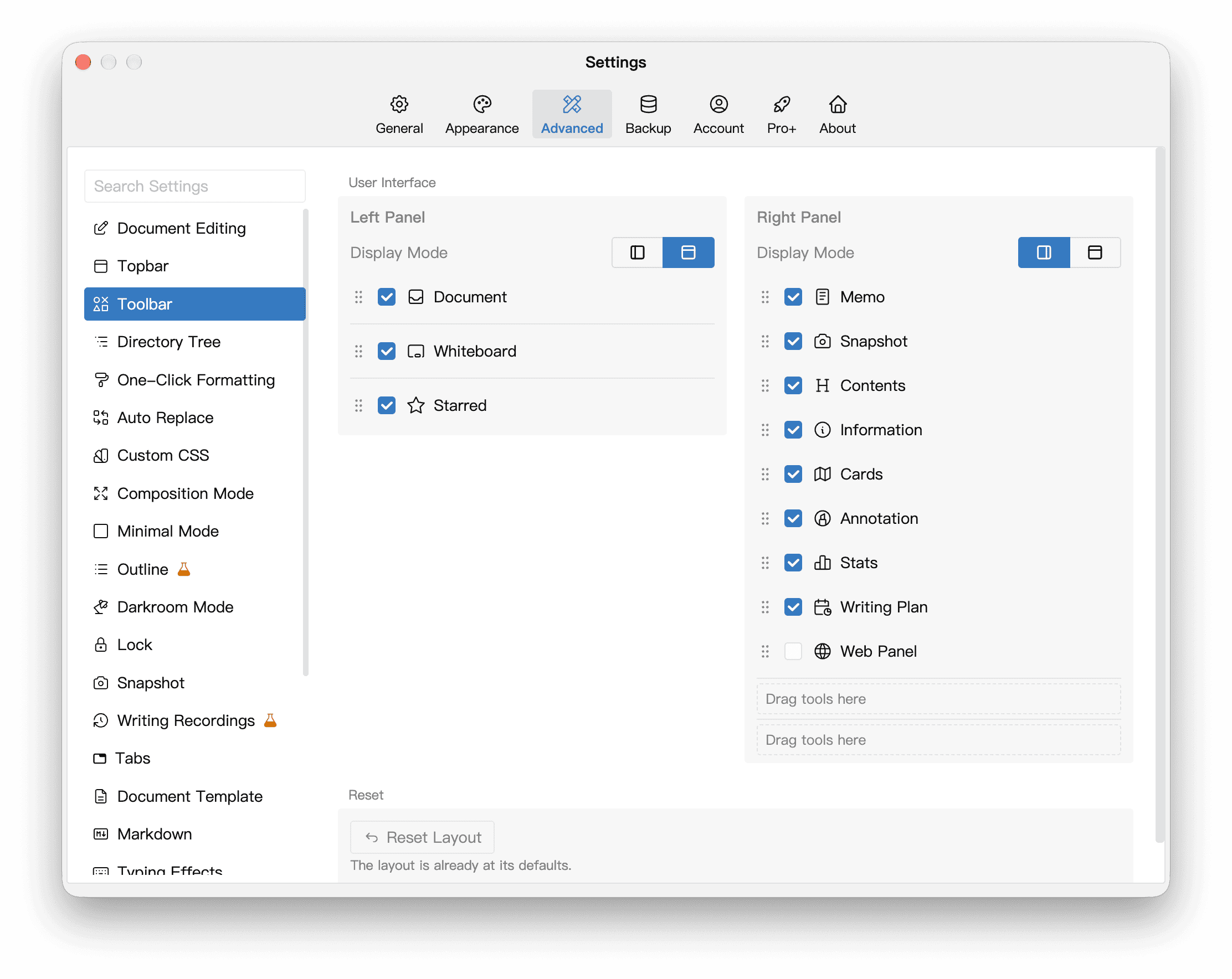
Sidebar layouts and panel lists in Toolbar settings
Horizontal layout on the left, vertical on the right. Check panels to show them; drag to change their order and grouping.

Choose a Panel for Your Task ​

What you want to seePanel or feature
Chapters across the whole workDirectory Tree in the Document panel
Headings within the current documentTable of Contents in the Contents panel
Notes about the current documentMemo
Earlier drafts and editing historySnapshots and Writing Replay
Status, tags, and other fields across documentsOutline View and custom metadata
How many words the current document containsWord Count at the bottom of the editor
How much you write and how long you spend each dayThe Stats panel or Writing Statistics window
Goals and progress for the current libraryWriting Plan

The directory tree, table of contents, and Outline View serve different purposes and can be used together.