
Auto Numbering
WonderPen offers two ways to number chapters:
- Automatic title continuation generates the next title from the preceding document, useful for adding chapters or journal entries in order. These numbers are ordinary text; existing titles do not update when the tree changes.
- Numbering macros such as
{$N}calculate numbers from the document’s position in the tree, useful for long works whose chapters are frequently inserted, removed or moved.
Numeric Chapter Numbering
Right-click an existing document and choose New Document Below. WonderPen tries to continue its numbering in the new sibling document’s title. For example:
| Previous title | New title |
|---|---|
Chapter 1 | Chapter 2 |
第 1 章 | 第 2 章 |
第一章 | 第二章 |
001 | 002 |
1.2 | 1.3 |
Not every title format is recognized. If no number is generated, you can enter the title yourself. A number such as 1.2 is simply title text; it does not represent the actual hierarchy in the directory tree.
Date Chapter Numbering
Creating a sibling below a document with a date title can also advance the date by one calendar day, useful for journal entries:
| Previous title | New title |
|---|---|
2026-01-25 | 2026-01-26 |
2026/01/31 | 2026/02/01 |
2026年12月31日 | 2027年01月01日 |
1月25日 | 1月26日 |
The new date is based on the previous title, rather than today’s date. Any text after the date is preserved and can be edited after creation.
Macro
To make existing chapter numbers update with the tree, right-click a document in the Directory Tree, choose Rename, and replace its fixed number with a macro. For example, change Chapter 3 to Chapter {$N}. Use macros in every title that needs dynamic numbering.
While editing a title, you see the macro as typed. When you finish editing, the calculated number appears. Exported titles also use the calculated number.
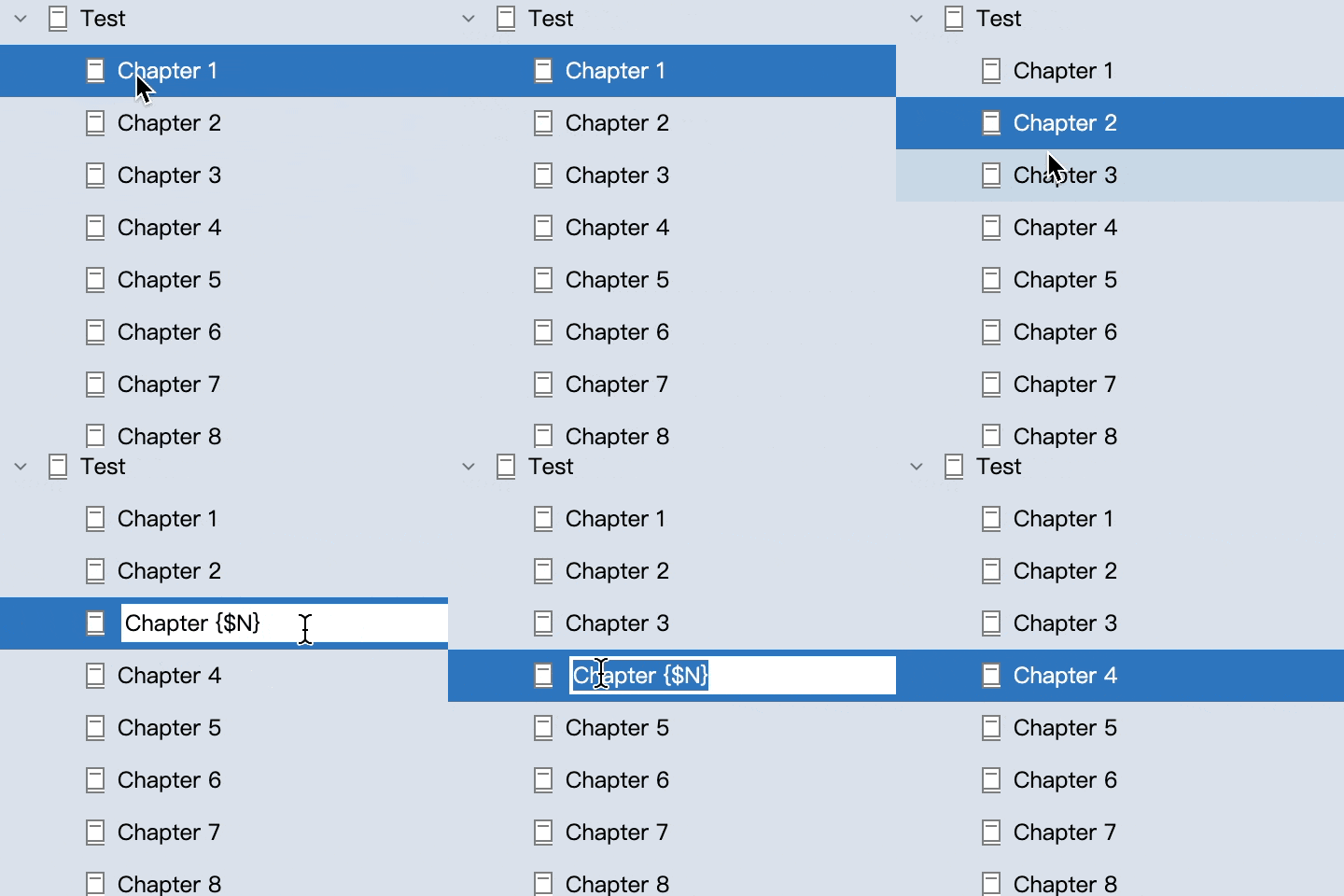
For example, these are the first three documents under one parent, with no intervening documents or reset markers:
| Original title (with macros) | Displayed title |
|---|---|
Chapter {$N}: Departure | Chapter 1: Departure |
Chapter {$N}: Encounter | Chapter 2: Encounter |
Chapter {$N}: Homecoming | Chapter 3: Homecoming |
Count Sibling Documents
By default, {$N} is the document’s position among siblings under the same parent, starting from 1. {$N0} uses the same sequence, starting from 0.
- Each parent has a separate sequence. Top-level documents also have their own sequence.
- Siblings without macros still occupy a position. A document’s children do not occupy positions in its sibling sequence.
- Moving, inserting or deleting siblings recalculates the numbers.
For example, if the first three siblings are a preface followed by two chapters, those chapters’ {$N} values are 2 and 3, even if the preface has no macro. Add {$N_RESET} to the first chapter’s title to start it at 1. See Reset Numbering.
Adjust an Individual Number
Add +number inside a macro to increase its result by a non-negative integer. Each row below is an alternative title for the first sibling, with no reset markers:
| Original title (with macros) | Displayed title |
|---|---|
Chapter {$N} | Chapter 1 |
Chapter {$N0} | Chapter 0 |
Chapter {$N+49} | Chapter 50 |
Chapter {$N0+50} | Chapter 50 |
This addition applies only to that macro; it does not change the starting point for subsequent documents. To start a sequence at 50 and continue with 51, 52 and so on, see Specify the Starting Number.
Macro Syntax
Use uppercase letters and ASCII punctuation, with no spaces inside a macro. For example, {$N} works, but {$n} and {$ N} do not. Spaces outside the macro are allowed, as in Chapter {$N}. Unrecognized forms remain visible as typed.
Chinese Support for Macros
Use {$N_ZH} or {$N0_ZH} to display Chinese numerals. They follow the same counting rules as {$N} and {$N0}; only the number format changes.
Each row below is an alternative title for the first sibling, with no reset markers:
| Original title (with macros) | Displayed title |
|---|---|
第{$N_ZH}章 | 第一章 |
第{$N0_ZH}章 | 第零章 |
第{$N_ZH+49}章 | 第五十章 |
第{$N0_ZH+50}章 | 第五十章 |
Chinese numeral macros also follow the starting point set by {$N_RESET} or {$N_RESET:n}. No separate Chinese reset marker is needed.
Dual Auto Numbering
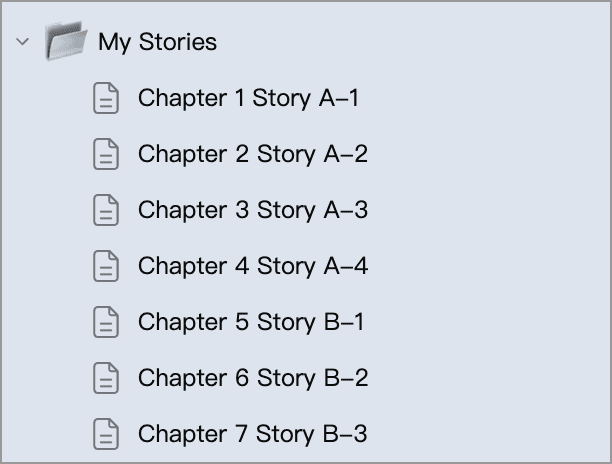
When chapters from several stories share the same parent, you can show both an overall chapter number and a chapter number within each story. The overall number continues across stories, while each story’s internal numbering starts at 1.
Basic Usage
Use {$N} for the overall chapter number and a second macro, {$M}, for the number within the story. For example, the first sibling titled Chapter {$N} Story A–{$M} displays as Chapter 1 Story A–1.
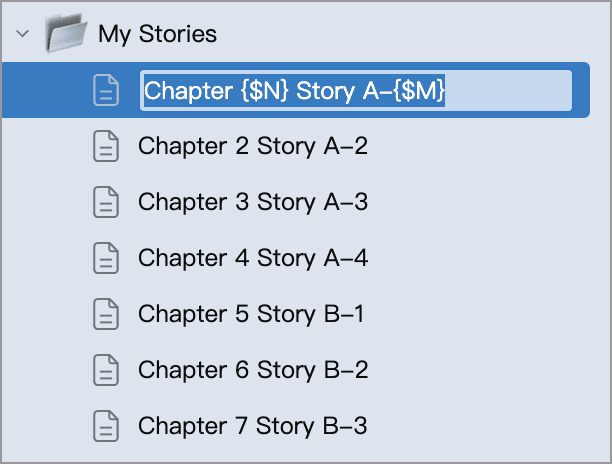
Both {$M} and {$N} count sibling positions, but they can be reset independently. Story names such as “Story A” and “Story B” do not trigger grouping automatically. Add a reset marker to the first chapter of each new story.
The first three siblings below have no reset markers. Even when the story name changes from “Story A” to “Story B”, both counters continue increasing:
| Original title (with macros) | Displayed title |
|---|---|
Chapter {$N} Story A–{$M} | Chapter 1 Story A–1 |
Chapter {$N} Story A–{$M} | Chapter 2 Story A–2 |
Chapter {$N} Story B–{$M} | Chapter 3 Story B–3 |
{$M} also supports {$M0}, {$M_ZH}, {$M0_ZH} and +number, following the same rules as {$N}.
Reset Numbering
Add {$M_RESET} to the first chapter of a new story to restart its {$M} number at 1, while {$N} continues its existing sequence.
In the screenshot below, Story A occupies four chapters, so Chapter {$N} Story B–{$M}{$M_RESET} displays as Chapter 5 Story B–1. The next chapter’s number within the story is 2.
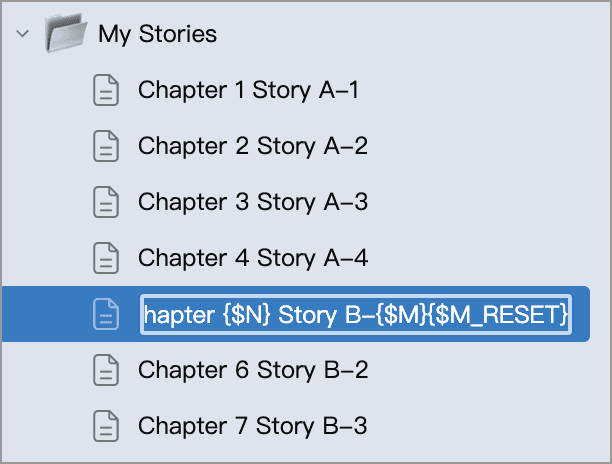
In the screenshot above, these are the fourth, fifth and sixth documents under the same parent:
| Original title (with macros) | Displayed title |
|---|---|
Chapter {$N} Story A–{$M} | Chapter 4 Story A–4 |
Chapter {$N} Story B–{$M}{$M_RESET} | Chapter 5 Story B–1 |
Chapter {$N} Story B–{$M} | Chapter 6 Story B–2 |
A reset marker can appear anywhere in the title and is hidden in the displayed result. It affects the corresponding counter in the current document and subsequent siblings, until the next reset marker for that counter. Sequences under other parents are unaffected.
Likewise, {$N_RESET} restarts {$N} at 1. Put a reset marker only on the document where a new sequence should begin. Adding one to every chapter would restart every chapter at 1.
Specify the Starting Number
If Volume 1 has 100 chapters and Volume 2’s chapters are under a different parent, give Volume 2’s first chapter the title Chapter {$N}{$N_RESET:101}. It displays as Chapter 101. Use Chapter {$N} for the subsequent siblings to continue with Chapter 102, Chapter 103 and so on.
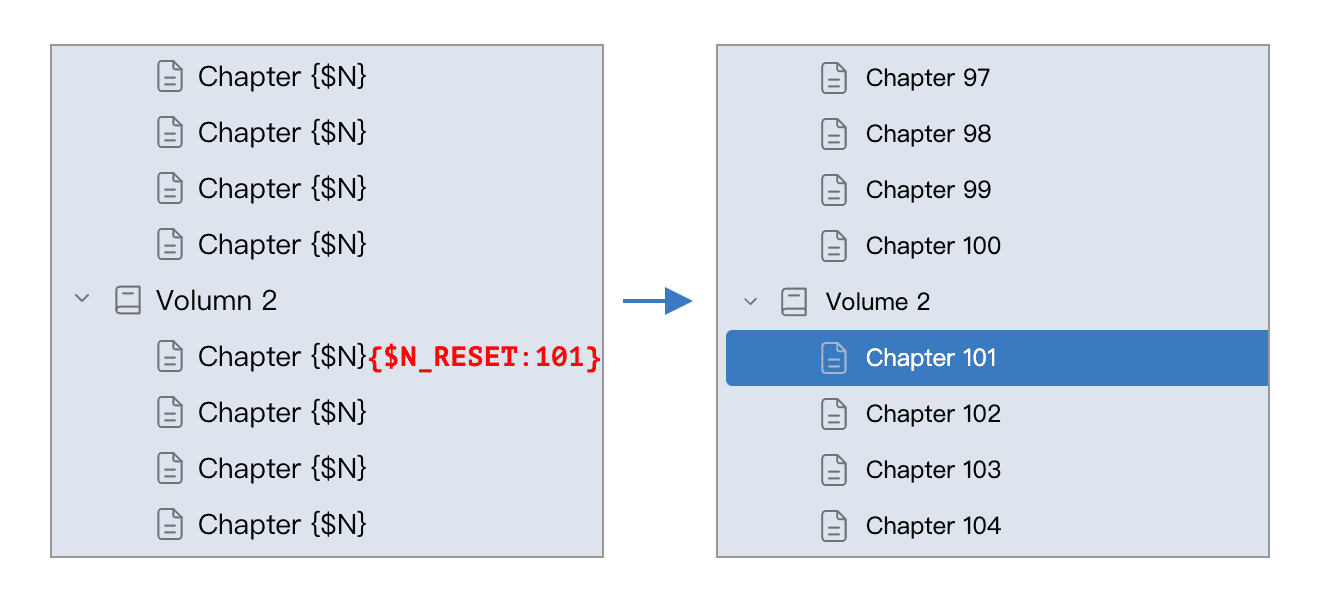
The first three sibling chapters in Volume 2 can be titled as follows:
| Original title (with macros) | Displayed title |
|---|---|
Chapter {$N}{$N_RESET:101} | Chapter 101 |
Chapter {$N} | Chapter 102 |
Chapter {$N} | Chapter 103 |
In {$N_RESET:n}, n must be a positive integer without leading zeros. Like a plain reset marker, it affects the current document and subsequent siblings until the next reset marker for that counter. {$M_RESET:n} also accepts a starting number.
Addition Versus Resetting
Adding 100 only in the first title gives these results for the first two siblings:
| Original title (with macros) | Displayed title |
|---|---|
Chapter {$N+100} | Chapter 101 |
Chapter {$N} | Chapter 2 |
Setting a starting point on the first document instead makes subsequent siblings continue from that number:
| Original title (with macros) | Displayed title |
|---|---|
Chapter {$N}{$N_RESET:101} | Chapter 101 |
Chapter {$N} | Chapter 102 |
{$N0} / {$M0} display one less than their corresponding {$N} / {$M} values. On a document containing {$N_RESET:101}, {$N0} therefore displays 100. Any +number in a macro is added to the value after resetting.
Check the Reset Syntax
{$N_RESET:0}, {$N_RESET:-1}, {$N_RESET:01} and forms containing spaces are not recognized and remain visible as typed. Use {$N0} to count from 0; combine it with {$N_RESET} to restart at 0 partway through a sequence.