Outline View
Outline View displays a group of documents as a table. Use it to check chapter lengths, track writing progress, or organize character details. It lists documents, unlike the Table of Contents, which lists headings within one document.
Enable Outline View
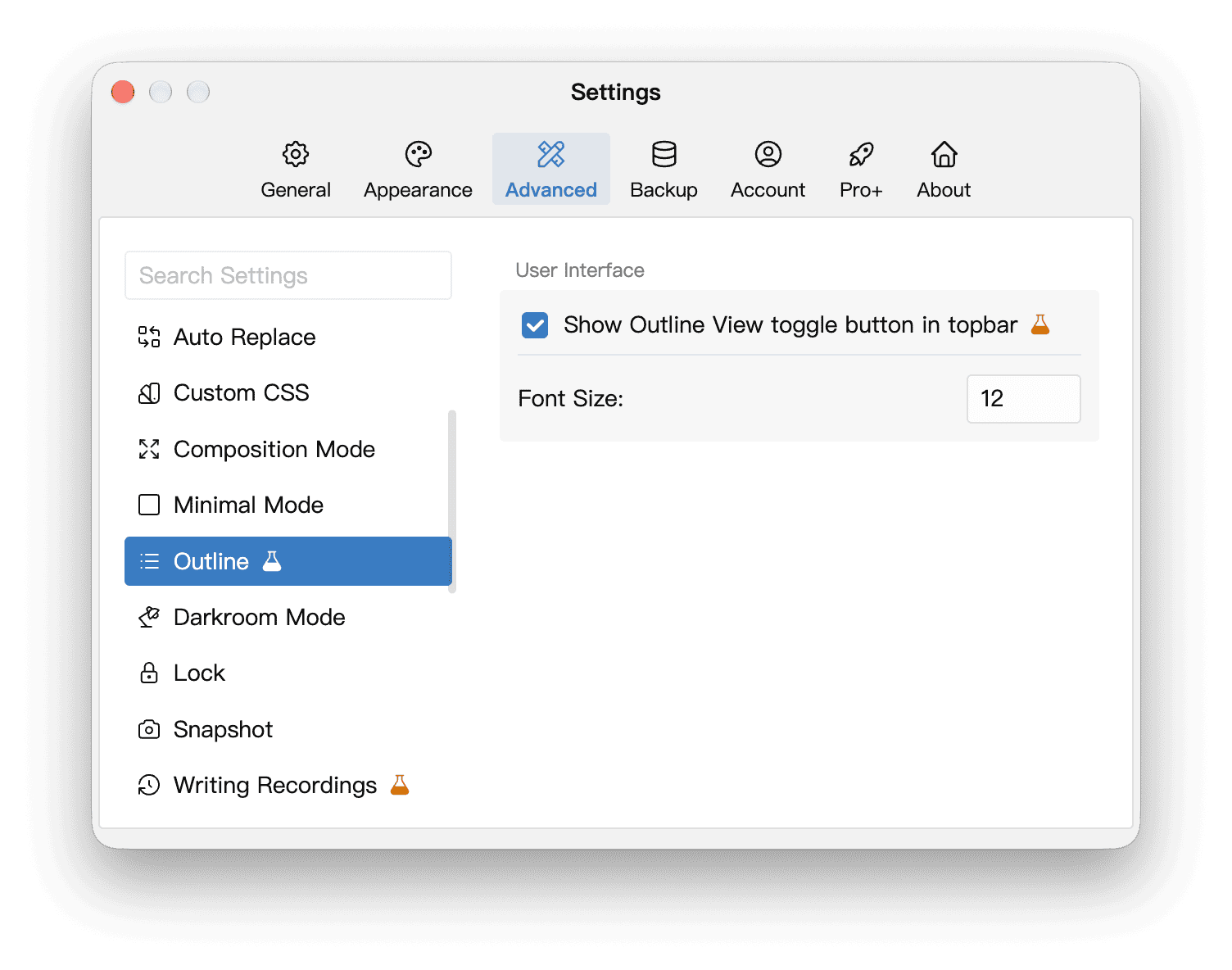
Outline View is currently experimental, and its toggle button is hidden from the top bar by default. In Settings → Advanced → Outline, enable Show Outline View toggle button in topbar. You can also adjust the table’s font size here.
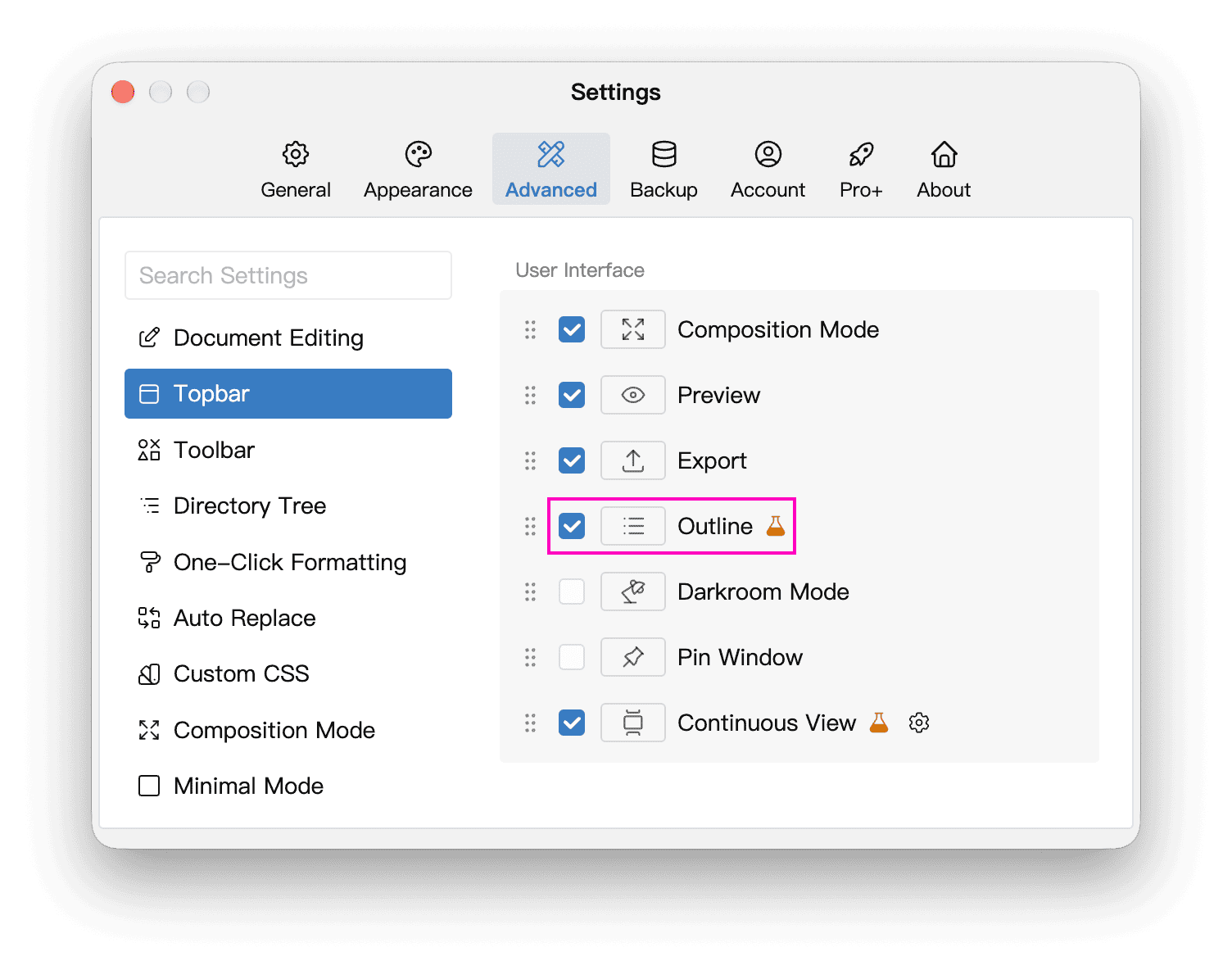
Alternatively, go to Settings → Advanced → Topbar and check Outline to show the button in the top bar. Both settings control the same option; enabling it in either location is enough.
Show Outline
Select a parent document containing chapters in the tree, then click the Outline button in the top bar. The table lists its descendants, excluding the selected parent itself. If the selected document has no children, select a parent document in the tree, or click Select Parent Node in the empty table when that option is available. Click the Outline button again to return to the editor.
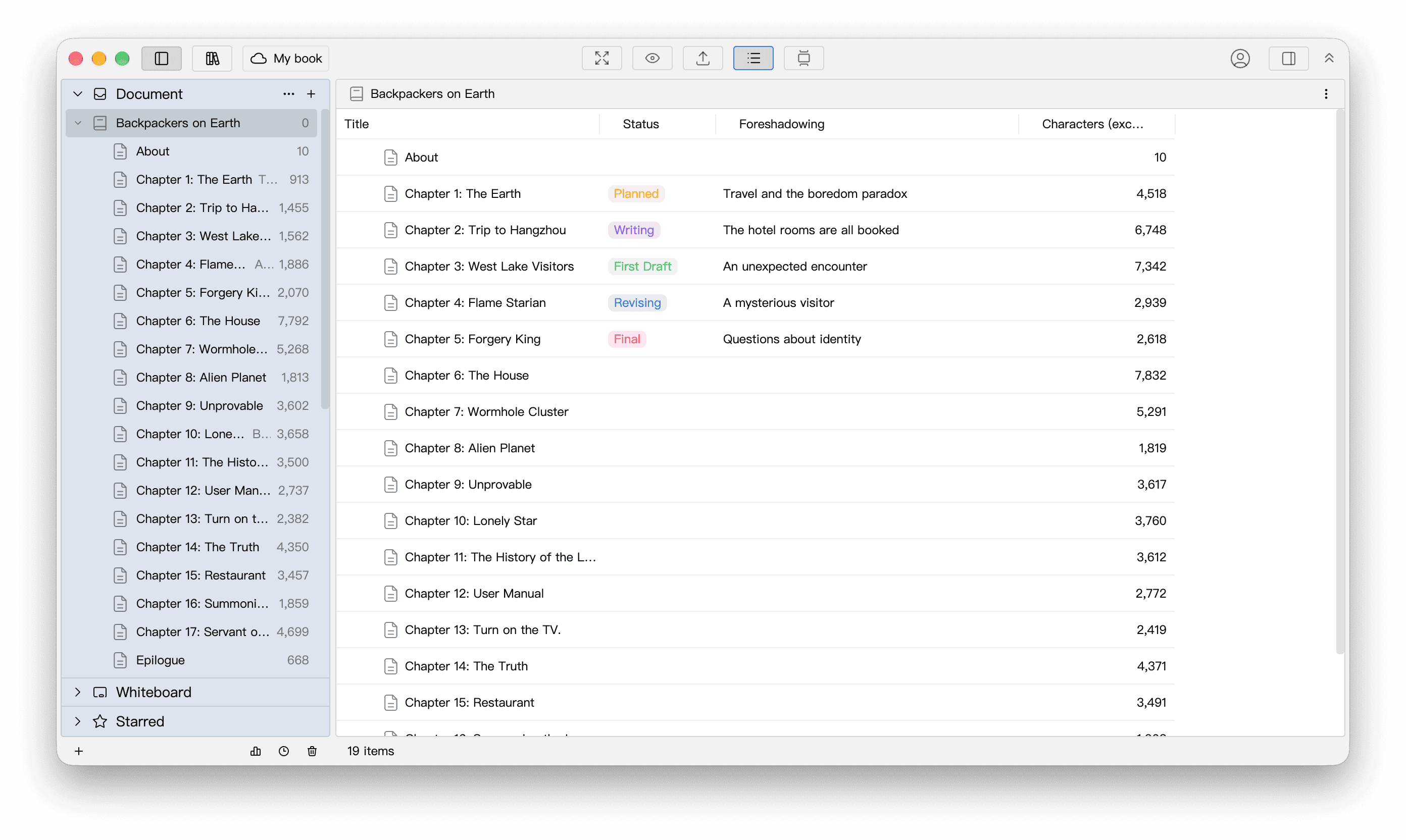
Each row represents a document, with indentation showing its place in the hierarchy. Click the arrow before a title to expand or collapse its descendants. Double-click a title, or right-click a row and choose Edit, to open the document’s content.
Outline View also supports the whiteboard tree. Select a parent whiteboard with children to list its descendant whiteboards in the table. This lists whiteboards, not the cards within a whiteboard.
Arrange Columns
Built-in columns include Title, Insert Time, Last Edited Time, Target, word and character counts, and snapshot count. You can also add custom metadata. Choose Characters (including spaces), Characters (excluding spaces), or Words as needed. Each count covers only the document’s own content, excluding its descendants.
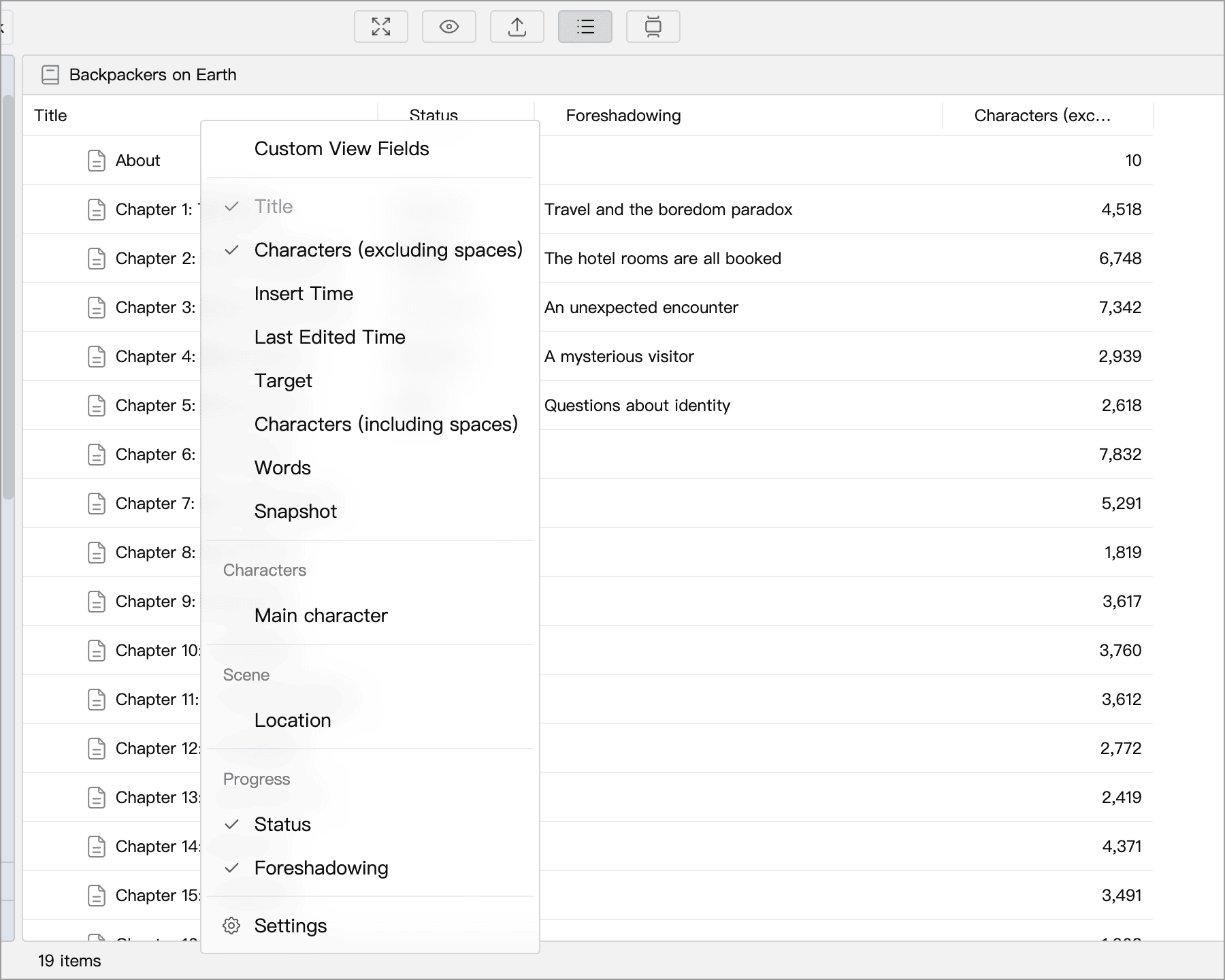
- Show or hide columns: right-click a header and select the fields to display. The title column is always visible; hiding other columns does not delete their values.
- Resize columns: drag a column boundary in the header. Double-click the boundary to restore that column’s default width.
- Reorder columns: hover over a header and drag its dotted handle on the left. The title column stays on the left.
- Sort rows: hover over a header and click its sorting button to cycle through ascending order, descending order, and no sorting. Sorting preserves the hierarchy and only changes the current view; it does not reorder the directory tree.
Manage Custom Fields
Right-click a header and choose Settings at the bottom to open Custom Metadata settings. If the field list is long, scroll down within the menu to find it. You can also open these settings using the settings button in the Custom Metadata section of the sidebar’s Information panel.
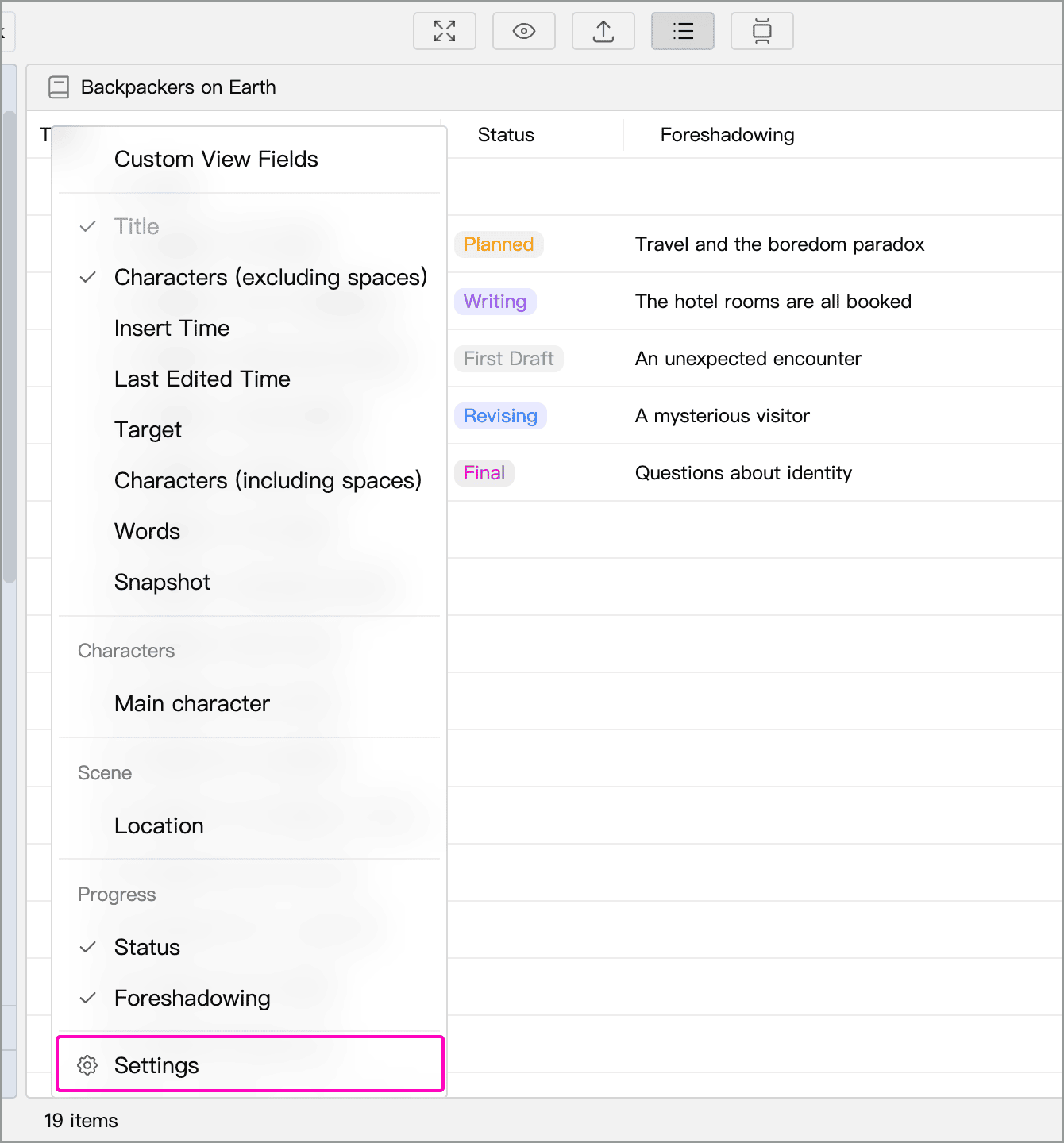
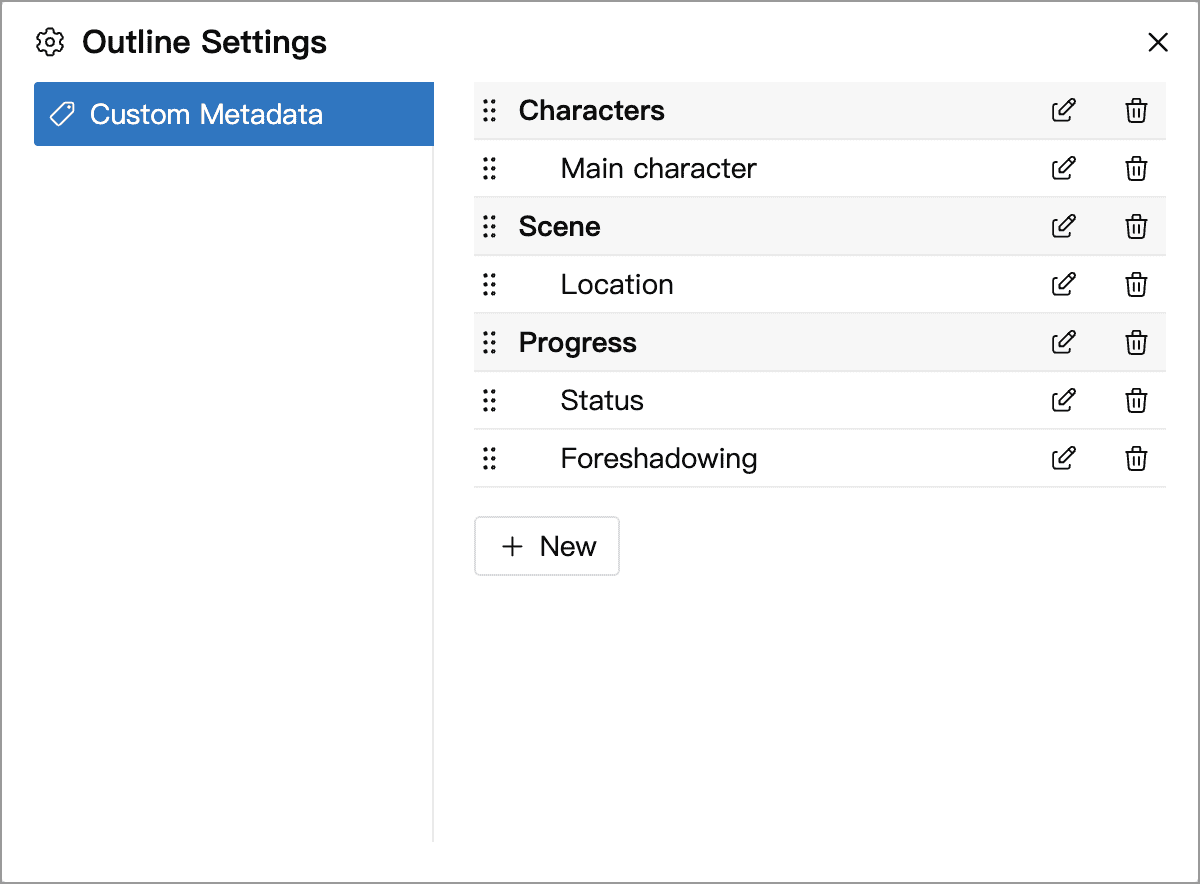
Click New, enter a title, choose a type, configure any options, and confirm to save the field. For an existing field, use the edit button to change its title or options, drag the handle on the left to reorder it, or use the delete button to remove it.
Field definitions are shared within the current Library, while each document has its own values. A field’s type cannot be changed after creation. If you need a different type, create a new field and transfer the information as needed. Deleting a field affects the entire Library. To hide it from the table temporarily, deselect it in the header menu instead.
For field limits, refer to the application and the plan comparison.
Custom Metadata
Custom metadata stores structured information about a document, such as writing progress, character age, event date, or foreshadowing. It is separate from the document’s content, making it useful for comparing and organizing information across documents.
| Field type | Uses and examples |
|---|---|
| Text | Short descriptions or multiline notes, such as “Foreshadowing” or “Character Motivation”. |
| Number | Numeric values, such as “Character Age”. |
| Boolean | A checkbox for yes or no, such as “Proofread”. You can set it to be checked by default. |
| Date | Dates, such as “Planned Completion Date”. You can choose the display format. |
| Select | One preset option, such as a “Status” of Planned, Writing, First Draft, Revising, or Final. |
| Multi-Select | Several preset options, such as “Characters Appearing”. |
| Group Header | Groups of fields, such as “Character Details” or “Plot Notes”. It holds no value and does not appear as a table column. |
Options in Select and Multi-Select fields can have custom colors to help distinguish them in the table.
Fill In Fields
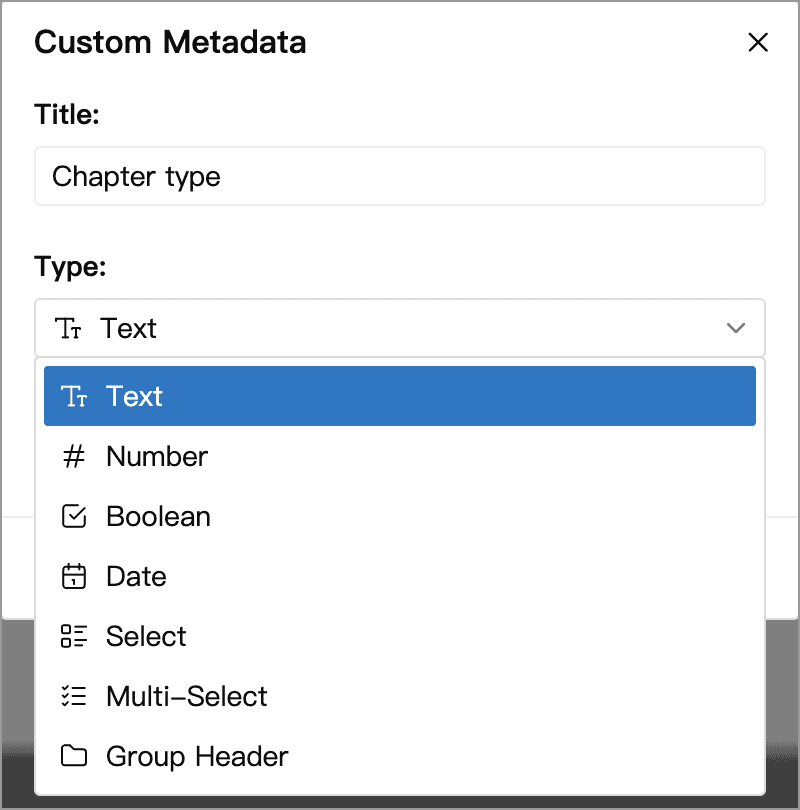
Click a custom metadata cell in the table to enter text, toggle a checkbox, or choose an option. Built-in values such as counts, timestamps, and snapshot counts are generated by the application and cannot be entered directly like custom metadata.
To display longer text, edit the text field in Custom Metadata settings and enable Wrap in Outline View. This changes how the column displays its content, without changing the stored text.
Example: Track Chapter Status
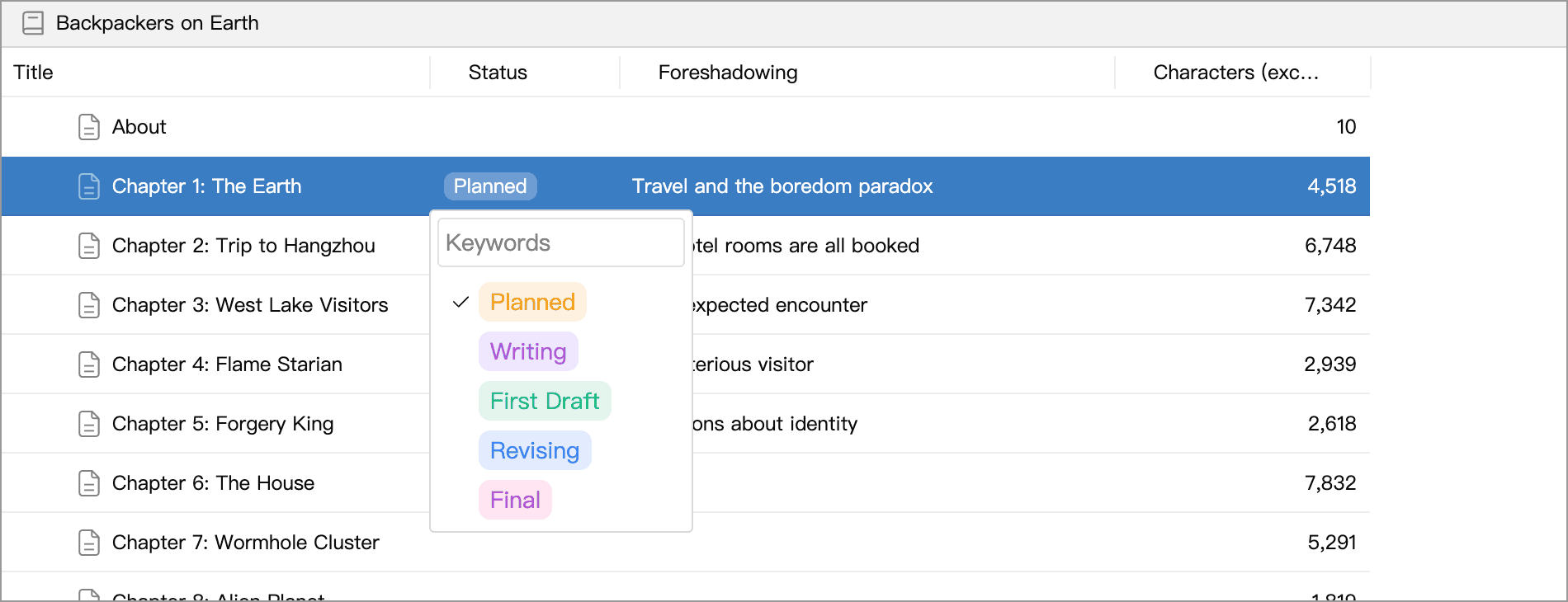
Create a field with the title Status and type Select. Use Add an Option to add “Planned”, “Writing”, “First Draft”, “Revising”, and “Final”. Click an option’s color swatch to choose a color, use its edit button to rename it, or drag the dotted handle on the left to reorder it.
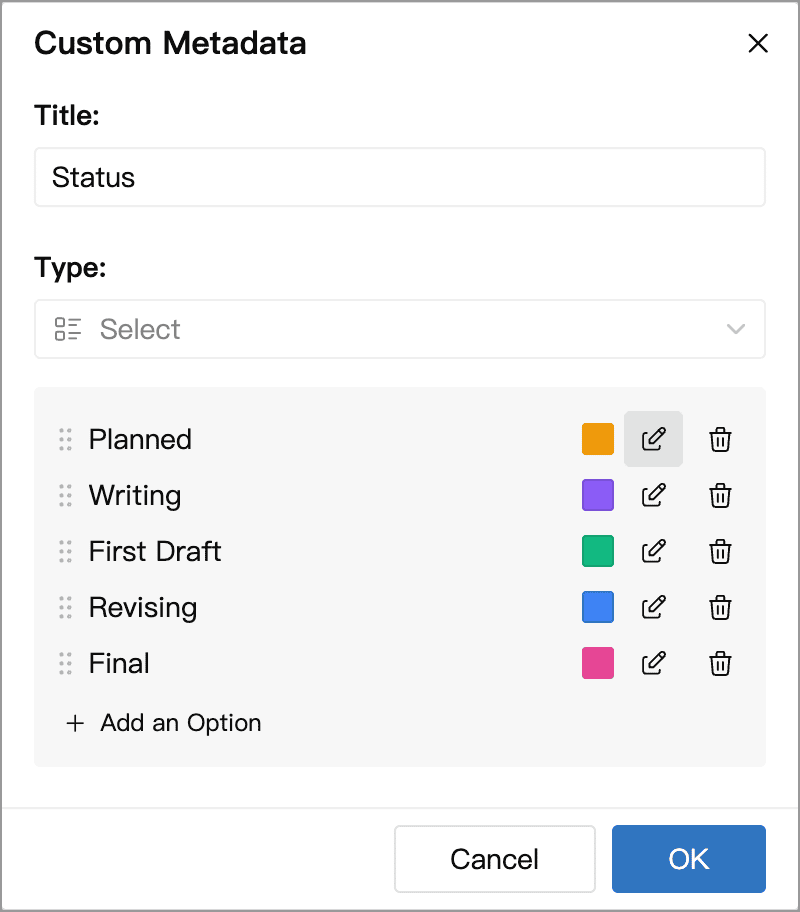
The screenshot shows an existing field, so its type cannot be changed. You can choose the type when creating a new field. Click OK to save the settings.
Next, add a Foreshadowing field of type Text. Enable both columns in the header menu, then fill them in for each chapter to review progress and unresolved plot threads together.
Organize Fields with Group Headers
Create a Group Header, then drag related fields below it in the field settings list. Fields between one group header and the next belong to that group. Fields before the first group header remain ungrouped.
In the example below, Characters, Scene, and Progress are group headers, shown in bold on shaded backgrounds. Their fields are indented. The highlighted “Status” and “Foreshadowing” fields belong to the “Progress” group. Drag the handles on the left to change field order and group membership.
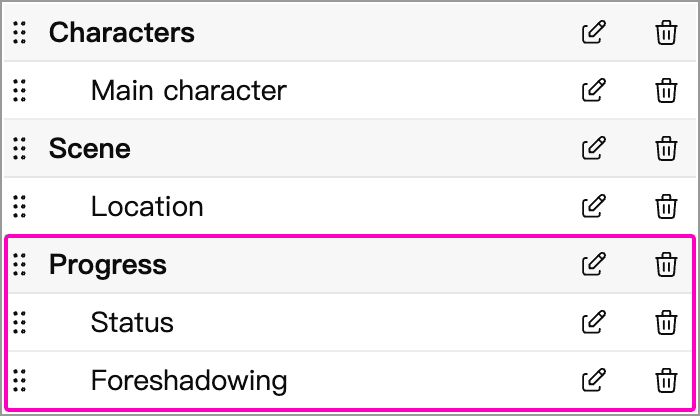
Groups organize the Information panel and the outline header’s field menu, making fields easier to find. They do not change the document hierarchy in the tree.
Edit in the Information Panel
You can also fill in custom metadata in the sidebar’s Information panel while writing. Selecting a row in Outline View displays that document’s information in the panel. It uses the same values as the outline table, so there is no need to enter them twice. Text fields wrap to show their full content in the Information panel, regardless of the table’s text-wrapping setting.
When group headers exist, you can expand or collapse groups under All, or click a group tab to view only that group’s fields.
Use Different Columns for Different Sections
By default, outline tables within a Library share visible columns and their order. A chapter outline may need status and word counts, while a character outline needs age and affiliation. Enable Custom View Fields for each parent document to configure them separately:
- Select the relevant parent document in the tree and open its outline.
- Right-click an outline header and enable Custom View Fields.
- Choose visible columns in the header menu, then drag the dotted header handles to arrange them. If a custom field does not exist yet, create it in field settings first.
When first enabled, the view uses the current shared columns. Changing the column selection or order saves a separate configuration for that parent document.
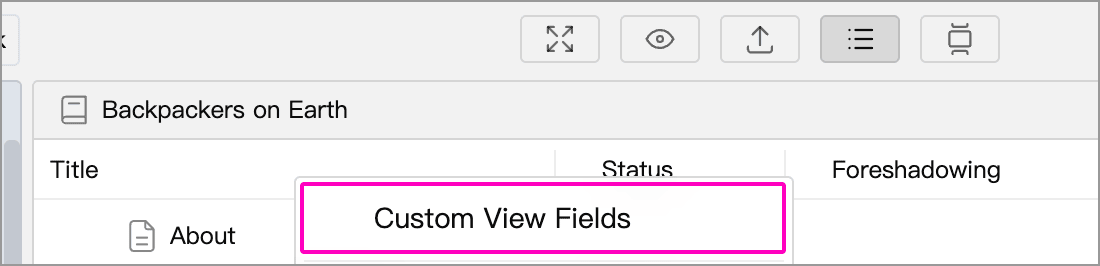
You can also use the Custom View Fields button in the Information panel’s Custom Metadata section while the panel is displaying that parent document. Selecting a child row makes the panel show the child’s information instead; use the header menu to configure the current outline in that case.
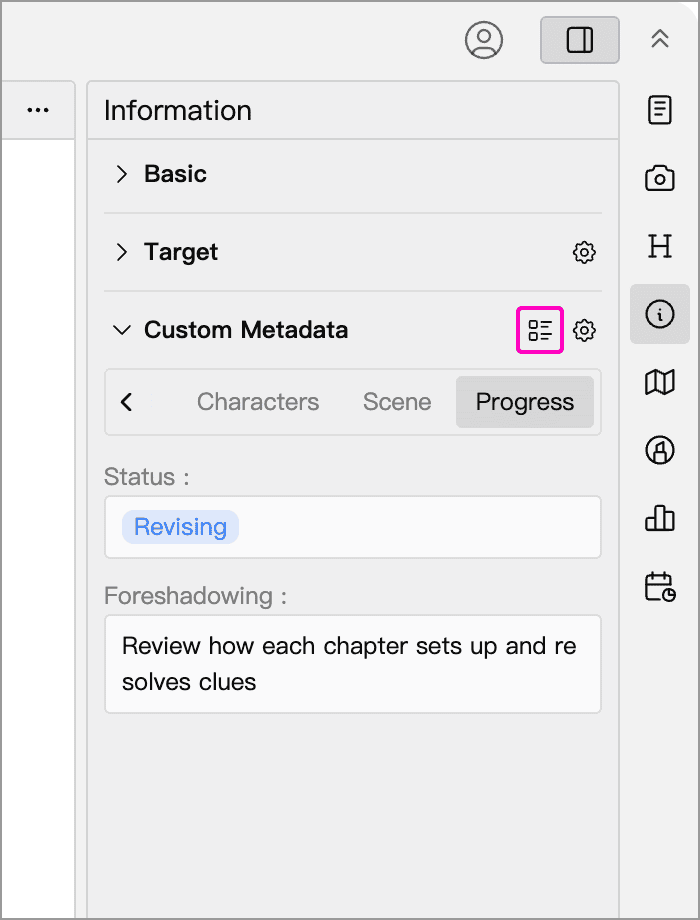
The chosen columns and their order apply only to this parent document’s outline. Other documents’ outlines and field definitions remain unchanged. Column widths are still shared within the Library. Turning Custom View Fields off restores the shared configuration; turning it back on restores your previous custom column configuration. Neither action deletes metadata values.
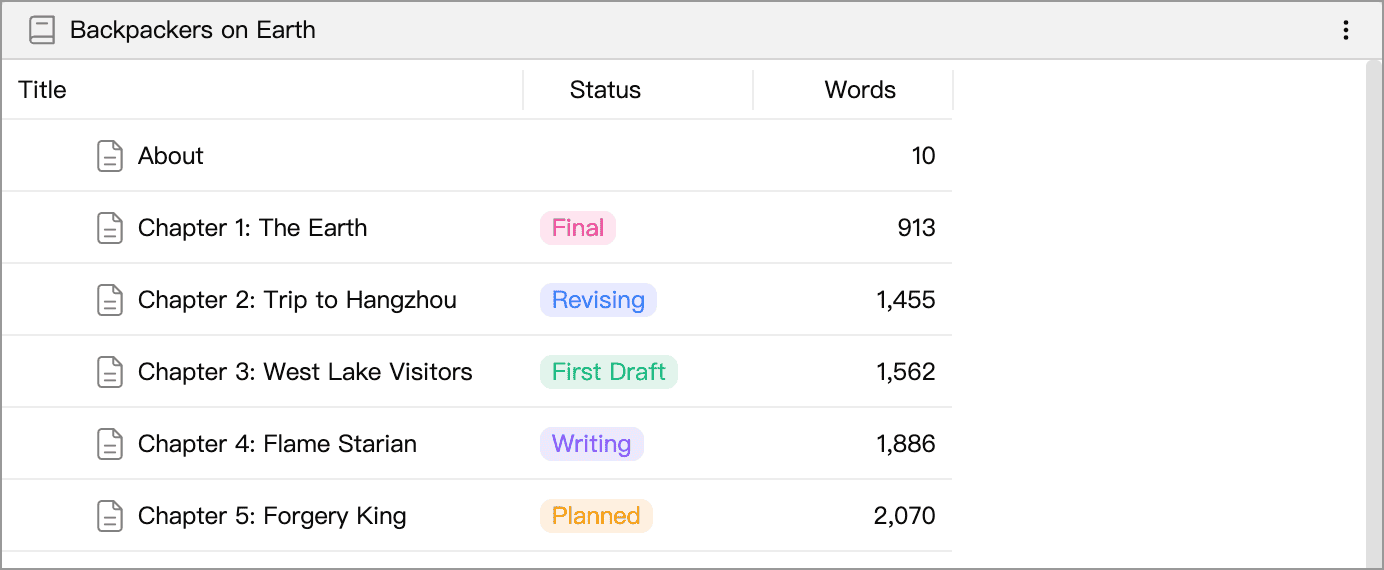
The following examples show two configurations in the same Library. The outline for Backpackers on Earth displays Status and Words to compare writing progress and chapter lengths:
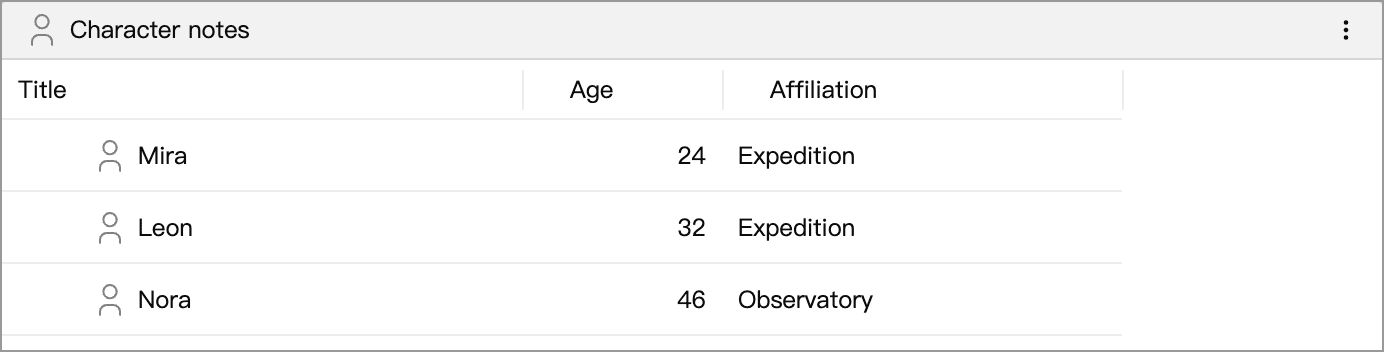
Switching to Character notes displays Age and Affiliation instead. These metadata fields and fictional character details were added for this example: