
Document Splitting and Merging
Splitting divides one document’s content into two documents; merging combines several documents into one. These operations change content, unlike split view, which only changes the workspace layout.
Split Document
Split a long document when you want part of its content to start a new chapter.
Operation
Place the cursor where the new chapter should begin, then right-click in the editor and choose Split at Cursor:
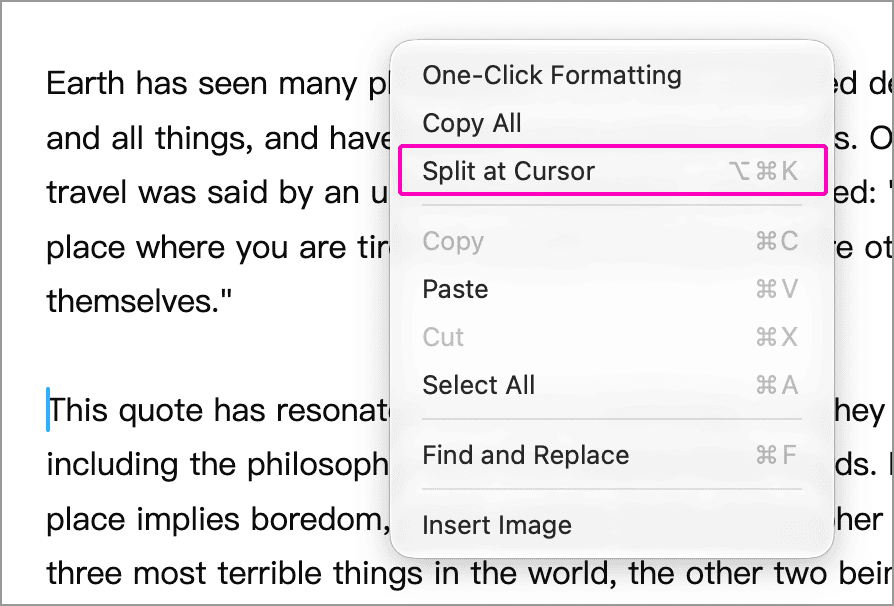
Text before the split point stays in the original document. The remaining text moves to a new sibling document immediately below it.
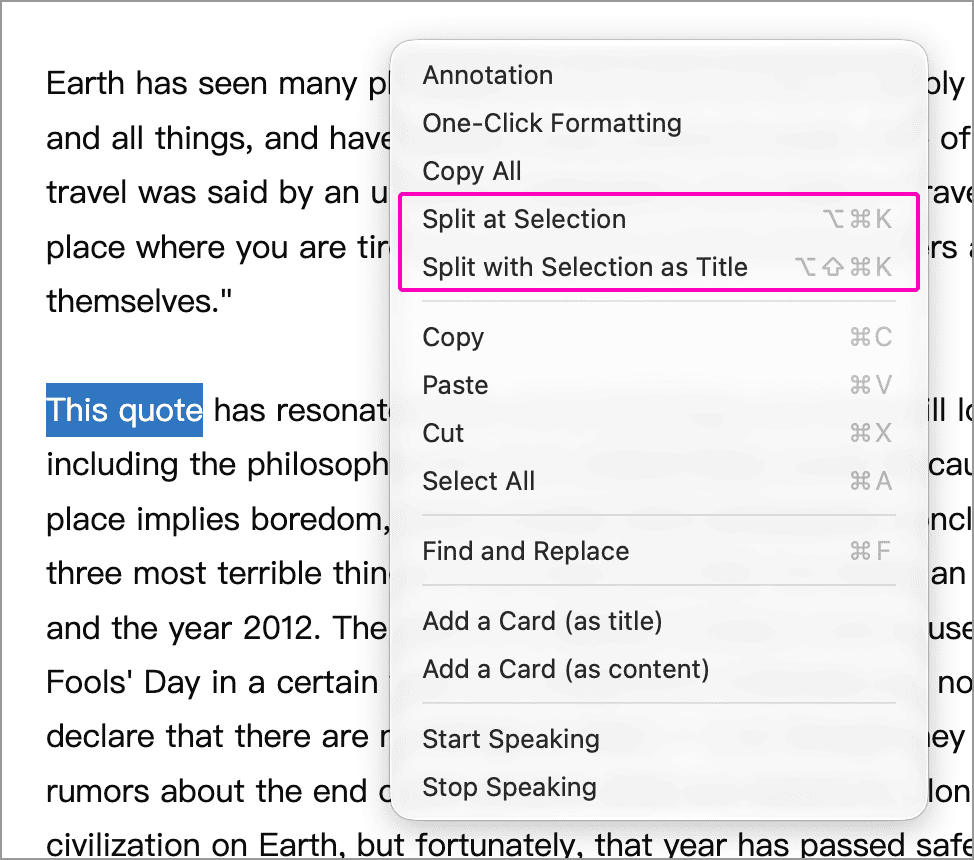
If you select text before right-clicking, two options are available:
- Split at Selection: split at the start of the selection.
- Split with Selection as Title: split at the same point and use the selected text as the new document’s title. The title is trimmed of leading and trailing whitespace and limited to 50 characters. For a multiline selection, only the first line is used.
Both options keep the selected text in the new document’s body. They do not extract only the selection into a separate document.
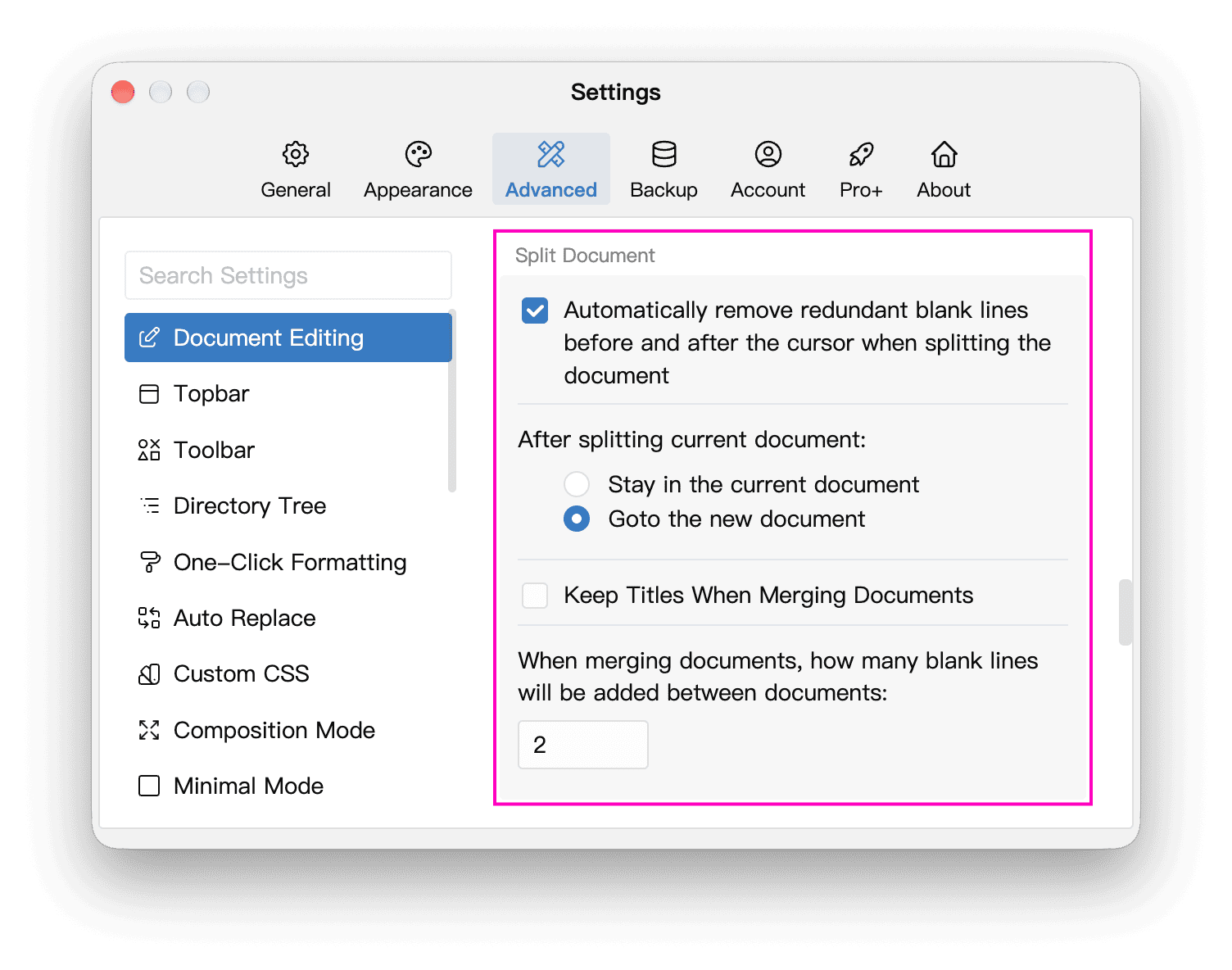
In the Split Document section of Settings → Advanced → Document Editing, choose whether to stay in the current document or open the new one after splitting, and whether to remove extra blank lines around the split point. By default, WonderPen opens the new document and removes these blank lines. See the settings screenshot under Merge Settings below.
Cursor Position
Before splitting, compare the word count before the cursor with the total for the document to help judge chapter length.
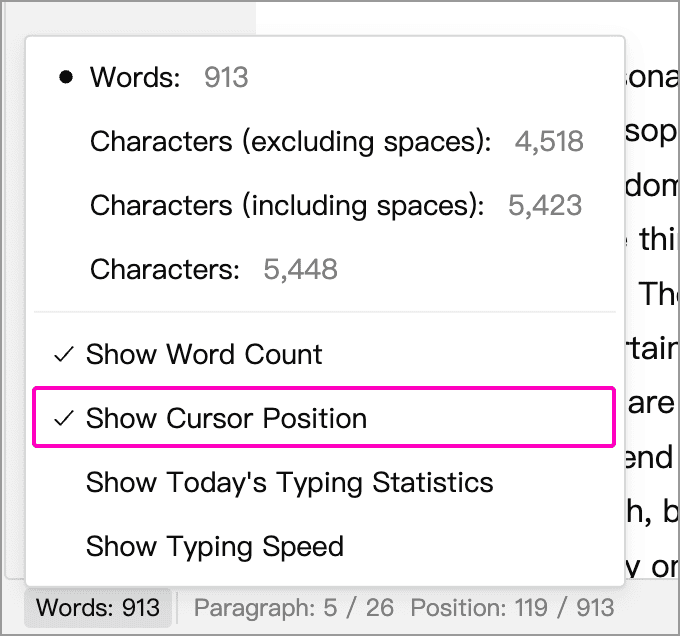
Cursor position information is hidden by default. Hover over the word count at the bottom left of the editor and enable Show Cursor Position in the popup:
Then hover over the cursor position information in the status bar to choose Show paragraph position, Show cursor position, or Show paragraph and cursor position:
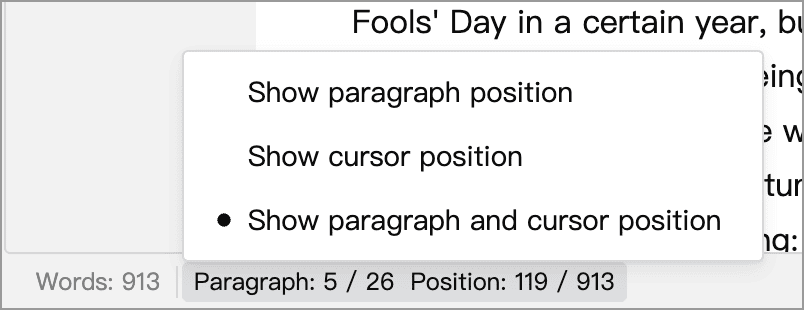
The two sets of numbers in the status bar mean:
- Paragraph: the current paragraph number / total paragraph count, including empty paragraphs. This is not the line number after text wraps on screen.
- Position: the count before the cursor / total count, using the current counting method. For example, selecting “Words” shows word counts; selecting “Characters (including spaces)” counts characters and spaces.
When the editor is split into top and bottom panes, click the word count or cursor position information to open its popup.
Merge Documents
Merge Operation
Select two or more sibling documents in the left panel’s directory tree. Hold Shift to select a range, or Ctrl (⌘ on macOS) to select documents individually. Right-click and choose Merge Documents:
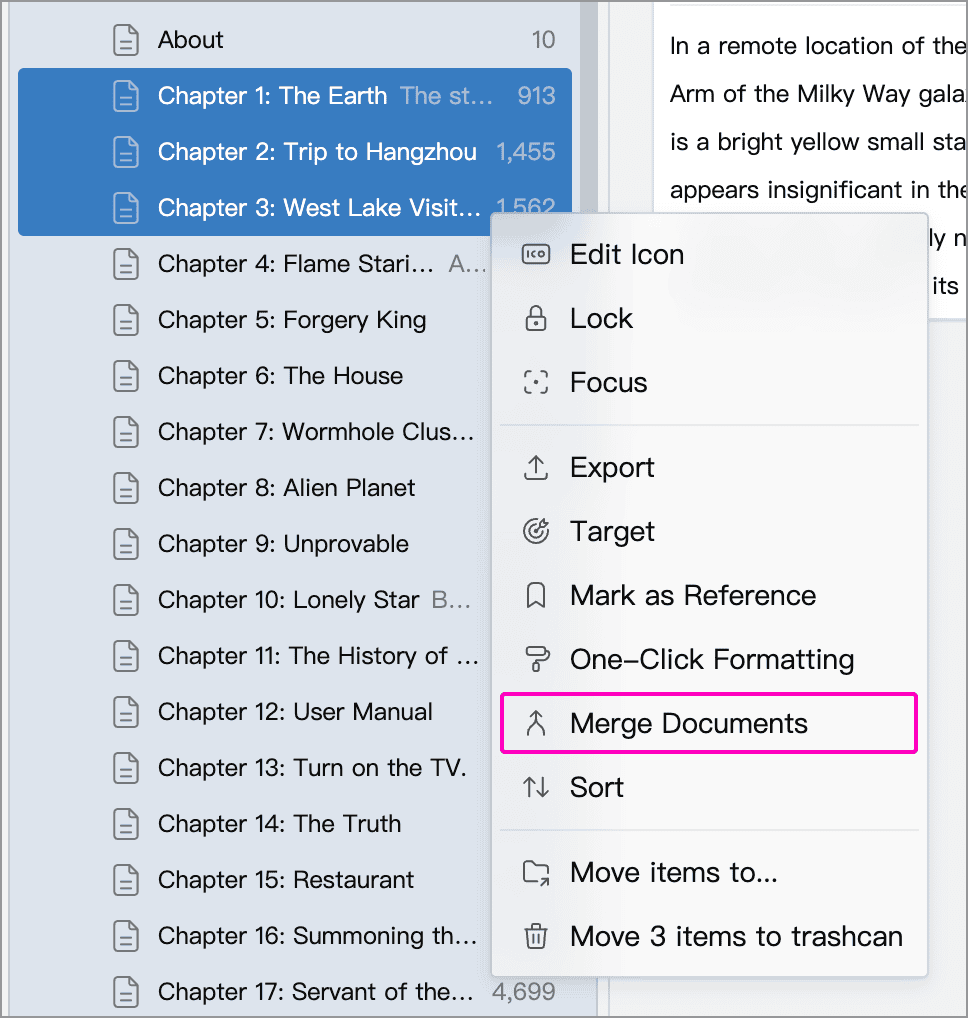
Documents are merged in tree order, regardless of the order in which you click them. Here, the “first document” means the topmost selected document in the tree. After merging:
- The selected documents’ content is combined in tree order into the first document, keeping its title.
- Their memos are combined into the first document’s memo.
- The other selected documents’ children become children of the first document. Their content is not merged into the parent.
- All selected documents except the first move to the trashcan.
Merge Settings
In the Split Document section of Settings → Advanced → Document Editing, adjust how documents are merged:
- Keep Titles When Merging Documents: off by default. When enabled, this inserts each document’s title at the beginning of its content as a level-one heading, including the first document’s title. This keeps the original chapters identifiable.
- When merging documents, how many blank lines will be added between documents: control the spacing between document contents. Set this to
0to add no extra blank lines.
Recover Content from Before a Merge
Look for the first document’s pre-merge version in Snapshots and restore the other documents from the Trashcan. Restoring those documents does not automatically split the merged content. To restore the original tree structure, also check any child documents moved under the first document.