Whiteboard
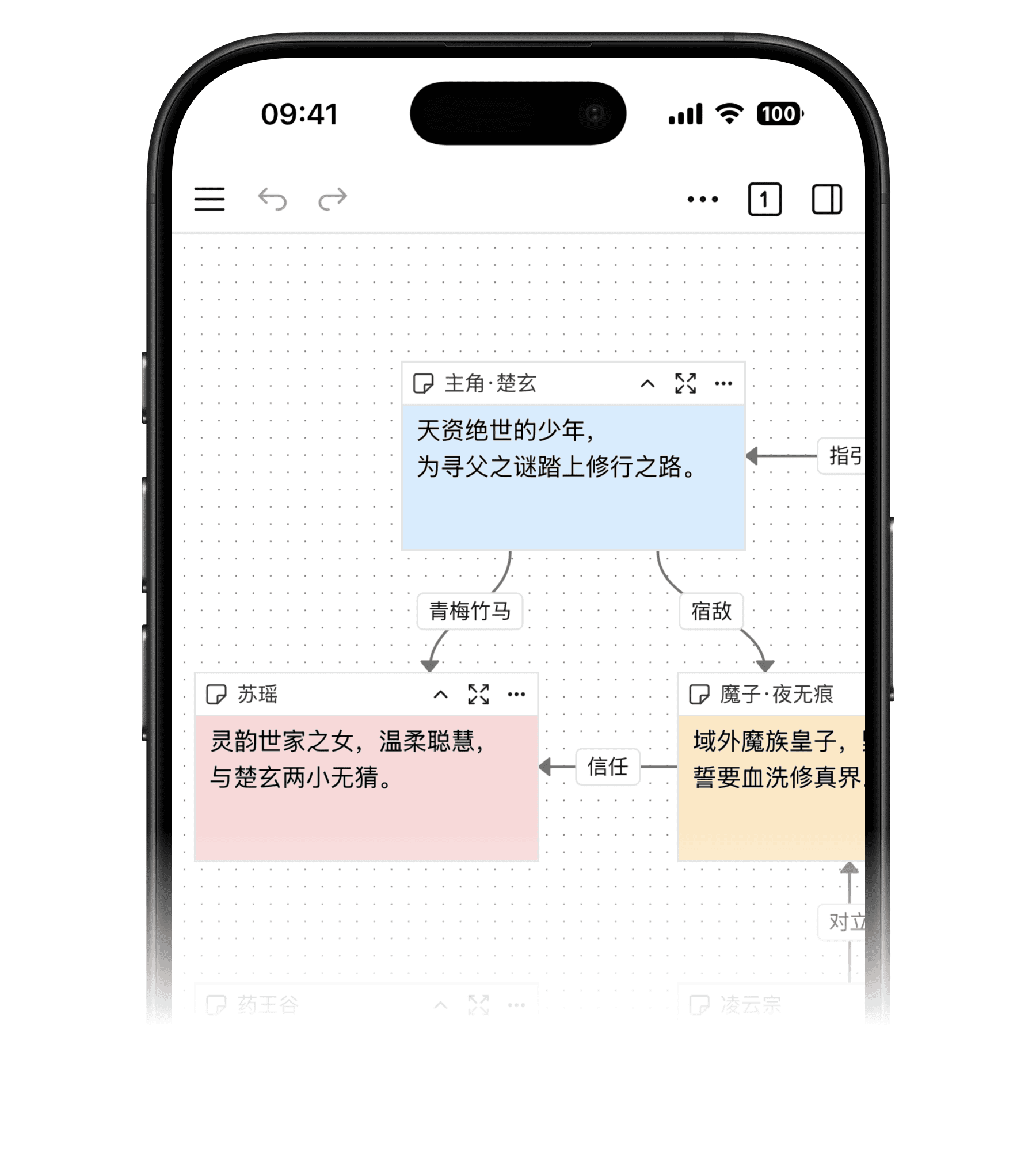
A whiteboard brings text, images, checklists, and diagrams onto one canvas. Use it to organize character relationships, story threads, and research. Unlike Card List, it lets you arrange cards freely and connect them to show relationships.
Create and Open Whiteboards
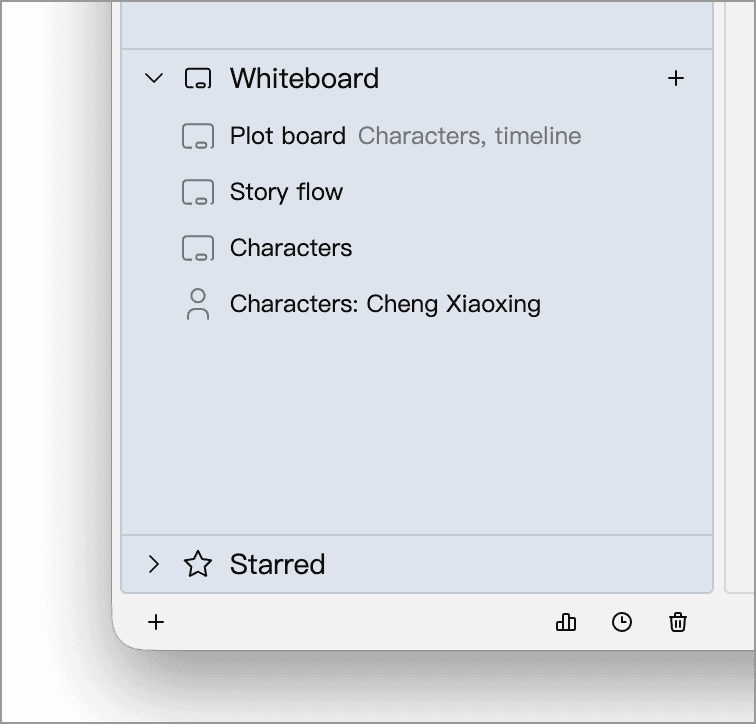
Expand Whiteboard in the sidebar and click an existing whiteboard to open it. Click the plus button beside the panel title to create one:
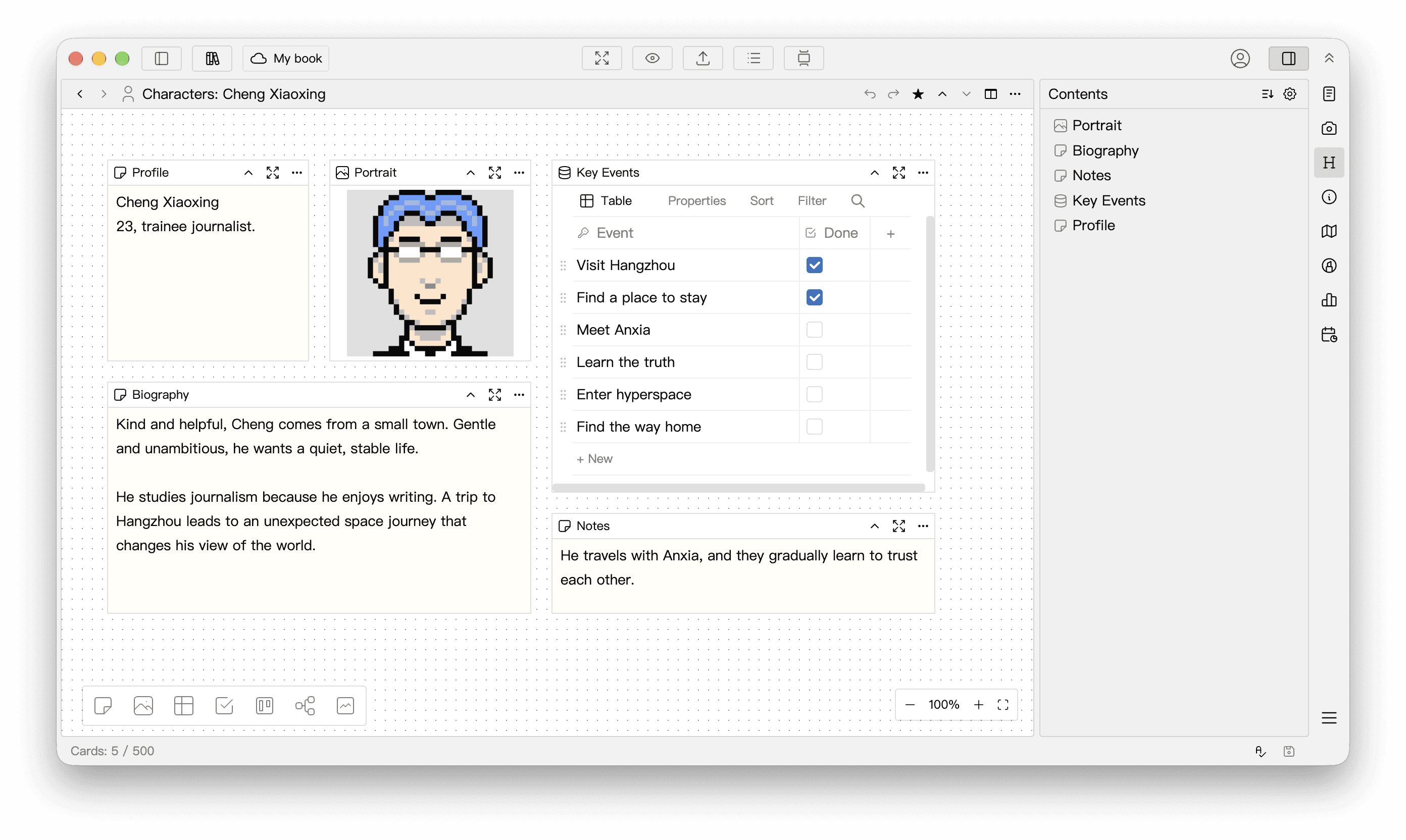
For example, use a whiteboard to keep a character’s profile, portrait, and history together:
Add Cards
Drag a card icon from the toolbar at the lower left onto the canvas, then release it to create a card at that position. You can also right-click empty canvas and choose a card type from the menu.
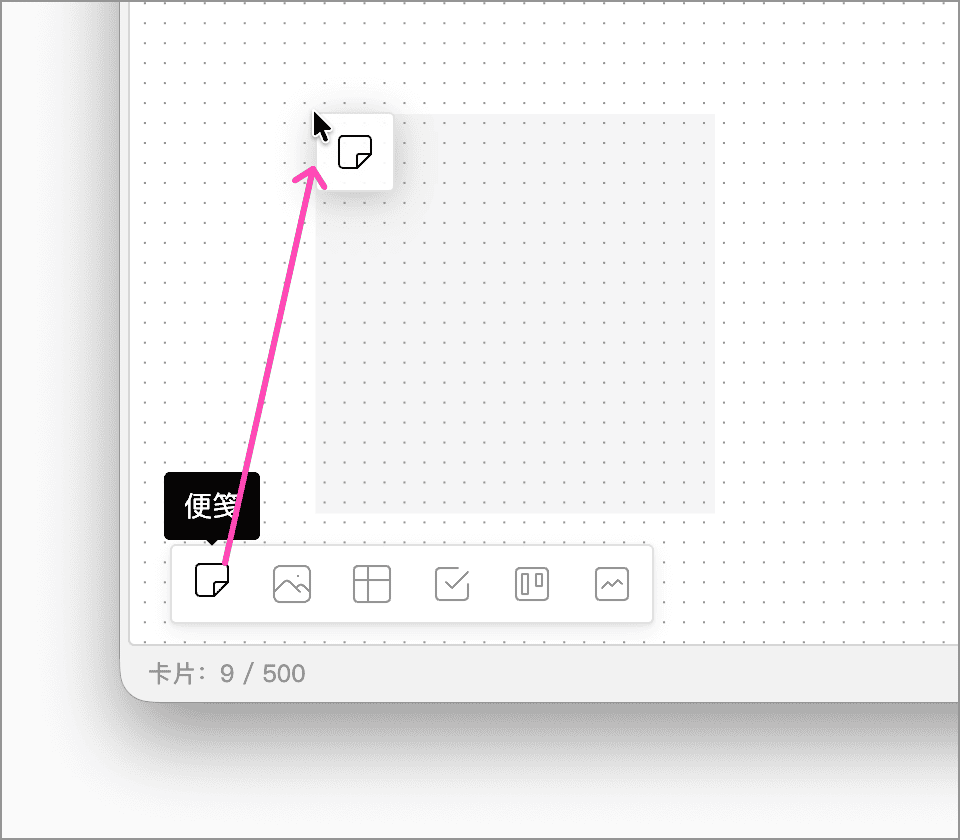
The following card types are available:
| Type | Purpose |
|---|---|
| Note | Record text and use background colors to distinguish characters, places, or clues |
| Image | Keep reference images such as portraits and maps |
| Table | Organize structured information about characters, props, or skills |
| Checklist | Track tasks or plot threads that need resolving |
| Kanban | Group information, such as scenes that are planned, in progress, or complete |
| Mind Map | Outline hierarchies, plots, or timelines; see Mind Map |
| Excalidraw | Draw sketches, flowcharts, and other diagrams |
See Version Comparison and the app for current card limits and benefits.
Table, Checklist, and Kanban Views
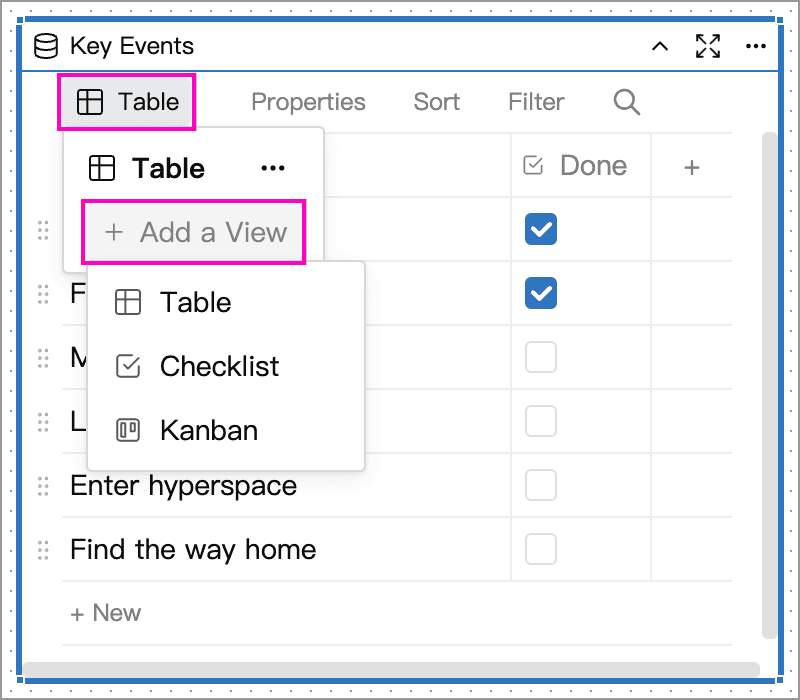
A single data card can have multiple views, including table, checklist, and kanban views. These views share the same records: editing a record in one view also updates its data in the other views.
Click the view name inside the card’s upper-left corner (for example, Table). In the popup, switch to an existing view or use Add a View to create one without entering the data again.
Move, Zoom, and Edit
The whiteboard extends in every direction; you do not need to choose a page size first.
- Pan the canvas: drag empty canvas, or scroll with the mouse wheel or trackpad.
- Zoom: use the plus and minus buttons at the lower right, or hold
Ctrl(Windows) /Cmd(macOS) while scrolling the mouse wheel. Click the percentage to return to 100%, or click Fit View beside it to fit the cards into the visible area as far as possible. - Move a card: drag its title bar.
- Rename a card: double-click its title bar and enter a descriptive name. The new title also appears in the whiteboard’s contents list.
- Resize a card: select it, then drag its edge or corner handles.
- Collapse or maximize a card: use the title bar buttons. Collapsing leaves the title visible to tidy up the canvas; maximizing provides more space to read and edit longer content.
Mind map cards show a preview on the whiteboard. Click Edit on the card to open its editor. See Mind Map for details.
Add Connections
Move the pointer to a card’s edge, drag to another card, and release to create a connection. The arrow points to the destination card, and the connection follows the cards when you move them.
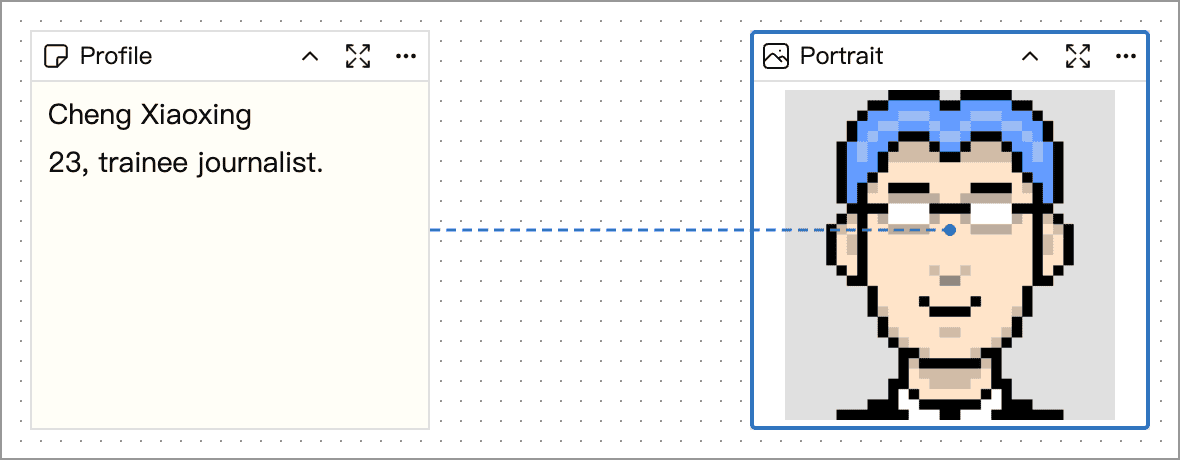
Double-click a connection to edit its label, such as “Travels with” or “Guides”, then press Enter to confirm. You can also right-click a connection to edit its label or delete it.
Select and Manage Multiple Cards
Hold Shift and drag over empty canvas to select multiple cards. Cards touched by the selection rectangle are included; they do not need to be fully enclosed:
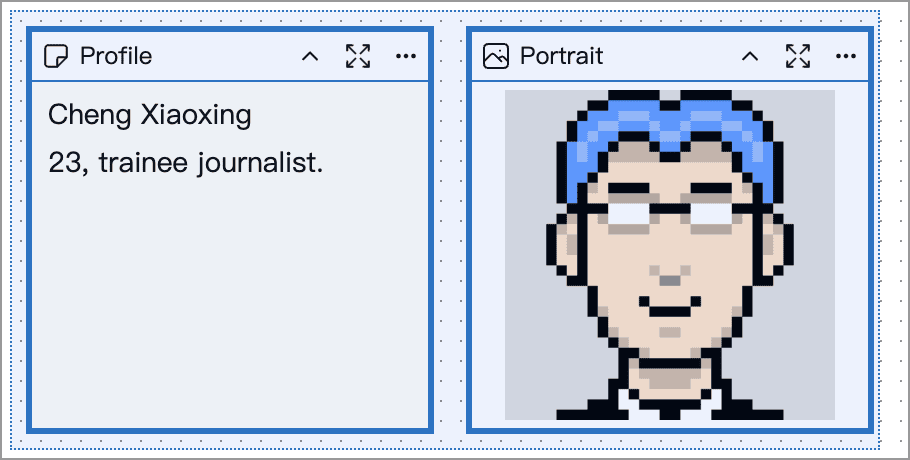
You can then drag the selected cards together. Right-click the selection to duplicate the cards, copy or move them to another whiteboard, or move them to the Trashcan.
Copy or Move to Another Whiteboard
Choose Copy to… or Move to… from the selection’s context menu, then choose a destination whiteboard in the current Library. To move a single card, click the ellipsis (…) in its title bar and choose Move to….
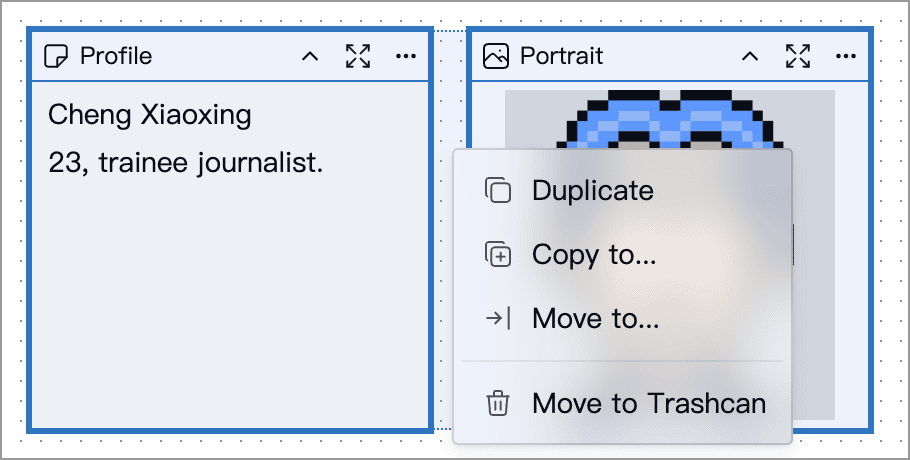
- Duplicate: copy the selected cards onto the current whiteboard.
- Copy to…: create independent copies on the destination whiteboard and retain the originals.
- Move to…: transfer the selected cards to the destination whiteboard.
Connections between selected cards are copied or moved with them. When moving cards, connections to unselected cards are not retained.
Find Cards in the Contents Panel
Click Contents in the sidebar to list the cards on the current whiteboard. Click an entry to bring its card into view, which is useful for finding material on a large whiteboard.
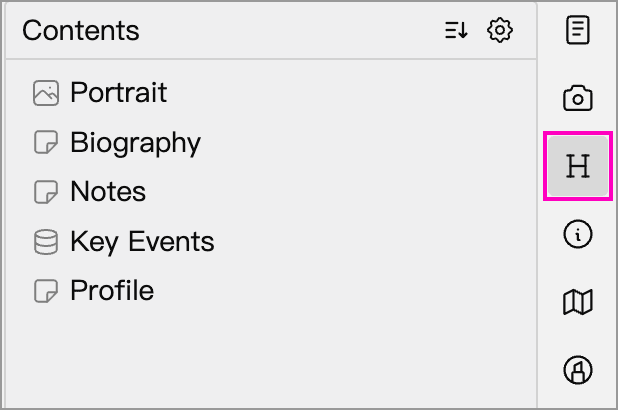
Give cards descriptive titles so they are easy to find in the list. Click the sort button at the panel’s upper right to choose ascending or descending name order, or manual sorting:
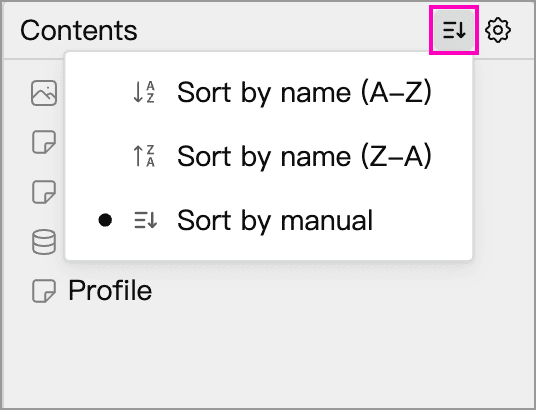
With manual sorting, drag entries in the contents list to reorder them. This does not change the cards’ positions on the canvas. See Table of Contents.
Mobile
Whiteboards are also available on mobile. Drag the canvas with a finger, pinch with two fingers to zoom, and tap or drag a bottom-toolbar icon to add a card. Long-press empty canvas or a connection to open its menu.