
Import Text Files
WonderPen for desktop can import .txt and .md files into the current Library, or import an entire folder while preserving its hierarchy. Importing creates new documents and leaves the original files unchanged.
Choose an Import Command
Open the Library that should receive the content, then choose one of these commands from the File menu:
- Import Text File: choose a single
.txtor.mdfile. - Import Folder with Text Files: choose a folder to import its
.txtand.mdfiles, including those in subfolders.
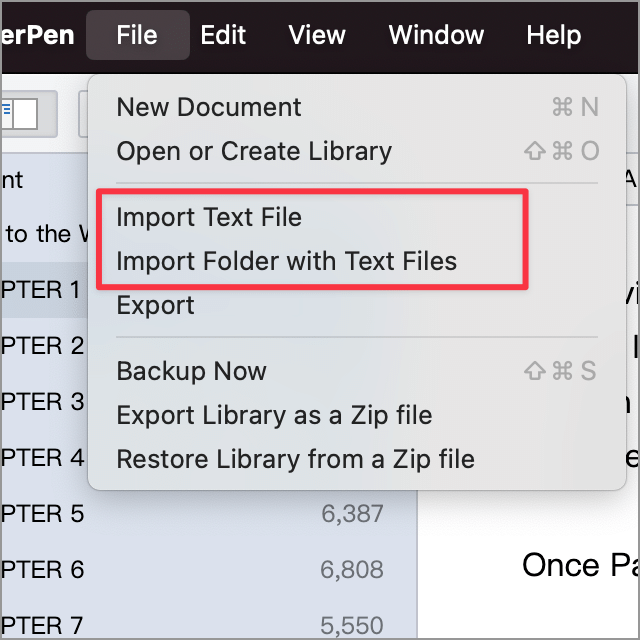
The import settings appear after you select a file or folder. Under Import to, choose the root or an existing document; choosing a document places the imported content beneath it. Importing starts when you click OK.
This command does not directly convert Word or PDF files into documents. Export them as TXT or Markdown using another tool first. To restore a WonderPen Library from a Zip backup, use the command described in Backup and Restore.
Import TXT Files and Split Chapters
When importing a single .txt file, the settings show its filename, detected encoding and destination. Organize documents into chapters is selected by default.
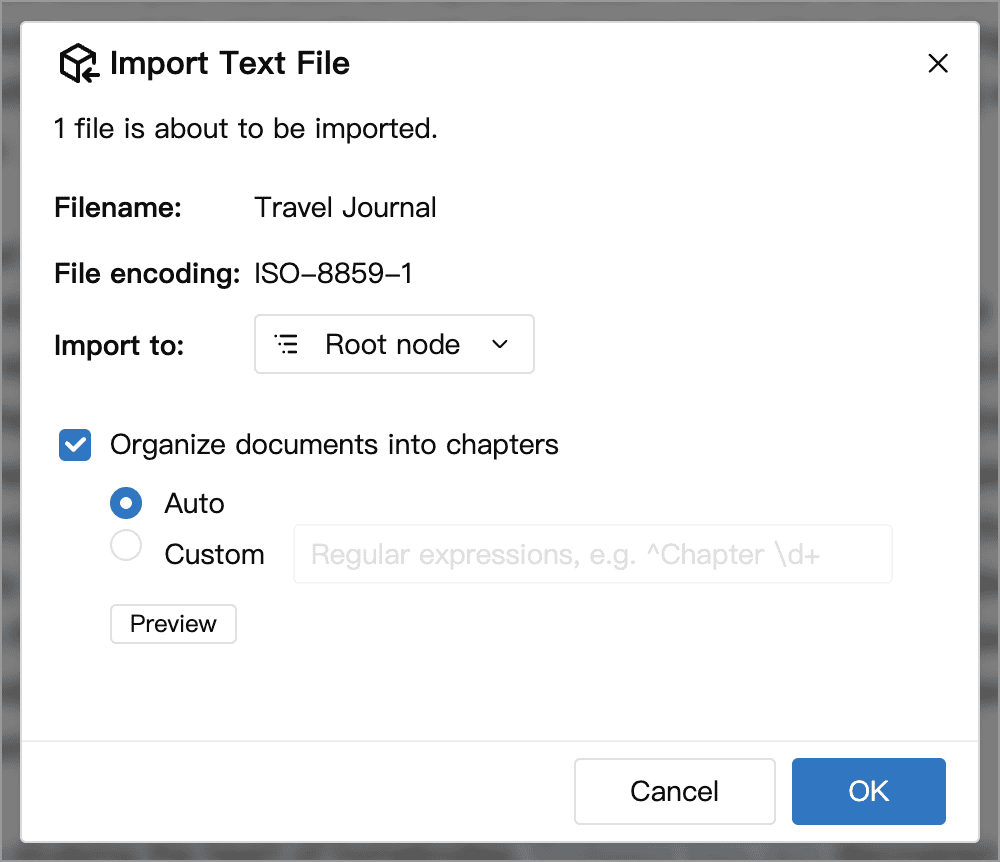
- Without chapter organization: the entire file becomes one document, with the filename (without its extension) as its title.
- With chapter organization: WonderPen creates a parent document named after the file and places the detected chapters beneath it. Chapter headings become child document titles. Any preface or other content before the first chapter is stored in the parent document's body.
Automatic Detection and Preview
With Auto selected, WonderPen looks for chapter headings on separate lines, such as 第一章 出发, 第 2 回 相遇 or Chapter 1 Departure. Use a consistent heading style throughout the file for more reliable results.
Click Preview before importing to check the detected chapter titles and count. Previewing does not import anything; close the preview to continue adjusting the splitting rule.
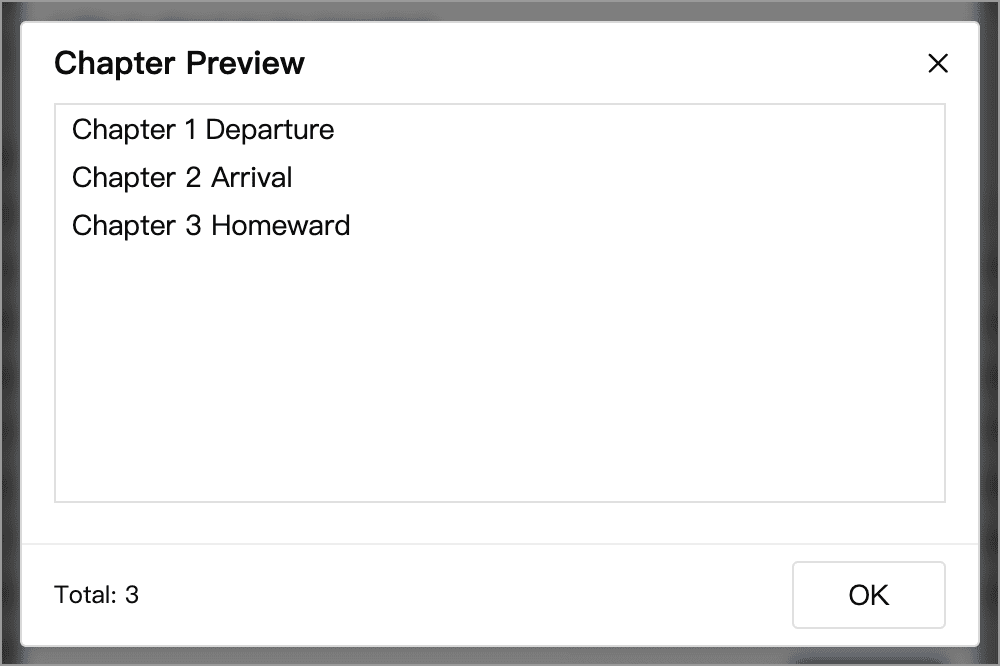
If no chapters are found, or body text is mistaken for headings, adjust the headings, use a custom rule, or turn off chapter organization and import the file as one document. You can also split chapters manually after importing.
Custom Rules
Choose Custom and enter a regular expression that matches your chapter heading lines. For headings such as Part 1 Departure and Part 2 Arrival, for example, use:
^\s*Part\s+\d+Enter the expression without surrounding / characters. Use ^ to anchor it to the start of a line and avoid splitting at chapter references within body text. Preview again after changing the rule, then import once the results are correct.
Import Markdown Files
For .md files, Parse Markdown Syntax is selected by default.
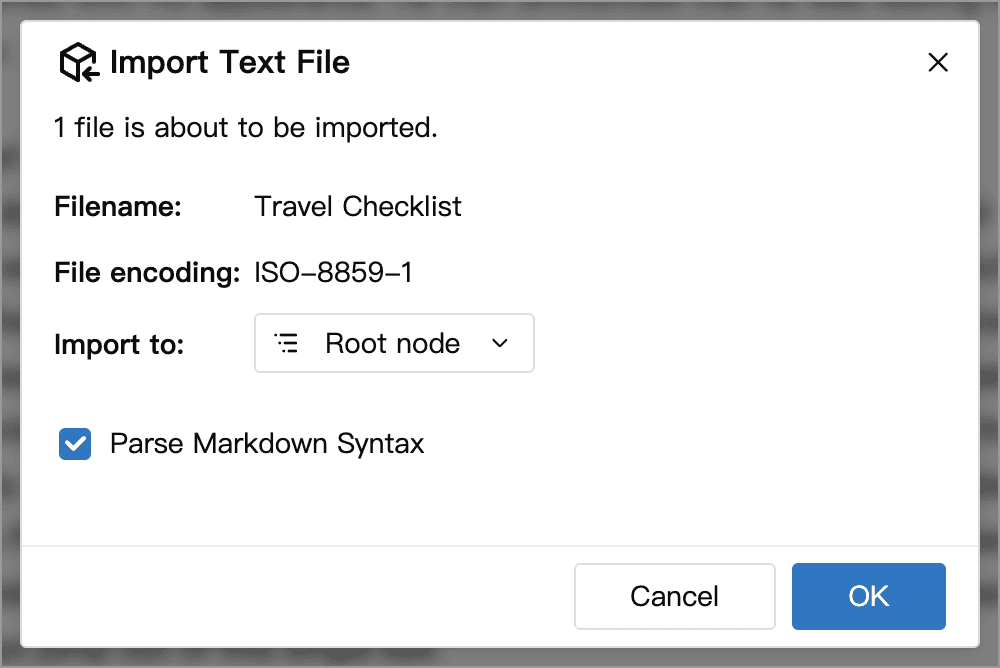
- Selected: converts supported Markdown syntax, including headings, lists, tables, math formulas and code blocks, into the corresponding editor formatting.
- Cleared: keeps the Markdown source text without converting its formatting during import.
Each Markdown file becomes one document. It is not split into chapters, and Markdown headings do not create child documents in the document tree.
When parsing Markdown, referenced local images are also copied into the Library's Assets. Relative paths are resolved from the folder containing the Markdown file, so preserve the relative locations of the file and its images when moving them. Online images keep their original URLs and are not automatically downloaded as Assets.
If the import reports that some images failed, check that the image files exist and their paths are correct. Importing one representative file first is a useful way to check formatting and images before importing a whole folder.
Import Folders
Choose Import Folder with Text Files to preview the document hierarchy and select a destination.
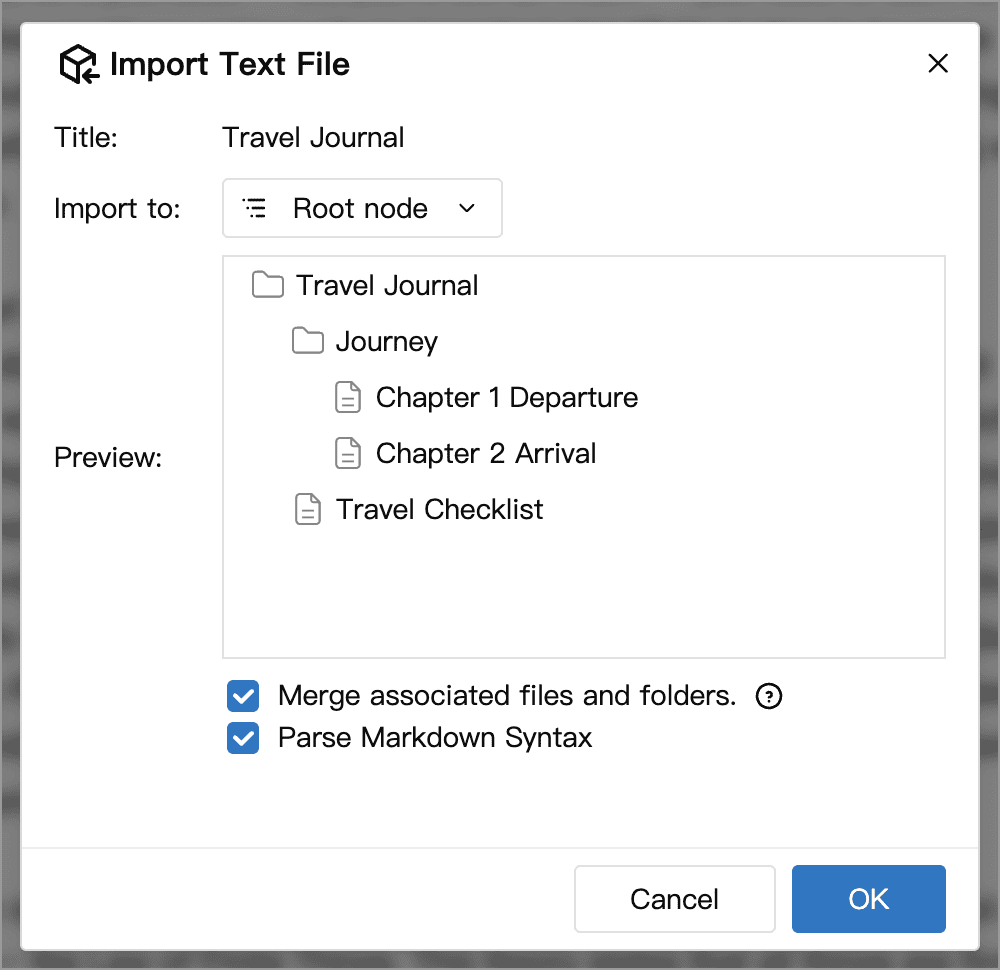
Folders and subfolders form the document tree hierarchy, with each text file becoming one document. Folder imports do not automatically split individual TXT files into chapters. Use Import Text File separately for a TXT file that needs chapter splitting.
If the folder contains .md files, Parse Markdown Syntax also appears and applies only to those files. Other file types are not imported as documents, although local images referenced by Markdown are handled as described above.
Merge Associated Files and Folders
This option is selected by default. If a text file and a folder have the same name at the same level, excluding the file extension, they are merged into one document with both body content and child documents.
For example, consider these source files:
Travel Journal/
├── Journey.txt
├── Journey/
│   ├── Chapter 1 Departure.txt
│   └── Chapter 2 Arrival.txt
└── Travel Checklist.md- Selected: the content of
Journey.txtbecomes the body of the “Journey” document, with the two chapters beneath it. - Cleared: the text file and folder are imported separately, creating two entries named “Journey”.
Toggle the option to compare the hierarchy in the preview. It is useful when reimporting the “text file + same-named subfolder” structure created by exporting a folder of text files.
Encoding and Garbled Text
WonderPen attempts to detect common encodings such as UTF-8, GBK and GB18030. The detected encoding appears in the single-file import settings. Detection is not always accurate, especially for short files or unusual encodings.
If the chapter preview or imported text is garbled, open the original file in a text editor that displays it correctly, save a copy as UTF-8, and import that copy. Renaming the file extension does not change its encoding.