
Offline Mode
Offline Mode is for keeping your writing data on your own computer without using an account or cloud sync. It lets you use local Libraries without signing in, but you cannot open or create cloud Libraries.
Local Libraries can also be used without enabling Offline Mode. A temporary loss of internet access does not require it either. Cloud Libraries already downloaded to your computer can still be edited offline and will resume syncing when the connection returns. See Cloud Sync.
Enable or Leave Offline Mode
- Open Settings → General.
- Select Offline mode and confirm the prompt to restart the app.
- After restarting, open an existing local Library or create a new one.
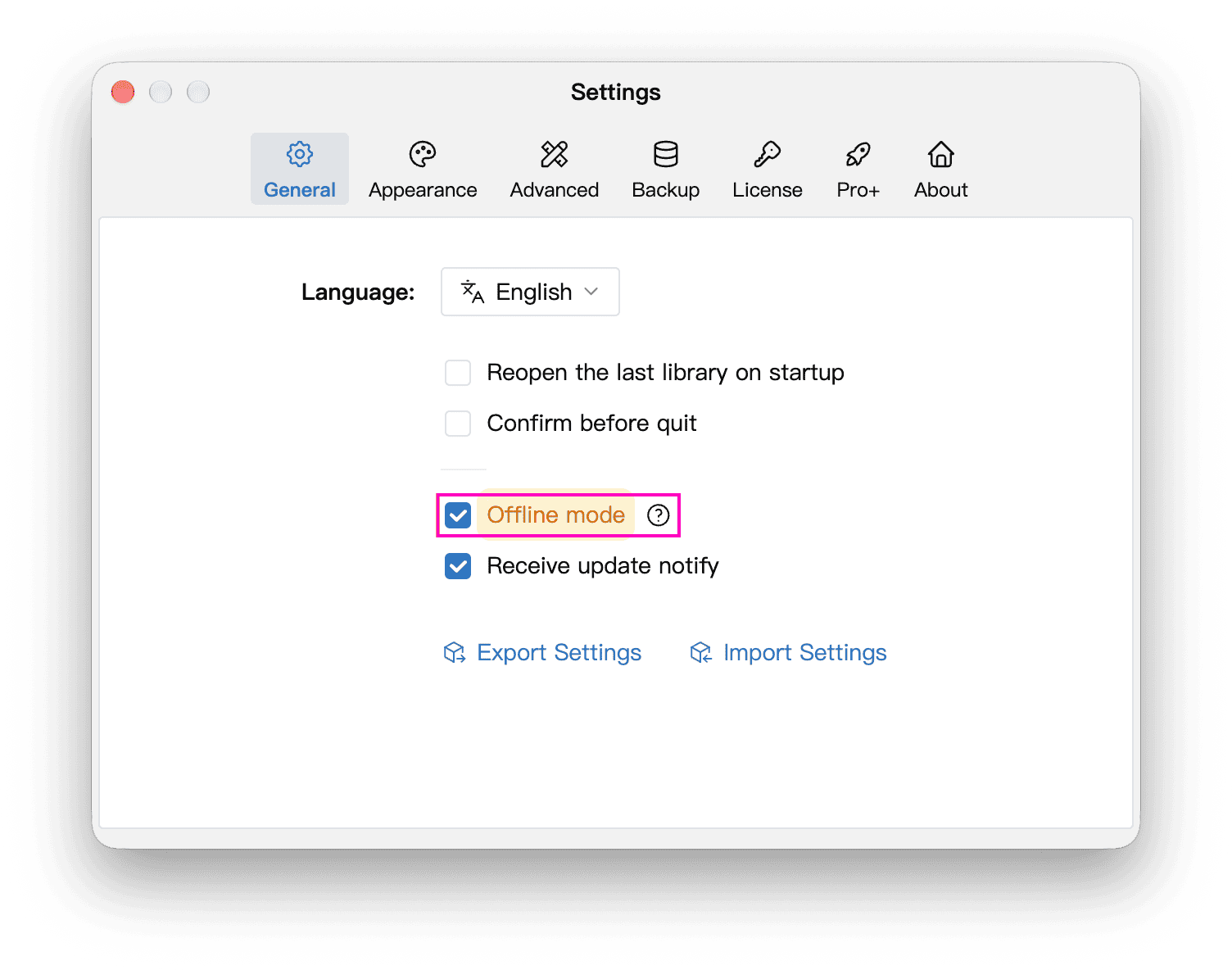
Enabling Offline Mode signs you out of your current account and disables account sign-in and cloud Libraries. It does not automatically convert existing cloud Libraries into local ones. To move cloud content to a local Library, export it as a Zip file before enabling Offline Mode, then import it into a local Library.
To leave Offline Mode, clear the same checkbox and restart when prompted. You can then sign in under Settings → Account to use cloud Libraries again.
Local Libraries do not sync automatically to WonderPen's servers. Set up backups as needed.
Activate with a License Key
In Offline Mode, you cannot obtain membership benefits by signing in. To use Pro features, activate them with a License Key under Settings → License. Services that require an account, such as cloud sync, are unavailable. See the plan comparison and the app for current benefits.
The following License Key activation steps apply to desktop editions that include the License panel. The Mac App Store edition does not have this panel.
Online Activation
If this computer can connect to the internet, you can verify your License Key directly:
- Open Settings → License.
- Enter the email address associated with your License Key in License Name (Email), then enter the License Key.
- Click Activate and wait for verification to succeed.
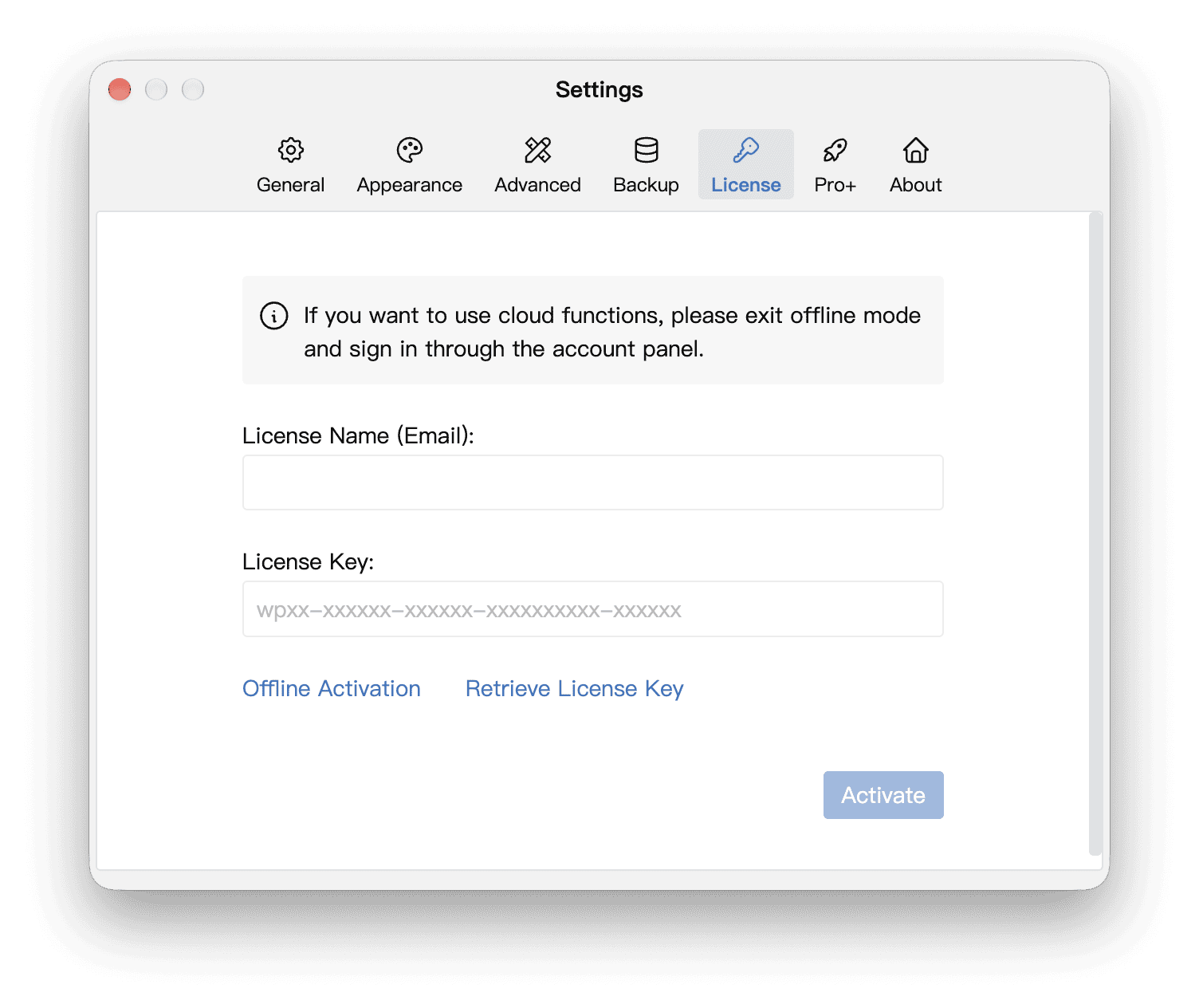
Online activation contacts the server to verify your License Key. Once activated, you can use the activated Pro features offline. Offline Mode therefore does not block all network access by the app.
If you have forgotten your License Key, click Retrieve License Key and follow the webpage's instructions using the email address you used for the purchase. Retrieving the key and receiving the email require internet access.
Offline Activation
If your writing computer cannot access the internet, use another connected device to complete verification. The writing computer itself can remain offline:
- Under Settings → License, click Offline Activation.
- On another device with internet access, open the web address shown in the app.
- Copy the writing computer's Client information into that webpage, provide the license details requested there, and obtain an activation code.
- Transfer the generated activation code back to the writing computer, enter it in the field under Step 3 in the app, and click Activate.
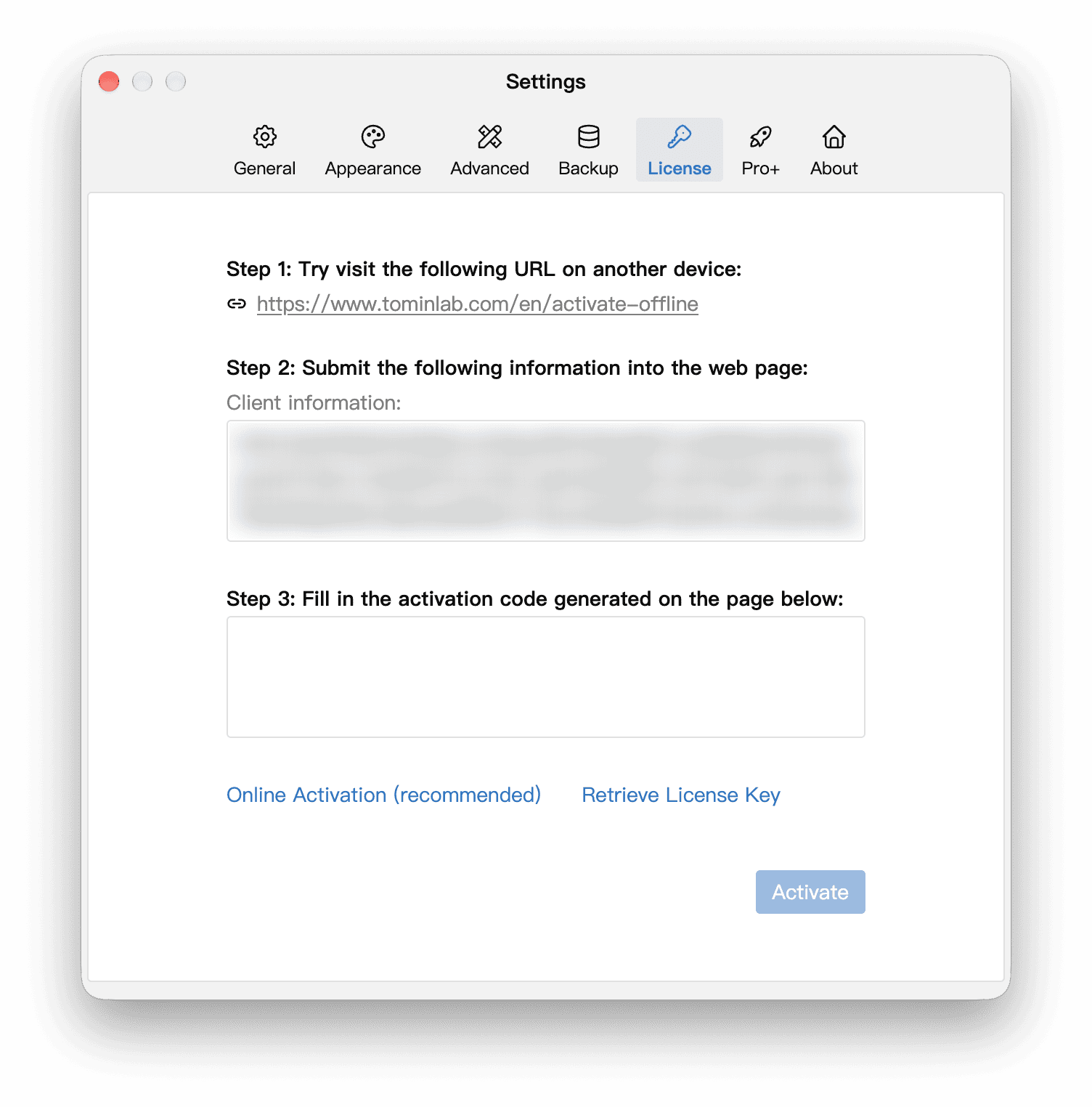
Client information identifies the current computer, so use the information generated on the computer you want to activate. The generated activation code is different from the License Key you received with your purchase. Do not enter the License Key directly into the activation code field.