
Editor
Use the editor to write and revise document content. This page covers its toolbar, appearance, insertion tools and typing preferences. To tidy existing text, see Find and Replace and One-Click Formatting.
Editor Toolbar
The toolbar at the top of the editor provides navigation and common actions. All controls are labeled below. Click the diagram or Enlarge to see the full-size guide.
macOS · WonderPen 3.4.0 · History, undo/redo and document navigation are shown.
- History: the left and right arrows go back and forward through recently visited documents, like browser history.
- Document title: double-click to rename it. Right-click for options such as copying the title or content and locking the document.
- Undo and redo: undo an edit or restore an edit you have undone.
- Star: click the star-shaped button to save the current document to the Starred panel for quick access.
- Previous and next document: the up and down arrows follow the document tree order, independently of your browsing history. Enable them in the more menu if they are hidden.
- Split and more options: the split button divides the editing area into two panes; see Split View. The ellipsis at the far right lets you choose a side-by-side or top-and-bottom split, show or hide previous/next navigation, and lock the document.
Lock a Document
To prevent accidental changes to a document's body, right-click it in the document tree and choose Lock. This option is also available in the editor's ellipsis menu and the document title's right-click menu.
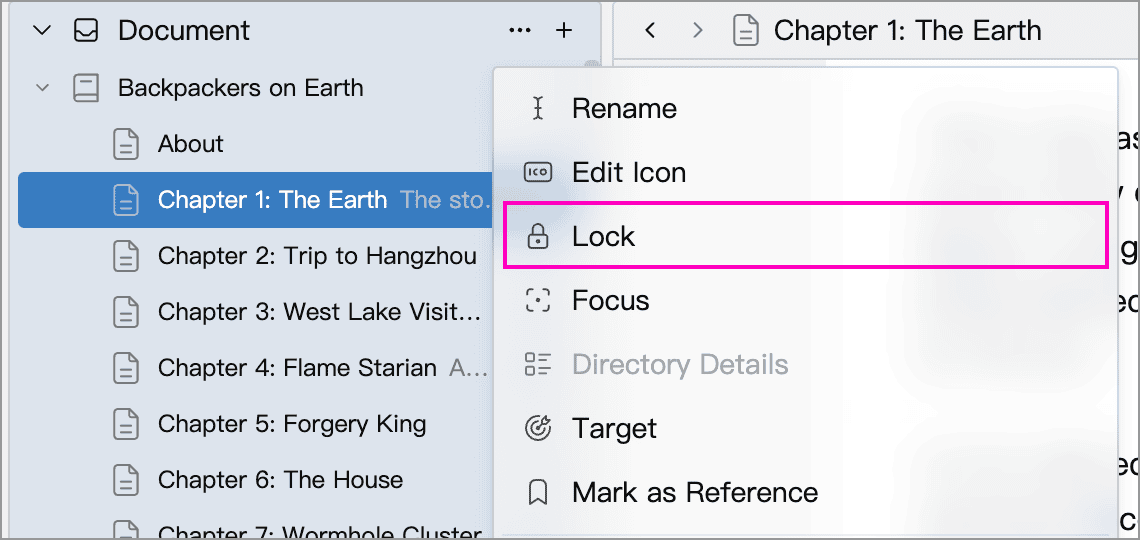
A lock icon appears beside the document in the tree and beside its editor title. You can still read, select and copy text, but cannot type, paste or change the body's formatting. Choose Unlock from the same menu when you want to edit again.

The lock protects only that document's body; it does not automatically lock child documents. You can still edit its title, memo and other details, or delete the document. To protect several documents, select them in the tree and use the right-click menu to lock them together. When all selected documents are locked, the menu offers Unlock so you can unlock them together.
Document locking prevents accidental edits; it does not hide content or require an access password. To hide the application's contents while away from your computer, see Lock the Application.
Adjust the Style
Hover over the T-shirt icon at the bottom right of the editor to open its style panel. In a top-and-bottom split, click the icon instead:
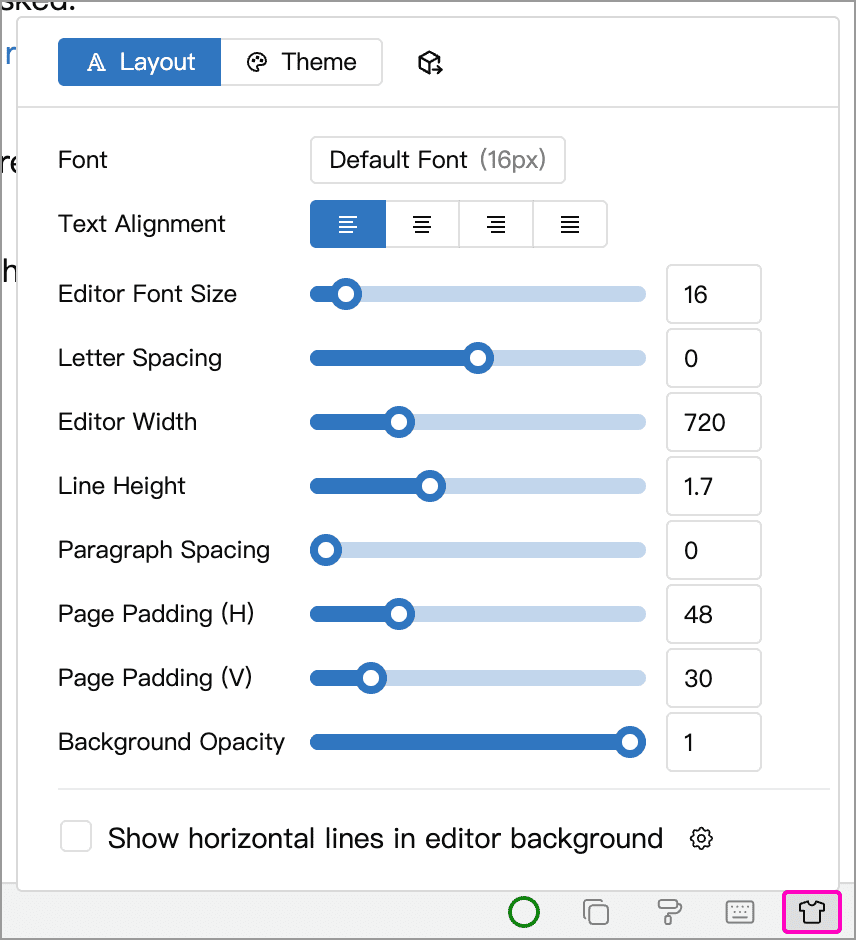
Adjust the font, font size, line height, padding and other layout settings here. These layout settings are saved per theme and change when you switch themes; see Themes and editor styles.
The Letter Spacing option adjusts the distance between characters. If the text feels too dense, or a particular font looks cramped on screen, you can increase the letter spacing a little.
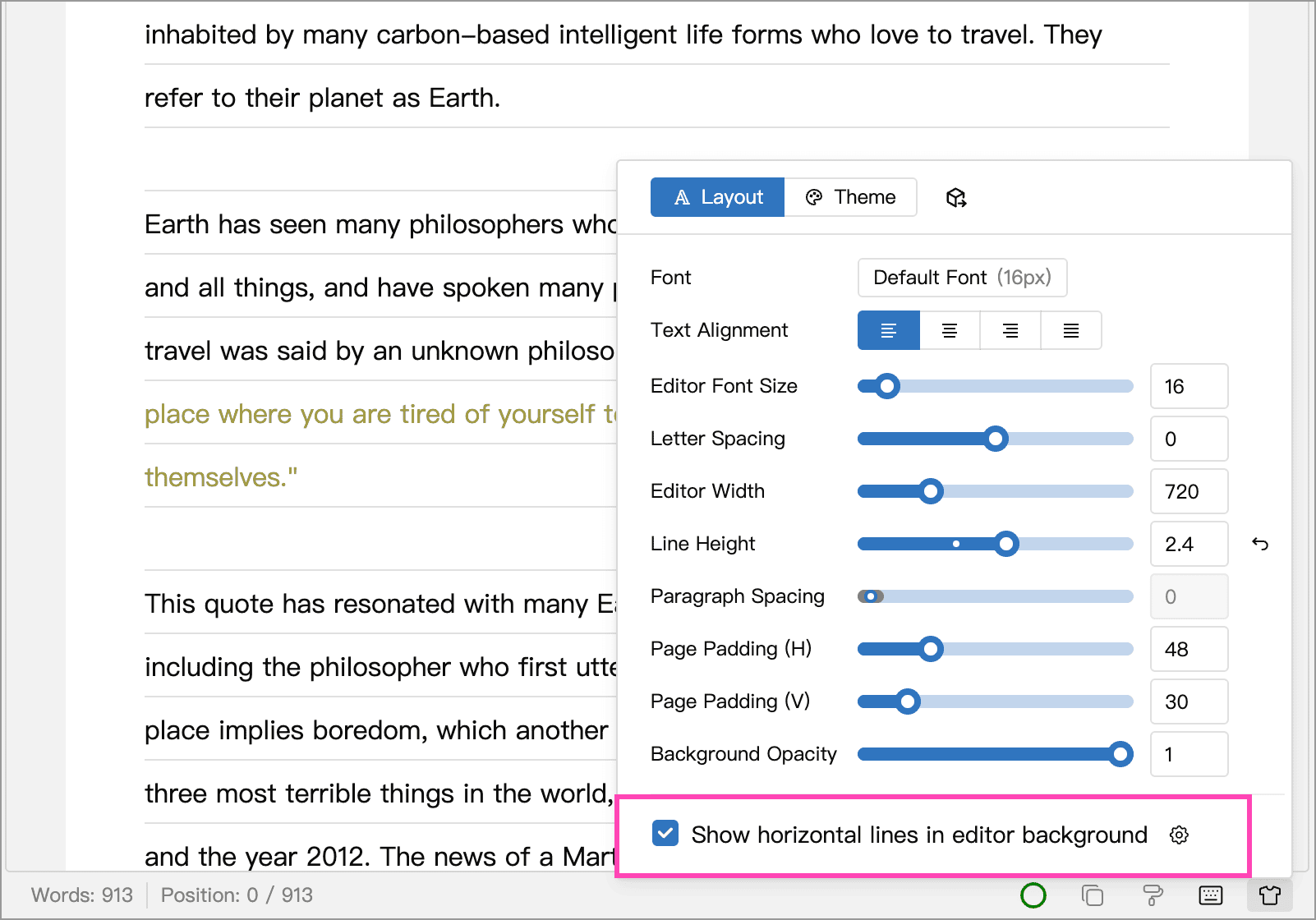
Enable Show horizontal lines in editor background at the bottom of the panel to add ruled lines behind the text, as shown below. Increase Line Height if the text looks cramped.
Floating Toolbar
When you select text in the editor, a floating toolbar appears next to the selection, letting you add an annotation or link, or apply bold, italic, strikethrough or underline formatting.
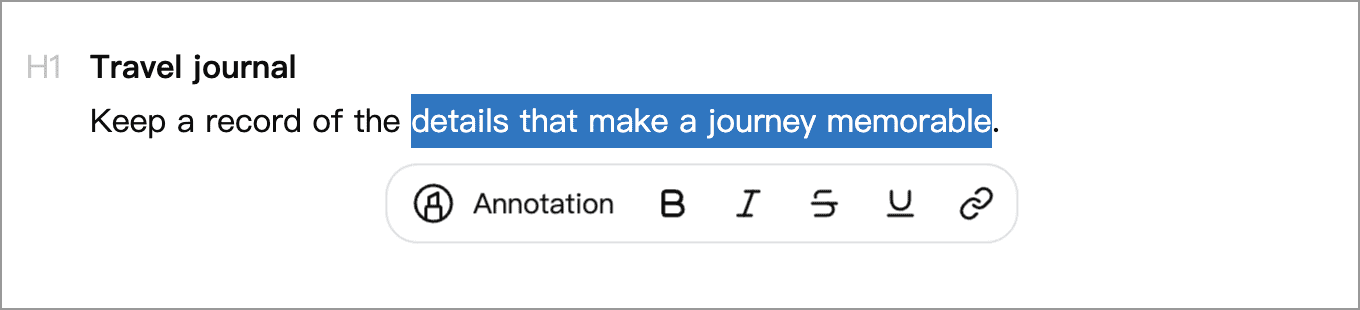
In Settings → Advanced → Floating Toolbar, you can turn the floating toolbar off, choose which buttons to show, drag them to change their order, or insert dividers. Besides the default buttons, you can also add Copy, Cut, Paste and Delete buttons.
Bold and Italic Input
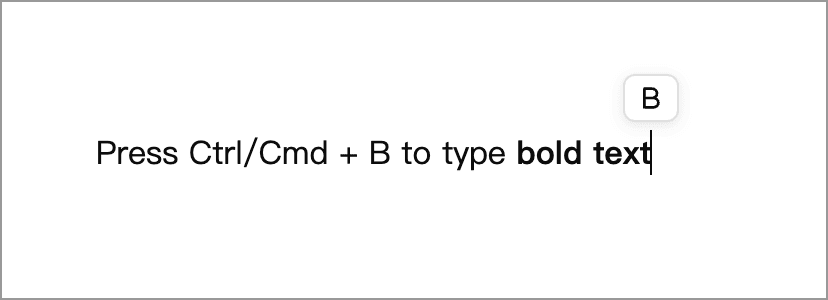
With text selected, press Ctrl + B / Ctrl + I (⌘ + B / ⌘ + I on macOS) to toggle bold or italic.
If no text is selected, pressing these shortcuts enters the corresponding input mode, and any text you type afterwards is automatically styled as bold or italic. The editor shows a small icon near the cursor to indicate the current mode. Pressing the same shortcut again, moving the cursor outside the styled range, or letting the editor lose focus exits the mode.
Quick Input Menu
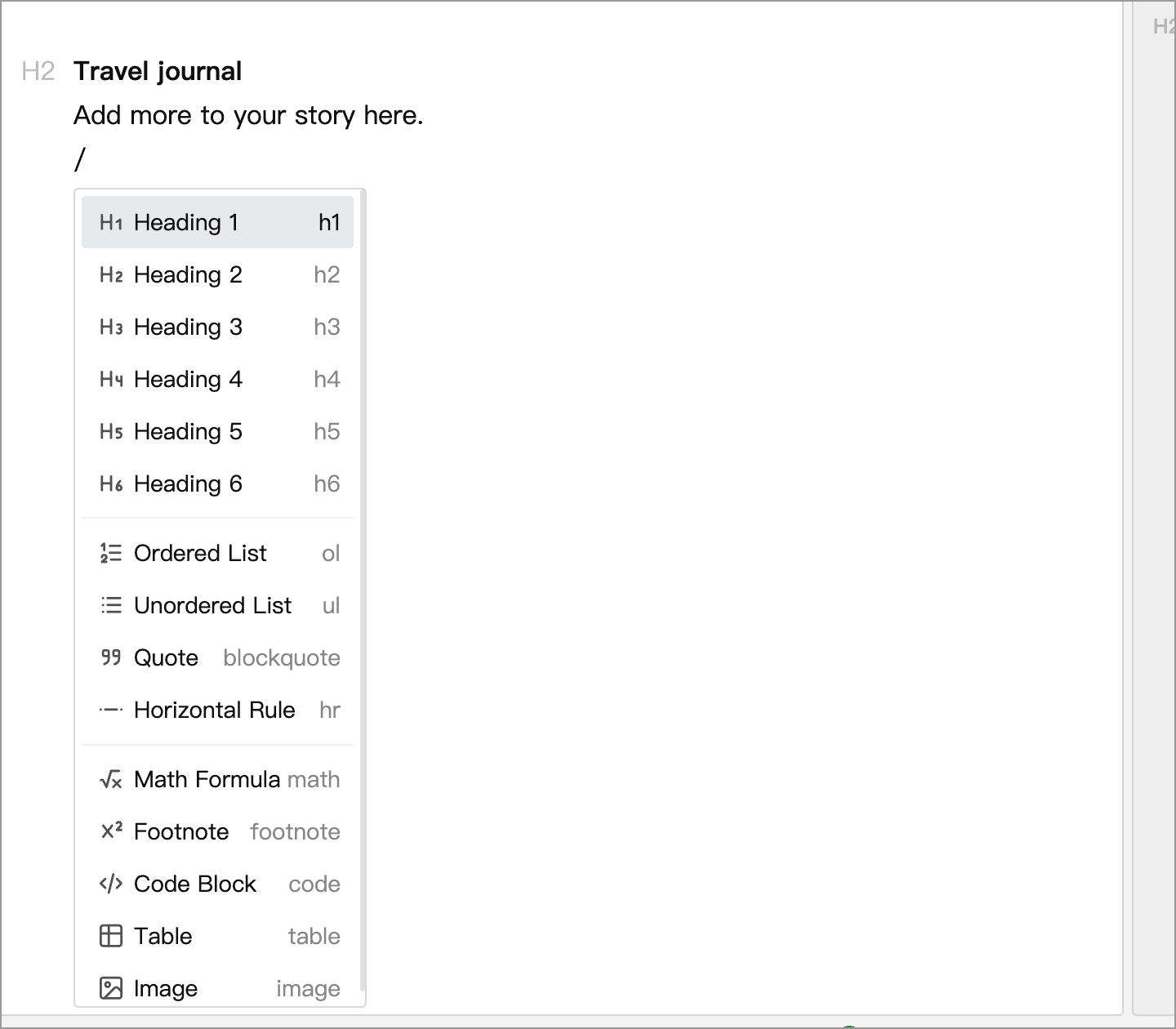
Type a slash / in the editor to open the quick input menu, from which you can quickly insert:
- Headings, from level 1 to level 6
- Ordered lists, unordered lists, blockquotes and horizontal rules
- Math formulas, footnotes, code blocks, tables and images
Type the code shown on the right of a menu item to filter the list: for example, /h2 selects a level-two heading and /table selects a table. Use the up and down arrow keys to choose an item, press Enter to insert it, or press Esc to dismiss the menu.
In Settings → Advanced → Quick Input Menu, you can set:
- Trigger: by default, the menu opens when you type a slash
/. If you mostly use a Chinese input method, you can also have it open when you type the enumeration comma、. - Menu: check the items you want to show, drag them to change their order, and insert dividers anywhere. The page break item is hidden by default; check it here when you need it.
Markdown Syntax
If you know Markdown, you can type Markdown syntax directly in the editor, and it is converted to the corresponding formatting as soon as you finish typing it. For example, typing ## at the start of a line turns it into a level-2 heading, and typing **text** makes the text bold.
If a conversion is not what you wanted, press Ctrl + Z (⌘ + Z on macOS) to undo it and keep the characters you typed.
In Settings → Advanced → Markdown, you can turn automatic conversion on or off for each kind of syntax:
- Inline Styles: bold, italic, strikethrough and inline code
- Block Structures: headings, blockquotes, unordered lists, ordered lists, code blocks and horizontal rules
Strikethrough conversion is off by default; the others are on. These switches control conversion as you type; turning one off does not remove existing formatting.
Blockquotes support nesting: type > at the start of a paragraph inside a blockquote to create a nested blockquote.
Images
You can insert images into a document by:
- Choosing Image in the quick input menu, then picking a Local Image file or entering the address of an Online Image;
- Pasting an image from the clipboard;
- Dragging an image file into the editor.
Local images you insert are saved as assets of the Library; you can view them in Assets Management.
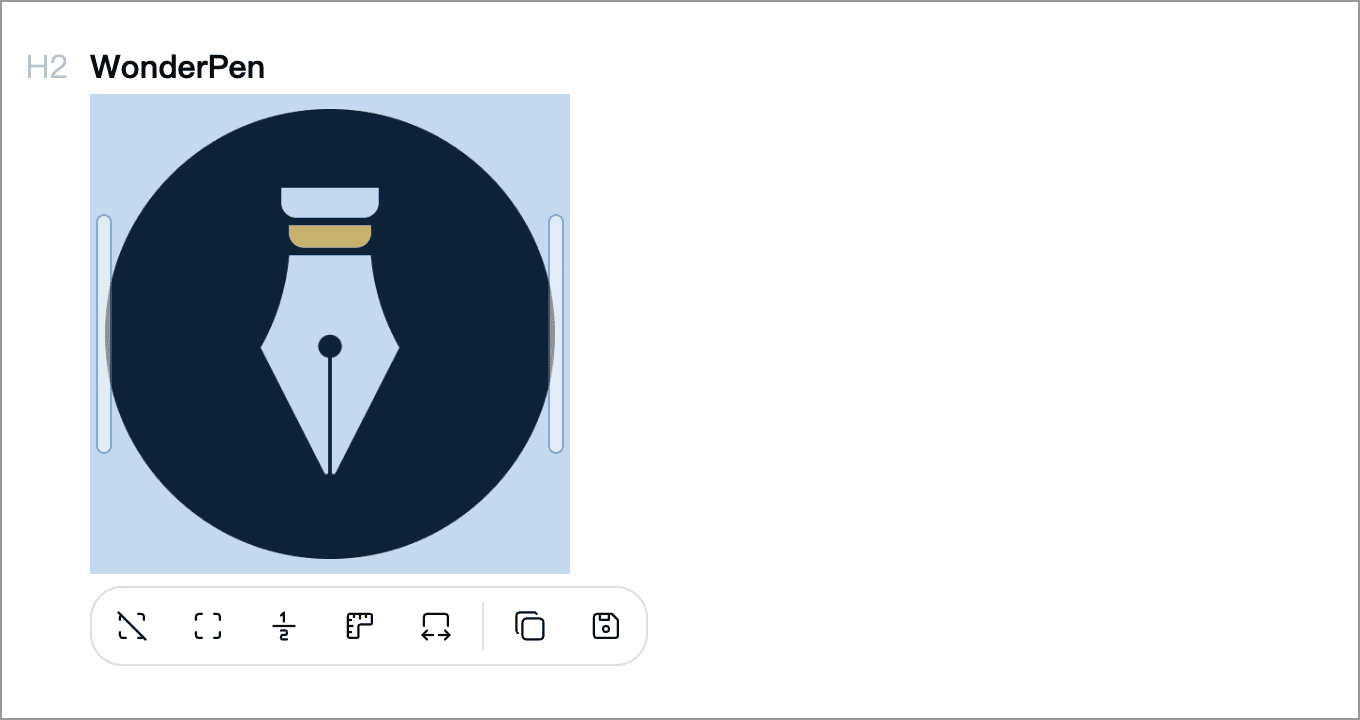
When you select an image, you can drag the handles on its edges to resize it, and an image toolbar appears that lets you:
- Set the size to Auto Size, Original Size, 1/2 Size or Custom Size;
- Choose Full Width to make the image fill the available width of the editor and of exported files;
- Copy Image to Clipboard, or Save Image As....
If the asset behind an image has been deleted, the editor shows an "[Image (deleted)]" placeholder.
Code Blocks
When you insert a code block in the editor, a toolbar appears at the upper-right of the block. You can use it to pick the code language, copy the code, toggle line wrapping, or delete the entire block.
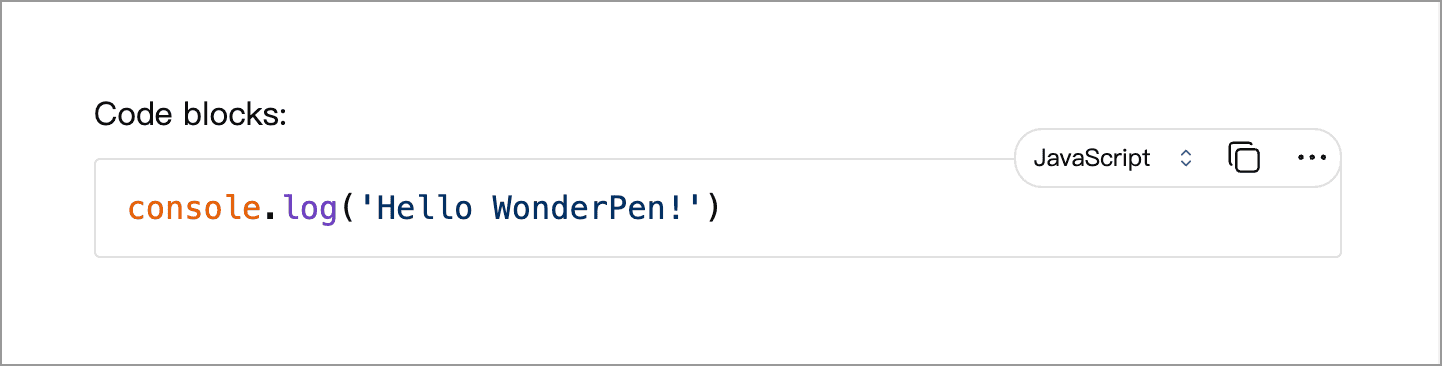
If a language is set on a code block, the editor renders syntax highlighting, and the highlighting is preserved when exporting to HTML, PDF, image, and other formats.
Code blocks remember the language and line-wrap preference you last picked. WonderPen will reuse those settings for the next code block you create, to reduce repetitive setup.
Tables
Choose Table in the quick input menu to insert a table. By default the inserted table is 3 columns × 3 rows, with the first row as the header.
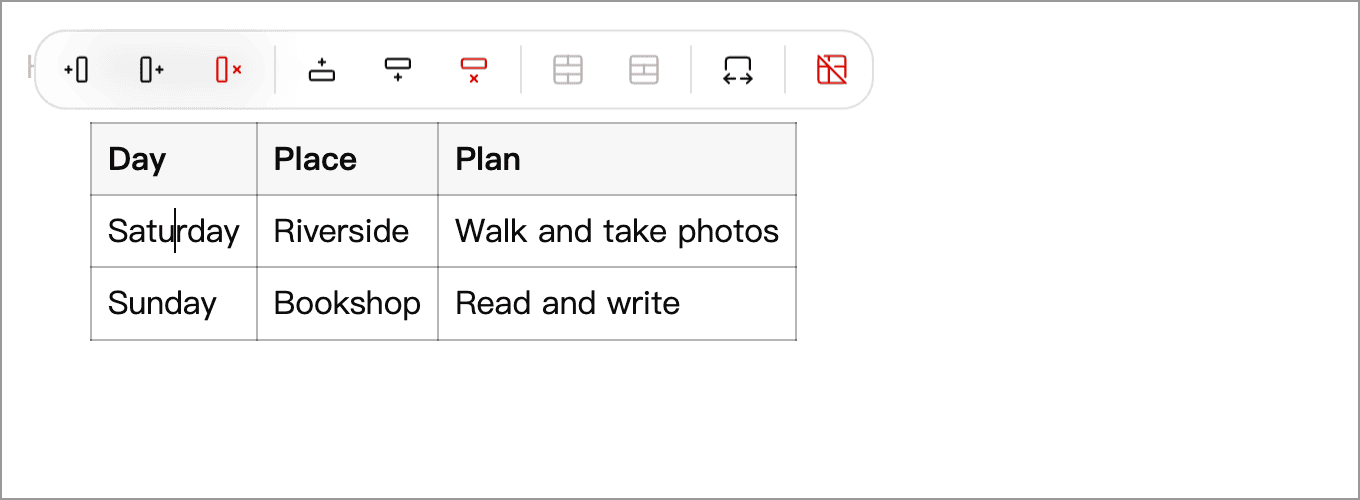
When the cursor is inside a table, a floating toolbar appears nearby. You can use it to:
- Insert a new column to the left or right of the current column
- Delete the current column
- Insert a new row above or below the current row
- Delete the current row
- Merge or split cells
- Delete the entire table
You can also move the mouse to the left or top edge of the table to reveal drag handles, then drag a whole row or column to reorder it.
New tables have Full Width enabled, so they fill the available width in the editor and exported files. Toggle this option in the table toolbar as needed. Existing tables keep their current setting.
WARNING
Tables cannot be nested inside other tables. When the built-in Word export doesn't render a complex table the way you need, try exporting via Pandoc instead.
Footnotes
Choose Footnote in the quick input menu to insert a footnote marker at the cursor; an input box pops up for you to type the footnote text. Markers are numbered automatically in the order they appear in the document, and shown as [1], [2] and so on.
Click a footnote marker later to view or edit its text.
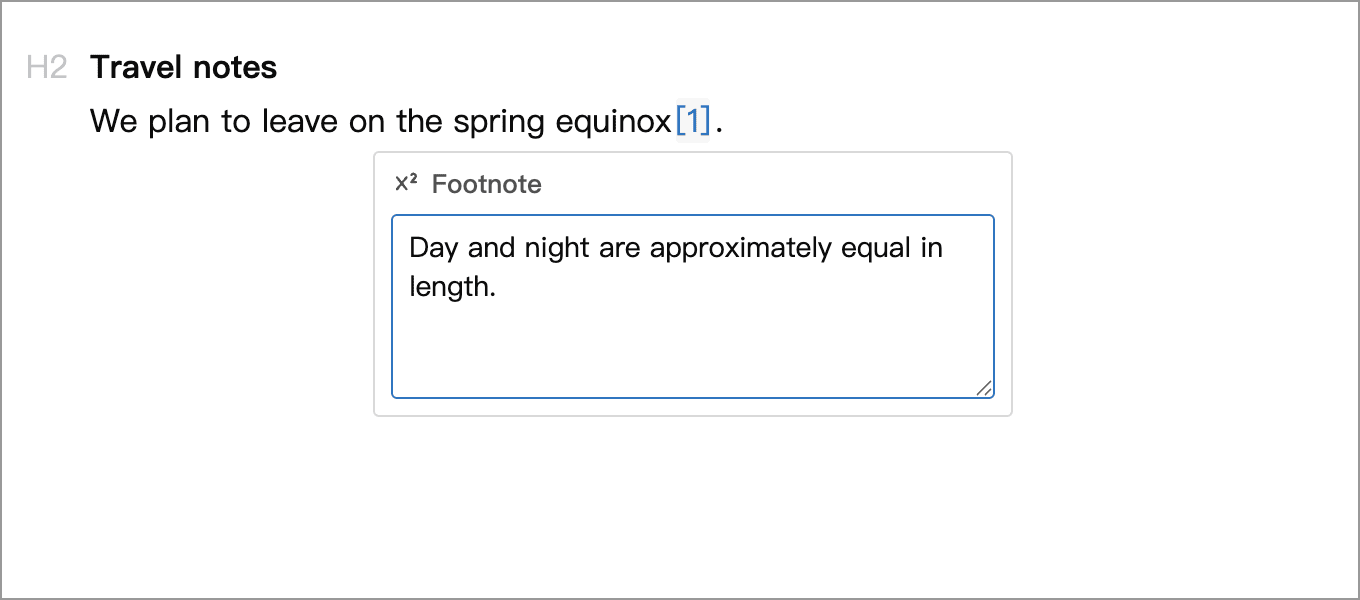
HTML export renders footnotes as numbered references with a list of notes at the end. Markdown export uses footnote references and definitions. Their appearance varies by export format.
When you paste rich text or import Markdown, WonderPen attempts to recognize common footnote structures. Include both the reference marker and its note content when copying; a marker alone cannot bring in the note. Recognized footnotes are renumbered, and their content is stored as plain text.
Page Breaks
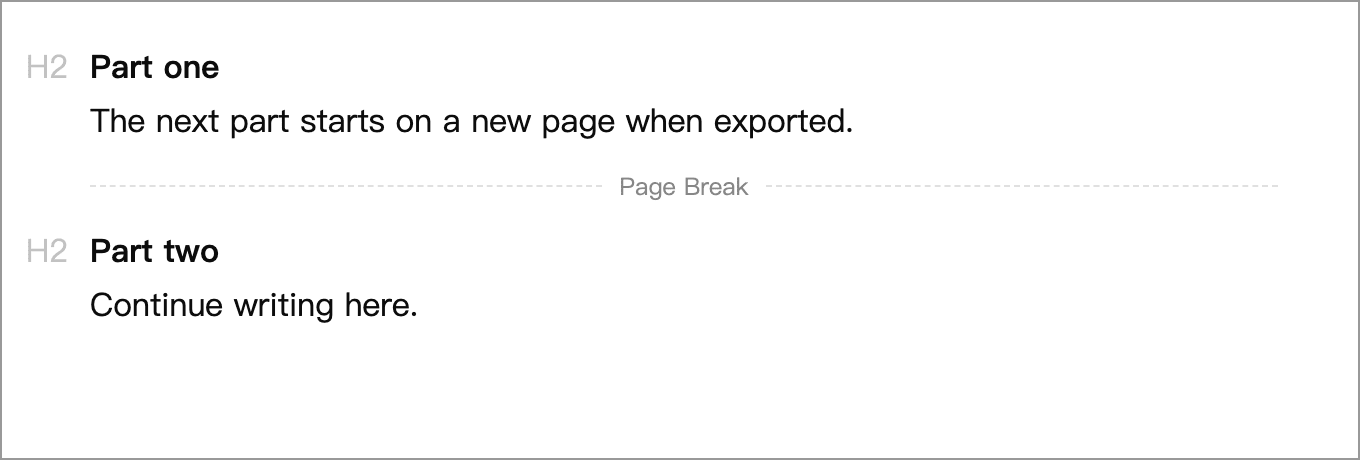
To start a new page at a certain point when exporting to PDF, Word and other formats, insert a Page Break from the quick input menu. The page break item is hidden by default; check it first in Settings → Advanced → Quick Input Menu.
Copy and Paste
You can choose the format used when copying or pasting in the editor:
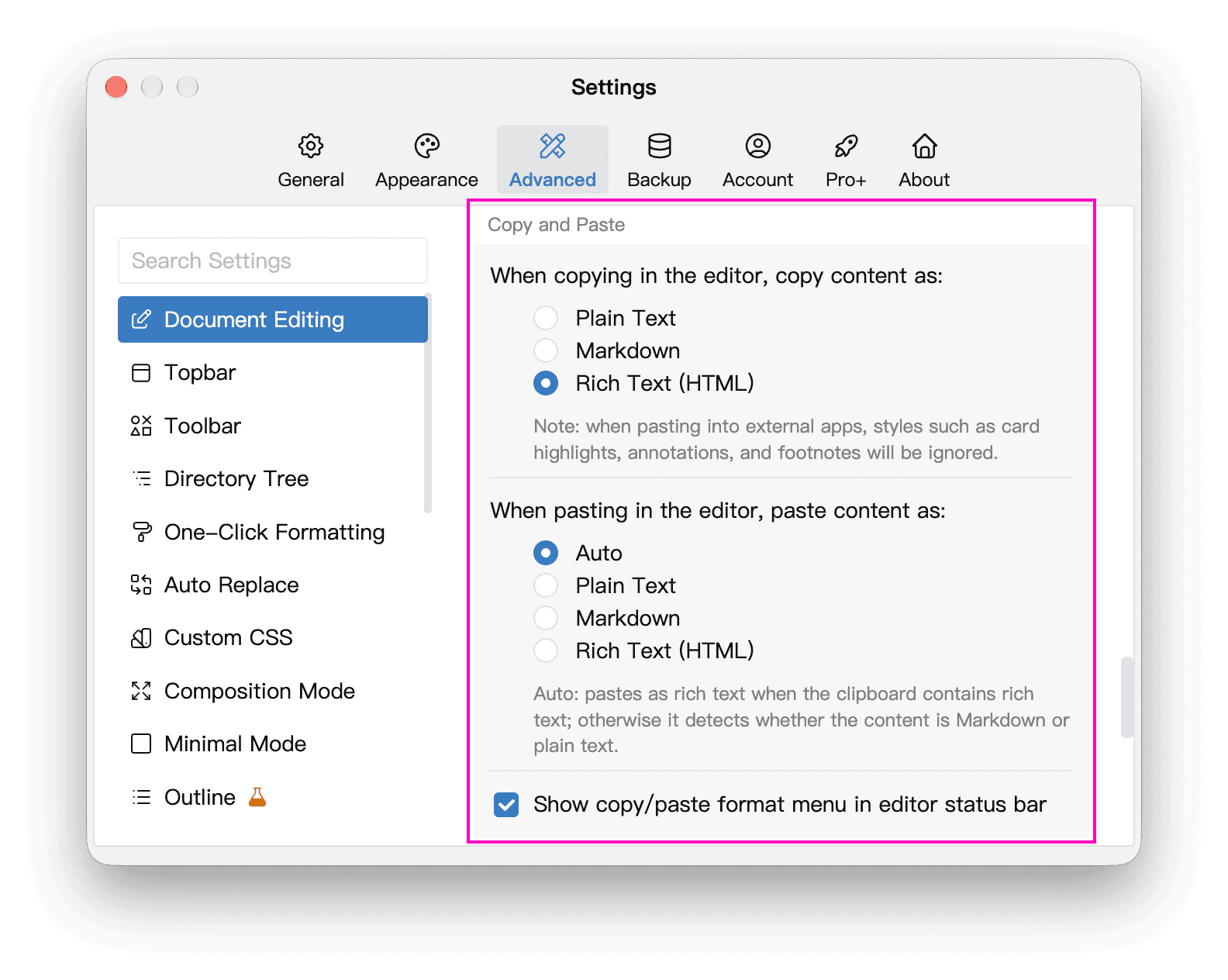
- Copy Format: plain text, rich text (HTML) or Markdown. Rich text is the default.
- Paste Format: auto, plain text, rich text (HTML) or Markdown. Auto is the default: rich text on the clipboard is pasted as rich text, otherwise the content is detected as Markdown or plain text.
Change these settings in the copy and paste format menu on the editor’s bottom status bar:
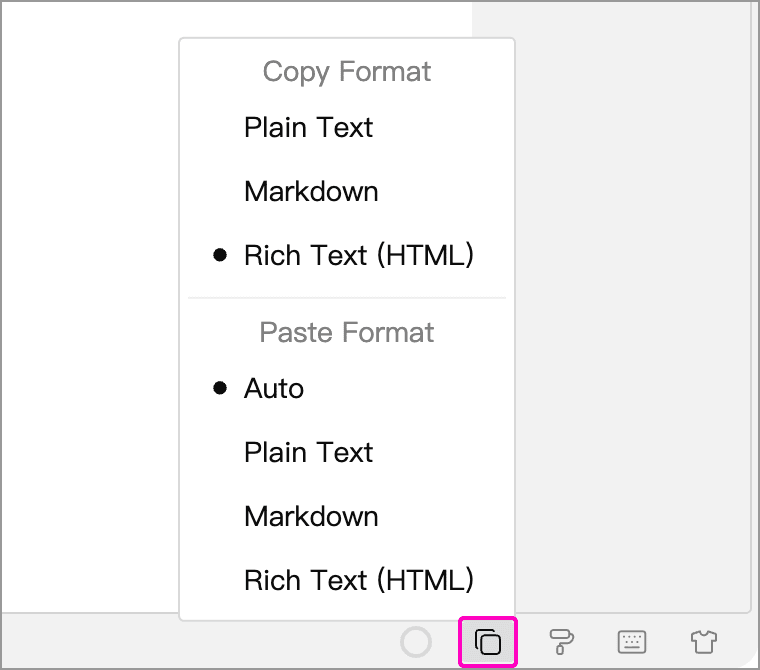
You can also change them in the Copy and Paste section under Settings → Advanced → Document Editing. If the menu is missing from the status bar, enable Show copy/paste format menu in editor status bar here.
When pasting into a code block or formula, content is inserted as plain text without Markdown or rich-text conversion.
Spellcheck
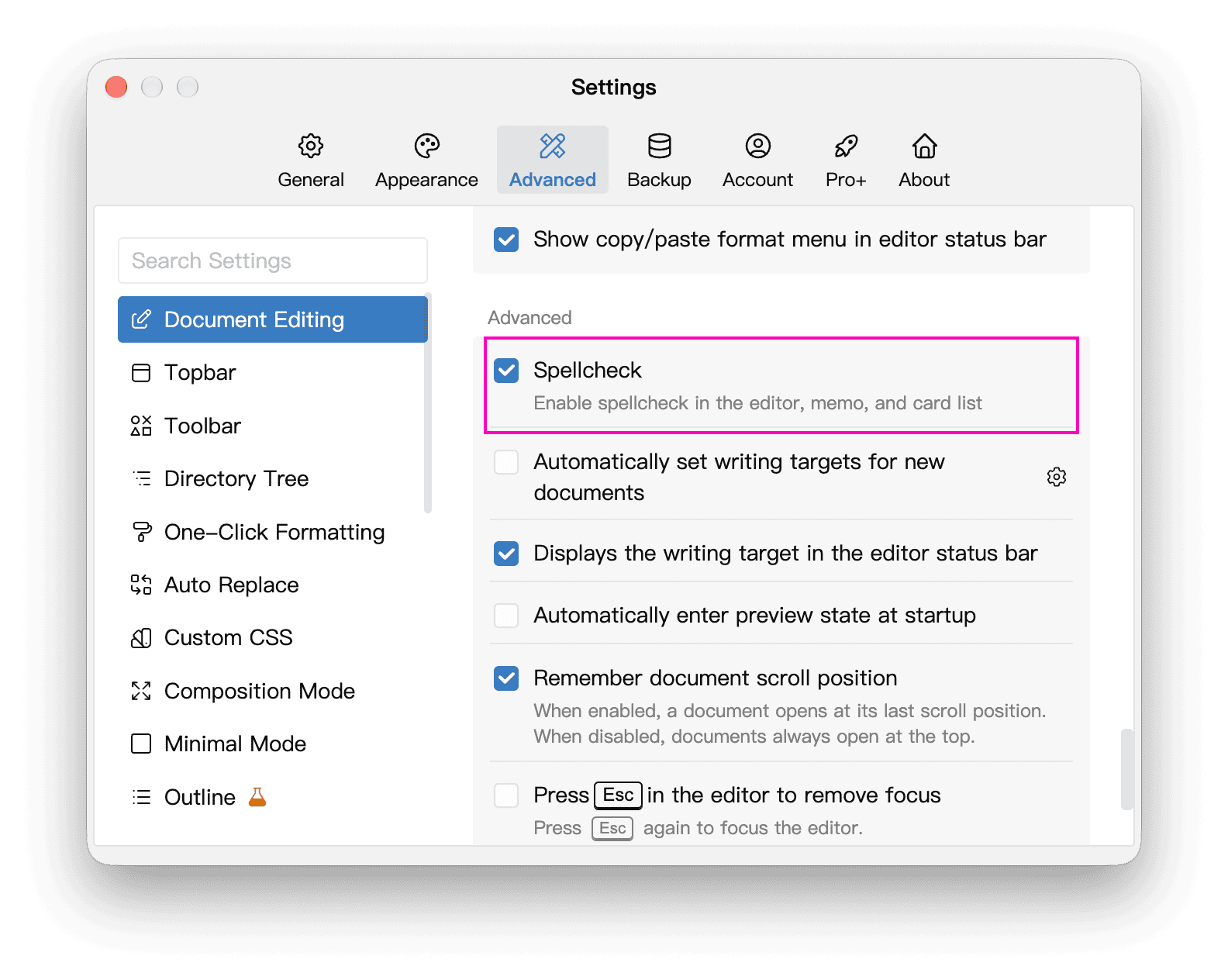
After turning on Spellcheck in Settings → Advanced → Document Editing, possibly misspelled English words are marked in the editor, memos and cards.
You can also click the Spellcheck button at the bottom of the right sidebar to turn it on or off. Hover over the button to see its current state. If the sidebar is hidden, open it with the right-sidebar button in the upper-right corner of the main window.

Right-click a possibly misspelled word to pick a suggested spelling, or choose Learn Spelling to add it to the dictionary so it is no longer flagged. For a word you have learned, choose Unlearn Spelling.
Available spellcheck languages depend on your platform and dictionary settings. If no suggestions appear, check the spelling options in your system’s keyboard or language settings. After Unlearn Spelling, existing text may not be checked again until you edit that paragraph.
More Editing Options
Settings → Advanced → Document Editing has many more options related to typing habits, such as:
- Automatically indent new paragraphs with two full-width spaces
- Press Enter to jump out of paired punctuation such as quotation marks
- Press Enter to jump to the end of the line
- Change the comma before the cursor to a period when pressing Enter
- Automatically delete empty paired punctuation
- Delete contiguous spaces to the left of the cursor with Backspace
- Automatically capitalize the first letter of sentences
- Typewriter mode
- Highlight dialogue and highlight selection in the editor
- Show an end-of-document marker
- Remember document scroll position
- Press Esc to move focus out of the editor
Turn them on or off to suit your habits.
Split the Editor
If you need to refer to another document, another part of the current document or a whiteboard while writing, click the split button in the upper-right corner of the editor (or press Shift + Ctrl + \, Shift + ⌘ + \ on macOS) to divide the editing area into two. For split directions, pinning the current document in a pane, and using split view with multi-tabs, see Split View.