
Document Template
If you regularly write weekly reports, character profiles or interview outlines, save their recurring section headings and prompts as a document template. Use it to start a new document, then fill in the details.
Set Up Templates
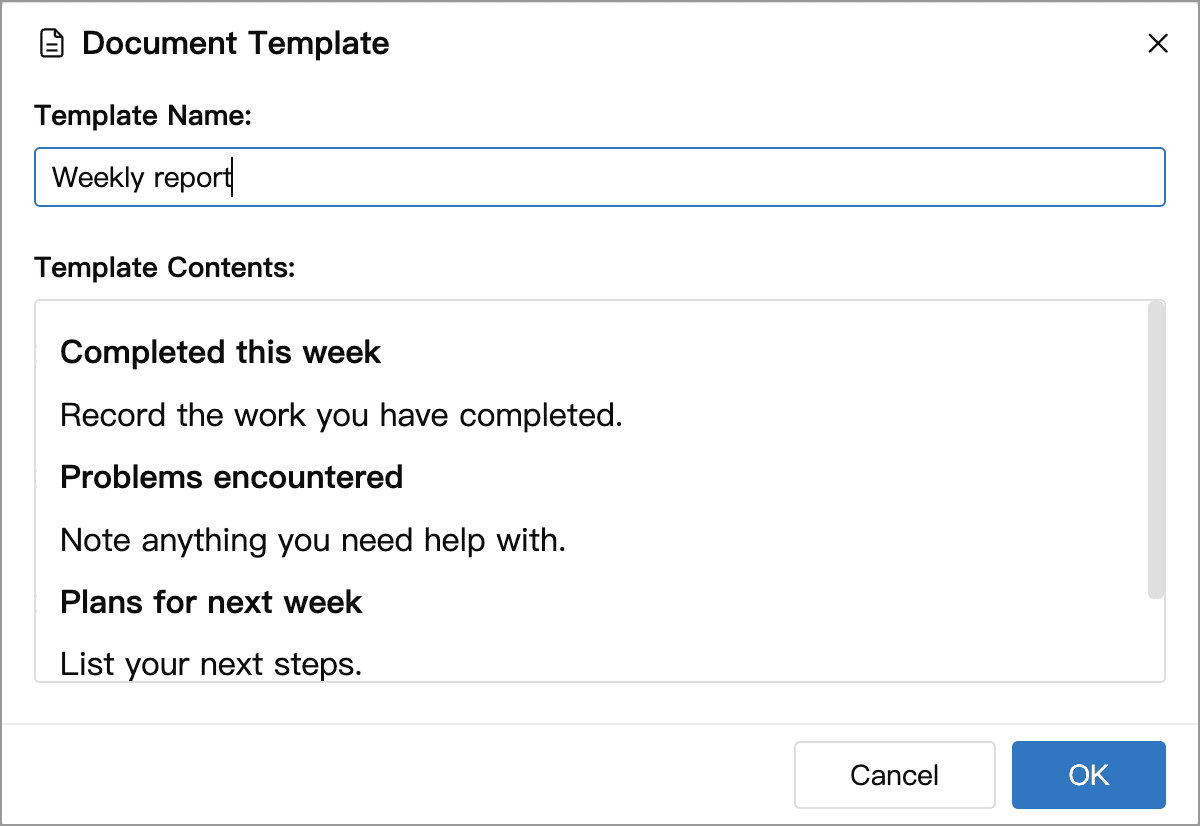
Open Settings → Advanced → Document Template, click Add, and enter its name and content. Click OK to save. The content supports rich text, including headings, lists and bold text.
The template name identifies it in lists and menus, such as “Weekly report” or “Character profile”. Templates prefill the document body; their names do not become document titles. Name each new document after creating it.
You can create several templates and select one as the default. Documents created normally use that default template. Click the selected template name again to stop applying a template automatically. Only one default template can be enabled at a time.
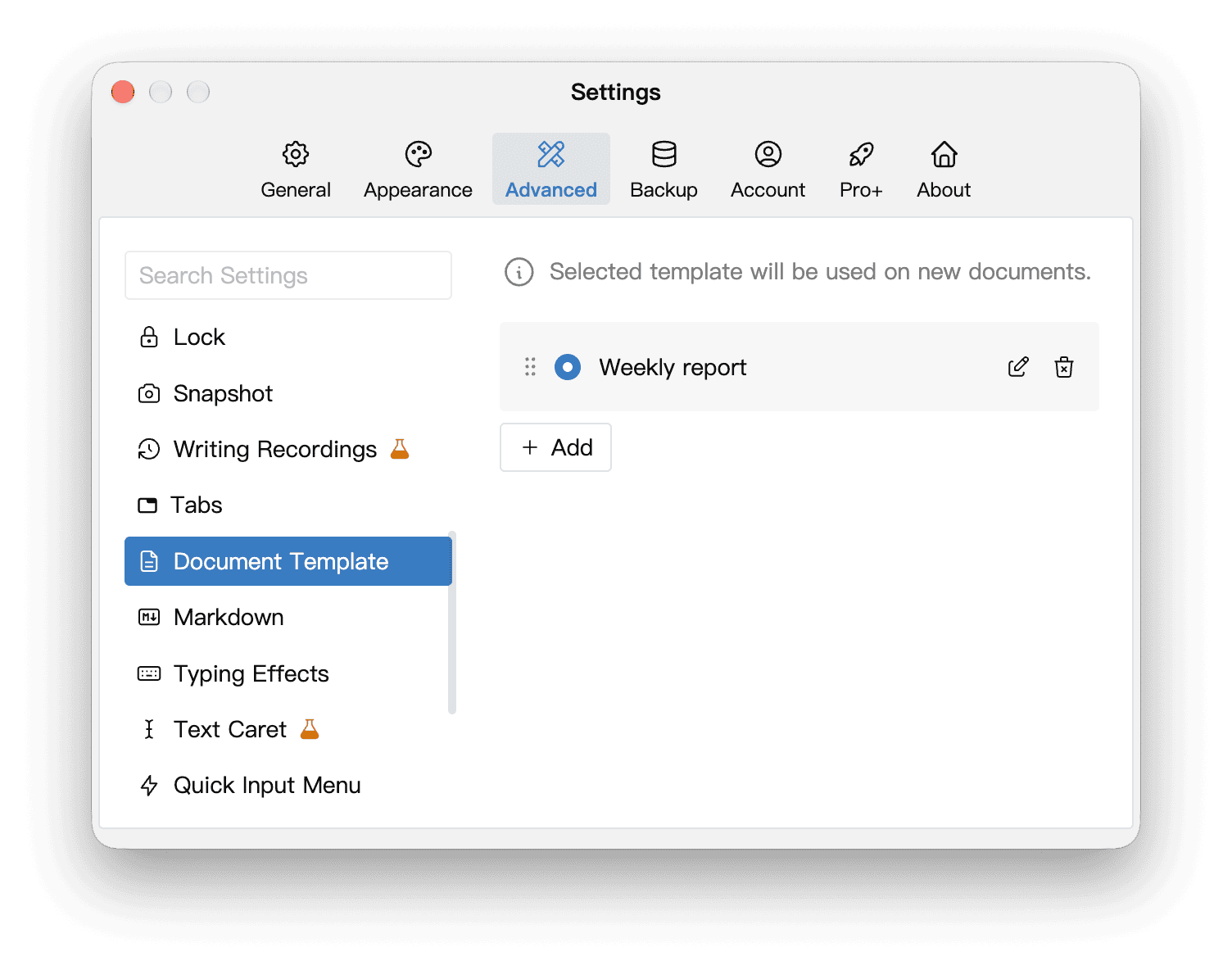
Drag the handles to reorder templates, or click the pencil to edit one. Editing or deleting a template does not change documents already created from it. Editing a new document does not change the original template either.
The number of templates available is shown in the app and on the plan comparison.
Create a Document from a Template
In the Document panel's more menu, choose New from Template and select the template you need. This lets you use different templates without repeatedly changing the default or overwriting the current document.
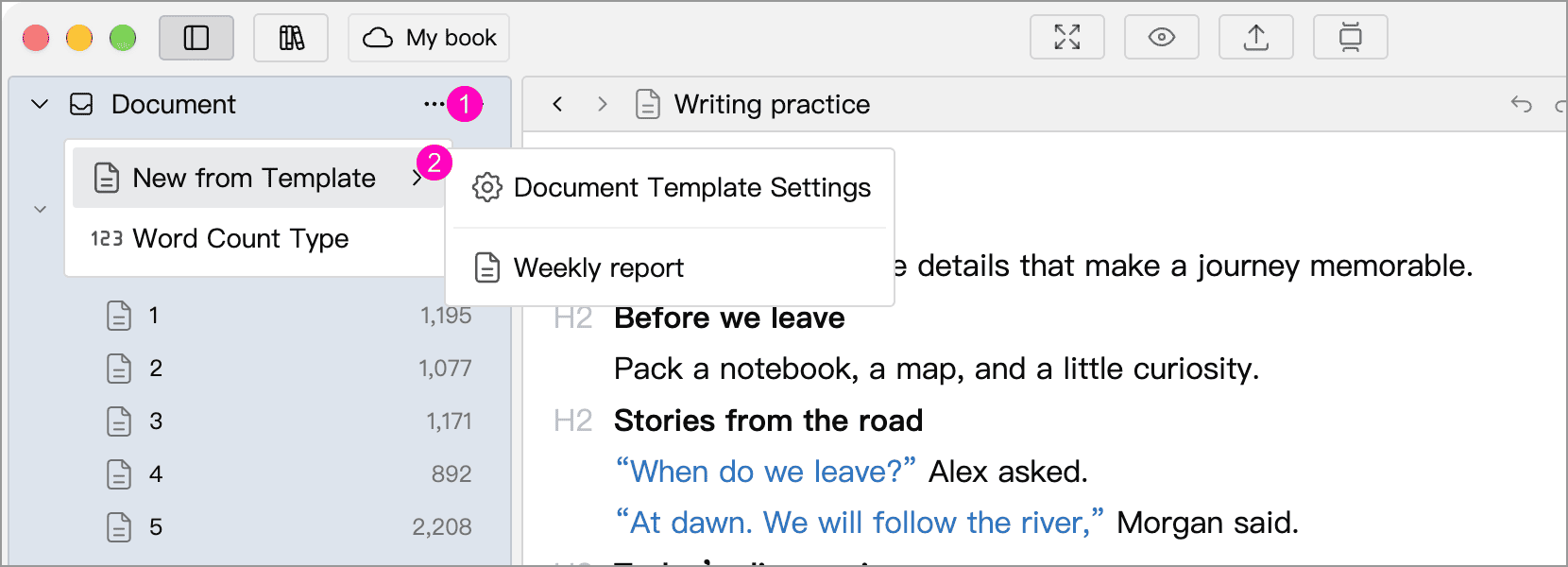
The more button's location depends on the panel layout. In a layout with a panel header, open the menu using the ellipsis beside Document. You can also choose Document Template Settings in this submenu to open the template manager directly.
Examples
Copy any of the examples below into a template’s content, then format its headings and lists as needed. After creating a document, replace the prompts with your own details.
Weekly Report Template
Use a weekly report to record your progress. Keeping the same three sections makes reports easier to review and compare. Name each new document with its date, such as “Weekly report 2026-10-09”.
Completed this week
Record the work you have completed.

Problems encountered
Note anything you need help with.

Plans for next week
List your next steps.
If most new documents are weekly reports, make this your default template. If you also use the Library for other kinds of writing, choose the template only when you need it.
Character Profile Template
Use this template to create a separate profile for each character in a novel. You can create a parent document called “Character profiles” in the tree, place the profiles beneath it, and name each one after its character.
Basic information
Name, age, occupation or identity, and role in the story.

Appearance and habits
Distinctive features, catchphrases or habitual gestures.

Personality and contradictions
Key traits and flaws that could lead to conflict.

Goals and motivations
What does the character want? Why does it matter?
What stands in the way?

Relationships
Connections with other characters, shared interests or conflicts.

Background and development
Formative experiences and how the character changes in the story.
Keep the fields that help your story; not every character needs an equally detailed profile. Add details as you write. To refer to a profile while drafting, open it in a floating window.
Interview Outline Template
Use this for interviews, user research or background research. Create a document for each interview: prepare questions beforehand, record answers during the conversation, and add findings and follow-up actions afterward.
Interview details
Interviewee, date and topic.

Interview goals
What do you most want to learn?

Questions and notes
Question 1:
Answer and follow-up questions:

Question 2:
Answer and follow-up questions:

After the interview
Key findings:
Information to verify:
Follow-up actions:
Adapt the questions to your goals. The prompts remind you what to record; you do not have to ask every question in a fixed order.