
Sync Conflicts
When using a cloud Library, a version conflict can occur if multiple devices edit the same document before receiving each other's changes. For example, one device edits a document offline while another edits and syncs it. A conflict may appear when the first device reconnects and syncs.
A connection failure alone does not mean there is a content conflict. If only the Library name or cloud icon turns red, follow the Cloud Sync guide to check the connection and sync status first.
Conflict Markers
When a content conflict occurs, WonderPen first saves the existing content on this device as a local conflict snapshot, then applies the server's content. A Conflicted marker appears in the editor toolbar and on the corresponding local snapshot:

The conflict snapshot preserves this device's unsynced version. View it on the device where the conflict occurred. Even if the content shown in the editor has changed, you can retrieve your local edits from this snapshot.
Dealing with Conflicts
View and Compare Versions
- Click Conflicted in the editor toolbar, then View snapshot to open the snapshot panel.
- Under Local, find the record marked Conflicted. Right-click it and choose Compare.
- Compare the current content with the conflict snapshot and decide which edits to keep from each version.

Do not identify the conflict snapshot by its position alone. New ordinary snapshots may have been created since the conflict; use the Conflicted marker and the recorded time.
Keep, Restore, or Merge Content
Choose the appropriate action based on the comparison:
| Content to keep | What to do |
|---|---|
| The current editor content | Leave the text as it is, review it, then mark the conflict as resolved |
| The entire text in the conflict snapshot | Select that snapshot, click Restore to this version, and confirm to replace the current text |
| Parts of both versions | Copy the passages you need from the snapshot into the current text, then edit them into a final version |
Restoring a document snapshot replaces only the text; it does not restore the document's title or memo. If both versions contain edits you want to keep, copy or save the important passages elsewhere before restoring. See Document Snapshots for more snapshot operations.
Mark the Conflict as Resolved
Once you have reviewed the final text, click Conflicted in the toolbar again and choose Marked as resolved:
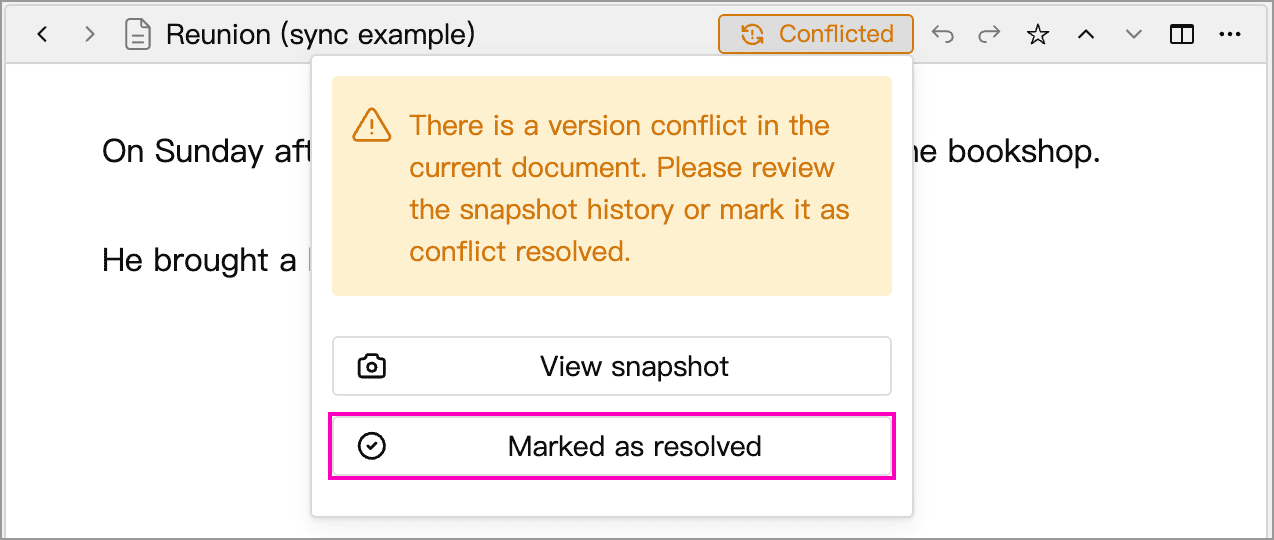
This clears the conflict markers from the document and its snapshots. It does not merge text automatically or delete snapshots. Your text changes sync automatically as usual; a manual full sync is generally unnecessary for resolving a conflict.
Deletion Conflicts
If a document, whiteboard, or card is deleted on another device while this device still has unsynced edits, WonderPen keeps a local copy to preserve those edits. If a card on a whiteboard is deleted, a copy of the related whiteboard may also be preserved. These copies are handled on the Deletion Conflicts page, separately from the conflict snapshots described above.
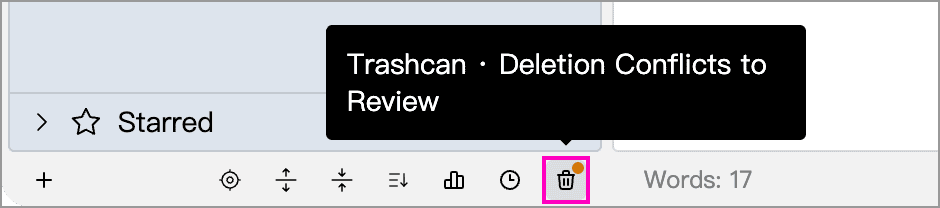
A small dot on the trashcan button indicates deletion conflicts that need attention:
Open the Trashcan, then click View in the Deletion Conflicts notice at the top:

Select a copy to preview its content and memo, and check its automatic cleanup time and restore destination:
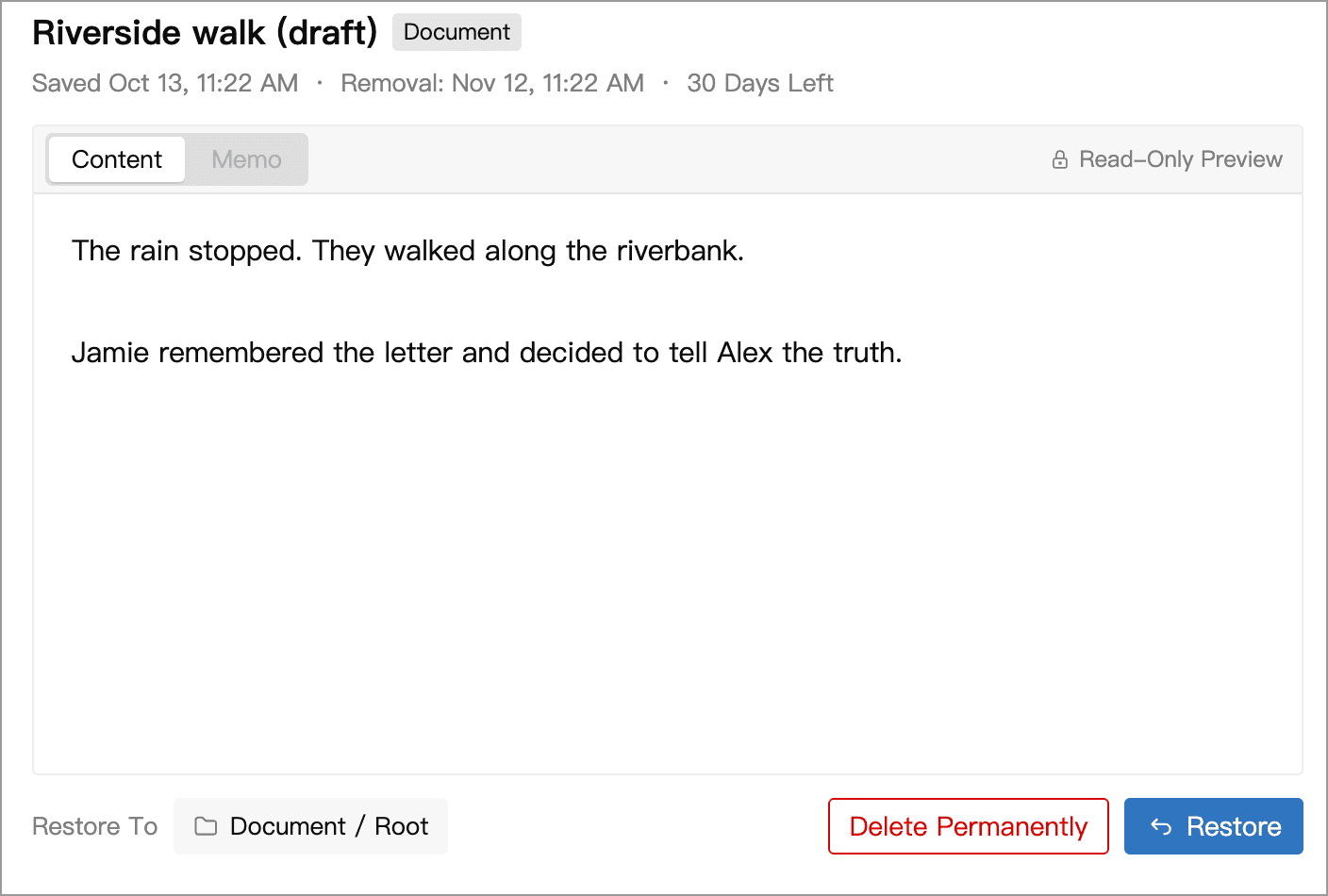
- Restore: Create a new item. Documents and whiteboards are restored to the root of their respective trees; for cards, choose a destination card list. Restored content syncs to the cloud as usual.
- Delete Permanently: Remove the copy from this device. This cannot be undone, so use it only when you are sure the copy is no longer needed.
Handle Local Copies Promptly
Deletion conflict copies are stored on the current device only and are removed automatically 30 days after they are preserved. Restore any content you need on the device where the conflict occurred. Emptying the ordinary Trashcan does not remove these copies.
Reduce Conflicts
Before switching devices, let the current device finish syncing. On the other device, sync the latest content before you start writing. Avoid editing the same document on multiple devices at once, especially while offline.
If a conflict has already appeared, review and preserve the versions you need before continuing. You can also make backups at important milestones for an independent way to recover your work.