
Themes
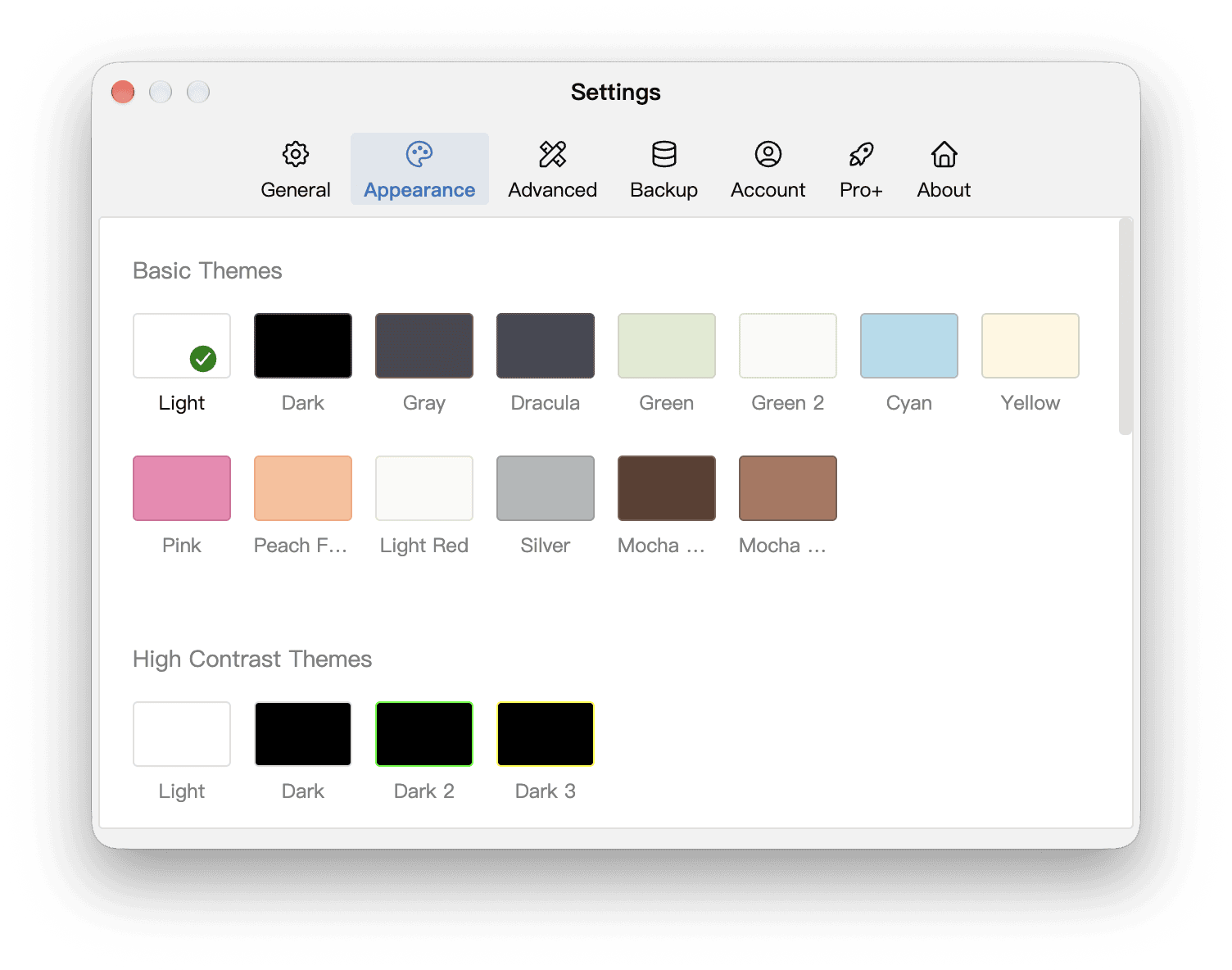
In Settings → Appearance, click a theme to change the interface colors.
You can also click the T-shirt icon in the lower-right corner of the editor to switch themes quickly from the pop-up panel.
WonderPen currently ships with the following basic themes:
- Light (default)
- Dark
- Gray
- Dracula
- Green
- Green 2
- Cyan
- Yellow
- Pink
- Peach Fuzz
- Light Red
- Silver
- Mocha Mousse
- Mocha Light
There are also four high contrast themes.
TIP
Some themes and customization features require a membership. Check the lock indicators in the app and the plan comparison for availability.
Themes and editor styles
Editor style settings, such as the font, font size, text color, line height, paragraph spacing, editor width, page margins, background and ruled-line background, are saved per theme: each theme can have its own set of styles, and they switch along with the theme.
You can adjust the styles of the current theme with the T-shirt icon in the lower-right corner of the editor (see Editor), or in Settings → Appearance.
Apply to other themes
If you want several themes to share the same font, line height and other settings, click the Apply to other themes button in the style panel at the lower-right corner of the editor, then choose which settings to share and how:
- Apply Once: copy the selected settings of the current theme to the themes you choose. Each theme can still be changed independently afterwards.
- Keep Consistent: apply the selected settings to all themes (including themes added later). From then on, changing these settings in any theme updates all themes.
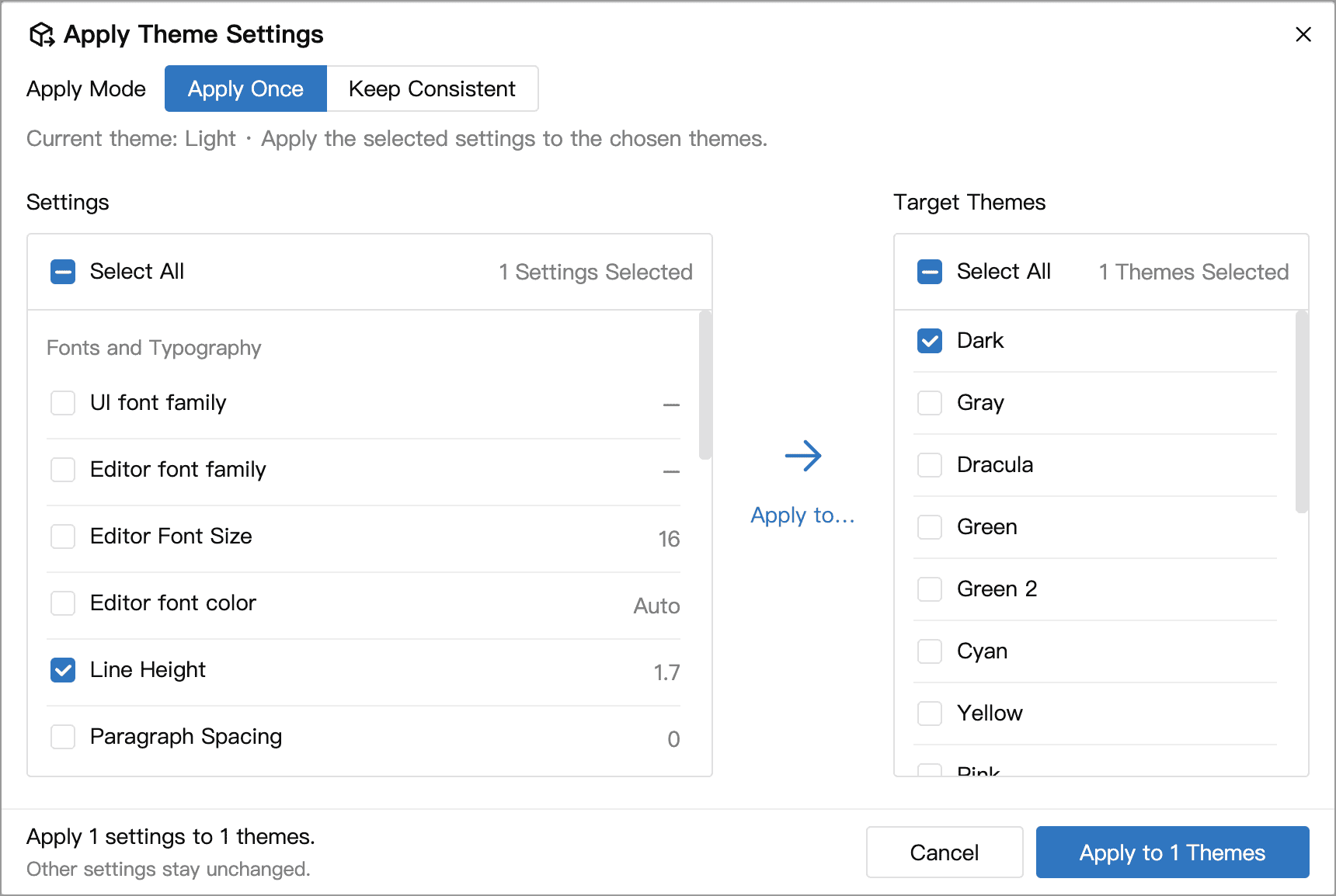
After making your selections, click the apply or save button at the bottom and confirm the prompt to apply the changes. For example, selecting only the font and line height keeps those two settings consistent while preserving each theme’s colors.
To stop keeping settings consistent, reopen this panel, switch to Apply Once, then click Stop Keeping Consistent at the bottom and confirm. Each theme keeps its current settings and can be changed independently again.
Keep Consistent applies only to themes on the current device. Its rules do not sync through your account and are not included in the settings file exported from General. On another device, select the settings you want to keep consistent again.
Switch themes automatically
Under Auto Theme in Settings → Appearance, you can have WonderPen switch themes automatically:
- None: never switch automatically; always use the theme you choose.
- Follow System: assign a theme to each of your operating system’s light and dark appearances. WonderPen switches themes when the system appearance changes.
- Scheduled Themes: add rules, each with a time and a theme, and WonderPen switches to that theme at that time — for example, a light theme at 7 a.m. and the Dark theme at 7 p.m.
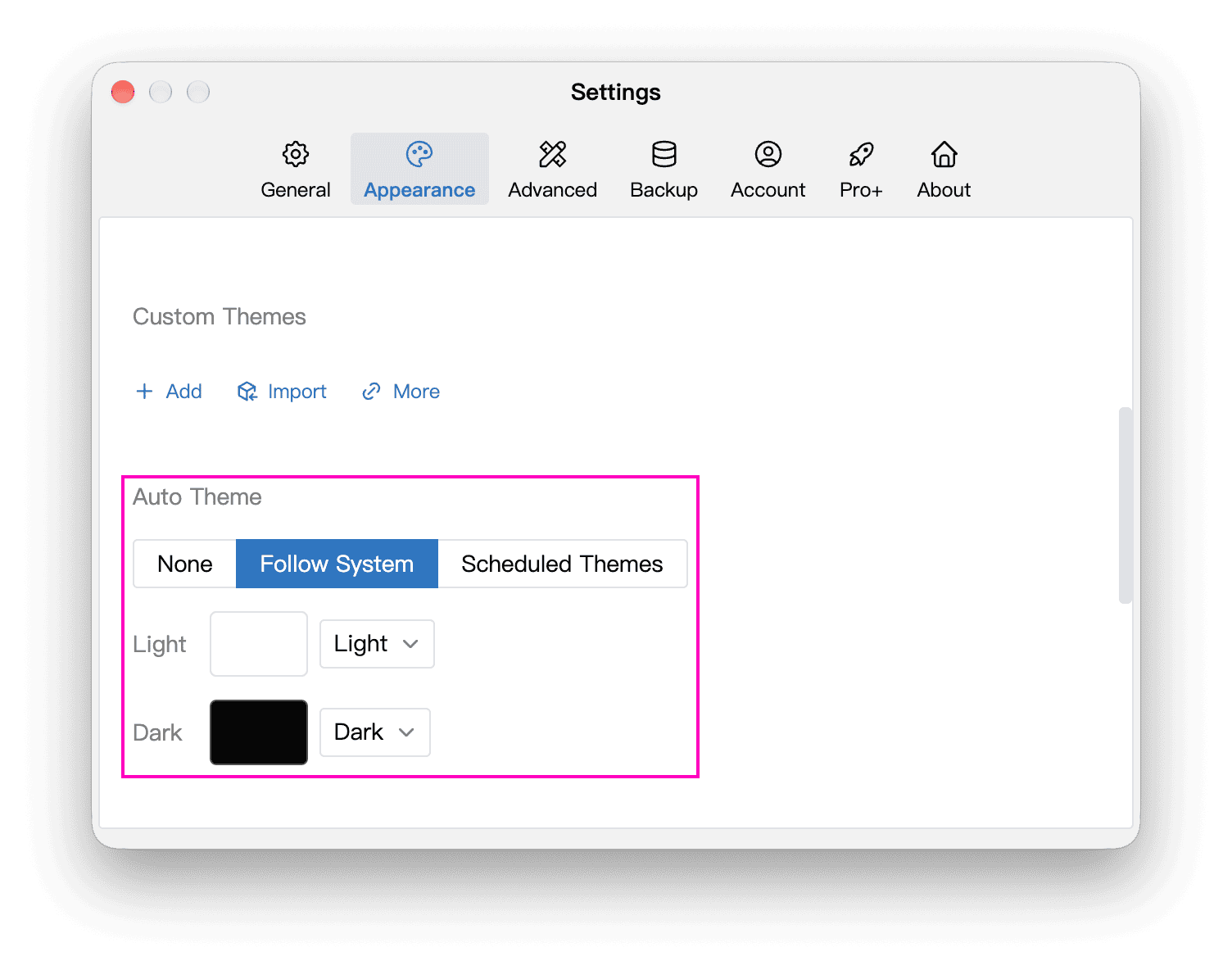
Clicking a theme manually changes Auto Theme to None. To resume automatic switching, select Follow System or Scheduled Themes again.
Basic Themes
The following images preview a selection of the available themes:
Light
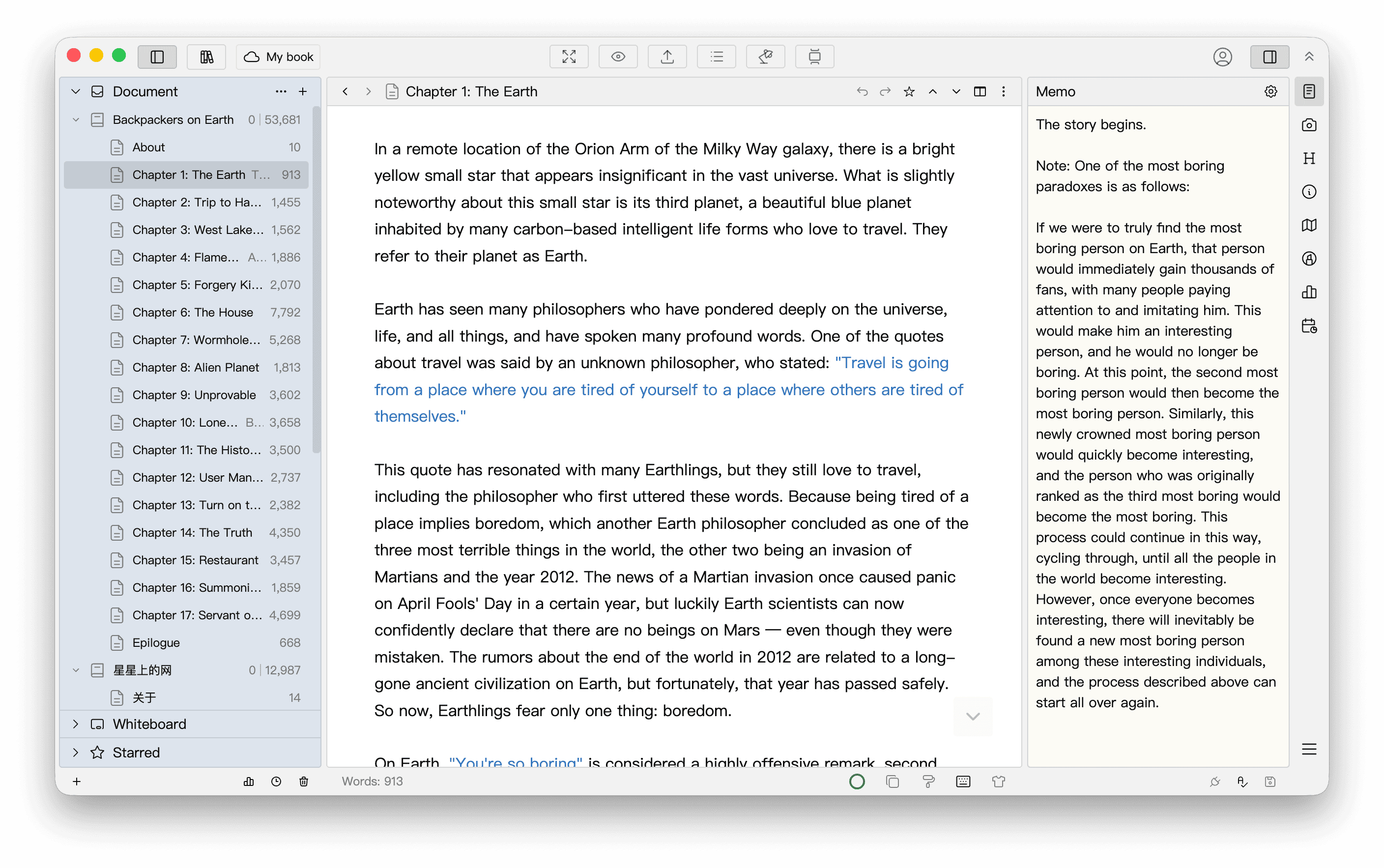
Light is the default theme, with a light background and dark text.
Dark
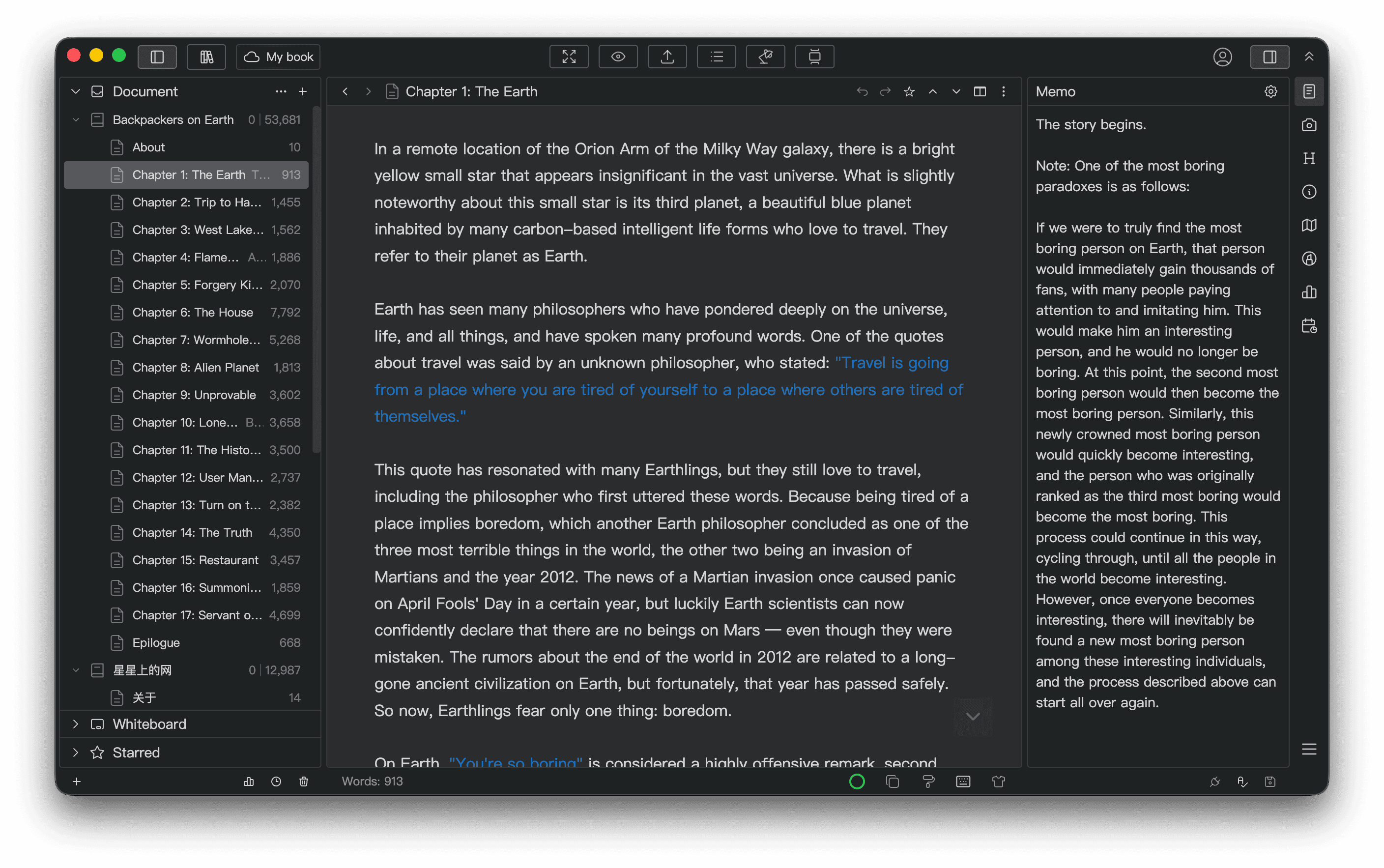
The Dark theme uses a dark background and light text.
Gray
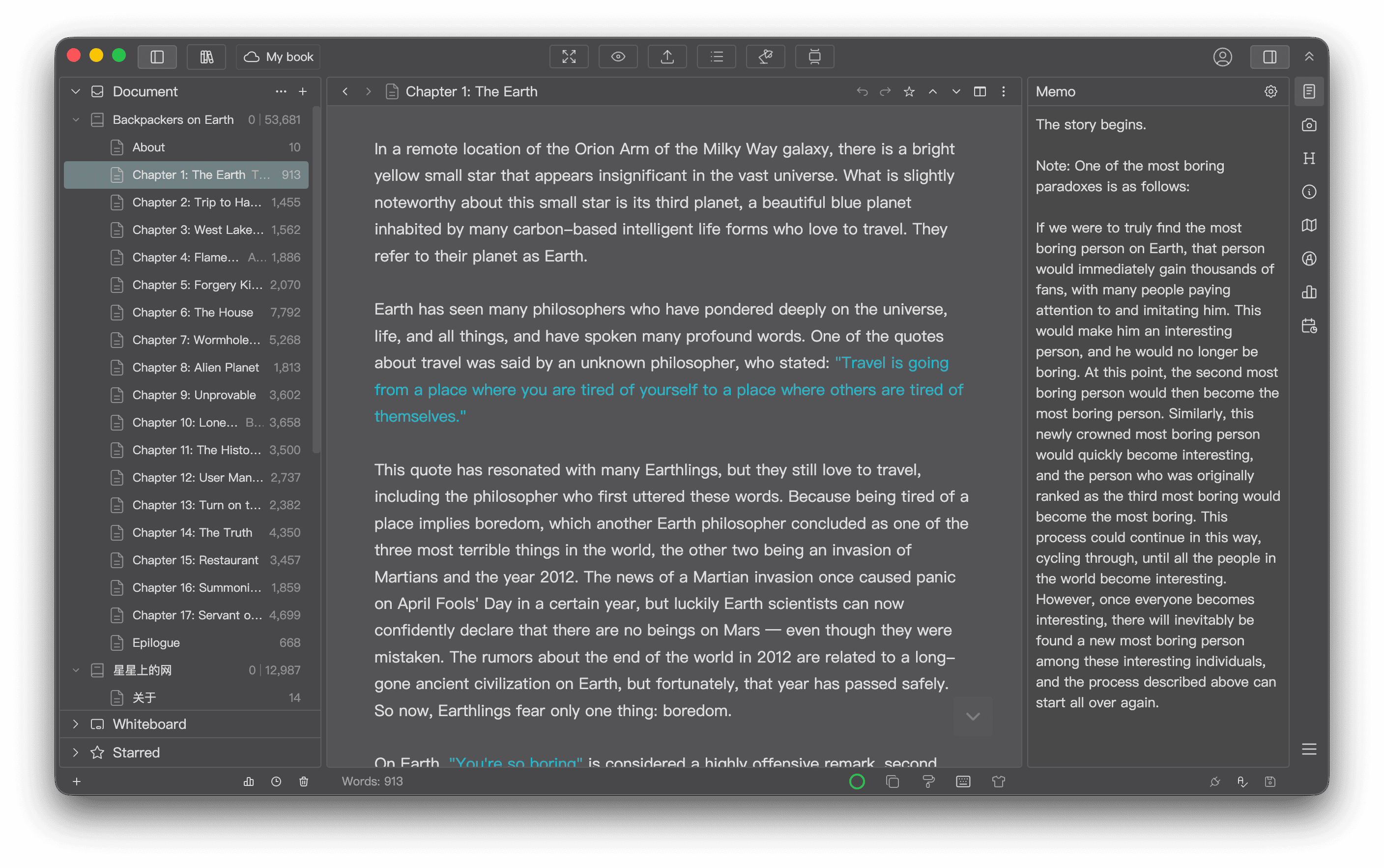
The Gray theme uses shades of gray, with a lighter background than the Dark theme.
Dracula
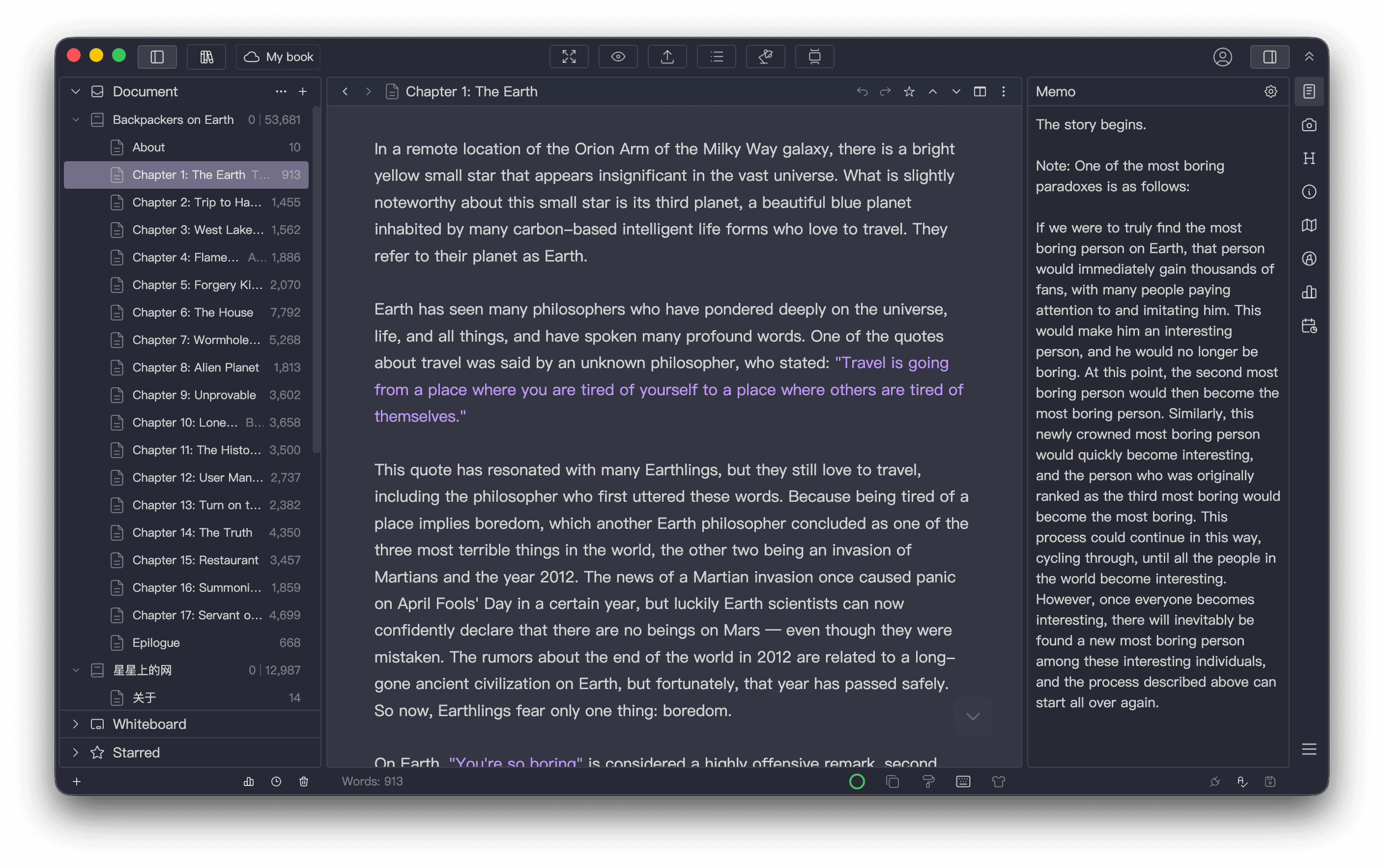
Dracula is a dark theme based on the Dracula color scheme.
Green
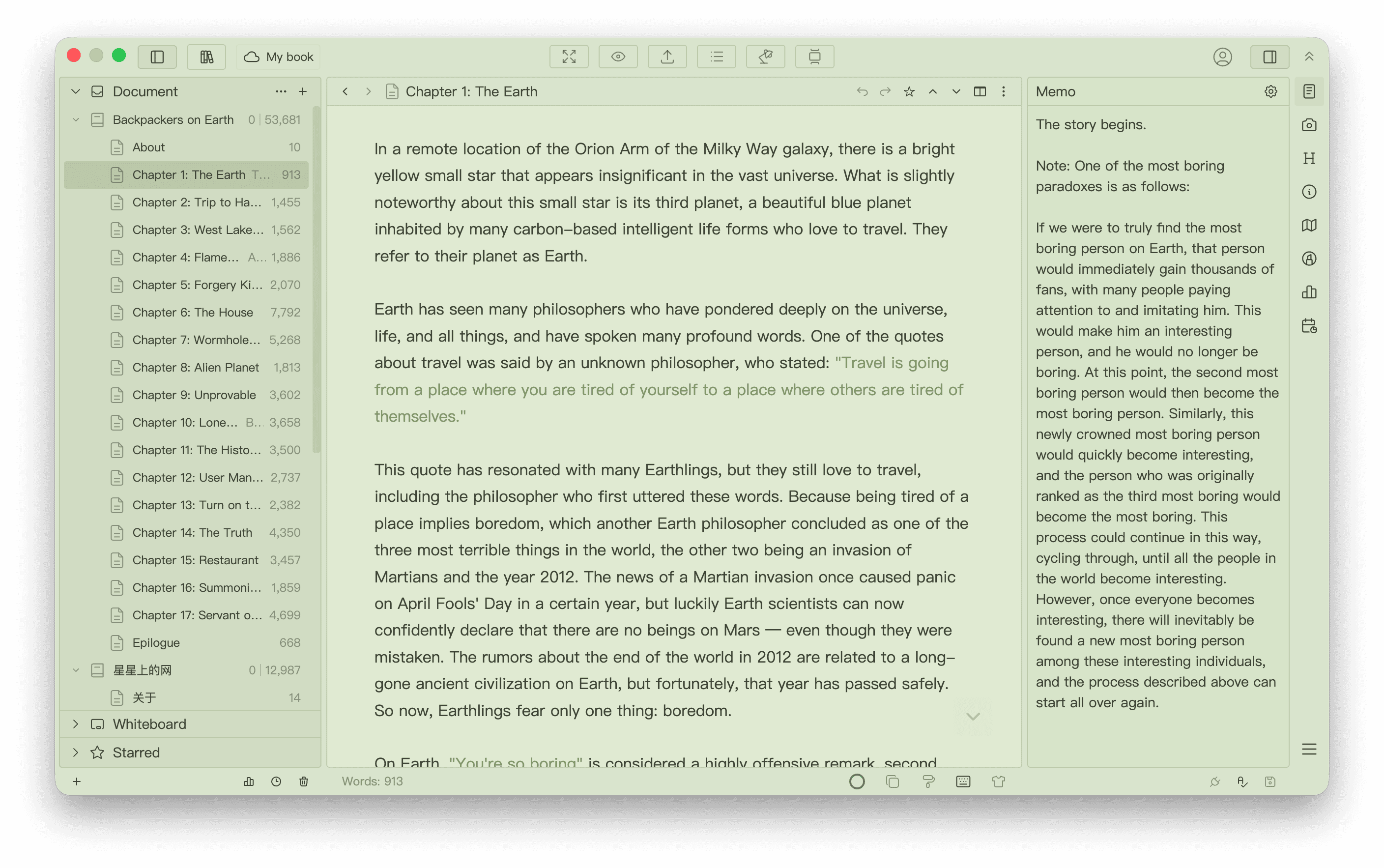
The Green theme uses a soft green as its main color.
Green 2
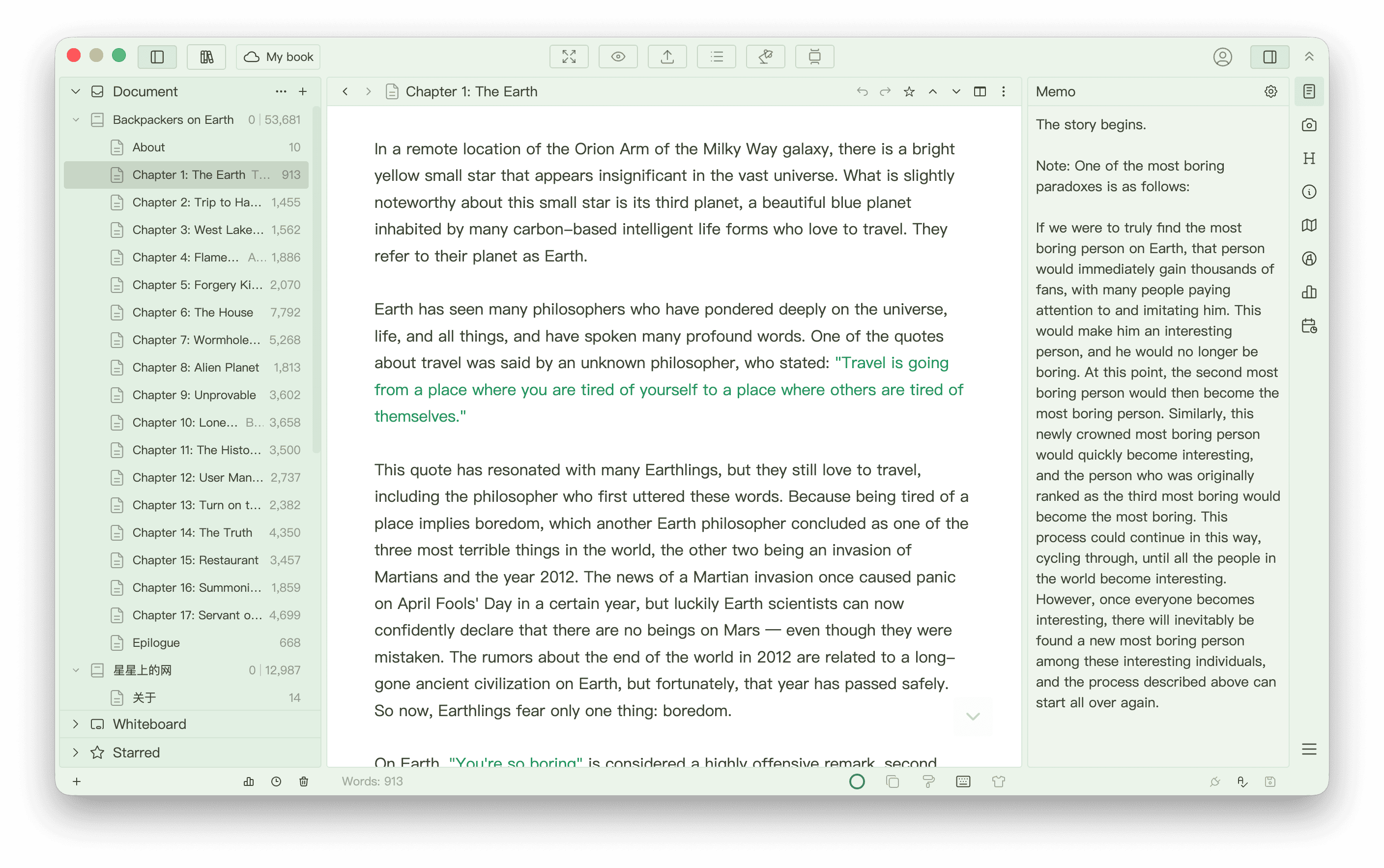
The Green 2 theme also uses green as its main color, but has a softer, more subtle appearance.
Cyan
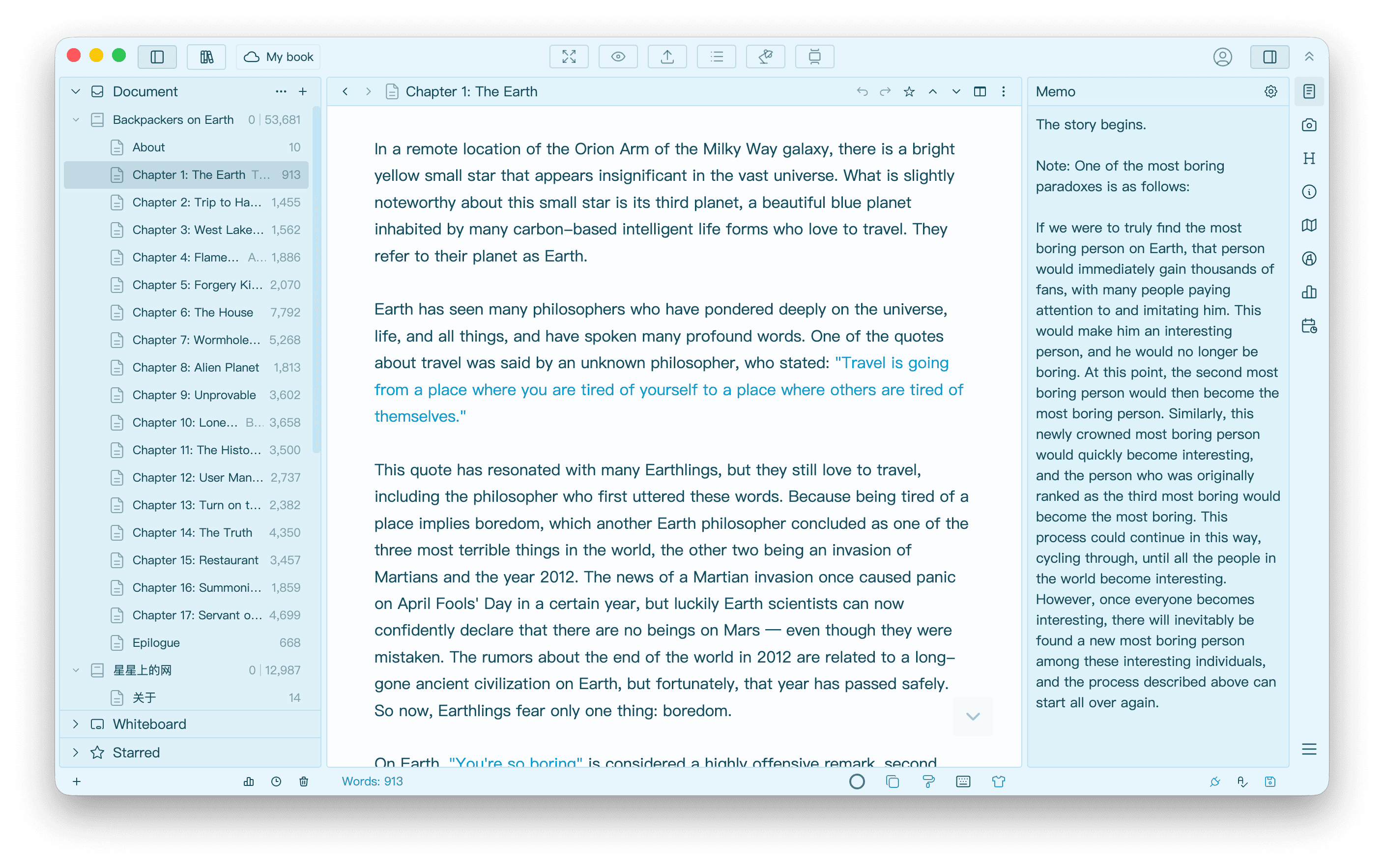
The Cyan theme uses blue as its main color for a fresh look.
Yellow
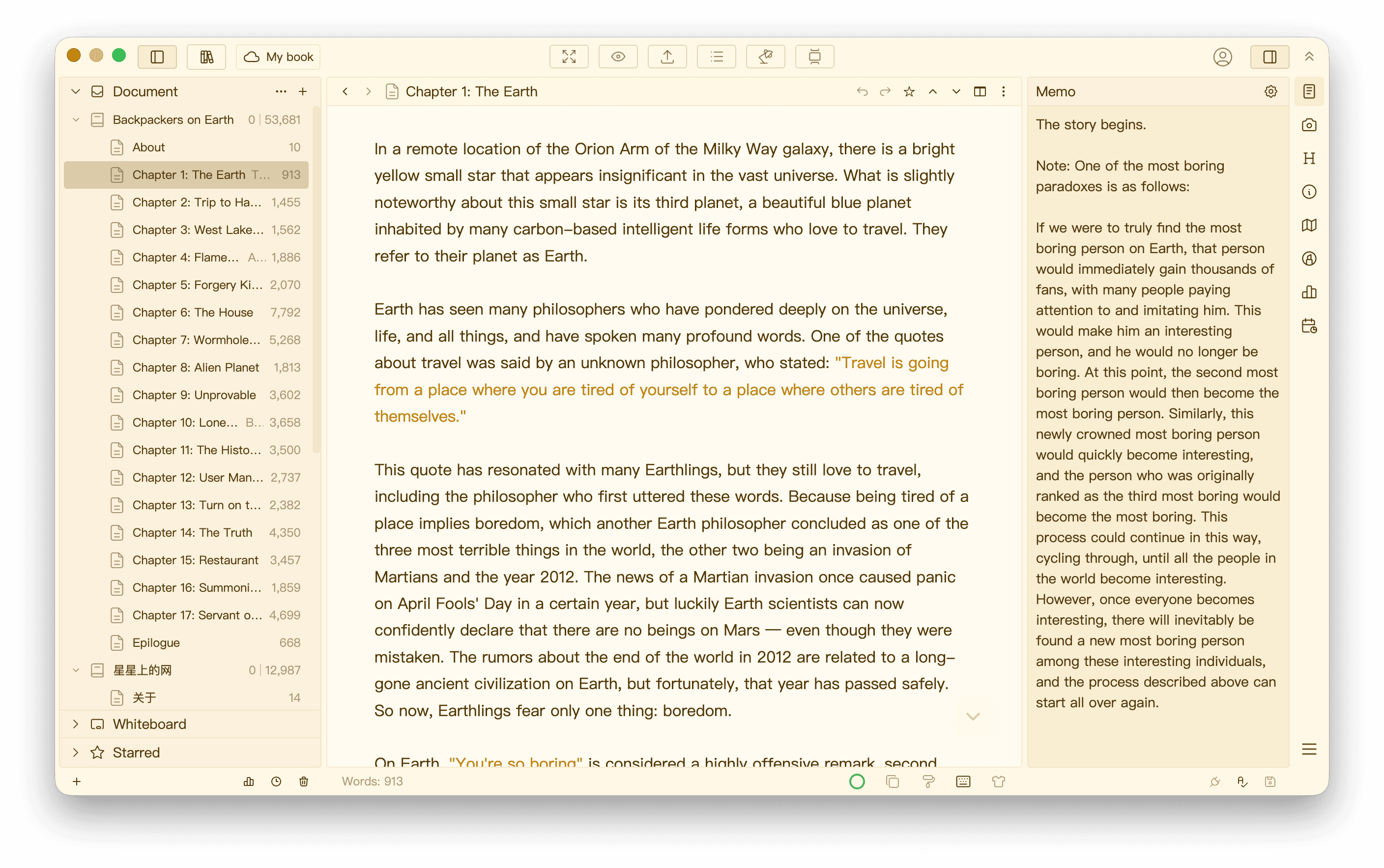
The Yellow theme is a mild color scheme inspired by the Solarized color scheme with some minor tweaks.
Pink
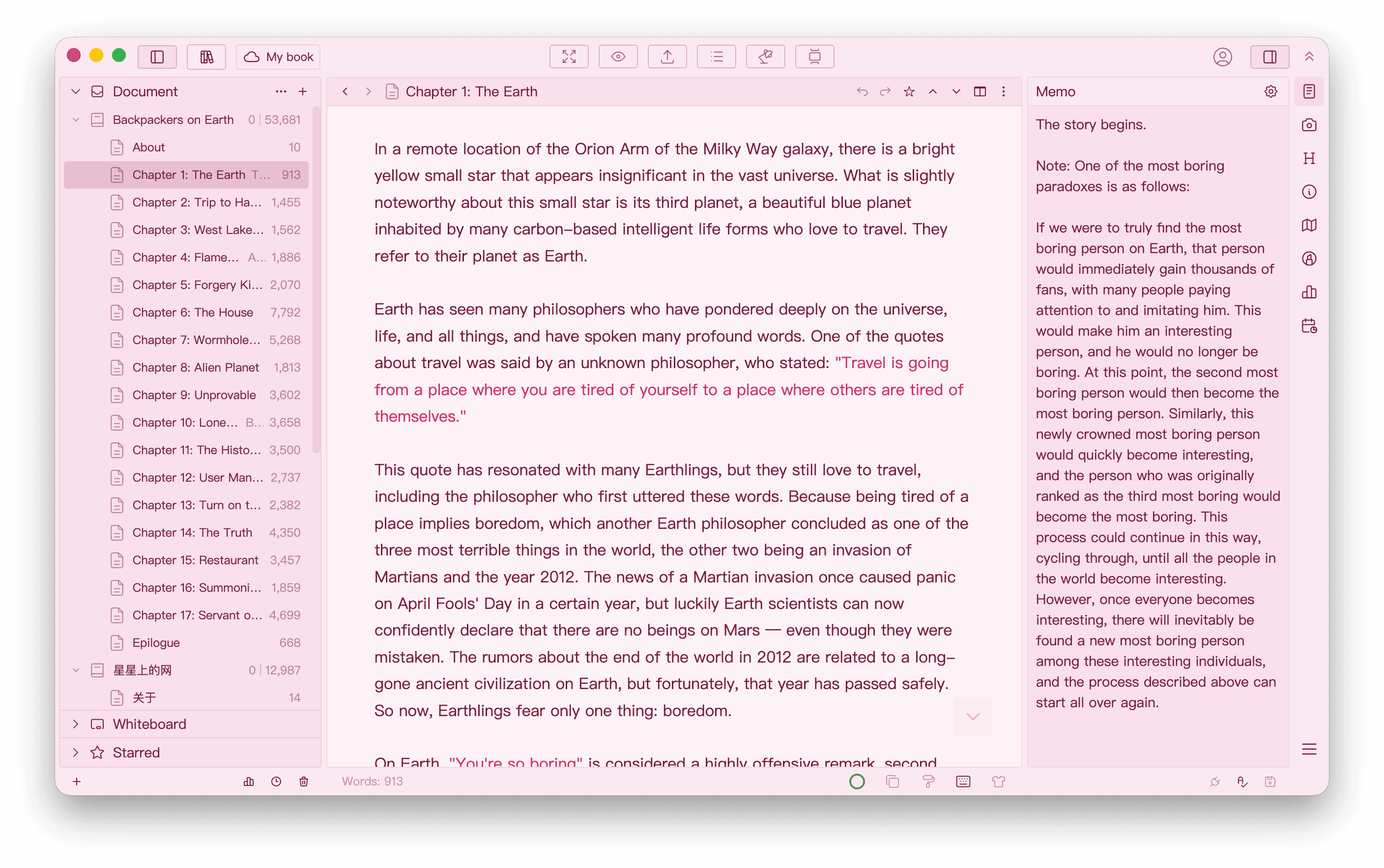
The Pink theme uses pink as its main color.
Silver
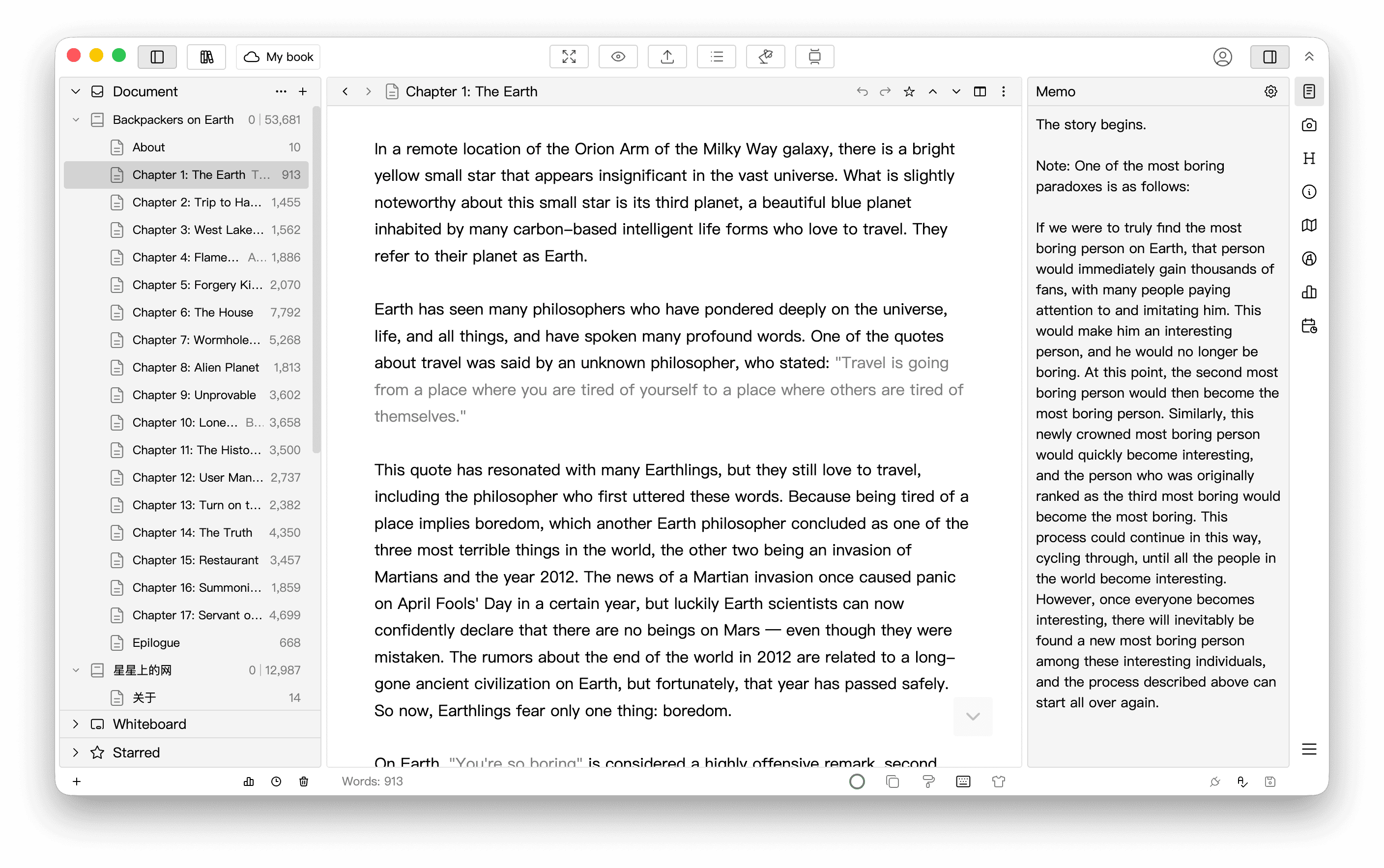
The Silver theme uses black, white, and gray as its main colors for a simple, understated look.
High Contrast Themes
In addition to the basic themes, WonderPen also includes several high contrast themes.
Light
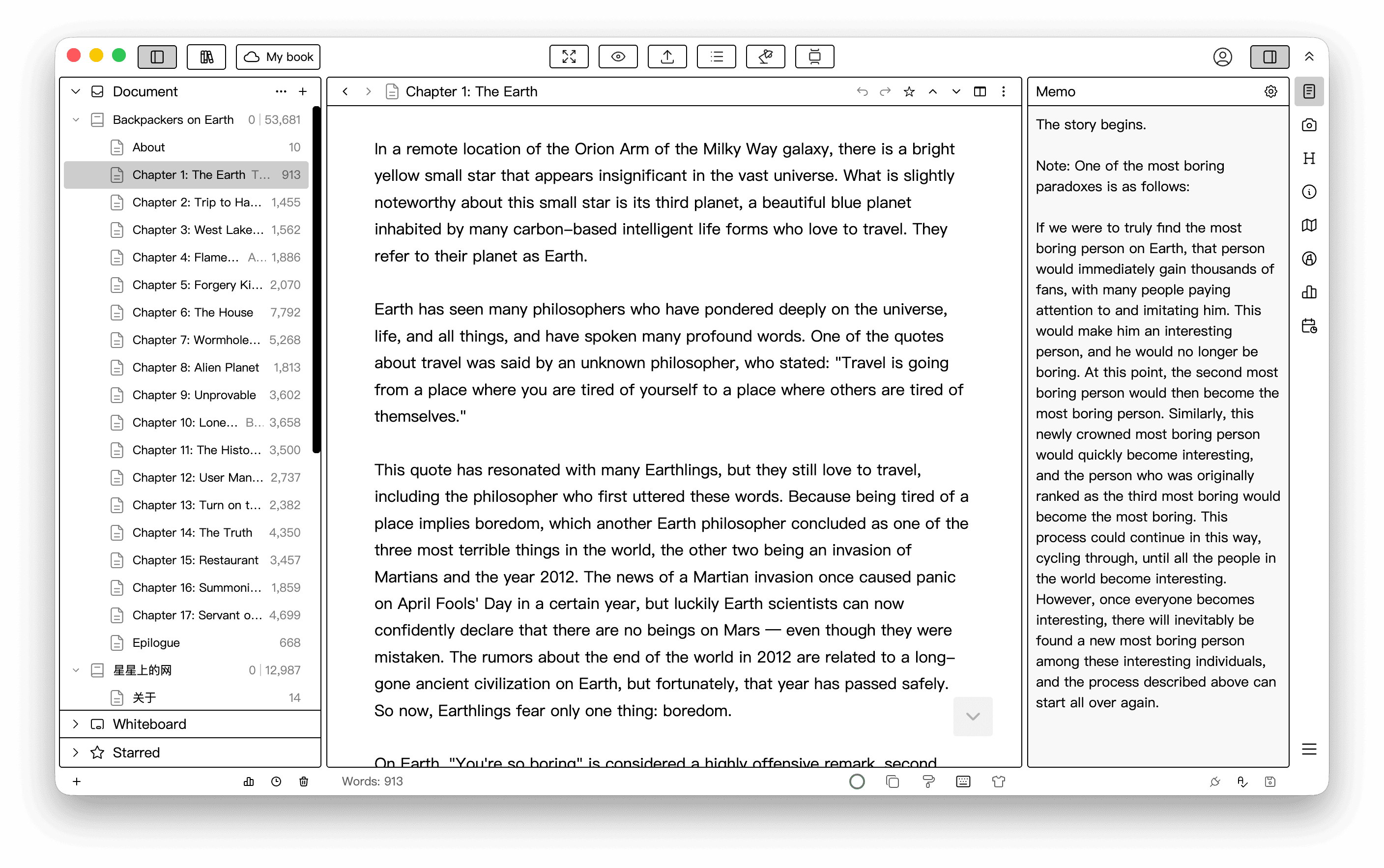
This high contrast theme uses black, white, and gray as its main colors.
It is also well suited for e-ink displays.
Dark
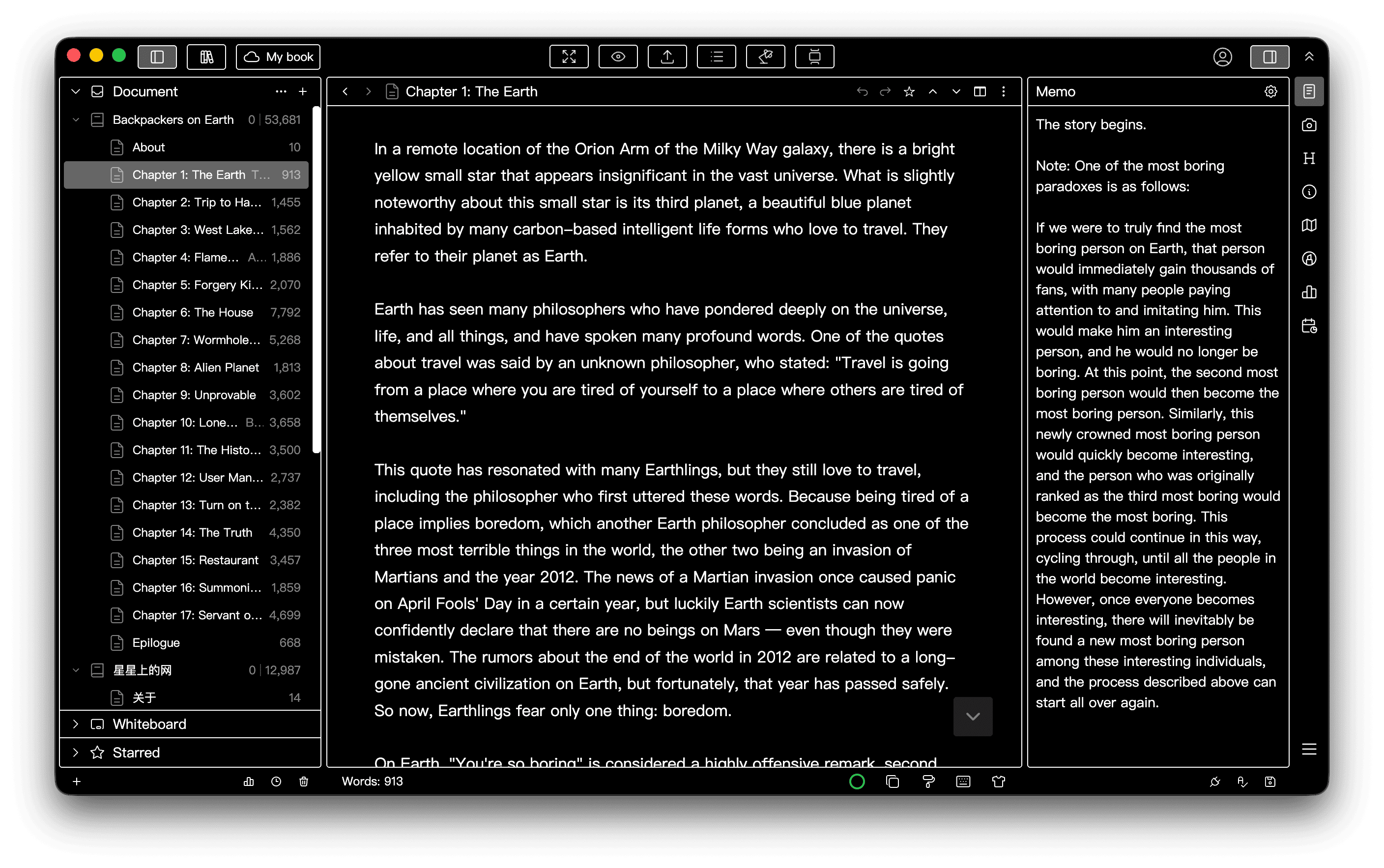
This high contrast theme uses a dark background with light text and borders.
Dark 2 (Green)
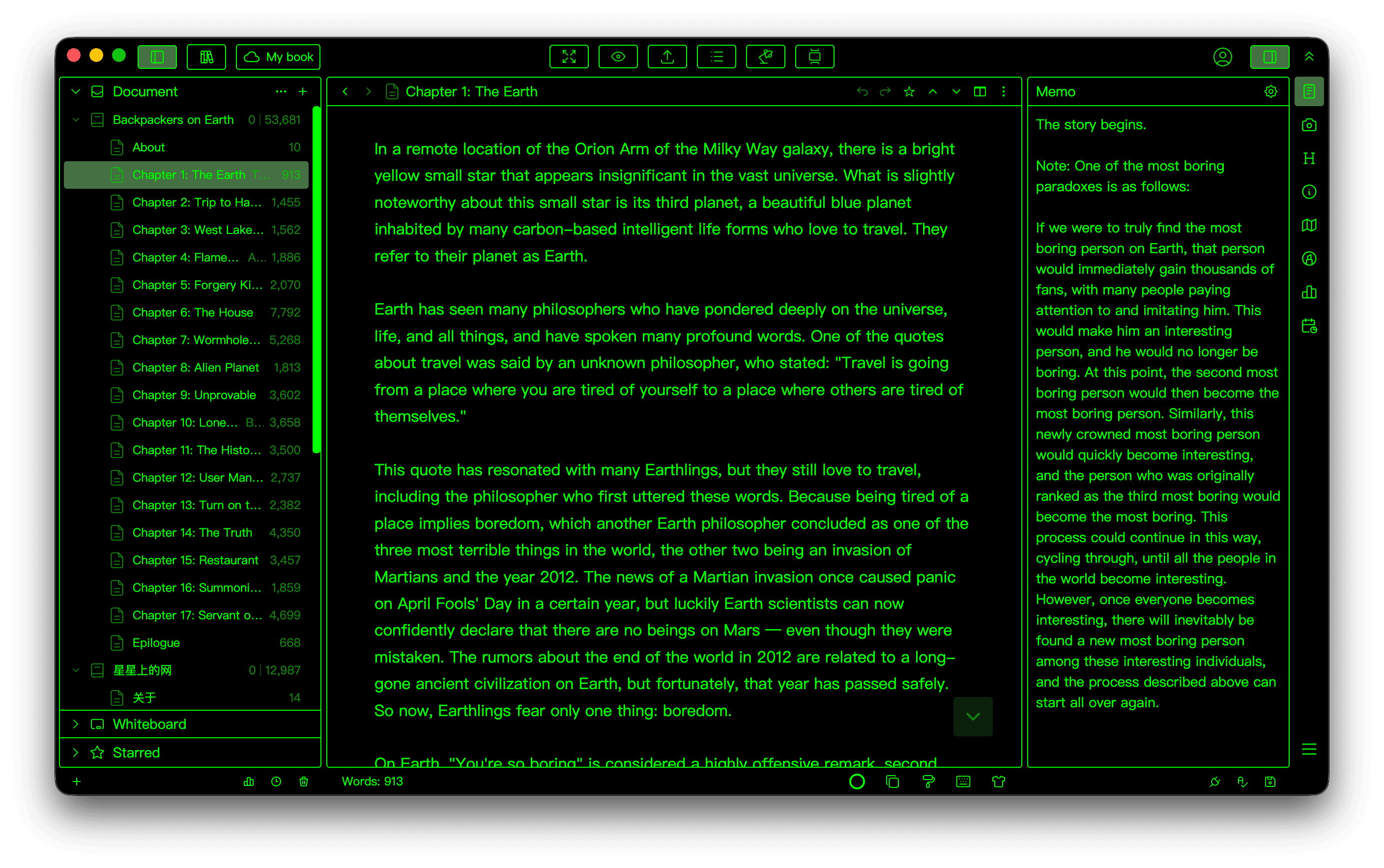
This retro-style high contrast theme draws its colors from early terminal interfaces.
Dark 3 (Yellow)
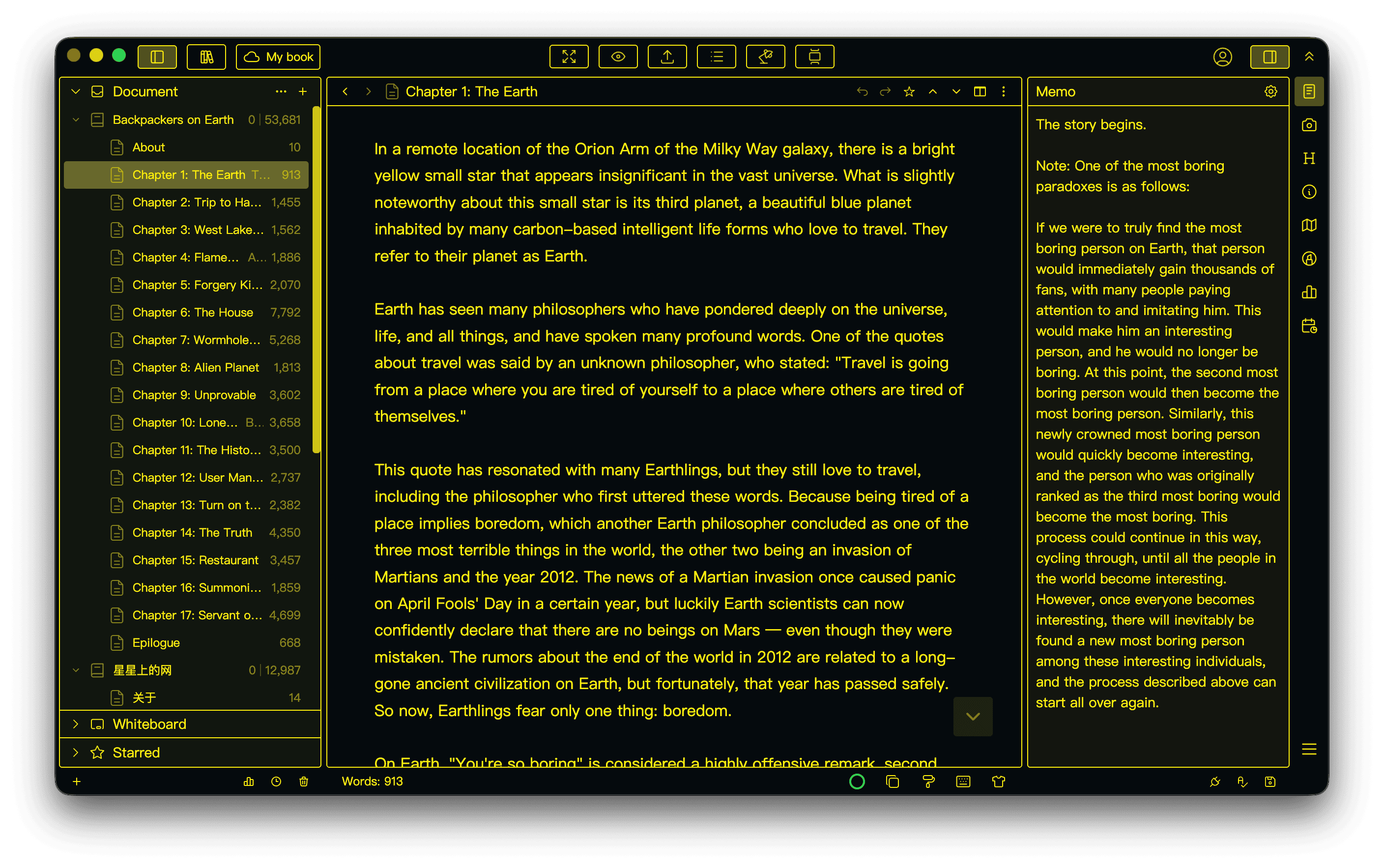
The colors of this high contrast theme are inspired by Cyberpunk 2077.
Custom Themes
If the built-in themes don't meet your needs, you can create your own.
In the Custom Themes area of Settings → Appearance, click Add to open the theme editor, where you can set:
- Basic Info: the theme name, Light or Dark mode, and interface font.
- Styles: pick a built-in theme as the Base Styles and modify it, or start from scratch without a base. Styles are written in CSS; see Built-in Theme Styles for the available variables.
- Background: set a background image for the theme, with optional Background Image Blur and a Background Image Overlay that keeps interface text readable on high-contrast images.
- Editor: the theme's default editor font (with primary and fallback fonts), text color, font size, editor width, line height, paragraph spacing, page margins, background opacity and ruled-line background.
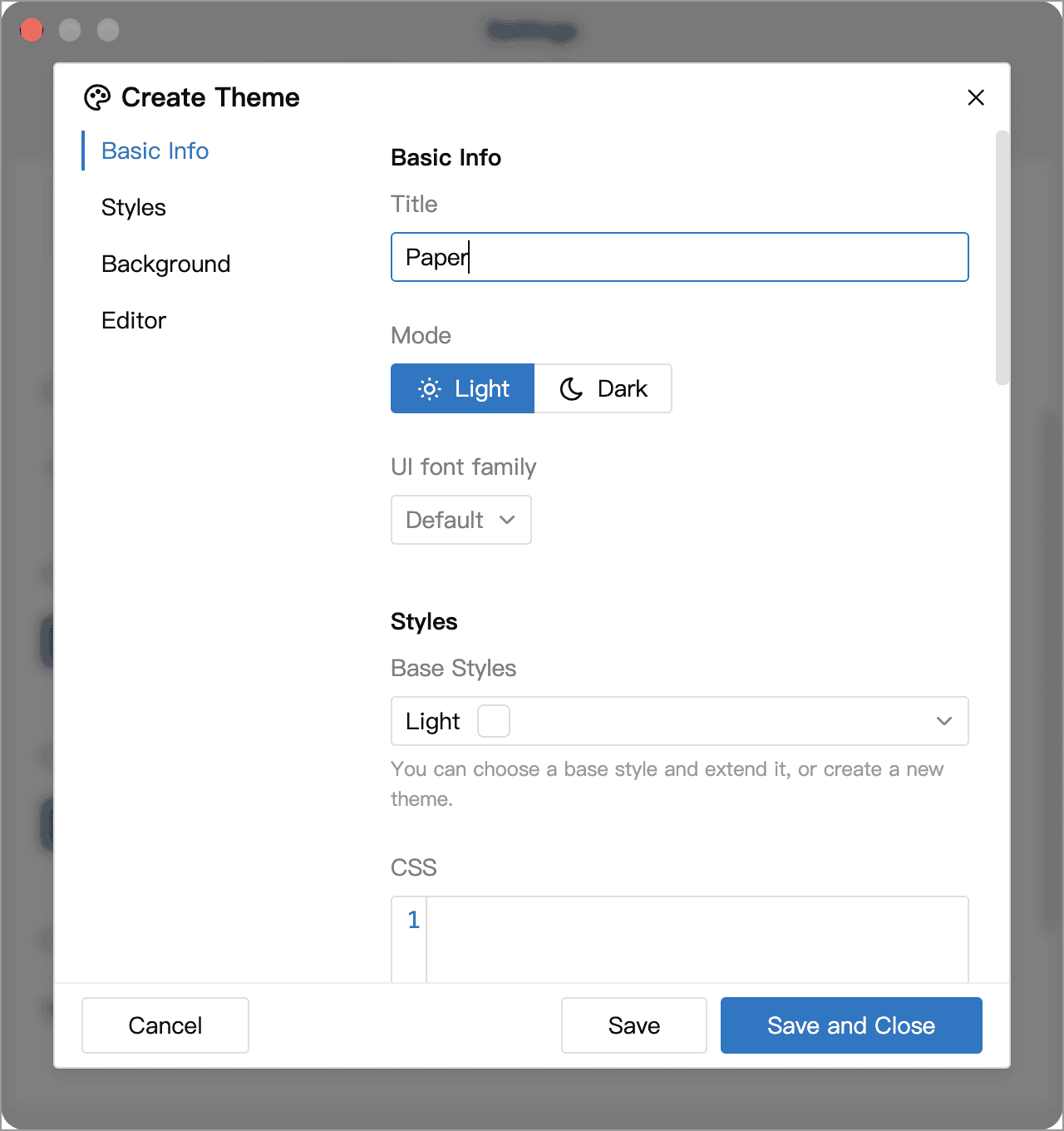
When finished, click Save and Close, then click the new theme to apply it.
Right-click a custom theme to Edit, Duplicate, Export or Delete it. The theme currently in use cannot be deleted.
An exported theme is a .wptheme file that you can share with other WonderPen users. Click Import in the Custom Themes area to import a theme from a .wptheme file, then click the theme to apply it.
The export includes the design saved in the theme editor, but not separate adjustments you make in the style panel while using the theme, such as the font or line height. To share those adjustments, set and save them in the theme editor before exporting.
To use a custom theme on another device, export and import it separately. Export Settings in General does not include custom theme files.
If you only want to tweak a few details of the interface rather than create a full theme, you can also use Custom CSS.
Favorites and Defaults
In Settings → Appearance, right-click a theme to Star it. Starred themes appear at the top of the theme list for quick switching.
Reset to Default in the context menu clears settings such as the font, line height and background that you adjusted while using the theme, restoring its original styles. This menu item is unavailable if there are no such changes.
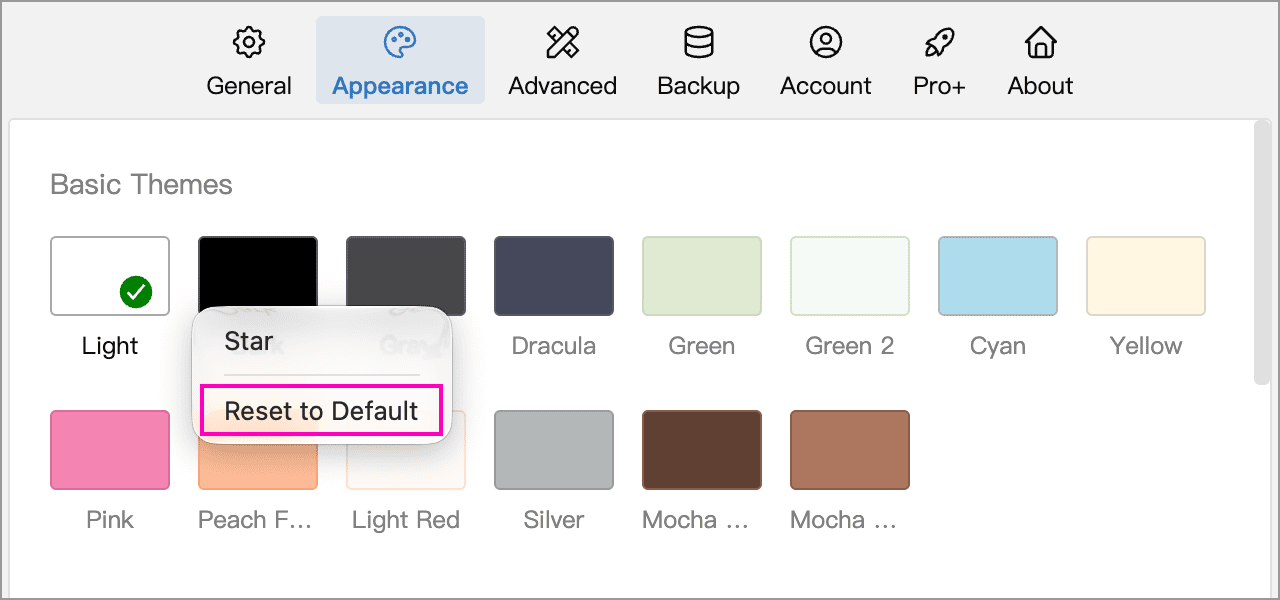
For custom themes, resetting does not remove CSS, backgrounds or other content defined in the theme editor. If Keep Consistent is enabled, the selected settings still use their shared values. To fully restore a theme’s original styles, stop keeping settings consistent before resetting it.