
Memo
A memo belongs to the current document and is useful for chapter summaries, revision reminders, and reference material. Switching documents also switches memos. For character or location notes you need across chapters, use Card List.
Open and Edit a Memo
Click Memo in the right toolbar, then type or edit in the panel. Changes are saved automatically. Ctrl + 2 (⌘ + 2 on macOS) shows or hides the entire right sidebar.
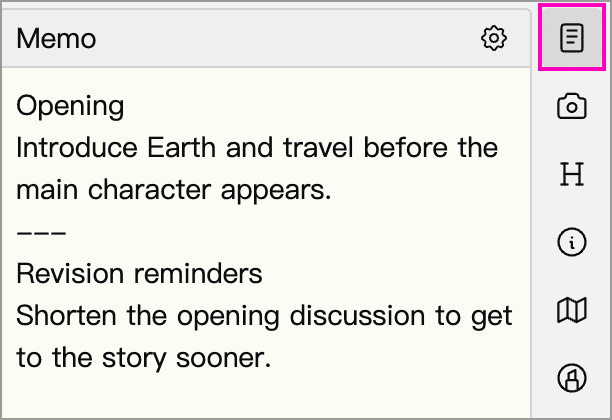
Click the gear button at the top right of the Memo panel to adjust the memo’s font size and line height. These settings do not affect the document text.
Show a Memo as Cards
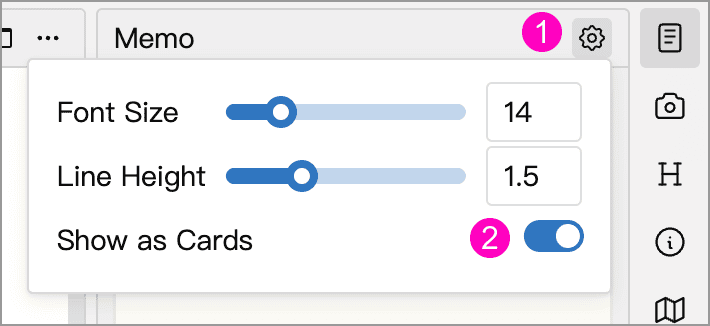
For longer memos, organize sections by topic, such as a chapter summary and revision reminders. Separate sections with --- on its own line, without surrounding spaces. Then click the gear button (1) and enable Show as Cards (2):
This option divides a single memo into cards, as shown below:
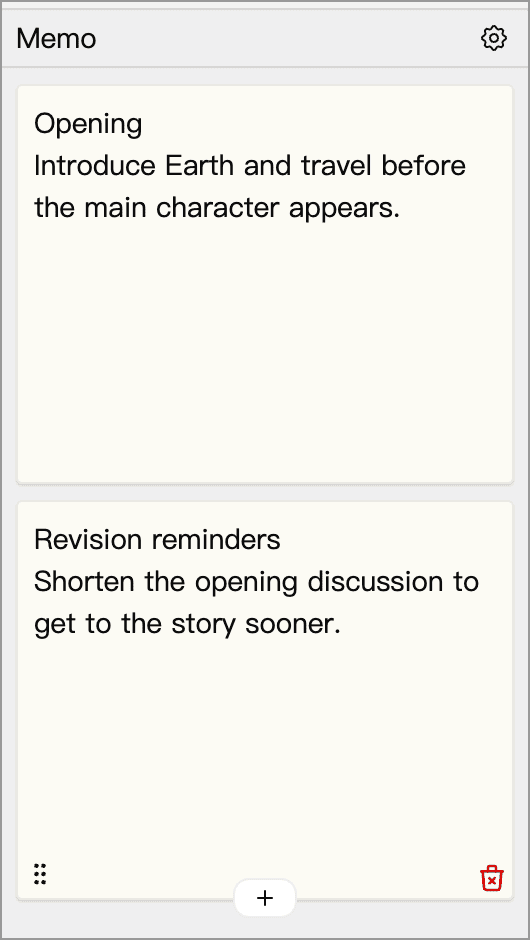
- Edit text directly in each card. Hover over a card to reveal its controls.
- Click the plus button to add a card after the current one, or use the drag handle to reorder cards.
- Clicking the delete button removes the card and its memo content.
Turn off Show as Cards to return to the full memo, including the separator lines. A line of more than three consecutive - characters also works as a separator.
These cards still belong to the current document’s memo and change when you switch documents. They are different from the independent cards in Card List.
Show a Summary in the Directory Tree
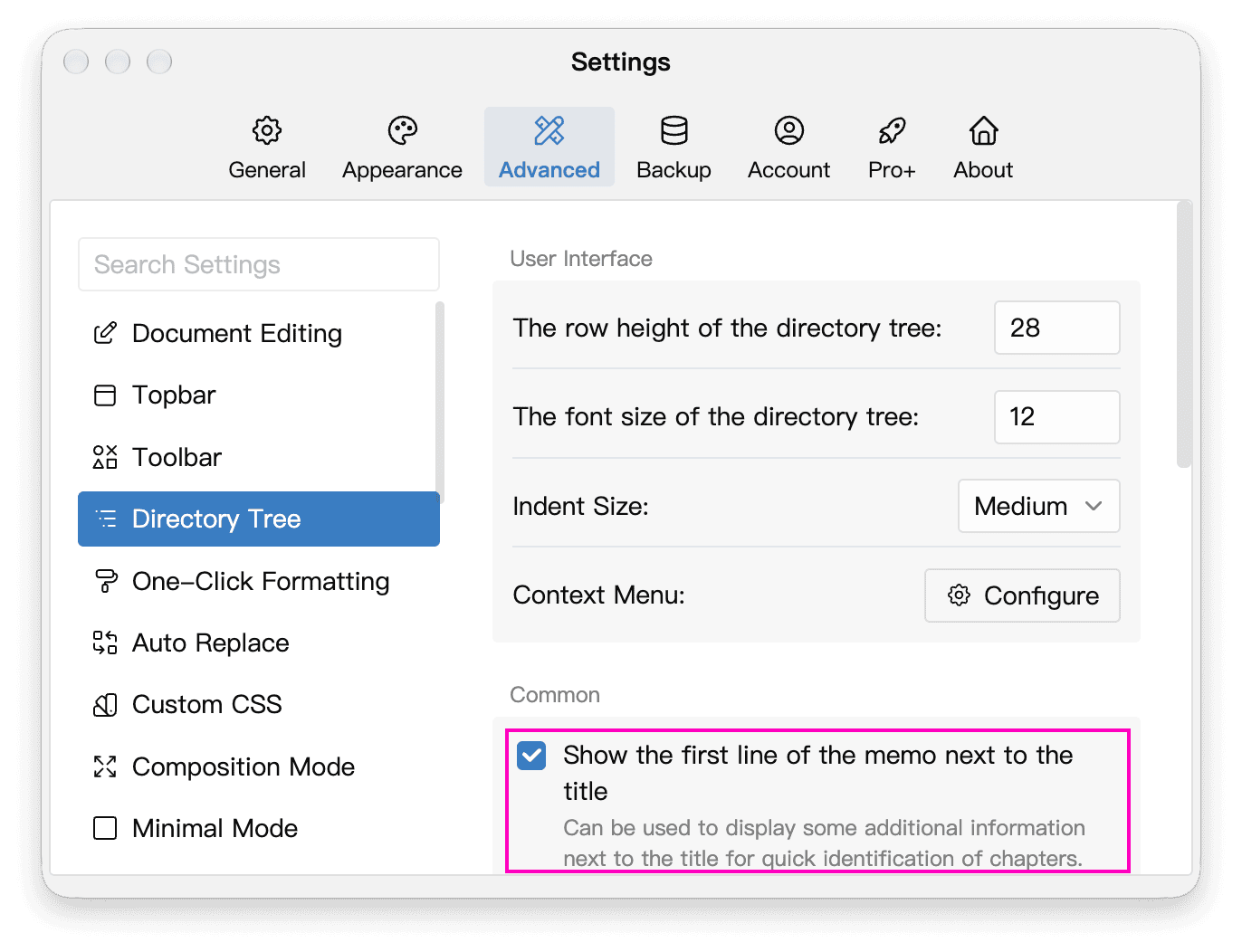
Enable Show the first line of the memo next to the title to see chapter summaries directly in the directory tree. In the image below, the boxes and arrow connect the memo’s first line, “Opening”, on the right with the matching excerpt in the tree on the left.
Keep the first line short and put details on subsequent lines; the excerpt is truncated when space in the tree is limited.
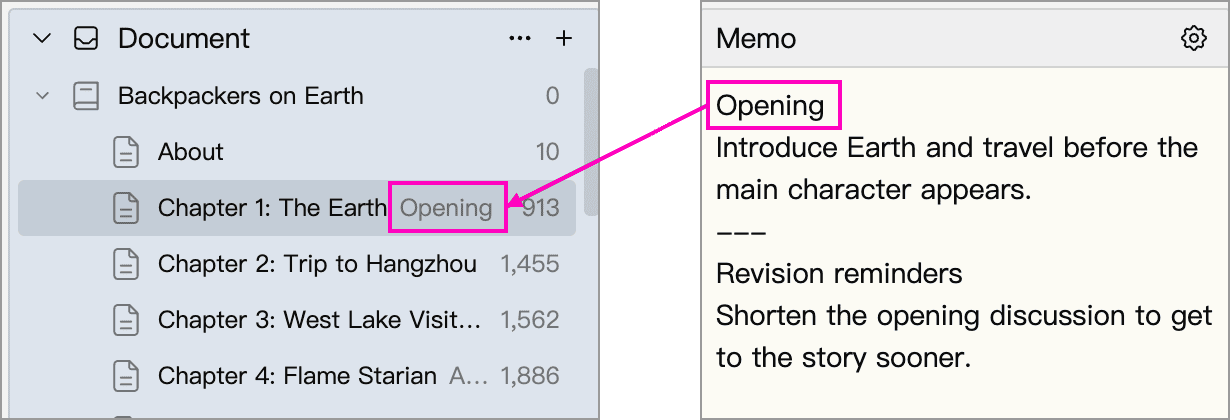
Turn this option on or off in Settings → Advanced → Directory Tree:
Export Memos
By default, exports contain only document text; memos are not included. To include them or export them separately, choose Content and Memo or Memo under Export Content Type in the export window. See Export.