
Auto Replace
Auto Replace expands short triggers into names, common phrases or multiple lines of text as you type. You can also use it to correct recurring typos or insert paired punctuation.
It only processes text before the cursor during input; it does not scan and rewrite existing documents. Use Find and Replace for bulk changes.
Basic usage
The steps below use the desktop app. Open Settings → Advanced → Auto Replace to view and add rules:
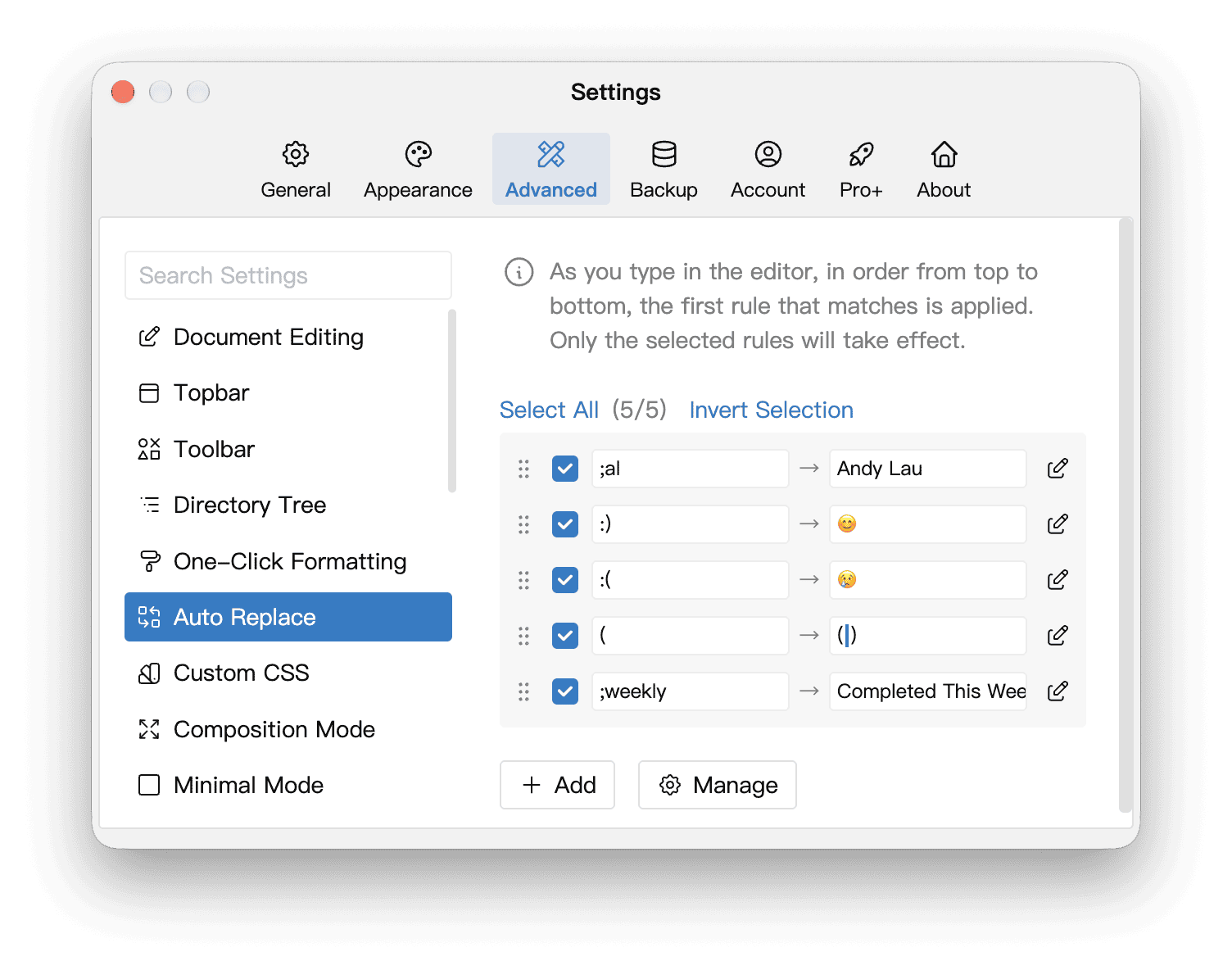
- Click Add to open the rule editor.
- Enter the trigger in Input and the text to insert in Replace to.
- Click OK, make sure the rule's checkbox is checked, then return to the editor and try typing the trigger.
For example, set Input to ;al and Replace to to Andy Lau:
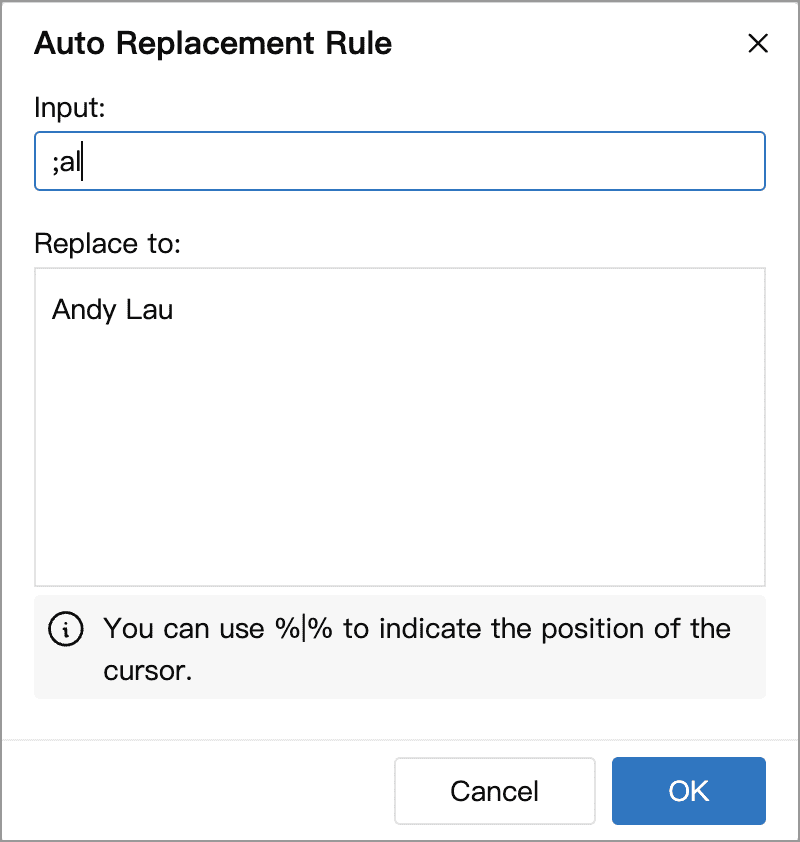
Typing the complete trigger ;al replaces it with Andy Lau, without needing to press Space or Enter. You can also replace :) with 😊 and :( with 😢:

Give abbreviations an uncommon prefix such as ; to reduce accidental replacements while typing ordinary words or numbers. Match the rule's capitalization and character width: for example, ;al and ;al are different triggers.
Matching and priority
- Only enabled, complete rules take effect. Both the trigger and replacement text must be nonempty. Leaving the replacement empty cannot be used to delete text automatically.
- Matching is literal and case-sensitive. Triggers are not regular expressions, and they do not have to start at a word boundary. A rule can match whenever the text before the cursor in the current paragraph ends with its trigger.
- Rules are checked from top to bottom, and only the first match runs. Drag the handles on the left to change priority. If several rules have the same trigger, the first enabled one takes precedence.
Avoid making one trigger the beginning of another. For example, with both ;a and ;al enabled, typing ;a can trigger a replacement before you finish ;al. Reordering the rules alone cannot resolve this conflict.
Cursor position
By default, the cursor stays at the end of the replacement. Insert %|% in Replace to to choose where the cursor should land. The marker itself is not inserted into the document.
For example, set the trigger to ( and the replacement to (%|%). Typing ( inserts () with the cursor between the parentheses:
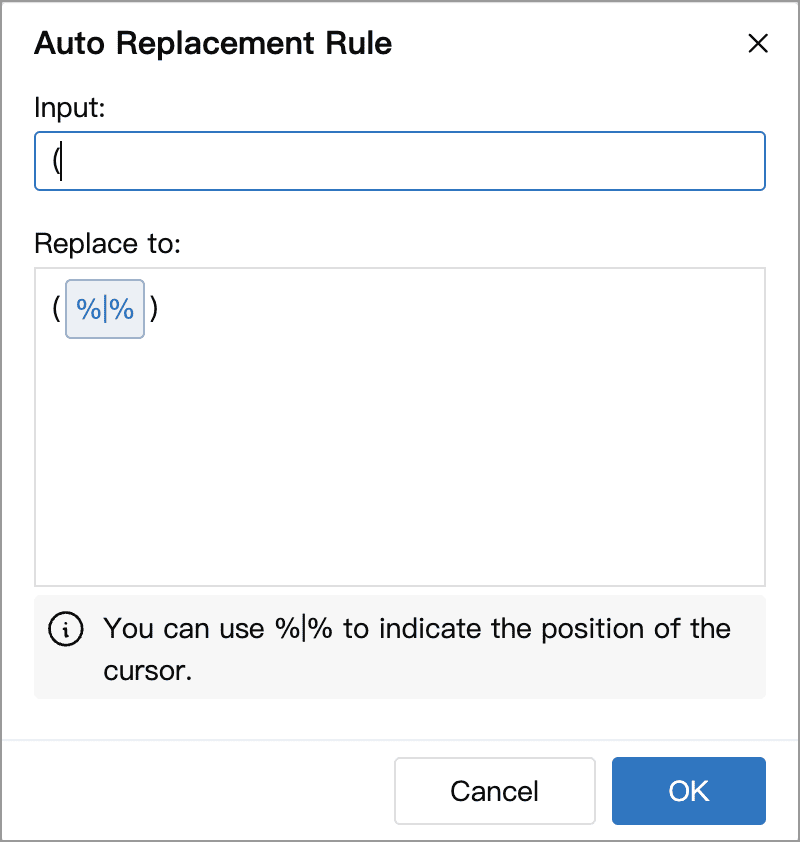
After saving, the rule list shows the cursor position as a blue vertical line. Reopening the rule editor shows the %|% marker again. Use only one cursor marker per rule. It also works in multiline replacements, so you can place the cursor where you want to start filling in the text.
Some examples
Paired punctuation completion
The following rules insert paired quotation marks and leave the cursor between them. Each row is a separate rule; add or enable the ones you need:
| Input | Replace to |
|---|---|
" | “%|%” |
“ | “%|%” |
” | “%|%” |

With the corresponding rule enabled, typing one of these quotation marks inserts “”, ready for you to type dialogue between the marks.
Smart quotes on mobile
The Smart quotes toggle is currently available only in Editor Settings on mobile. On desktop, use the Auto Replace rules above to insert paired quotation marks.
When Smart quotes is enabled on mobile, its built-in rules for straight double quotes " and single quotes ' run before custom rules. To use a different replacement for these characters, turn off Smart quotes in the mobile app first.
Bracket completion
Set up separate rules for half-width and full-width parentheses:
| Input | Replace to |
|---|---|
( | (%|%) |
( | (%|%) |
Character Name
When writing fiction, you can create abbreviations for recurring character names:
| Input | Replace to |
|---|---|
;al | Andy Lau |
;jc | Jacky Cheung |
;bl | Bruce Lee |
;mc | Maggie Cheung |
Typographical correction
Use a recurring misspelling as a trigger. For example, if dictation often transcribes a character named “Steven” as “Stephen”, you could add:
| Input | Replace to |
|---|---|
Stephen | Steven |
Entering “Stephen” will then replace it with “Steven”. The rule does not consider context; if your text also needs the name “Stephen”, keeping this rule enabled throughout may be unsuitable.
Template
Replace to accepts multiple lines, so you can insert a weekly report outline or other reusable text. Press Enter in this field to add a new line:
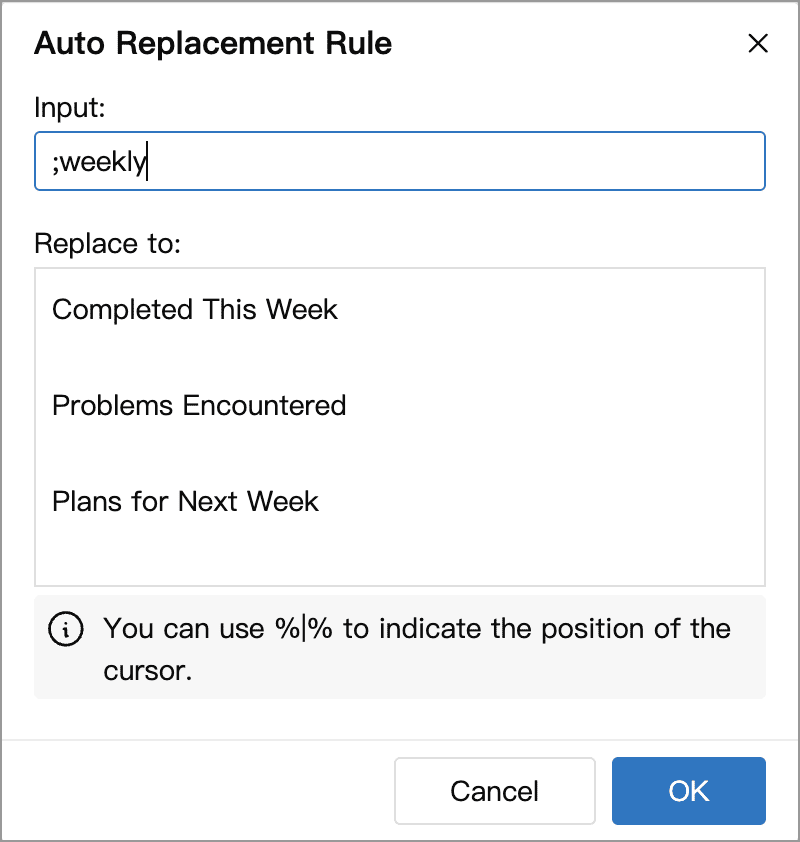
The weekly report outline shown here is a custom example, not a built-in template. After saving and enabling the rule, typing ;weekly inserts “Completed This Week”, “Problems Encountered” and “Plans for Next Week” at the cursor, ready to fill in. To prefill new documents instead, use a Document Template.
Manage Rules
On the Auto Replace settings page:
- Enable or disable: check or uncheck a rule. Select All and Invert Selection also change which rules are enabled.
- Edit: click the edit button beside a rule, make your changes and click OK.
- Reorder: drag the handle on the left to change matching priority.
Click Manage to select rules for bulk deletion or export the selected rules to CSV. Checkboxes in the management window select rules for these operations; they do not enable or disable them.
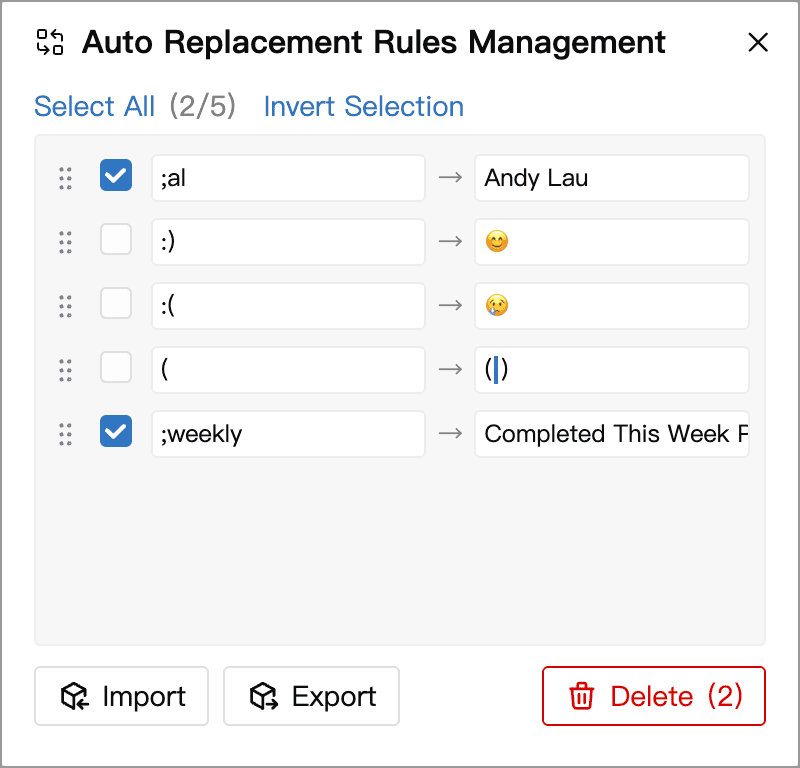
To reuse exported rules, click Import in the management window and choose the CSV file. Imported rules are appended to the end of the list; they do not overwrite existing rules or merge matching triggers. Return to the settings page to enable them manually, check their order and cursor positions, then try typing a trigger.
Rule limits and access to importing depend on the features available to your account. See the app and the plan comparison for current details.
Undo Replacement
If a replacement is unwanted, immediately press Ctrl + Z (⌘ + Z on macOS), or choose Edit → Undo from the top menu, to undo it.
Undoing a replacement does not disable the rule. If a rule often triggers unintentionally, uncheck it temporarily or change its trigger.