
Floating Window
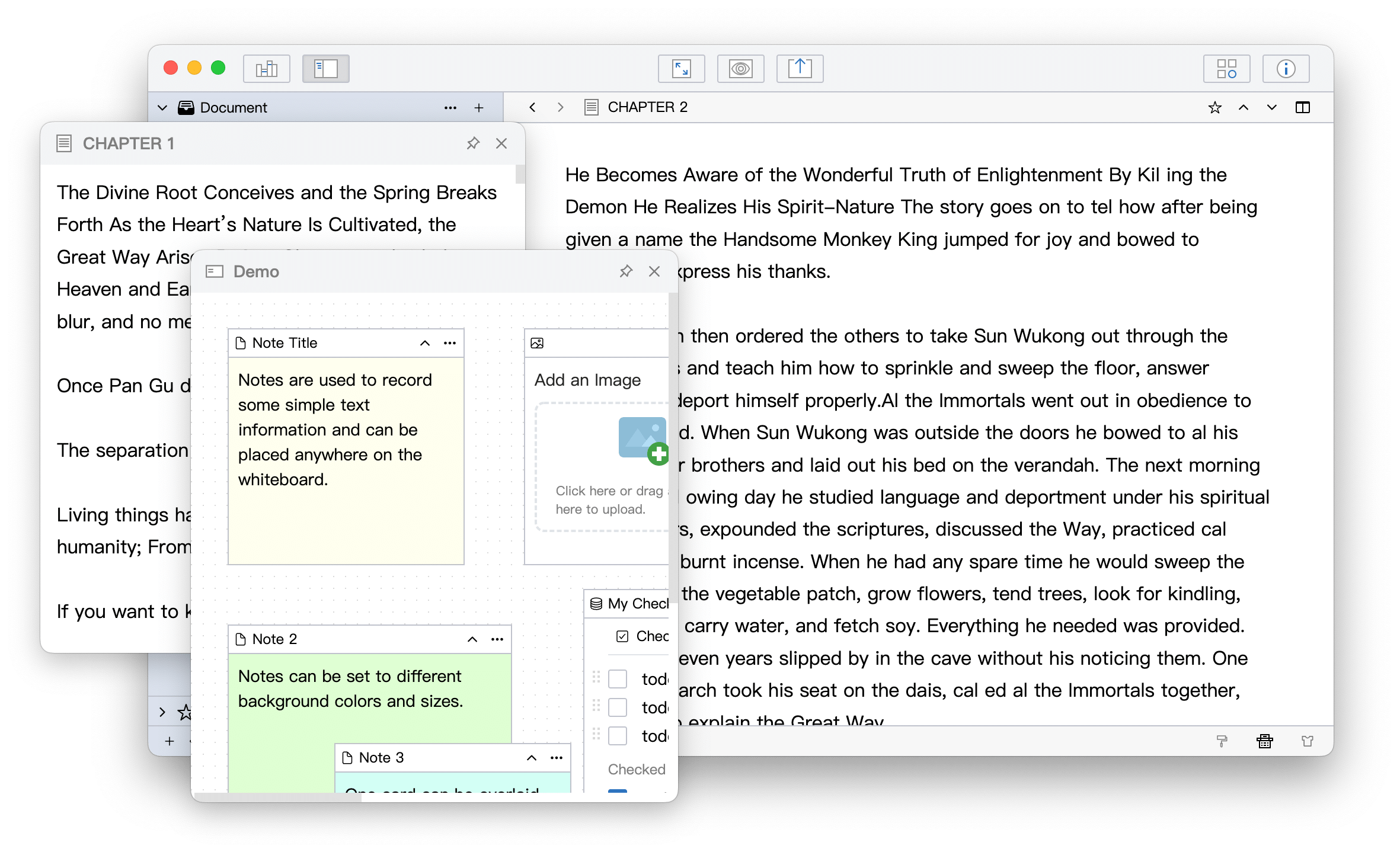
Keep reference material beside your writing in a floating window while you work in the main window. It opens the same document or whiteboard rather than creating a copy, so edits in the floating window update the original content.
Open a Floating Window
Use the Context Menu
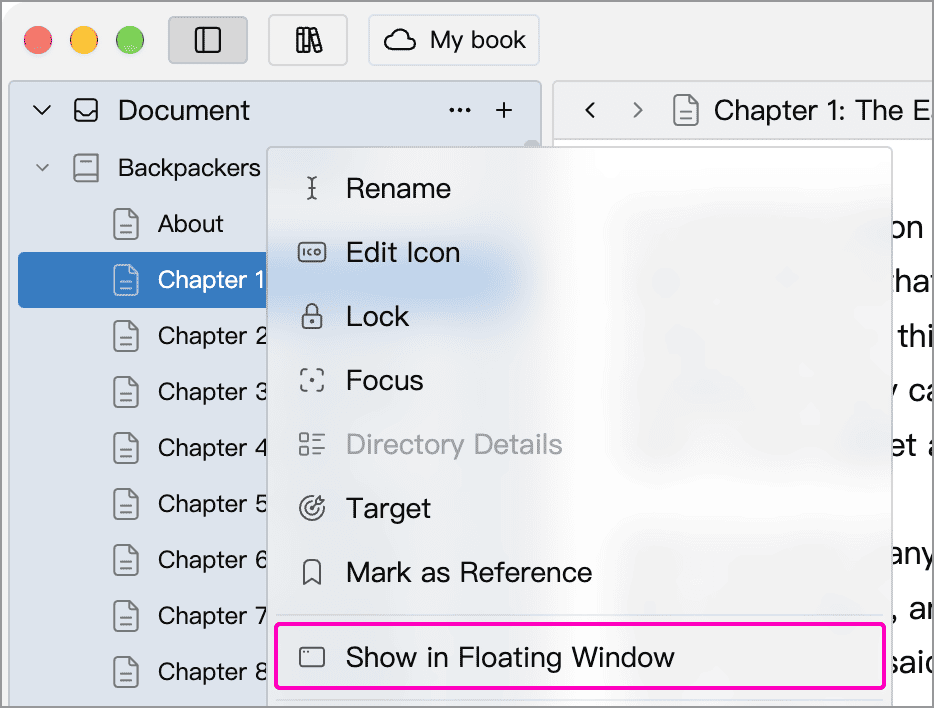
Right-click a single document or whiteboard in the tree and choose Show in Floating Window. With tabs enabled, the tab context menu offers the same action. If the menu item is disabled, clear the multiple selection and select only the document or whiteboard you want to open.
Drag from the Tree
Drag a single document or whiteboard outside the tree area and release it to open a floating window. The image below shows a chapter being dragged outside the main window. This changes where the document opens without moving it in the tree.
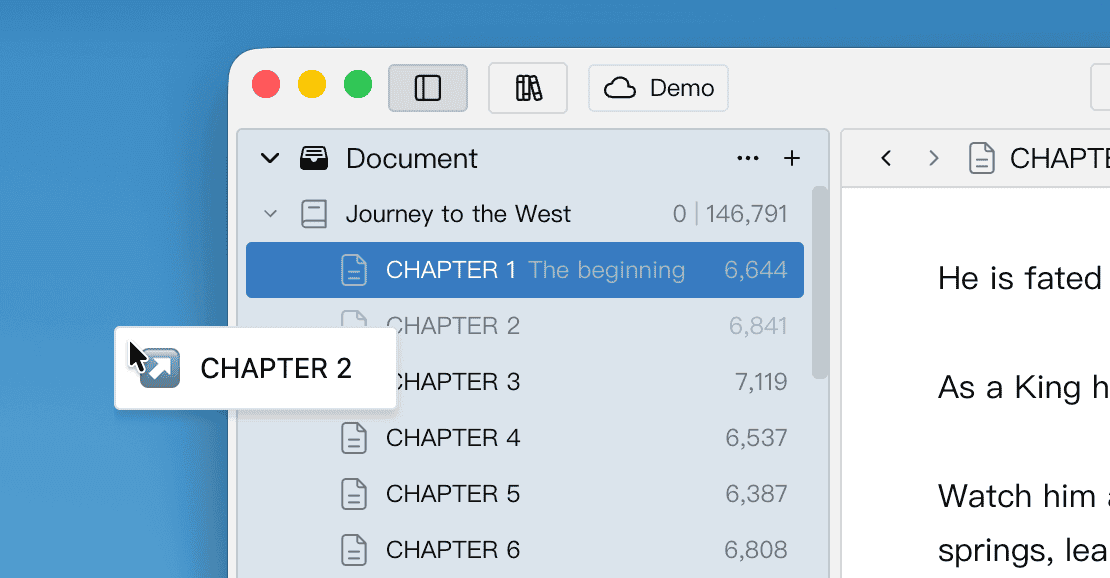
Dropping it on a visible tab bar opens a tab instead. Check the drop indicator to confirm the destination and distinguish this action from moving or reordering items within the tree.
Edit and Preview
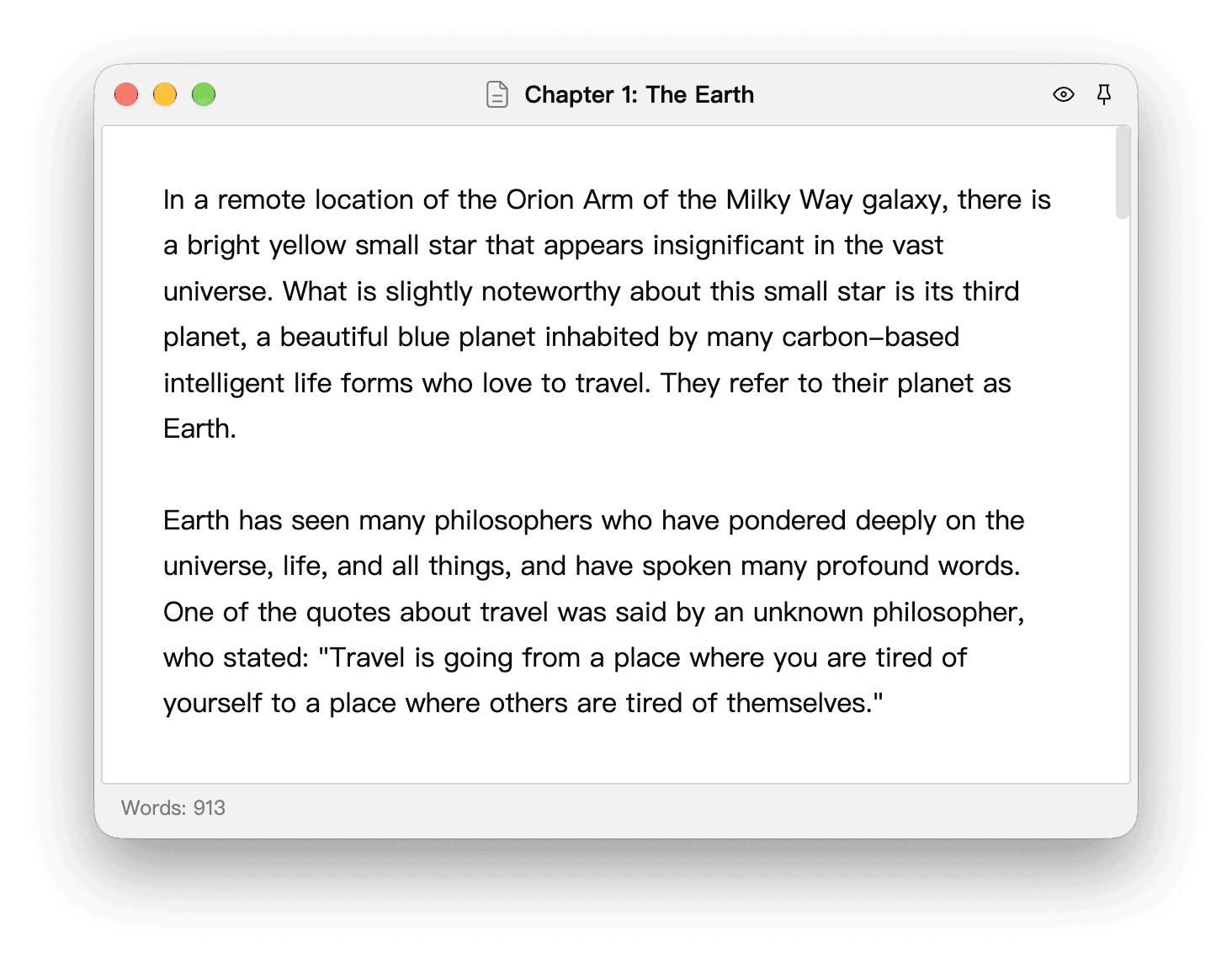
You can edit text directly in a document’s floating window. Changes are saved to the original document. Click the eye icon (Preview) in the title bar to switch to a reading preview; click it again to return to editing.
You can also work with a whiteboard in a floating window, but whiteboards do not have the document preview button. Keep character profiles or an outline on a whiteboard beside the chapter you are writing in the main window.
Pinning and Always on Top
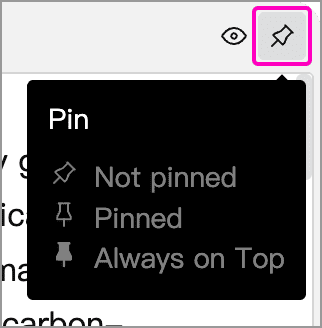
Click the pin button in the title bar to cycle through three states. Hover over it to see which icon represents each state.
| State | Behavior |
|---|---|
| Not pinned | Behaves like a normal window and may be covered when you switch to another window. |
| Pinned | Stays in front of the window it was opened from when both are on the same display, making it convenient to refer to while writing. |
| Always on Top | Stays above other normal windows, including those from other applications, for reference while working across apps. |
Pinning does not lock the window’s position or prevent editing. When you move a pinned floating window to another display, it no longer stays in front of its original window. Choose Always on Top if you still want it to remain above other windows.
WonderPen remembers the last pin state you selected and uses it as the default for newly opened floating windows.
Move to Main-Window Tabs
With tabs enabled, the floating window’s title bar shows Move to Main Tabs. Click it to open the document or whiteboard in a main-window tab for the same Library and close the floating window. If a matching tab is already open, WonderPen switches to it.

If several main windows have the same Library open, WonderPen prefers the most recently used one. In split view, if neither pane has a matching tab, the item opens in the active pane.
If the move fails, follow the message shown:
- Matching main window was not found: open this Library in a main window first.
- Main window is not using tabbed view: make sure tabs are enabled. If you are using Outline or Continuous View, exit that view first. Select a single document or whiteboard in the main window, then confirm that the destination pane shows a tab bar before trying again.
- Main window tabs are full: close unneeded unpinned tabs in the destination pane and try again, or adjust the tab limit.
Close a Floating Window
Clicking a floating window’s close button closes only that window; it does not delete the document or whiteboard. You can open it again from the tree later.
Use Several Reference Windows
You can open several floating windows to refer to different chapters, character profiles, or whiteboards. Resize and arrange them so they do not cover the text you are writing.
To view two items inside the same main window, use split view to arrange the editing panes side by side or top and bottom.