
HTTP API, MCP, and CLI
WonderPen desktop provides a local HTTP API, MCP service and command-line interface (CLI) for scripts and MCP-compatible applications to access Library content.
TIP
HTTP API support starts with desktop version v3.1.3. Available commands may vary by version; consult the settings and help in your installed application.
Enable the Service
Open Settings → Advanced → API and turn on Enable API HTTP Service. The service is off by default, uses port 8022 by default, and listens only on 127.0.0.1. Another computer cannot access it directly over your LAN.
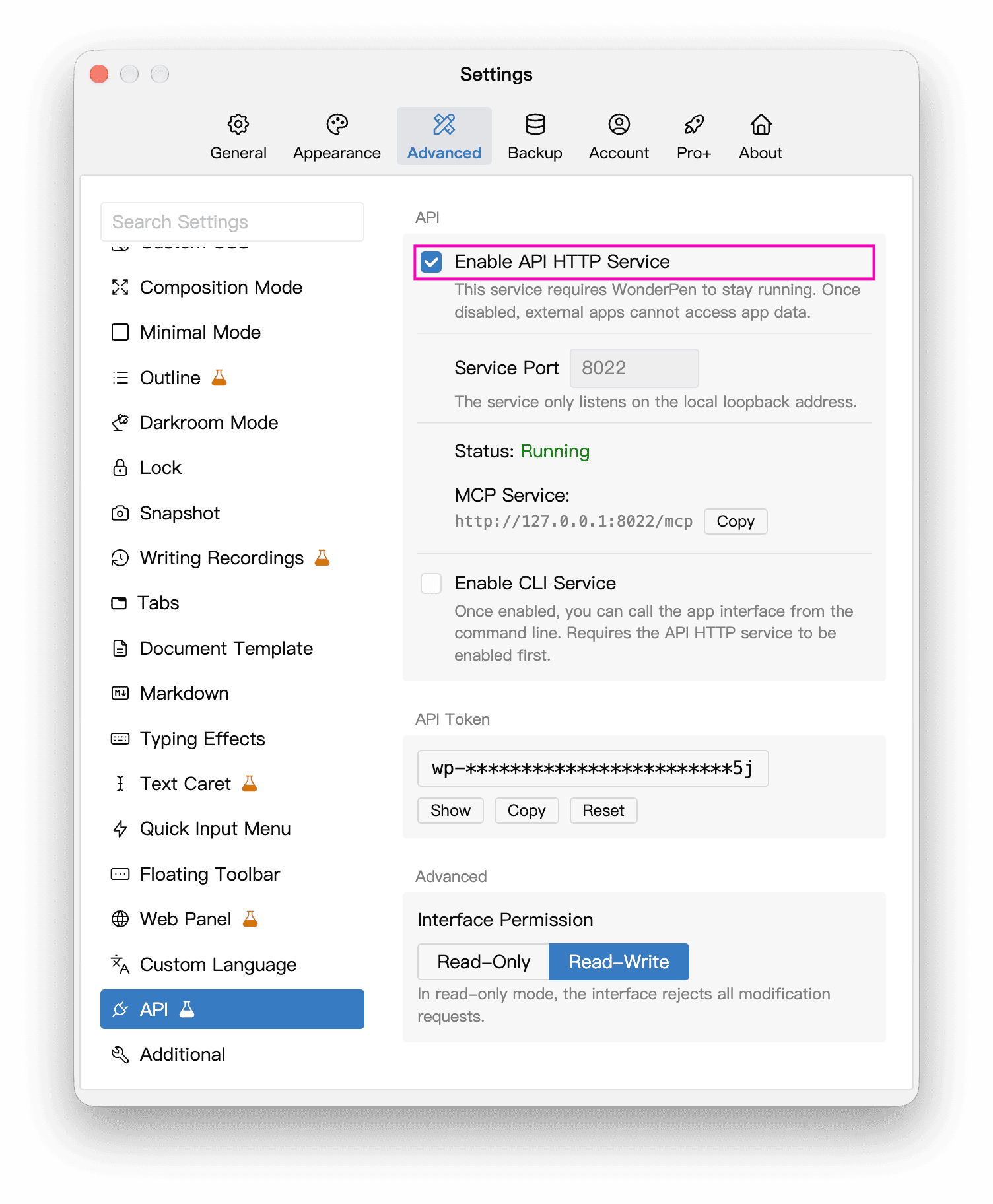
Keep WonderPen running and open the Library you want to use. HTTP, MCP and CLI can access only currently open Libraries; specifying a Library path or identifier does not grant access to a closed Library.
Check the service status after enabling it. While running, the settings page displays a copyable MCP address. Stop the service before changing its port.

Authentication and Interface Permission
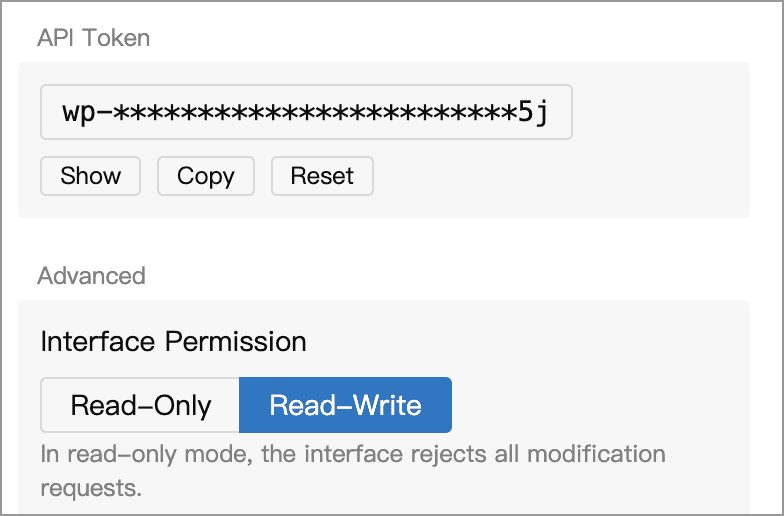
The settings page lets you show, copy or reset the API Token. Send it in this header when calling an authenticated endpoint:
Authorization: Bearer wp-xxxReplace wp-xxx with your own Token. After resetting it, update the configuration of connected applications. The Token grants access to your data; keep it out of public scripts and shared screenshots.
Interface Permission offers two options:
- Read-Only: allows reading and rejects writes such as creating, updating, deleting, moving and changing settings.
- Read-Write: allows reads and writes, subject to feature permissions and protections such as document content locks.
The current default is Read-Write. If you only need to search or reference content, start with Read-Only. This setting applies to HTTP, MCP and CLI alike.
HTTP Connection Examples
These examples only read information and do not modify documents. Replace 8022 if you use a custom port. They use curl; in Windows PowerShell, use curl.exe to invoke the same tool.
First check that the service is reachable:
curl http://127.0.0.1:8022/A working service returns Hello WonderPen!. This health check does not require a Token; success confirms connectivity, not authentication.
Then request command help with your Token:
curl -H "Authorization: Bearer wp-xxx" http://127.0.0.1:8022/api/cli/helpThis authenticated endpoint returns help for the CLI commands supported by your version. HTTP data operations use POST /api/data, and settings operations use POST /api/setting. Before connecting a script, identify the target Library and the parameters required for its operation.
MCP Service
MCP (Model Context Protocol) lets compatible AI applications connect to external tools. WonderPen provides the MCP interface; the third-party application you connect supplies the AI service.
Enabling the API HTTP service also makes MCP available. You do not need to enable CLI separately for MCP.
| Parameter | Value |
|---|---|
| Type | Streamable HTTP |
| Address | The MCP address shown in settings, defaulting to http://127.0.0.1:8022/mcp |
| Header Name | Authorization |
| Header Value | Bearer wp-xxx, with your own API Token |
Configuration field names vary by client; follow its instructions for Streamable HTTP connections. Some clients have separate fields for the header name and value. If a client expects name=value, enter Authorization=Bearer wp-xxx.
After connecting, try listing accessible Libraries or reading a test document. The client must be able to reach the computer running WonderPen; a connector on a remote server cannot directly access your 127.0.0.1. Once you authorize a third-party AI application to read content, its subsequent processing follows that application's service policies.
CLI
To read or write data or settings through WonderPen's bundled command-line interface, enable both API HTTP Service and CLI Service. CLI Service is off by default.
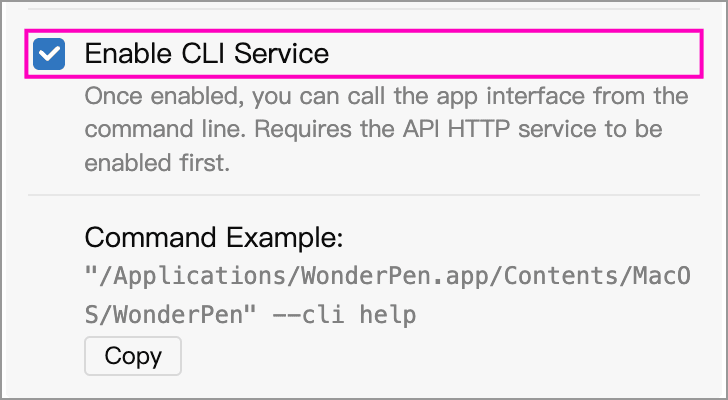
The settings page then displays a copyable CLI example containing the executable path for your installation. Copy it into a terminal to view help. In Windows PowerShell, prefix the quoted executable path with the call operator &. The general form is:
WonderPen --cli help
WonderPen --cli status
Here, WonderPen represents the application executable and may not be available directly in your terminal. Use the actual path shown in settings. The bundled CLI automatically reads the local service's port and Token, so you do not need to add request headers manually.
help lists command usage and works even when the service is off, so it does not confirm a successful connection. status shows service status and interface permission; if the service cannot be reached, it displays local status with an explanatory note.
For example, in Windows PowerShell (replace the path with your actual installation path):
& "C:\Actual installation path\WonderPen.exe" --cli helpConnection Problems
| Symptom | What to Check |
|---|---|
| Cannot connect or connection refused | Confirm WonderPen is running, the API service is enabled and running normally, and the address and port match settings |
401 unauthorized | Check the Token and Authorization header; update the client after resetting the Token |
read_only_mode | The interface is read-only; change to Read-Write in WonderPen settings if writing is required |
| CLI unavailable | Enable both API HTTP Service and CLI Service, and use the correct executable path |
no_target_library | Open the Library you want to use; if several are open, specify the target as described in command help |
library_access_denied | Make sure the target Library is currently open; a cloud Library must also belong to the signed-in account |
Port in use (EADDRINUSE) | Turn off the API service, choose an unused port, enable it again, and update the client address |