
Cloud Synchronization
Cloud Libraries include automatic synchronization. Changes are saved locally first, then synced to the cloud so you can continue writing on another device. Local Libraries do not sync.
Continue Writing on Another Device
Sign in to the same account on each device and open the same Cloud Library from the Library list. You do not need to create a new Library on each device. Two Libraries with the same name may still be different Libraries. Click the Library name at the top of the main window to compare their Library IDs in the information panel.
The cloud icon beside the name identifies a Cloud Library. Click the name to view Library information and any sync errors:
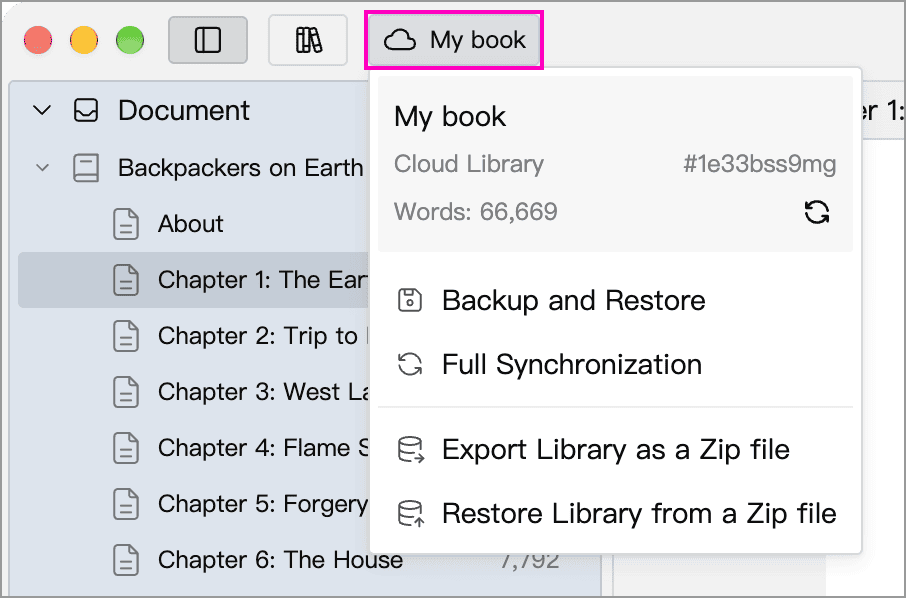
Opening a Cloud Library on a device for the first time requires an internet connection to download its data. Content already downloaded remains editable while temporarily offline, and syncing resumes when the connection returns. Images and other Assets that were not downloaded before going offline may be unavailable.
Automatic Sync and Switching Devices
WonderPen syncs changes to documents, memos, whiteboards and cards in the background, usually without manual action. The cloud icon alone does not indicate that every change and Asset has finished uploading.
When switching devices:
- Keep WonderPen open and online on the current device, allow time for background syncing, and check for sync errors.
- Open the same Cloud Library on the other device and wait for updates. Confirm that your latest edits and required images have appeared before continuing to write.
- Avoid editing the same document on multiple devices at once, especially when one is offline. If a conflict occurs, follow Sync Conflicts to review and resolve it.
Assets upload and download separately, so images may still be transferring after the text has updated. On the device where you added the Assets, open Assets Management to check for Assets marked Pending Upload or Upload Failed.
Sync transfers edits and deletions, so it does not replace an independent backup. Accidental deletions may also reach your other devices.
Check Sync Problems First
If the Library name or cloud icon turns red, click the Library name to read the message. The example below shows a temporary connection failure:
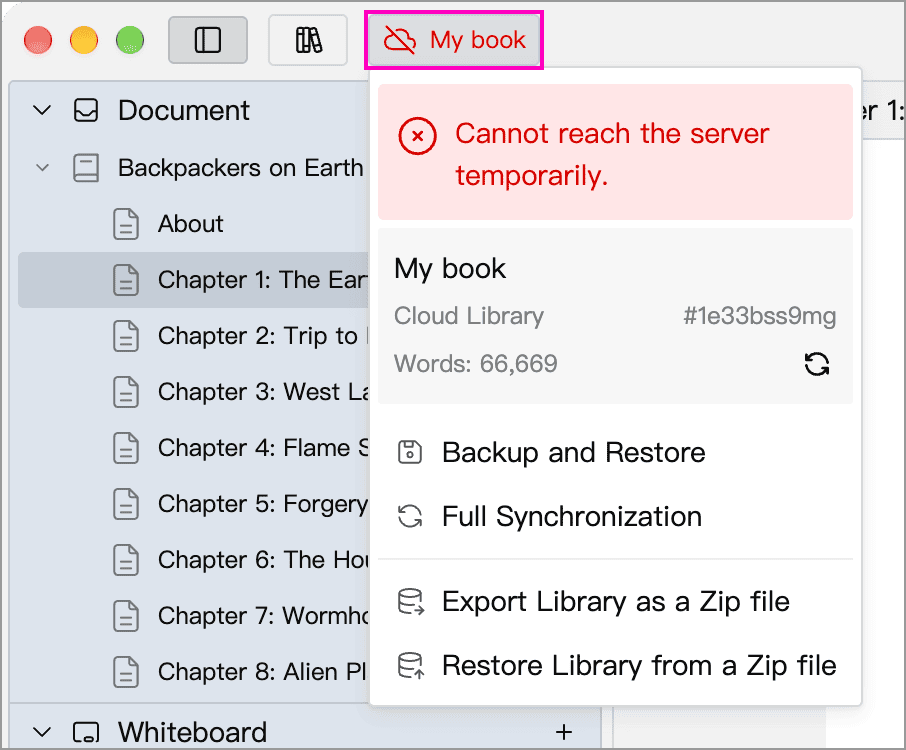
Follow the message or symptom to address the problem:
| Message or symptom | What to do |
|---|---|
| Not signed in or session expired | Sign back in to the original account and open the corresponding Cloud Library |
| Offline or unable to reach the server | Check your connection, then allow automatic sync to retry; if the service is under maintenance, try again later as instructed |
| Outdated client | Update WonderPen and try again |
| Cloud Library locked, or content or storage limit exceeded | Follow the message to check your account, documents or Assets; see Version Comparison and the app for current membership benefits and cloud quotas |
| Text has updated but images are missing | Check your connection and Asset transfer status, and confirm that the Assets have uploaded from the original device |
| Document conflict | Compare the document with its conflict snapshot and follow the conflict resolution instructions to preserve the content you need |
| Other errors | Keep the error message and contact us if the problem persists |
If two devices show different content, first confirm that the account and Library ID match, then compare their documents and snapshots. Do not start a full overwrite solely because an update has not yet appeared on another device.
Manual Full Synchronization
Manual synchronization is usually unnecessary for everyday writing. After making changes, stay online and allow automatic sync to finish.
Manual Full Synchronization is a fallback. For example, both devices have the same Cloud Library open, but their data differs. Consider full synchronization only if the content still has not updated after you have ruled out connection and account issues and allowed time for automatic sync.
Full Synchronization replaces one side's data with the other side's data. Before using it, identify the complete version you want to keep, including the required Assets. Do not use it as a refresh button for routine syncing.
Preserve Copies Before Overwriting
First back up each device that has content you need to keep, or export its Library as a Zip file, and confirm that the file was saved successfully. If both sides contain changes you need, resolve the conflict or combine the content first. Avoid editing this Library on other devices during the operation.
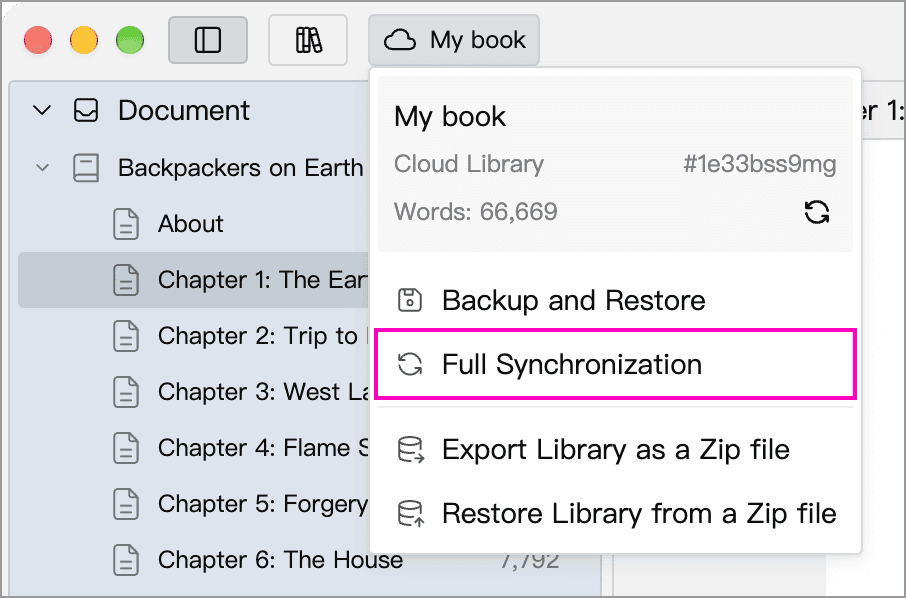
Click the current Library name and select Full Synchronization:
Choose a direction in the dialog. Hover over either direction to see an explanation of what it overwrites.
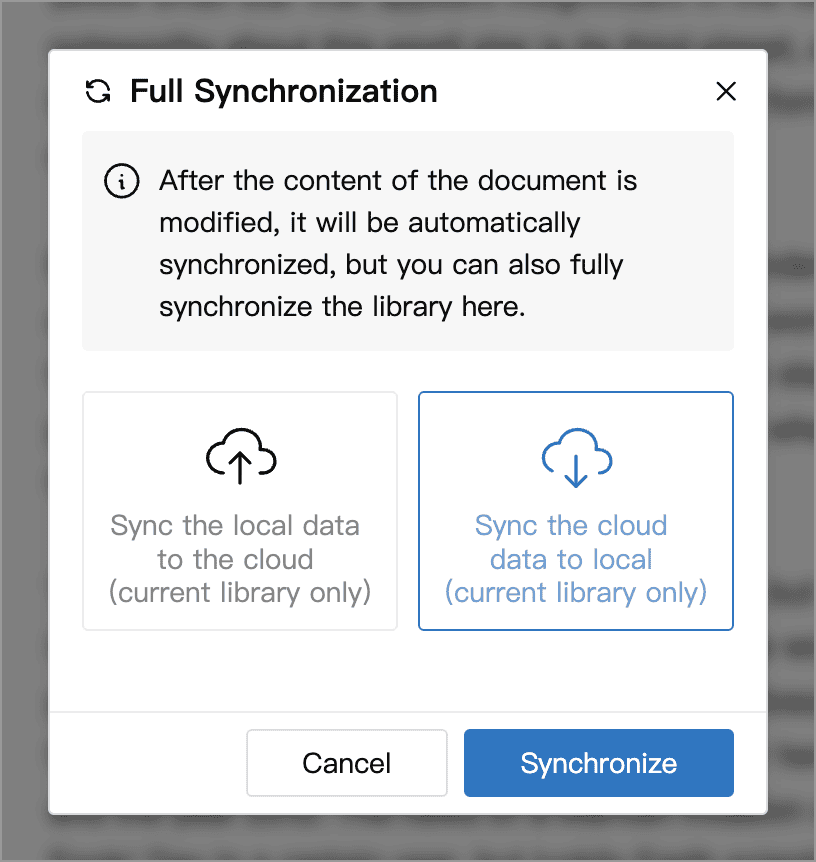
| Direction | Version to Keep | Data Replaced |
|---|---|---|
| Sync the local data to the cloud | The Library on the current device | Cloud data; other devices will receive these changes when they sync |
| Sync the cloud data to local | The Library in the cloud | Library data on the current device, including changes not yet uploaded |
Confirm the direction, click Synchronize, and wait for the result message. This operation affects only the current Library, not other Libraries.
After completion, check the documents, directory tree and required Assets. If synchronization fails, the content may already have been updated while Asset synchronization has not succeeded. Keep the error message and inspect the current content before following the instructions to resolve the problem. Do not immediately overwrite in the opposite direction.