
Assets Management
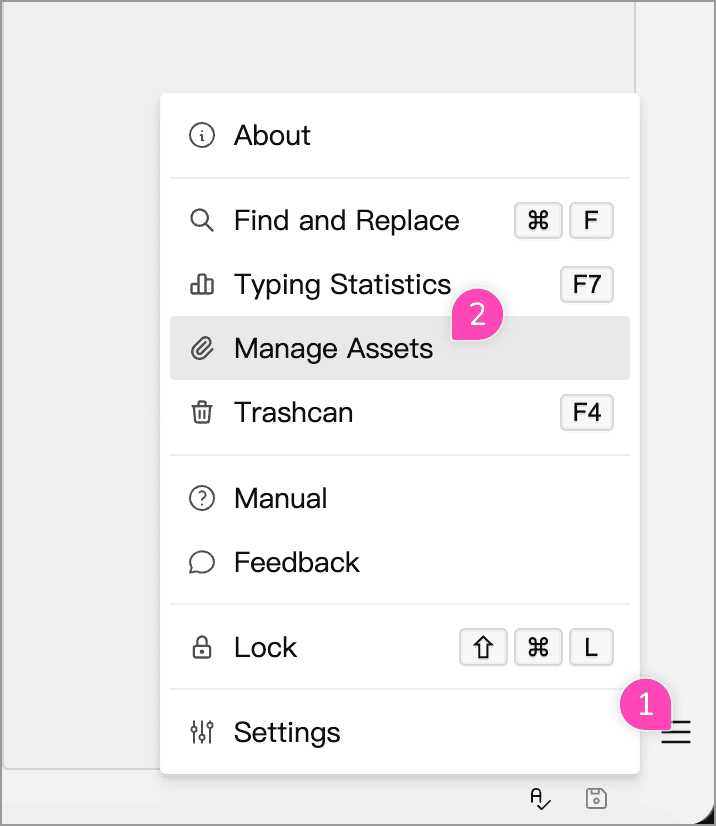
Assets Management brings together images and other resources in the current Library, including images inserted into document bodies, memos, and whiteboards. Click the main menu button at the lower right of the main window, then choose Manage Assets.
Viewing and Previewing Assets
Assets appear in a thumbnail grid. The top bar shows the count and total size of the files in the current list. Cloud Libraries also show usage information; hover over it for capacity details.
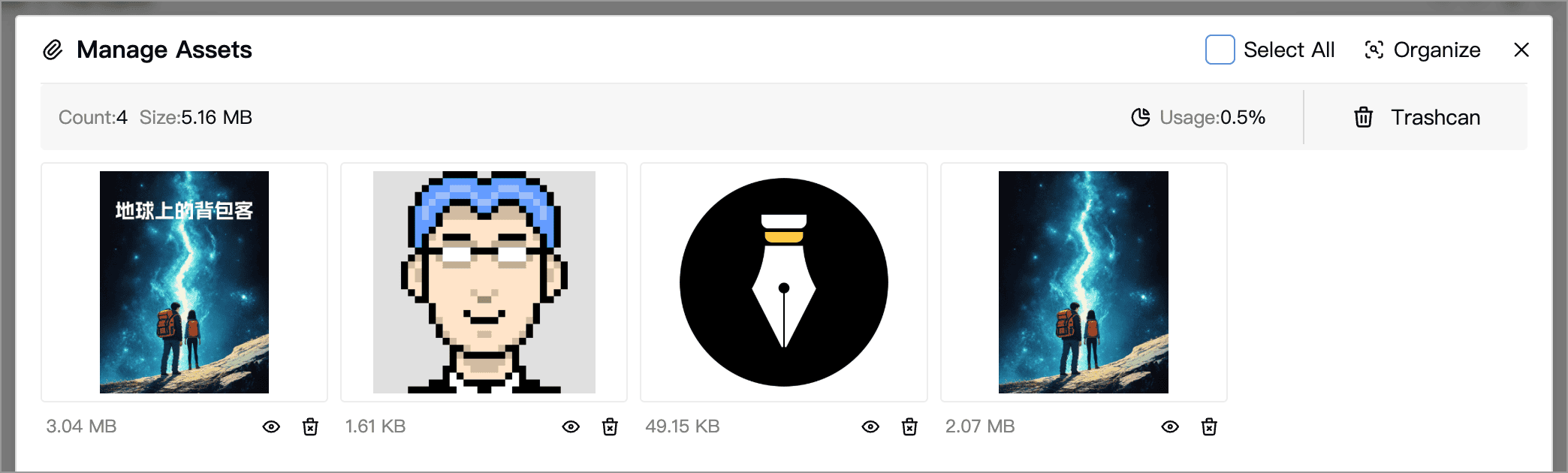
- Preview an image: double-click its thumbnail, or click the eye button below it.
- View file information: click the size below an image to see its file size and date added. In the Trashcan, the deletion date is also shown.
- Select assets: click a thumbnail to select it, and click again to deselect it. Select several assets individually, or use Select All at the top.
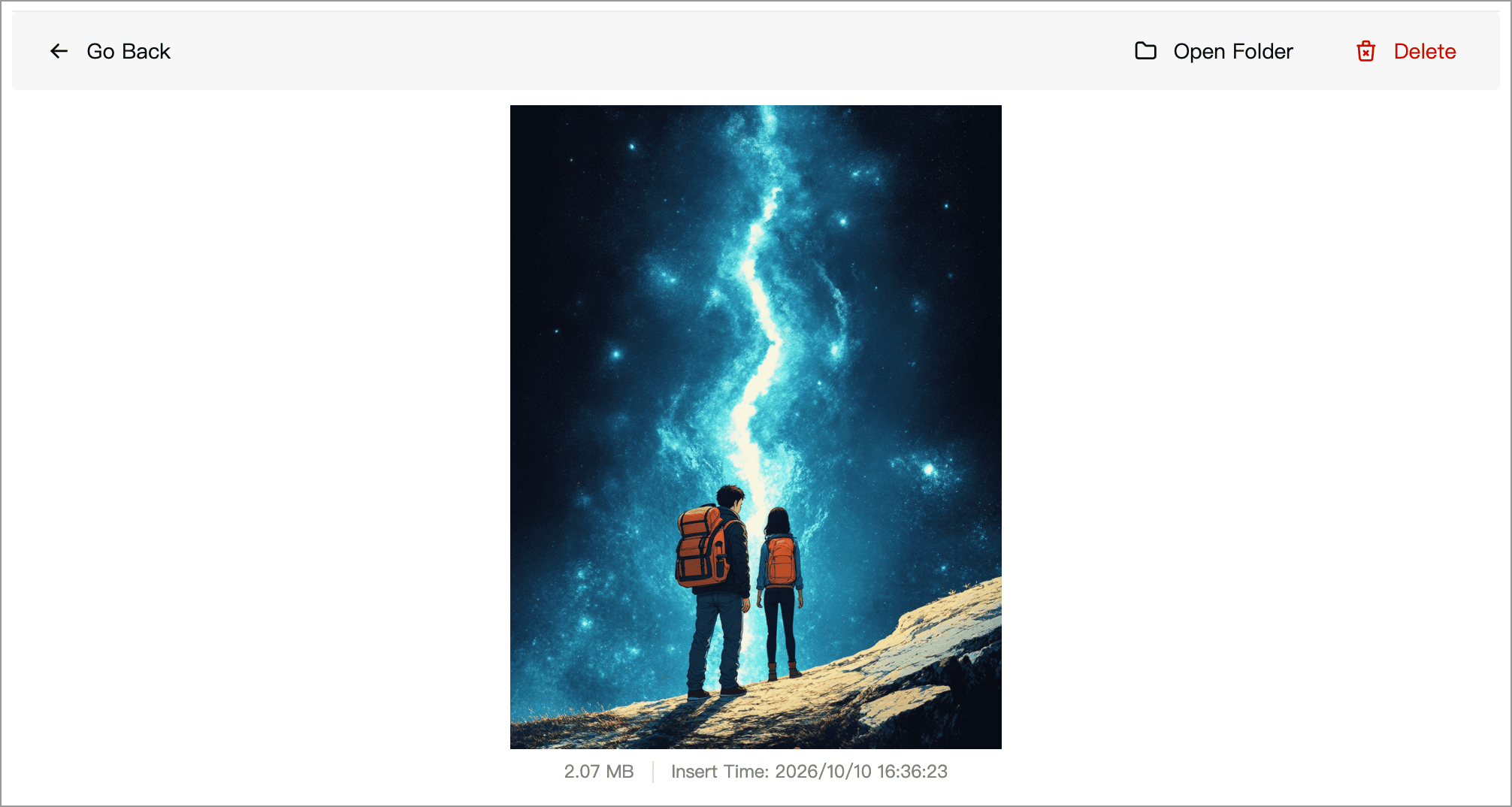
The preview shows a larger image and a delete button. Click Open Folder to locate the local asset file in your system file manager. Click Go Back to return to the list.
Organizing Assets by Usage
Click Organize at the upper right and wait for the usage scan to finish. You can then filter assets:
| Filter | Meaning |
|---|---|
| All | All assets that have not been moved to the assets Trashcan |
| Referenced | Assets for which the scan found references |
| Unreferenced | Assets for which the scan found no references; review these first when deciding what to keep |
The number on the right shows how many items reference the asset. Click a number greater than 0 to see which documents, whiteboards, or cards use it. The list also identifies items in the document Trashcan and content retained for deletion conflicts.
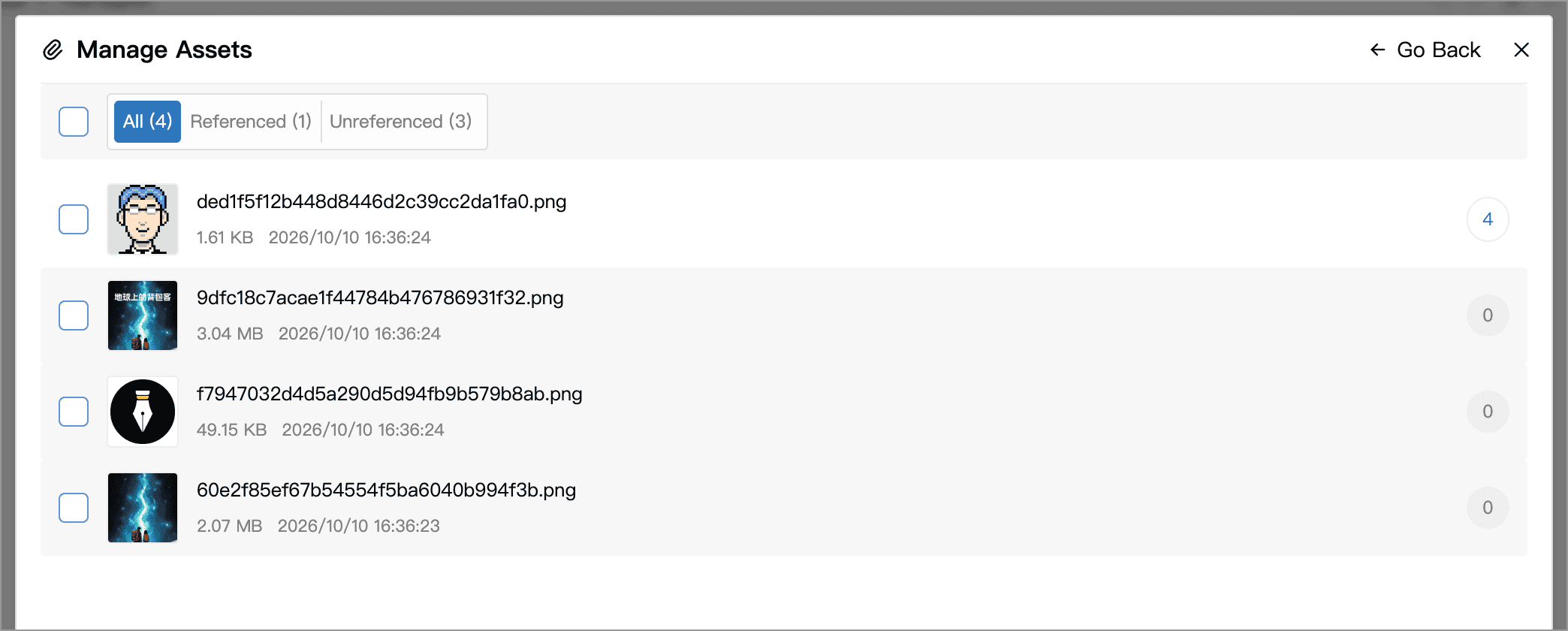
Select unwanted assets and click the Delete button that appears below to move them to the assets Trashcan in bulk. The confirmation dialog shows how many selected assets are still referenced. Click Go Back at the upper right to leave the organizing view.
Check for images needed in older drafts
The scan covers document bodies, memos, whiteboards, and cards, including items in the Trashcan and content retained for deletion conflicts. It does not check historical images in snapshots or writing replays. If you still need images from earlier drafts, back up your Library before cleaning up.
Deleting and Restoring Assets
Moving Assets to the Trashcan
In the regular list, click the delete button below an image to remove a single asset. To remove several, select them and click the Delete button that appears below. Assets are first moved to the assets Trashcan, and the notification provides an Undo action.
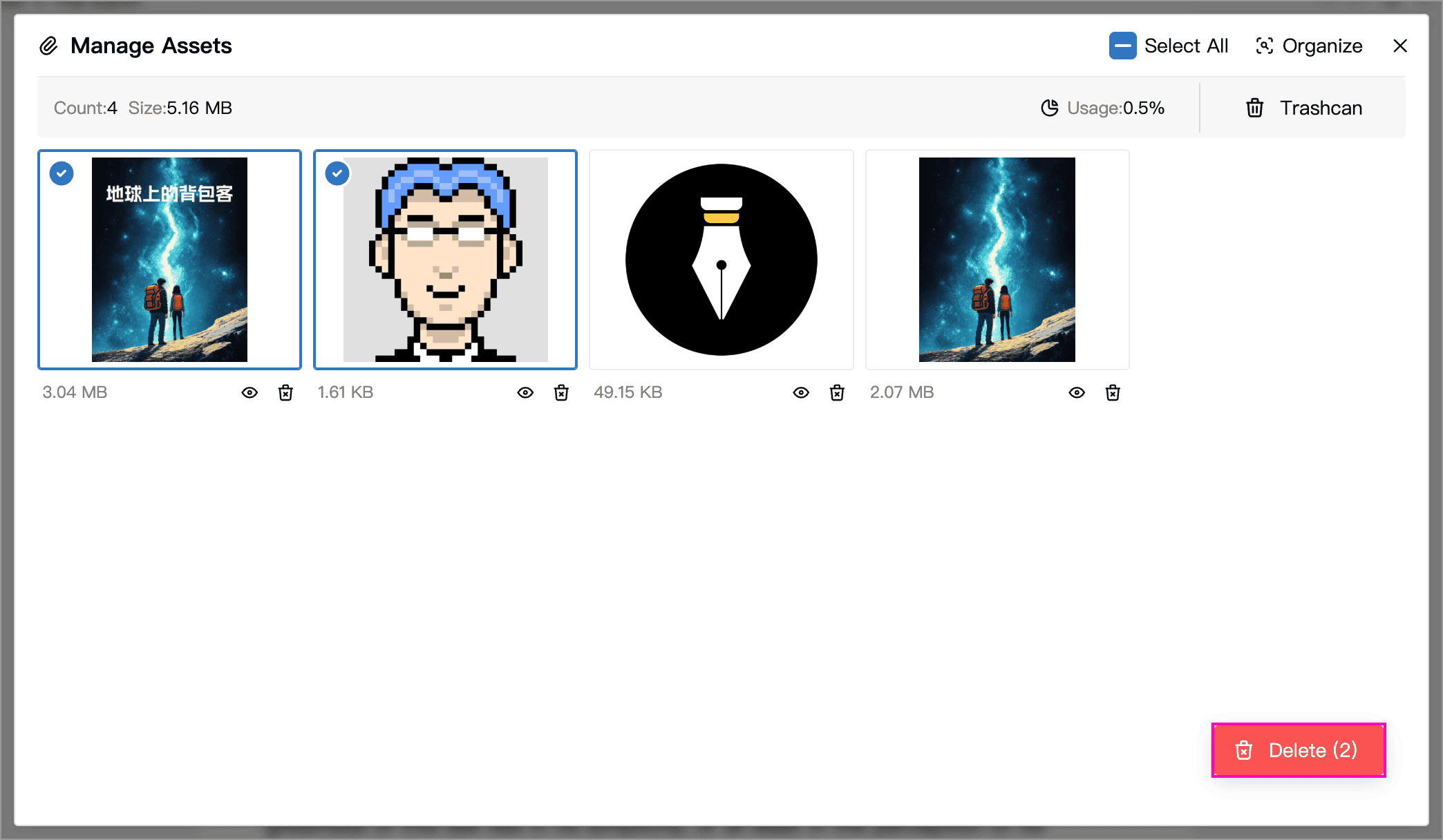
Deleting an asset that is still referenced affects images in the corresponding content. Check its reference details in Organize before removing it.
Restoring or Permanently Deleting Assets
Click Trashcan within the assets management window to view deleted assets.
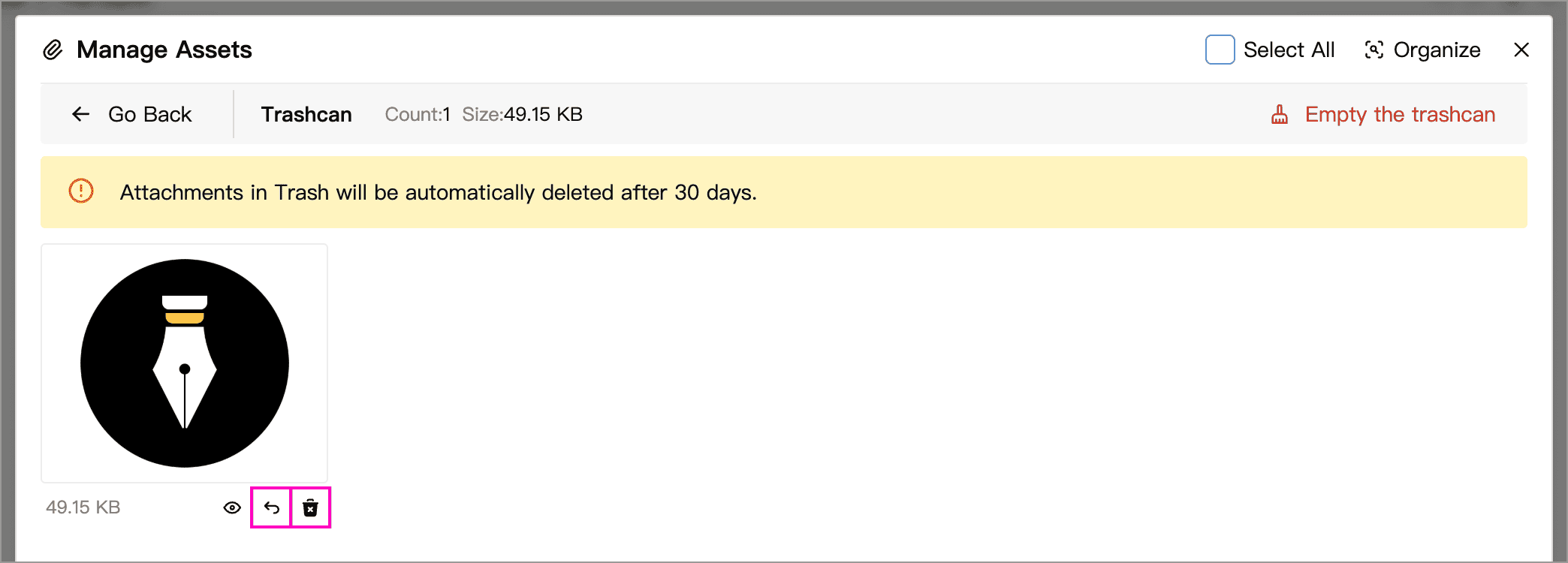
- Restore: click the restore button below an image and confirm to move it back to the regular list.
- Permanently delete: click the delete button below an image and confirm to permanently remove it.
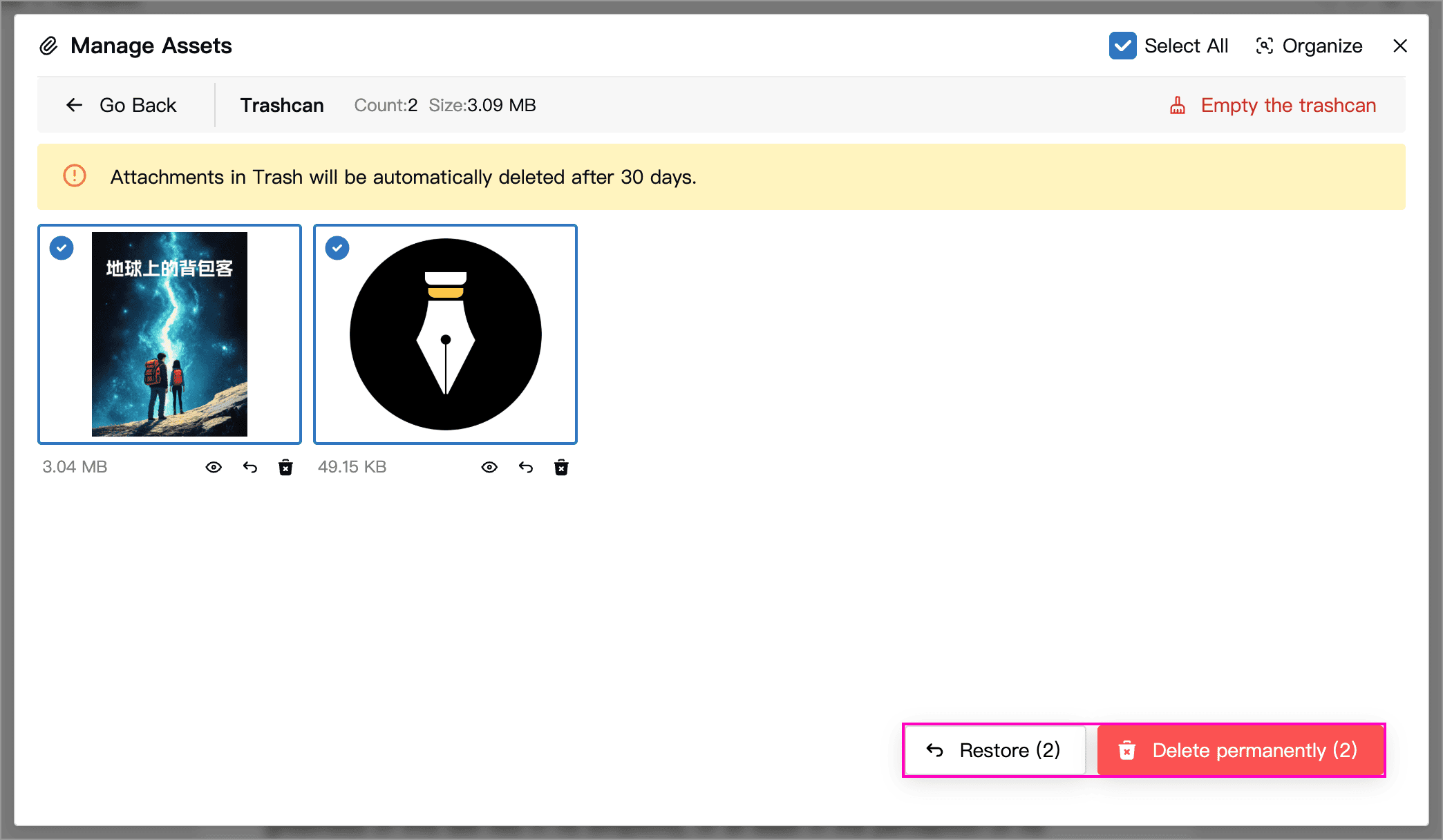
- Batch actions: select several assets, then use the Restore or Delete permanently button below.
- Empty the Trashcan: click Empty the trashcan at the top and confirm to clear its contents.
Expired assets in the Trashcan are cleaned up automatically. Check the retention period shown in the app. Assets approaching cleanup are highlighted, so restore any files you still need in time.
WARNING
Permanently deleted assets cannot be recovered through Assets Management. The assets Trashcan and the document Trashcan manage separate content: restoring a document does not also restore assets that were deleted separately.
Cloud Asset Sync Status
Some assets in a Cloud Library may display the following badges:
| Status | Meaning |
|---|---|
| Pending Upload | The file is saved on this device and is waiting to upload or is being uploaded |
| Upload Failed | The file could not be uploaded; check your connection and available cloud assets storage, then retry syncing |
When cloud assets storage is full, the app warns that some assets cannot sync or that new assets cannot be added. Remove files you no longer need, or see the plan comparison for storage options. Refer to the app and the plan comparison page for current allowances.