
How do I convert a local library to a cloud library?
In the desktop app, use Full Export to save a Local Library as a Zip file, then import it into a new Cloud Library. The same approach works in reverse.
This creates a separate Library. It does not change the original Library’s type or keep the two copies synchronized.
Move a Local Library to the Cloud
Open the original Local Library. Click its name at the top of the main window and choose Export Library as a Zip file.
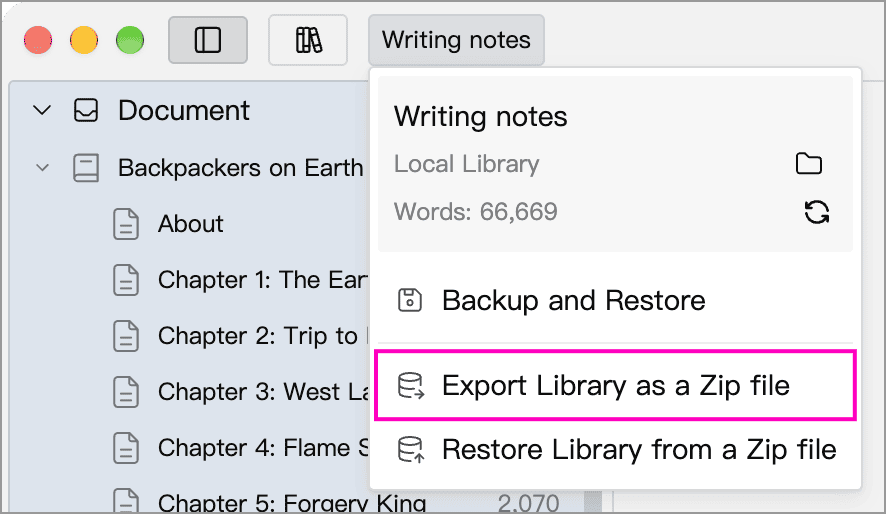
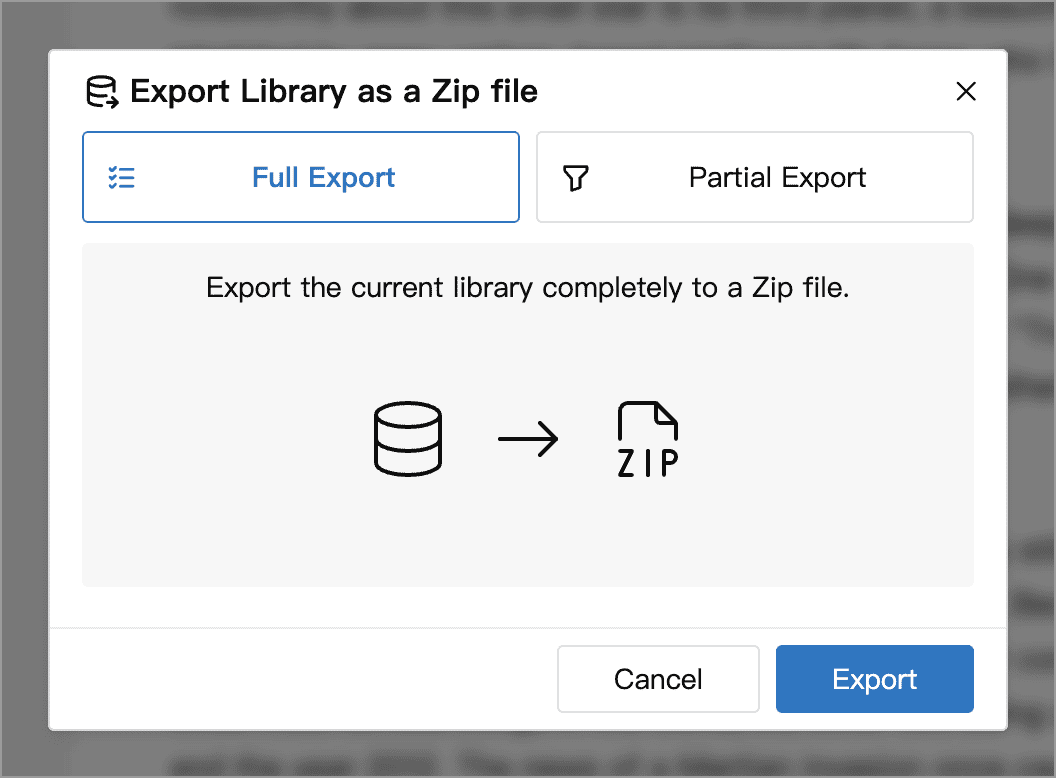
Choose Full Export, click Export, and choose where to save the Zip file. Confirm that the export succeeded; if it only partially succeeded, check the reported omissions first.
Sign in and create a Cloud Library.
In the new Library, click its name and choose Restore Library from a Zip file. Select the exported file without extracting it.
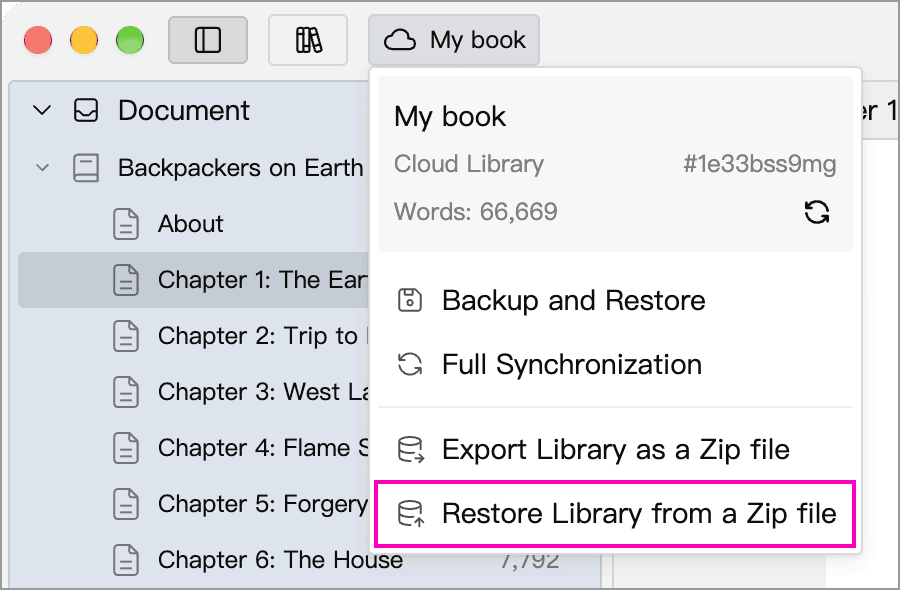
After importing, check the documents, memos, whiteboards, cards and Assets. Wait for cloud synchronization to finish before opening the Library on another device.
WARNING
A full export is imported by overwriting the destination Library’s data. Use a new, empty Library. Back up any existing destination Library before importing. To keep its contents and merge in other material, use partial export and append import.
Move a Cloud Library to Local Storage
Open the Cloud Library, wait for synchronization to finish, and make sure the Assets you need are accessible on this device. Perform a full export as above, then create a Local Library and import the Zip file.
The Local Library will not stay synchronized with the original Cloud Library. Choose which copy to keep working in so that you do not edit both independently by accident.
Migration does not delete the original Library. Keep it until you have verified the new copy and retained the backups you need. See Export as Zip for the scope of exported data and history.