
What should I do if I forget the lock password?
If you forget the interface lock password, reset the lock configuration on your own computer. This is separate from your account password and is not a document encryption password. Resetting it does not delete your Libraries.
Quit WonderPen completely before proceeding, rather than just closing a document window. These instructions apply to the desktop app.
Version 2.5.9 and later
After quitting, find wp_lock.json at the location for your system below. Move it to another folder for safekeeping, or delete it. Restarting WonderPen will clear the previous lock password and automatic locking configuration.
{USER_NAME} is your computer login name. Remove only wp_lock.json, not the entire WonderPen configuration folder or a Library.
Windows:
C:\Users\{USER_NAME}\AppData\Roaming\WonderPen\wp_lock.jsonmacOS (Mac App Store version):
/Users/{USER_NAME}/Library/Containers/com.tominlab.wonderpen/Data/Library/Application Support/WonderPen/wp_lock.jsonmacOS (official website download version):
/Users/{USER_NAME}/Library/Application Support/WonderPen/wp_lock.jsonLinux:
~/.config/WonderPen/wp_lock.json
On Windows, enter %APPDATA%\WonderPen in File Explorer’s address bar. On macOS, press ⇧ + ⌘ + G in Finder to open Go to Folder and enter the appropriate path; ~ can stand for your home folder. On Linux, .config is hidden. If you customized the configuration directory, check that location instead.
Once back in the app, open Settings → Advanced → Lock to set a new password and enable automatic locking if needed. If you cannot find the file, check your installation source and system username. Do not delete unrelated files; contact us if you still need help.
Version 2.5.8 and before
The following steps are only for older versions. Quit WonderPen completely, make a backup copy of cfg.json, then edit the original file.
Find the WonderPen configuration file.
If you are using Windows, this file is usually located at:
C:\Users\{USER_NAME}\AppData\Roaming\WonderPen\wp_data\{UID}\cfg_db\dict\cfg.jsonIf you are using macOS and downloaded and installed from the official website, this file is usually located at:
/Users/{USER_NAME}/Library/Application Support/WonderPen/wp_data/{UID}/cfg_db/dict/cfg.jsonIf you are using the Mac App Store version, this file is usually located at:
# 2.5.0 or later
/Users/{USER_NAME}/Library/Containers/com.tominlab.wonderpen/Data/Library/Application Support/WonderPen/wp_data/{UID}/cfg_db/dict/cfg.json

# 2.4.7 or earlier:
/Users/{USER_NAME}/Library/Containers/im.type/Data/Library/Application Support/WonderPen/wp_data/{UID}/cfg_db/dict/cfg.json
Note the variables above:
{USER_NAME}is your computer login username{UID}is the WonderPen user ID. If you are not currently logged in, this value is_local. If you are logged in, it is a random-looking string.
Open
cfg.jsonin a local plain-text editor, such as Windows Notepad. Keep the JSON valid. If you format it for readability, do so locally; there is no need to upload your configuration to a third-party website.Look for the line where
auto_lockis located, as shown in the following image: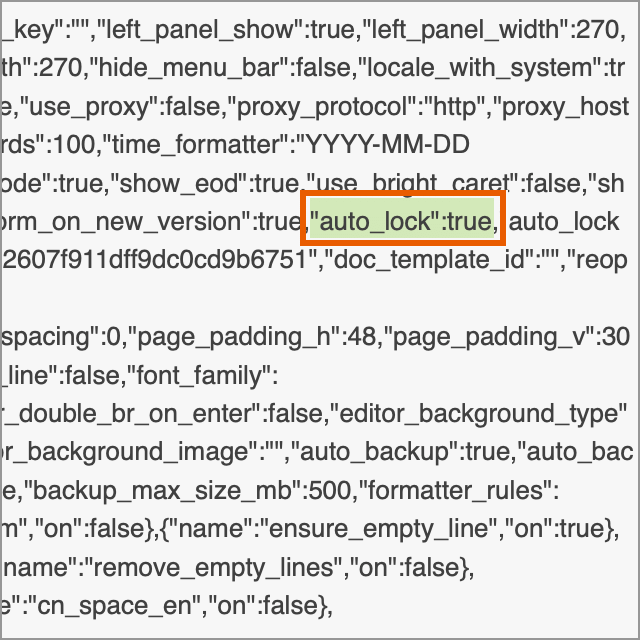
auto_lock If you have formatted this
JSONfile, you should see something like this: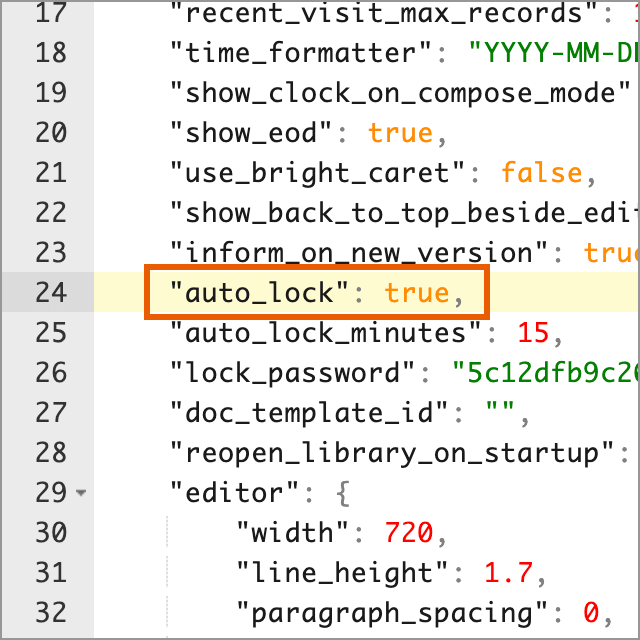
auto_lock The content of this line is like:
"auto_lock": true, which is line 24 in the above figure. Note that each user's personalized configuration content is different, so in your configuration file, this item may not be on line 24.Change
"auto_lock": trueto"auto_lock": falseto disable automatic locking. Also setlock_passwordto an empty string,"", to clear the old password.json"auto_lock": false, "lock_password": ""These are only two example fields, not a complete file. Keep the other settings and the required commas; do not replace the whole file with these lines.
Save the file and restart WonderPen. If the lock screen still appears, click Unlock without a password, then set a new password in Settings.
lock_password stores a password hash, not a readable plain-text password.
Purpose and Limits of Interface Locking
Interface locking mainly keeps others from accidentally seeing your writing. Think of it as a small lock for everyday privacy. It does not encrypt Library files or prevent someone from accessing those files directly.
Keep in mind that someone with malicious intent and full access to your computer can also reset the interface lock using the methods in this article. Interface locking therefore cannot replace operating system account protection or disk encryption.