
How do I split or merge Libraries?
Use the steps below to split a large Library into smaller ones or combine several Libraries into one.
Key Points
The key is to use Partial Export, then import using Append: create a Zip file with Partial Export, then import it into the destination Library and choose Append. This keeps the destination’s existing content and adds the imported content alongside it.
Prepare the Export
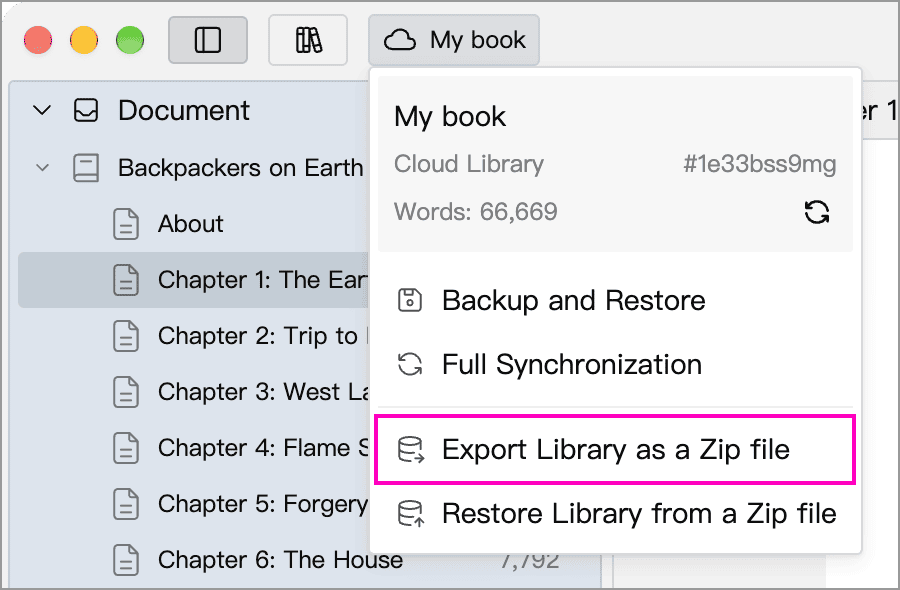
Click the Library name at the top of the main window and choose Export Library as a Zip file.
Choose Partial Export, then select the content in each category:
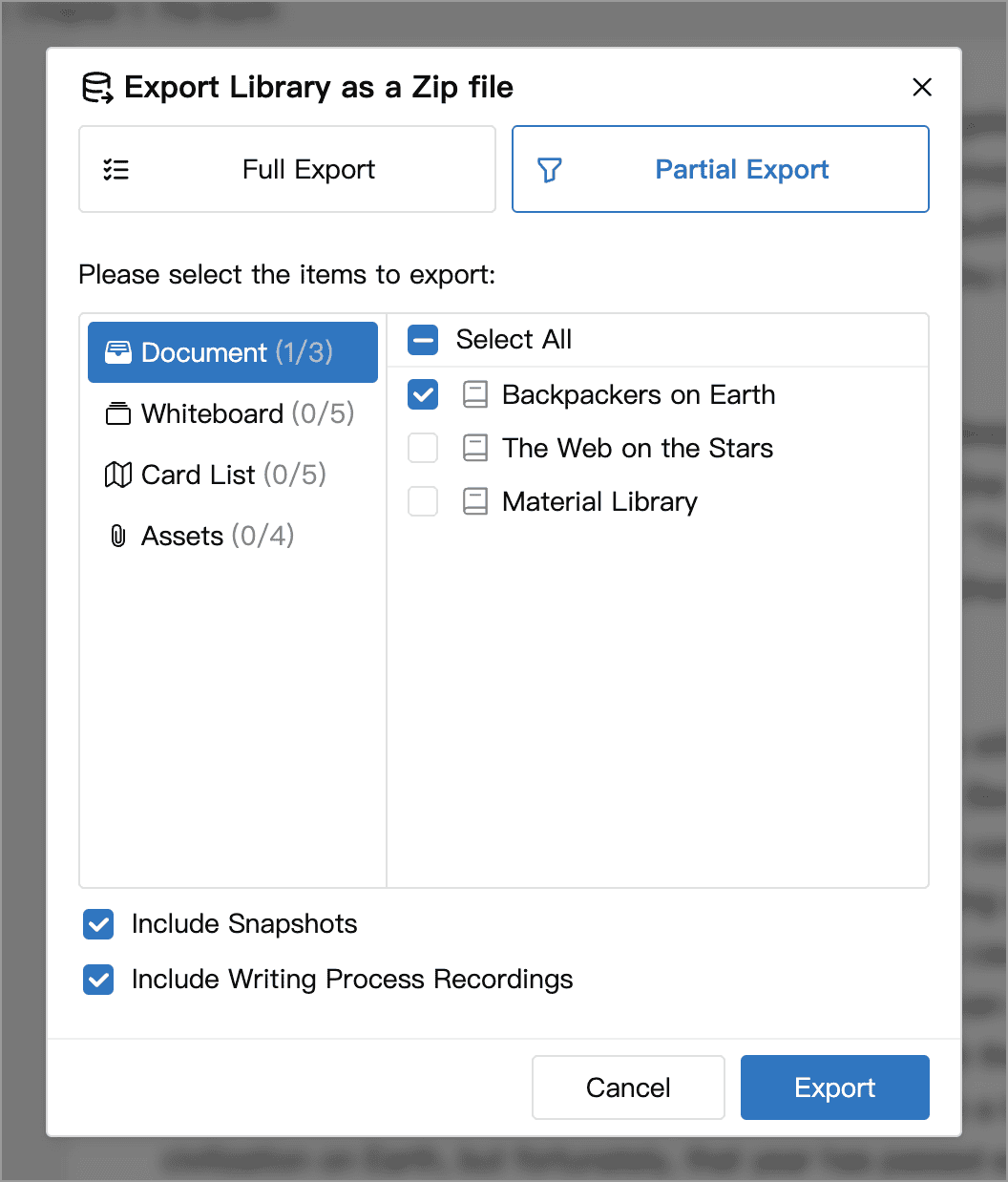
- Documents and whiteboards are selected by top-level item, including their descendants. You cannot select an individual child chapter here.
- Card lists are selected by list.
- Referenced images and other Assets are not included automatically in a partial export. Select them separately in the Assets category.
- Choose Include Snapshots and Include Writing Process Recordings as needed to bring related history along.
Select All applies only to the current category. Check each category if you want to include everything. See Export as Zip for details.
Split Libraries
- In the original Library, use Partial Export to select the top-level documents, whiteboards, card lists and Assets you want to move. Save the Zip file.
- Create a Library, either local or cloud.
- Click the new Library’s name and choose Restore Library from a Zip file. Select the Zip file, then choose Append.
- Check the imported content and Assets. For a Cloud Library, also wait for synchronization to finish.
- Only after verifying the new Library should you remove any originals you no longer need. Keep a backup of the original Library before cleaning it up.
Merge Libraries
Choose one Library as the destination. Perform a Partial Export from each of the others, then import each file into the destination using Append. Even when moving an entire Library, use Partial Export and select all items in every category so that Append remains available during import.
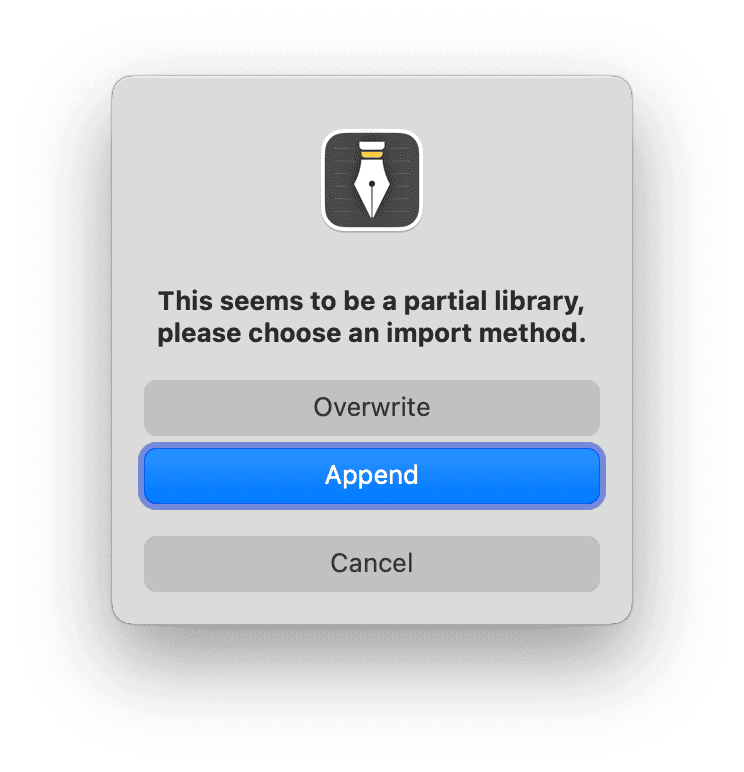
Append keeps the destination’s existing content and adds the imported data. Importing the same Zip file again creates duplicate items; it does not automatically remove duplicates.
WARNING
Overwrite replaces the destination Library’s data, not just documents with matching names. Full exports and backups do not offer Append. If that is the only file you have, import it into a new temporary Library, use Partial Export there, then import the result into your destination using Append.